Workday Finance R2R Tax and Currency Configuration Training
Workday Finance R2R Tax Authority Setup
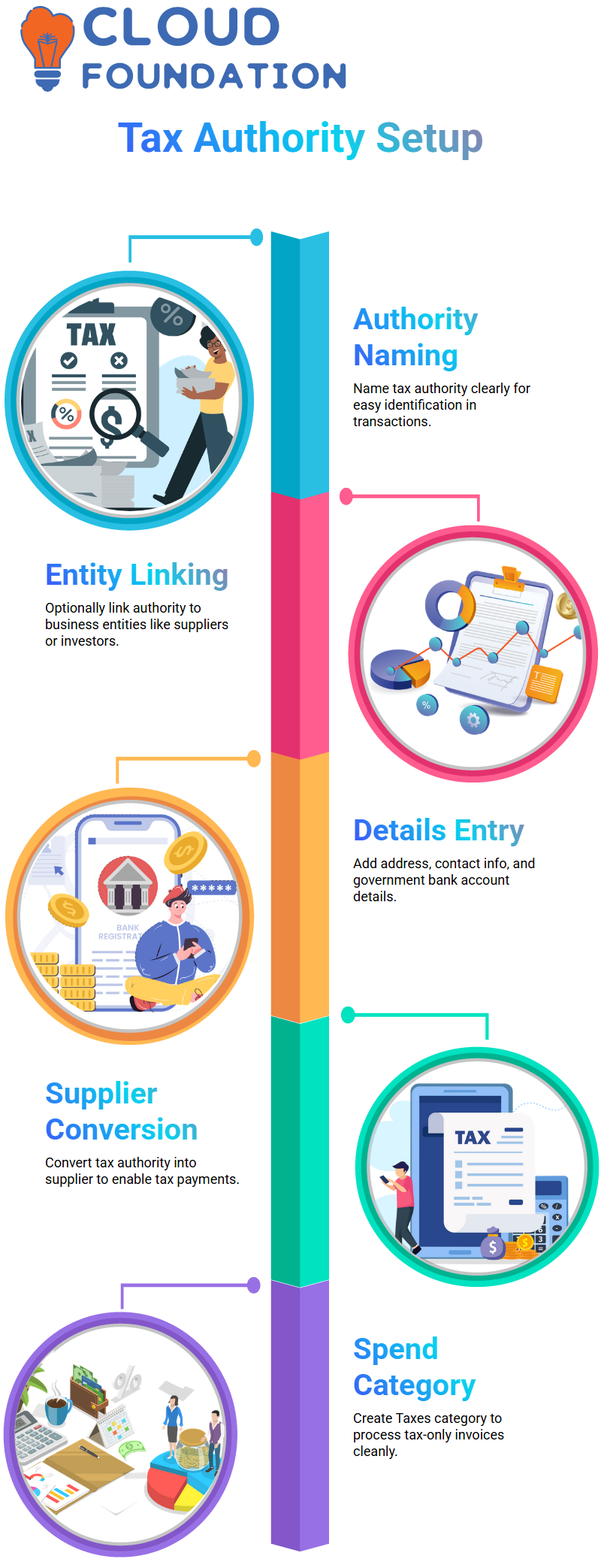
In Workday Finance R2R, a tax authority is simply the entity you pay your taxes to like the Income Tax Department in India or the IRS in the US.
Every country names it differently, but in Workday Finance R2R the process remains straightforward.
I usually begin by naming the authority clearly so I can easily identify it later during transactions inside the Workday Finance R2R tenant.
While creating the tax authority in Workday Finance R2R, I decide whether I want it linked to a business entity such as a customer category, financial institution, investor, or supplier category.
Most of the time, I simply confirm and move ahead.
Workday Finance R2R lets me add basic details like address, contact information, and the government bank account where taxes will be deposited.
I always remind learners that this bank account belongs to the tax department itself and it is the account we pay into when settling taxes through Workday Finance R2R.
Inside Workday Finance R2R, once the tax authority is set up, I convert it into a supplier because that’s how Workday Finance R2R identifies who receives the tax payment.
I also create a spend category called Taxes so that every tax-only invoice is processed cleanly.
This workflow helps beginners understand why Workday Finance R2R does not have a direct “pay taxes” button.
Instead, Workday Finance R2R relies on supplier invoices and settlement runs to move money legally and accurately.
Workday Finance R2R Tax Rates and Categories
After the authority is ready, I move into creating tax rates in Workday Finance R2R.
Let’s say I set up a 10% GST on food items.
In Workday Finance R2R, the purpose of the tax rate is simple: it defines how much tax gets calculated during a transaction.
While setting it up, I specify the country, the effective date, and the percentage.
Workday Finance R2R uses this information later when invoices or journal entries trigger tax calculations.
Why Workday Finance R2R asks for a currency at this stage?
For example, a parent company in the US receiving money from subsidiaries like Nestlé India.
Even though the revenue moves between countries, Workday Finance R2R always relies on accurate tax and currency setups so that the consolidated accounts stay compliant.
It’s one of the reasons companies trust Workday Finance R2R for global Record-to-Report operations.
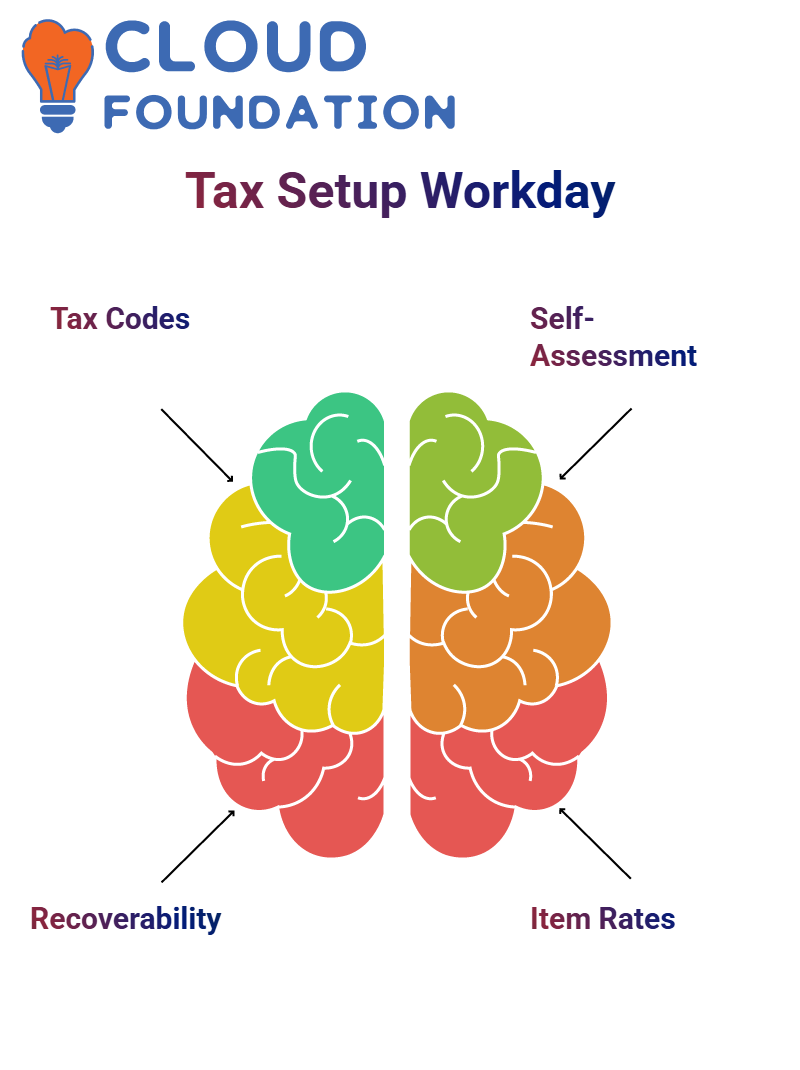
Tax categories inside Workday Finance R2R help classify whether a tax is recoverable or non-recoverable.
Workday Finance R2R Applying Taxes in Transactions
Once the tax authority, tax rate, and tax category are ready, I show how Workday Finance R2R uses them inside real transactions.
For example, when creating a supplier invoice, Workday Finance R2R automatically picks the tax rate based on the configuration.
If I want to demonstrate the tax-only scenario, I create a tax-only supplier invoice where the supplier is the tax authority we set up earlier.
This is a simple but powerful way to demonstrate actual tax settlements inside Workday Finance R2R.
Configuring Tax Elements in Workday Finance R2R
Workday Finance R2R lets me assign separate IDs for each region, which becomes extremely helpful during audits or compliance checks.
Whenever we move to tax rules, I walk the class through revenue items.
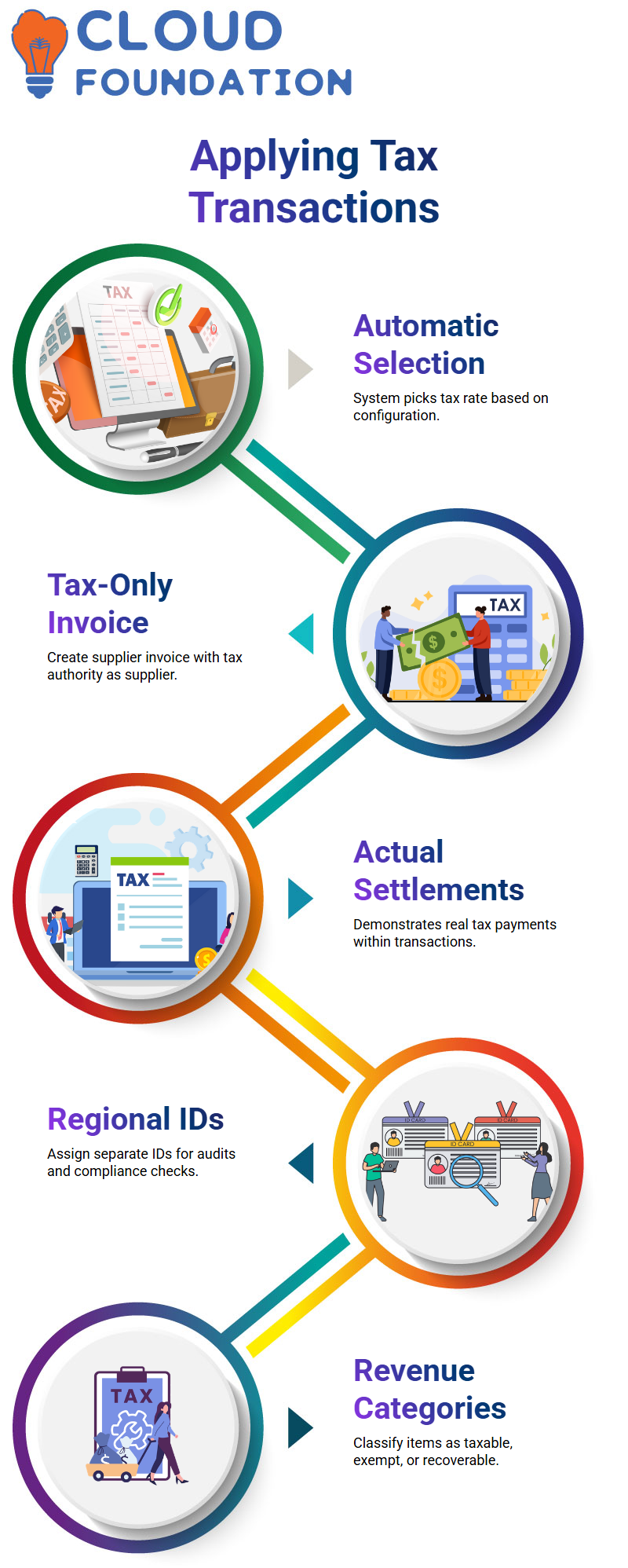
In Workday Finance R2R, revenue categories guide the system to determine whether an item is taxable, non-taxable, exempt, or partially recoverable.
I like explaining recoverability with real examples so learners see how Workday Finance R2R handles costs, allocation, and customer or supplier responsibilities.

Workday Training

Applying Tax Rules to Items Inside Workday Finance R2R
When I create revenue categories or sales items, I let the team watch how Workday Finance R2R automatically pulls tax applicability rules.
If the default isn’t what we want, I show them how overrides work.
As we continue configuring sales items, I bring attention to pricing, cost, measurements, and related tags.
These simple fields help Workday Finance R2R determine how taxes apply when transactions occur.
When we set a tax rate say 10% for a particular sales item and revenue category combination, I remind them that Workday Finance R2R uses the rule instantly during transactions, without any manual adjustments.
Setting Up Country-Level Tax Configurations in Workday Finance R2R
When we attach a company such as X and pick the right state or tax status, learners see how Workday Finance R2R determines taxes automatically across all relevant items.
Through every step, I highlight how Workday Finance R2R ties company information, tax IDs, revenue categories, and sales items into one seamless structure.
The more the class practices these setups with me, the more confident they feel navigating Workday Finance R2R for real business scenarios.
By the time we finish the session, everyone understands how these configurations move through the entire Workday Finance R2R process.
Understanding Tax Setup in Workday Finance R2R
Imagine we are operating across different states whether in India, New York, or anywhere else.
In Workday Finance R2R, when we sell goods or services, the system needs to know which tax should apply.
For instance, if we treat GST on sales as the default, we assign a tax code that states can override.
The recoverability may be non-recoverable, fully recoverable, or fully recoverable with allocation, and Workday Finance R2R already has these configured in the backend.
If I need to override them, I simply adjust the recoverability options directly from the Workday Finance R2R setup.
Workday Finance R2R also gives me options like calculating self-assessed tax or letting the system calculate taxes due to suppliers.
When I create a tax rule at the country level, I usually map it in Excel first so everyone understands the structure.
At the item level, if item X should have a 10% tax and item Y should have 30%, I define those first.
Then Workday Finance R2R lets me override the item tax using state-level rules.
So if I am selling in Delhi or Mumbai and Delhi requires 12% instead of 10%, the system automatically applies the override.
This layered rule structure in Workday Finance R2R is what makes tax handling so precise.
Working With Tax Rules in Workday Finance R2R
When I build transaction tax rules in Workday Finance R2R, I always check how item-level rules connect with country-level overrides.
If I set a 10% tax for item X, but the state wants 12%, Workday Finance R2R handles that without complicating the configuration.
It works like a hierarchy where the system considers the most specific rule first and then applies any applicable overrides.
Workday Finance R2R ensures that tax logic stays consistent, and the system applies exactly what you configure no surprises.

Workday Online Training
Currency Configuration in Workday Finance R2R
For currency rates, Workday Finance R2R often uses integrations that automatically fetch exchange rates from external portals like XE.
Someone may have already built an EIB or a core integration to import daily rates.
Workday Finance R2R then updates these automatically.
If I need to override a specific day’s rate for example, if USD to INR should be 88 instead of 85 I can do that manually.
I set the effective date, and the override applies only for that day.
On the next day, Workday Finance R2R returns to the rates coming from the integration. These overrides help when I need accurate reporting for a specific transaction date.
Maintaining Currency Rate Types in Workday Finance R2R
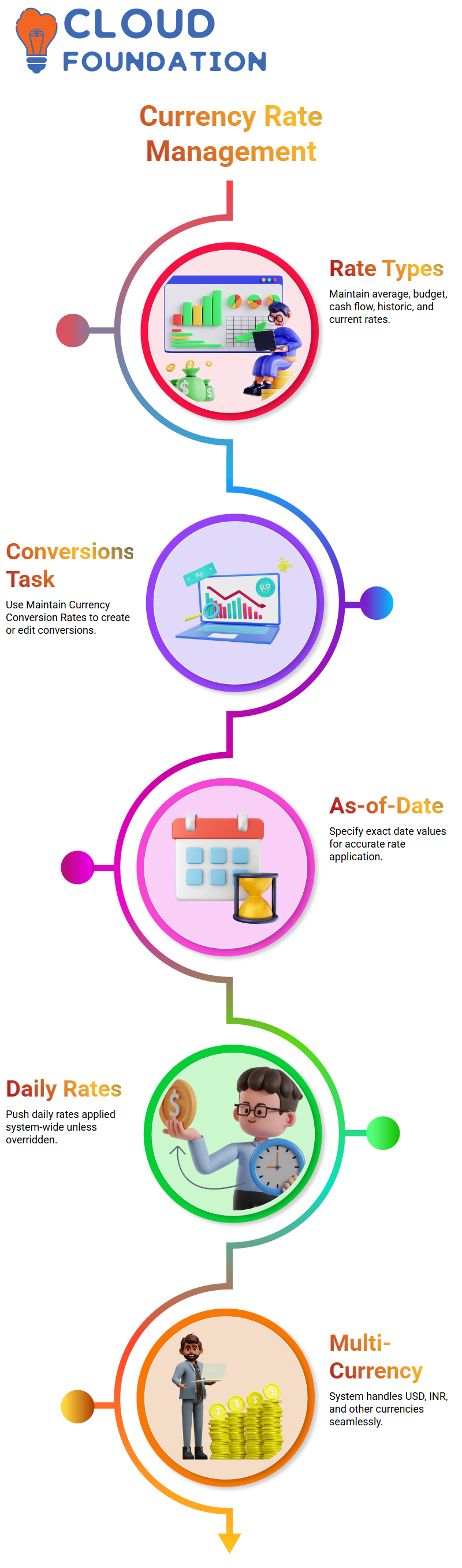
Workday Finance R2R allows me to maintain currency rate types such as average, budget, cash flow, historic, and current.
This is usually the first step before configuring currency conversions.
Once I define the rate type in Workday Finance R2R, the integration logic knows which value to pick from the external portal.
When I want to create or edit conversion rates, I simply use the Maintain Currency Conversion Rates task.
Workday Finance R2R also lets me specify as-of-date values so the system knows exactly which rate applies.
If I push daily rates at 7 a.m. Pacific Time, Workday Finance R2R applies that rate for the entire day unless I override it.
Exploring Currency Tasks in Workday Finance R2R
Workday Finance R2R handles multi-currency extremely well.
For example, if my company operates in USD but buys or sells in INR, Workday Finance R2R treats these as multi-currency transactions and applies the relevant conversion rules automatically.
I always make sure learners understand how the system uses translation rules, rate types, and currency values together because these three components drive the financial accuracy of Workday Finance R2R.
Understanding Currency Integrations in Workday Finance R2R
When I work with Workday Finance R2R, one of the first things I explain to learners is how currency integrations actually run behind the scenes.
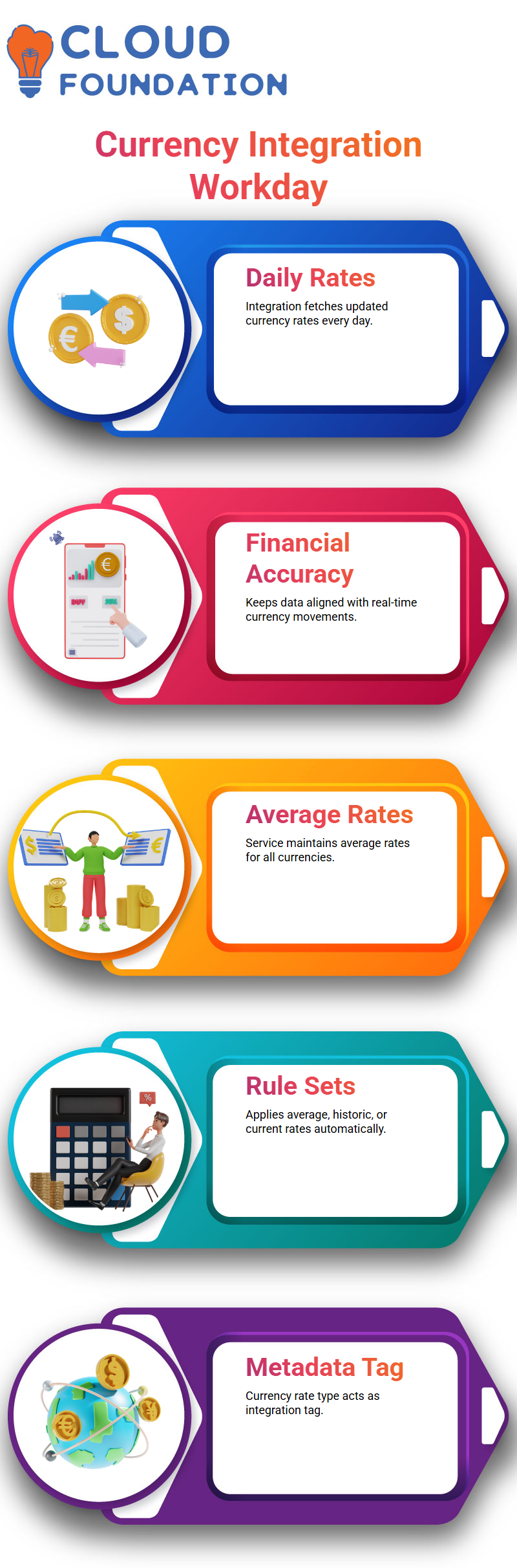
In our setup, we use a paid business service from xe.com to pull the daily currency rates we need. Every day at a specific time, Workday Finance R2R triggers the integration to fetch the most updated rates.
This flow keeps our financial data accurate and aligned with real-time currency movements, which is essential when teaching students how real systems operate in Workday Finance R2R environments.
The same service from xe.com doesn’t just provide daily rates it also maintains average rates for every currency.
Workday Finance R2R picks up these details and applies them inside our translation rule sets.
For example, assets use the average rate, equity uses the historic rate, and revenue or expense might use the current rate.
Workday Finance R2R reads these rules and applies them automatically during translation.
Many learners initially think that the currency rate type inside Workday Finance R2R performs some major function, but I clarify that it mainly works as metadata.
Its primary purpose is to act as a tag so the integration knows what to pull from the xe.com portal.
This is one of those details inside Workday Finance R2R that looks small but plays a big role in keeping translations consistent.

Workday Course Price

Nishitha
Author
A mind once stretched by a new idea never returns to its original dimensions.