Workday Finance R2R Reporting Training
Optimized Sources in Workday Finance R2R
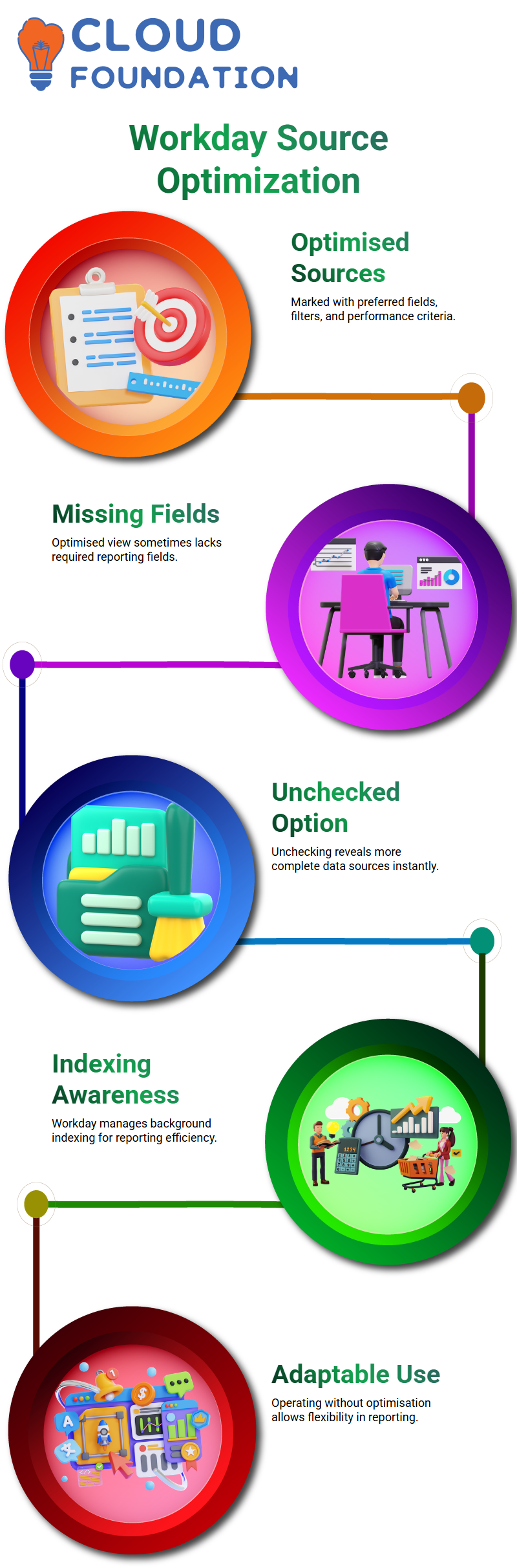
In Workday Finance R2R, I immediately discovered the distinction between optimized and non-optimized data sources.
I first kept clicking the little “Optimize for Performance” box in the hopes that it would suddenly make things simpler.
However, I was missing several crucial information while I was creating an asset roll-forward report.
I impulsively unchecked the box, reloaded the list of data sources, and all of the information I needed appeared at once.
I became aware of how Workday Finance R2R manages indexing at that point.
When a data source is marked as optimized by Workday, it essentially indicates that its favorite fields, filters, and performance criteria have been applied.
“Use these first,” is how Workday puts it. They are the glitzy ones.
However, such optimised sources sometimes lack the fields I want in the actual Workday Finance R2R environment.
I thus often operate without the item checked. It allows me to be more adaptable.
For instance, only a small number of journal-related data sources appear when I tick the optimised option in Workday Finance R2R.
However, if you uncheck it, a larger list with more choices appears.
Because Workday designates certain data sources as main for reporting, particularly financial reporting.
Some data sources still appear indexed in the background even if I don’t choose the optimised view.
Workday Finance R2R Business Objects
The concept of business objects seemed intimidating to me when I first began using Workday Finance R2R.
As I worked with Workday Finance R2R more, I became interested in the relationship between data sources and business objects.
For a long time, I was perplexed since I kept hearing individuals use the phrases interchangeably.
It eventually made sense to me when I started describing it to myself using an example of a family tree.
The main business object in Workday Finance R2R is similar to the grandparent of the root.
For instance, if Journal is the main business object, it links to smaller, related objects like Ledger Posting and Journal Lines.
These tiny items serve as auxiliary business items.
Workday Finance R2R automatically pulls information from various related items to complete the picture; however, I mostly pull data from the Journal business object.
Workday Finance R2R has many data sources under each business item.
Additionally, every data source has fields that include things like workbags, ledger, debit and credit amounts, accounting dates, and more.
Sources of Information in Workday Finance R2R
I may be able to explore Workday Finance R2R with the aid of the business object, but the real values remain in the data source.
The information in fields that I deal with, such as journal details, supplier invoice line, or supplier invoice header, is taken straight from the data source.
The data source is the foundation of Workday Finance R2R.
While the business object displays the polished front end, I see it as a haven where all the raw statistics reside.
Every field I utilise in a transaction in Workday Finance R2R retrieves actual values from the data source.
It is the origin of truth. I finally felt comfortable working across several reports in Workday Finance R2R after seeing how data sources are located underneath business objects. Everything made sense.
Effective Use of Ledger Accounts in Workday Finance R2R
I usually begin with the ledger account when creating composite reports in Workday Finance R2R.
Since each journal links back to a ledger account, it is the most important component.
I remind everyone that the first field has to be a common business object throughout my Workday Finance R2R training sessions.
The ledger account, therefore, emerges as the setup’s hero.
Depending on the ledger account I choose, Workday Finance R2R assists me in evaluating each number, including initial balance, debit amount, credit amount, and ending balance.
Building trial balance reports in Workday Finance R2R seemed simple when I got the hang of it.

Workday Training

Workday Finance R2R Grouping and Summarising
One feature I use a lot in Workday Finance R2R is grouping. For instance, I may join many May debit transactions for a ledger account to get the overall activity for the month.
This is made simple by Workday Finance R2R, as grouping arranges transactions into a clear summary.
I only choose what I want to add up when summarising data, such as balances, credit amounts, and debit amounts.
This is one of Workday Finance R2R’s features that minimises manual computations and saves time.
I am appreciative of Workday Finance R2R’s ability to do the hard labour for me each time I put up a summarised field.
Workday Finance R2R Report’s Limitations and Options
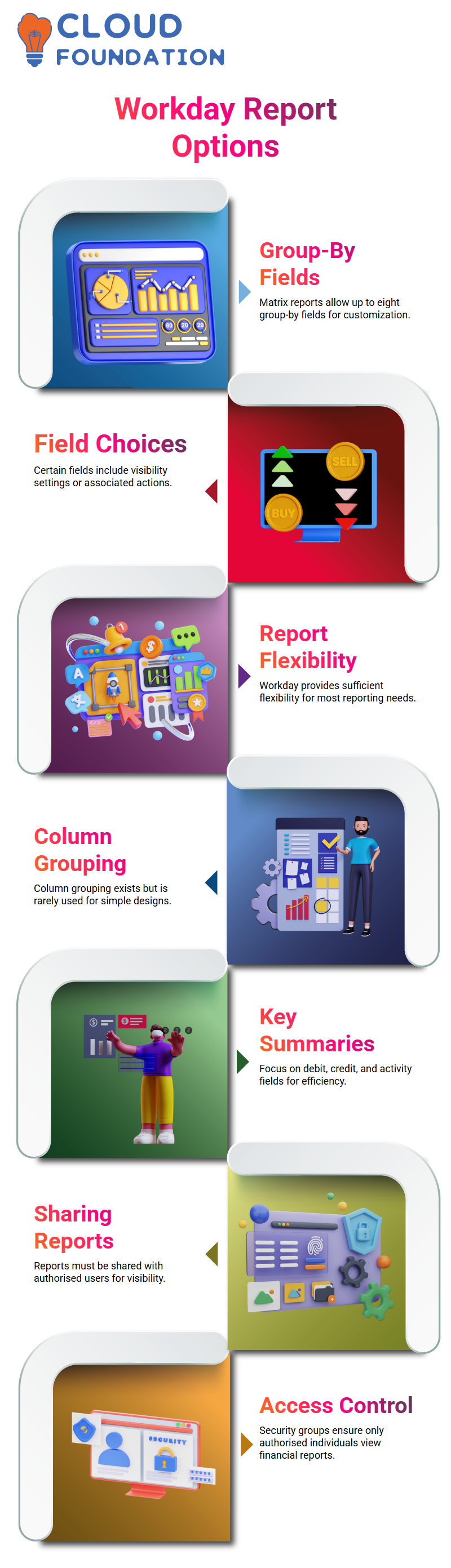
I discovered that we can add up to eight group-by fields when creating matrix reports in Workday Finance R2R.
Depending on what Workday offers, certain fields include choices like visibility settings or associated actions.
Workday Finance R2R offers sufficient flexibility for the majority of reporting situations I come across, even though not everything can be customised.
There is column grouping as well, but unless I’m working on complex designs, I typically ignore it.
Focusing on fields to summarizes, such as debit, credit, and activity, allows me to do most of my Workday Finance R2R jobs quickly and easily.
Workday Finance R2R Reports: Sharing and Security
When producing a report in Workday Finance R2R, I always remember to share it with all authorised users.
I’ve discovered the hard way that if I omit this step, the report won’t show up in composite reporting.
Security groups are used by Workday Finance R2R to determine access, and I always verify who has authorisation by looking at the data source information.
One of the reasons I like Workday Finance R2R is this access control. It guarantees that important financial reports may only be seen or processed by authorised individuals.
Utilising Prompts in Workday Finance R2R
When testing reports, prompts may seem repetitious, but Workday Finance R2R offers a crucial feature: activating stored parameters.
Each time I turn it on, Workday Finance R2R displays all of the hidden prompts that weren’t visible at first but were always there.
I can avoid re-entering the same information thanks to this.
I am unable to deselect some required prompts in Workday Finance R2R. I receive an error right away when I attempt.
This integrated safeguard guarantees that the report consistently gets the bare minimum of necessary inputs.
It is among the factors that maintain Workday Finance R2R’s dependability and organisation.

Workday Online Training
Managing Workday Finance R2R Reports Effortlessly
Every time I run a report in Workday Finance R2R, I begin with a dataset that provides me with sufficient volume to adequately explain the reasoning.
For example, I often use GMS US because it has a high number of transactions. I guide students through several kinds of Workday Finance R2R, such as activity, starting balance, and ending balance.
When they want a complete view of debits and credits, I always advise them to choose an activity.
I can easily illustrate each behaviour in real time since Workday Finance R2R maintains these choices organised.
I also take the time to clarify the distinction between time period and period.
This difference is made extremely apparent by Workday Finance R2R: time period refers to a rolling range, such as the current month or the last twelve periods, while period refers to the ledger period.
Learners find it simpler to explore Workday Finance R2R when they see this in action.
Workday Finance R2R Balances
When I move between activity, starting balance, and ending balance in Workday Finance R2R, I illustrate how the result changes instantaneously.
For instance, learners may rapidly see how Workday Finance R2R represents the initial balance for a small number of ledger accounts.
Workday Finance R2R only gives nothing if there is no data for a certain month, which actually helps in demonstrating the system’s accuracy.
I clarify that the formula, which is the initial balance plus debit minus credit, yields the final balance.
Everything remains constant since Workday Finance R2R use the same computation as the trial balance.
Workday Finance R2R displays precisely what the reasoning predicts when we test the values.
Create a Composite Report in Workday Finance R2R
Workday Finance R2R operates differently until I get to composite reports. The data source prompt vanishes, and the actual structure is shown as soon as we build a composite report.
I may introduce business objects like the firm and cost centre using Workday Finance R2R, and I will demonstrate how they manage filtering and grouping.
I describe the need for a common field in Workday Finance R2R when merging many matrix reports. That anchor is often a ledger account.
To drive the whole composite, I add control fields. Control fields serve as the foundation of Workday Finance R2R.
Because it connects the starting balance, debit amount, credit amount, and final balance, I often choose a ledger account.
Workday Finance R2R transforms the complete structure into an interactive financial dashboard after everything is set up.

Workday Course Price

Vanitha
Author