Salesforce Pardot Course for Beginners
Salesforce Pardot with Google Analytics and UTM Parameters
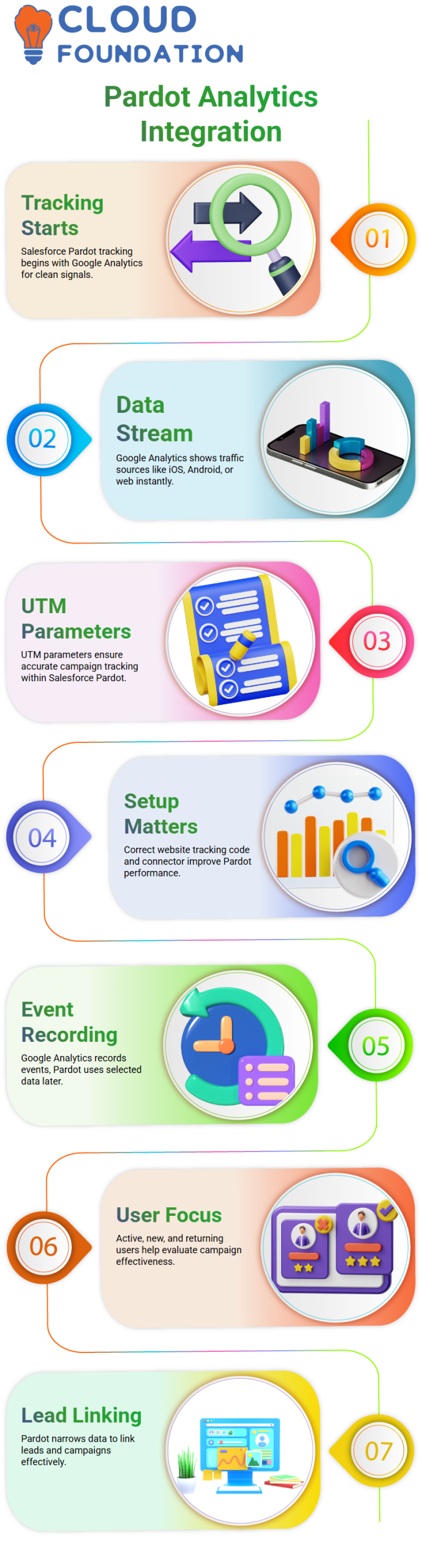
One of the first things I tell people when I work with Salesforce Pardot is that tracking starts with Google Analytics.
I usually open Google Analytics and go right to the data stream. That’s where I can easily tell if traffic is coming from iOS, Android, or the web.
Salesforce Pardot doesn’t replace Google Analytics; it needs Google Analytics for clean tracking signals, especially when UTM parameters are used.
I tell Learners a lot that Salesforce Pardot works best when the connector and website tracking code are already set up correctly.
As soon as the data stream starts, I can see active users, events, and traffic sources right away.
This visibility helps me understand how Salesforce Pardot will later use UTM parameters to assign campaign data instead of just raw analytics behavior.
How Salesforce Pardot Relies on Events and User Activity
I always link events back to Salesforce Pardot when I talk about them. Things like scrolling down a page, clicking a button, downloading a file, or submitting a form all matter.
Google Analytics automatically records many of these events, but Salesforce Pardot only uses a small part of this data that has been filtered.
I want to make it clear that Salesforce Pardot doesn’t show all of the events that Google Analytics records.
I think that active users, new users, and returning users help me figure out how well a campaign is working.
However, Salesforce Pardot is more interested in finding new customers than counting every interaction.
Google Analytics may show thousands of events, but Salesforce Pardot only shows the ones that help marketers correctly link leads and campaigns.
Sessions, Devices, and Salesforce Pardot Tracking Logic
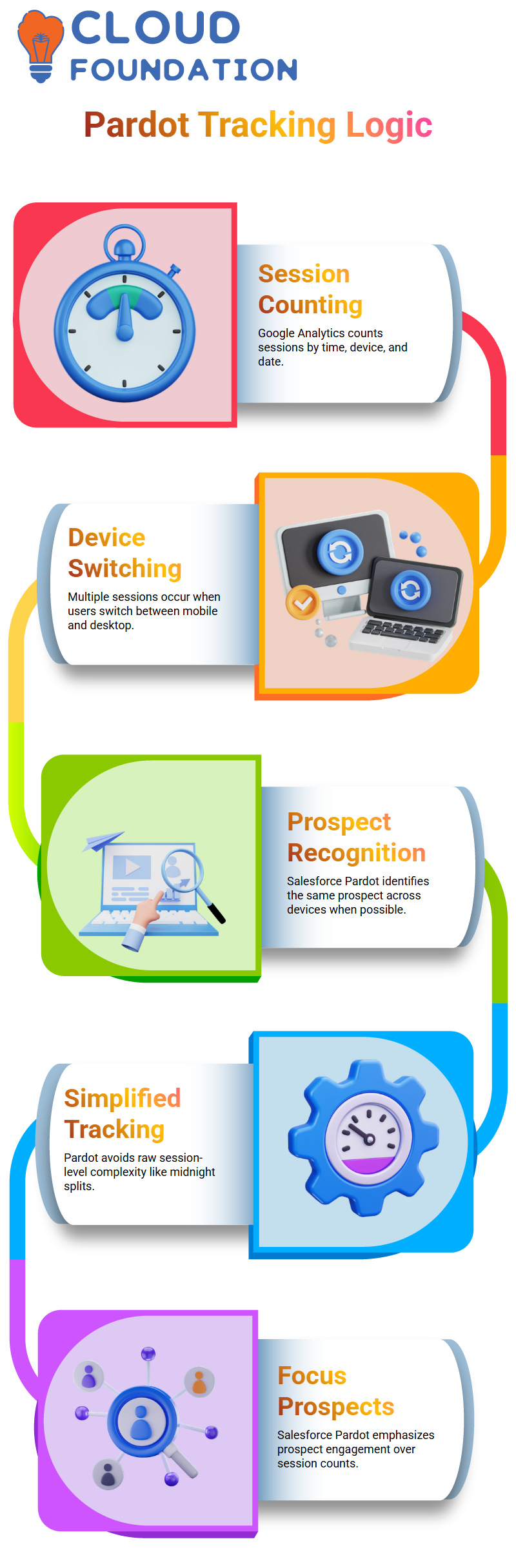
Google Analytics counts sessions based on the time, the device, and even the date.
When a user switches from a mobile device to a desktop computer, Google Analytics may count more than one session.
However, Salesforce Pardot still tries to recognize the same prospect when it can.
I don’t see raw session-level complexity in Salesforce Pardot, like midnight session splits or counts of sessions on multiple devices.
Salesforce Pardot, on the other hand, focuses on engagement at the prospect level.
This difference is important because it shows why the numbers in Salesforce Pardot never match the numbers in Google Analytics exactly.
Connector Limitations Between Google Analytics and Salesforce Pardot
The Google Analytics connector in Salesforce Pardot doesn’t get full analytics reports.
Salesforce Pardot doesn’t let me see all of the metrics, checkout details, or revenue breakdowns as Google Analytics does.
Salesforce Pardot does not let you make big changes to paid campaign data or social media performance inside Salesforce.
I still use Google Ads and social media sites for that. Salesforce Pardot is more like a bridge that passes UTM-based attribution than a full analytics replacement.
Why UTM Parameters Matter Most in Salesforce Pardot
This is where Salesforce Pardot really stands out.
I always stress UTM parameters because Salesforce Pardot mostly records the campaign, source, medium, content, and term.
I make custom fields for prospects in Salesforce Pardot to store this UTM data so I can easily see where each lead comes from.
Google Analytics keeps track of a lot more than Salesforce Pardot does on purpose.
I like this approach better because it keeps Salesforce Pardot focused on marketing attribution instead of giving users too much useless analytics noise.
Salesforce Pardot gives me clear information about how my campaigns are doing as long as my UTM parameters are clean.

Salesforce Pardot Training

Field Mapping in Salesforce Pardot
One of the first things I tell people when I work with Salesforce Pardot is how to map fields.
I can’t magically sync a field in Salesforce Pardot unless it already exists in Salesforce.
I make sure that the same custom field is on both sides if I want Salesforce Pardot to sync data with leads or contacts.
This structure is very important for Salesforce Pardot, and I have learned that skipping this step always leads to problems later.
The system takes care of default fields in Salesforce Pardot. I never try to map those by hand because Salesforce Pardot does it for me.
Salesforce Pardot automatically makes and syncs those default fields as soon as the connector runs.
In Salesforce Pardot, I only make the custom fields I need and make sure they are mapped correctly in the connector settings.
I always decide which data I want to see in Salesforce Pardot, which data should flow to Salesforce, and how sales teams will use that information.
Salesforce Pardot rewards clean planning and punishes guesswork.
Capturing UTM Parameters Salesforce Pardot Forms
Salesforce Pardot lets me track UTM in a flexible way, but only if I set it up right.
I usually use forms or form handlers in Salesforce Pardot to get UTM parameters.
I make custom fields in Salesforce Pardot for source, medium, campaign, and content. Then, I map those fields to Salesforce.
When I need consistent data, I mark UTM fields as required in Salesforce Pardot forms. I also hide those fields from visitors because users don’t need to see UTM parameters.
Salesforce Pardot still quietly collects the values in the background, which is exactly how I want it to work.
There are times when Salesforce Pardot isn’t enough on its own, and that’s when I use some JavaScript.
I use JavaScript to get UTM parameters from the URL and put them into hidden fields in Salesforce Pardot forms.
Salesforce Pardot works well with this method, and I often look at official Salesforce Pardot documentation for reference code before I do anything.
Google Analytics Integration with Salesforce Pardot
Salesforce Pardot does more than people think when I turn on Google Analytics integration.
Salesforce Pardot automatically makes the analytics fields I need, and I don’t have to map those default analytics fields by hand.
I just turned on the Google Analytics connector in the Admin settings of Salesforce Pardot and put the tracking code on my assets.
I always tell teams that the data in the Salesforce Pardot sandbox can be misleading.
Google Analytics and Salesforce Pardot sandbox environments don’t work the same way.
The metrics finally make sense when I switch to a live Salesforce Pardot environment, and I trust the data more.
Google Analytics data is mostly used for campaign attribution in Salesforce Pardot.
I don’t think Salesforce Pardot will show all of the Google Analytics metrics, like unique users or page views.
Salesforce Pardot is great for tracking campaigns and getting prospects to interact with your business.
For more in-depth analytics, I still use Google Analytics.
Campaign URLs and CTAs in Salesforce Pardot
When it comes to tracking campaigns, UTM builder links work great with Salesforce Pardot.
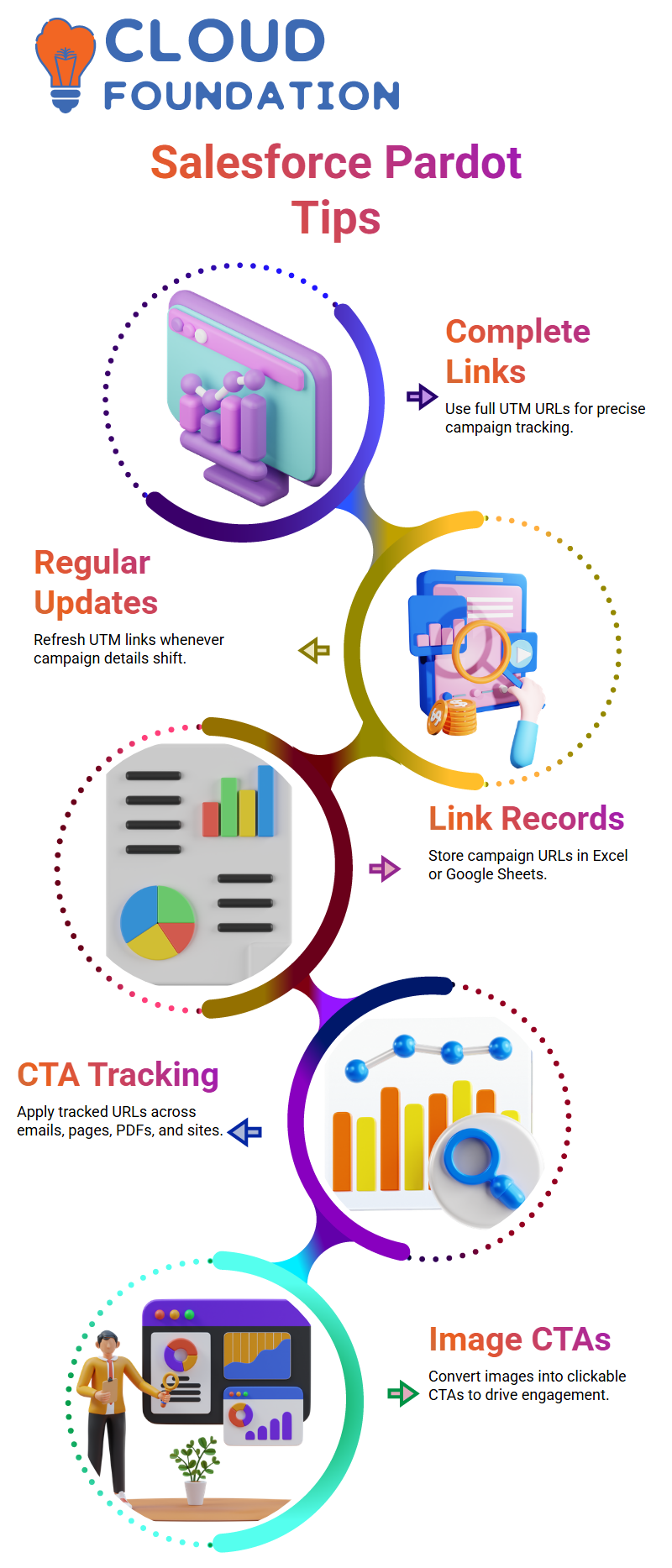
I use a UTM builder to make full URLs, which I then copy and paste into CTAs in Salesforce Pardot.
I never copy and paste partial parameters because Salesforce Pardot needs the whole URL to keep track of clicks correctly.
I change the UTM link every time my campaign does. Salesforce Pardot doesn’t save these links automatically, so I keep an Excel sheet or Google Sheet myself.
This habit helps me keep track of which UTM source, medium, and name each Salesforce Pardot campaign uses.
I always use tracked URLs in Salesforce Pardot emails, landing pages, PDFs, and even links to my website.
Salesforce Pardot keeps track of engagement every time a user clicks on a CTA.
Salesforce Pardot builds a clear picture of how prospects interact with campaigns over time. This information is useful for both the marketing and sales teams.

Salesforce Pardot Online Training
How I Use Salesforce Pardot to Make Images Clickable and Track Engagement
One of the first things I tell Learners when I work with Salesforce Pardot is how easy it is to turn simple things like pictures into powerful tools for engagement.
An image in Salesforce Pardot is more than just a picture.
I can save it, use it again, and even turn it into a clickable call-to-action that takes people exactly where I want them to go.
I just pick the image in Salesforce Pardot, click the link option, paste the URL of the page I want to link to, and save it.
That’s all. The image can now be clicked on. People know it’s interactive when they hover over it, and when they click it, Salesforce Pardot takes them to the link I gave them.
This small change makes a big difference in how well the campaign works.
I always tell my Learners that Salesforce Pardot works best when we use common sense.
Instead of adding more buttons or links, I usually let the picture do the work. This method works well and is easy to understand with Salesforce Pardot.
Why Salesforce Pardot Form Handlers Are My Preferred Choice
I think Salesforce Pardot form handlers are one of the best choices when forms are already on a website.
If teams already use tools like Gravity Forms or custom HTML forms, I don’t make them rebuild forms in Salesforce Pardot.
In Salesforce Pardot, I usually make a form handler and give the web developer the URL for the post action.
The developer adds that URL to the form that is already there. Salesforce Pardot then automatically collects the data in the background.
Before I move on with the Salesforce Pardot integration, I ask developers one clear question.
What is the form made of? Is it just HTML and CSS, or does it come from a third-party tool like WordPress or Gravity Forms? This answer tells you if Salesforce Pardot forms or Salesforce Pardot form handlers are the best choice.
Mapping Fields Correctly in Salesforce Pardot with Gravity Forms
Salesforce Pardot form handlers are the best way to handle forms when Gravity Forms is involved.
I check that all the required fields are present in both Gravity Forms and Salesforce Pardot.
Salesforce Pardot can’t collect any data if the fields aren’t set up and mapped correctly.
I always make UTM parameter fields in Salesforce Pardot and then copy those fields to Gravity Forms.
Users can’t see these fields, but Salesforce Pardot uses them to keep track of how well campaigns are doing.
In Salesforce Pardot form handlers, not in custom code, mapping happens.
I open the form handler, change the fields, and connect each Gravity Forms field to the right Salesforce Pardot prospect field.
This step makes sure that Salesforce Pardot has clean, usable data.
Capturing UTM Parameters Effectively: Salesforce Pardot
When I use Salesforce Pardot, I never give up on UTM tracking. The UTM fields are usually there if the client already uses GA4.
I have to make sure that those same fields are mapped correctly in Salesforce Pardot.
I check that the UTM source, medium, campaign, term, and content fields are all set up and linked in Salesforce Pardot.
Salesforce Pardot won’t be able to record the whole journey of a prospect if even one field is missing.
I often tell teams that Salesforce Pardot doesn’t magically collect data.
The fields need to be there, they need to be mapped, and they need to be hidden in the right way.
After this setup is done, Salesforce Pardot runs smoothly without any help from you.
How Salesforce Pardot Supports My Growth as a Multi-Cloud Consultant
Salesforce Pardot is more than just a tool for automating marketing.
Salesforce Pardot helps me learn about the problems my clients have with sales, service, and marketing.
I already have a good of Sales Cloud and Service Cloud, but Salesforce Pardot offers me a new opportunity to utilize my consulting skills.
I don’t write code, but Salesforce Pardot helps me show developers and clients the most effective technical approach.
Along with Marketing Cloud, Data Cloud, and Business Analyst ideas, I’m learning Salesforce Pardot.
Salesforce Pardot is a great fit for this journey because it links business needs with technical execution.
Learning Salesforce Pardot is proof to me that you can never stop learning.

Salesforce Pardot Course Price

Nishitha
Author
A mind once stretched by a new idea never returns to its original dimensions.