Salesforce Pardot Certification Training
Salesforce Pardot Automation Rules
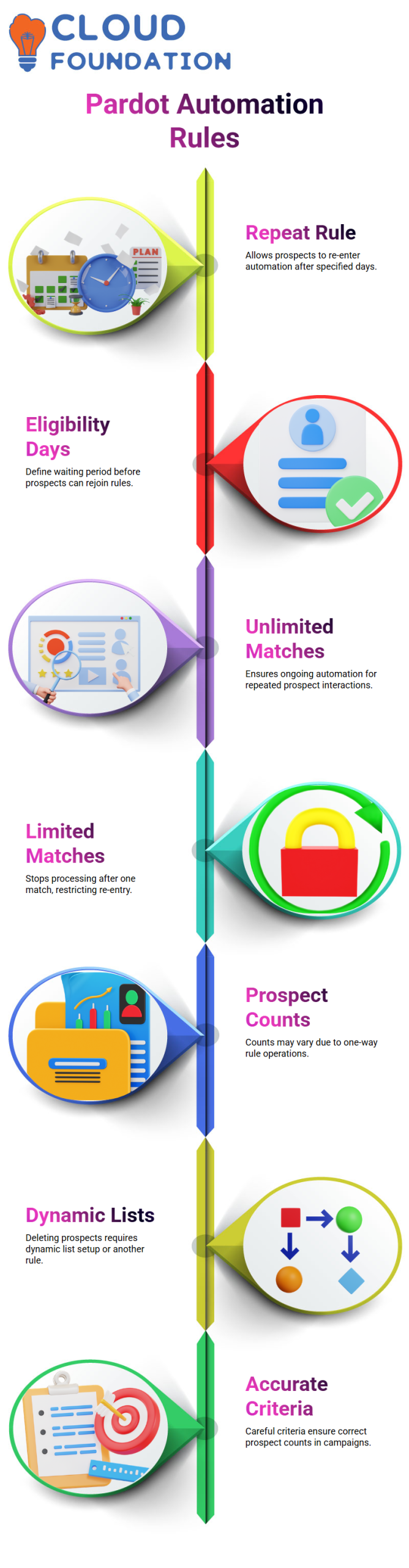
One important thing to keep in mind while dealing with automation rules is the “repeat rule” option.
If you want a prospect to re-enter a rule in Salesforce Pardot, you need to specify how many days it will take for them to become eligible again.
This choice, often initiated by the client or management, determines how Salesforce Pardot manages prospects over time.
For example, you may set up a Salesforce Pardot automation rule such that a prospect enters it today, and you want them to wait two days before reentering.
When you use the ‘repeat rule’ option in Salesforce Pardot, the system will reapply the rule depending on the days you choose.
If the ‘repeat rule’ is not checked, Salesforce Pardot will only handle new prospects, not those who have previously been subjected to the rule.
Using Repeat Rule in Salesforce Pardot
The ‘repeat rule’ functionality in Salesforce Pardot enables you to apply automation to the same prospect more than once.
It is usually best to use it with ‘unlimited matches’ if you want to keep re-exposing possibilities. The Salesforce Pardot will stop processing after one match if you choose ‘limited matches’.
Therefore, I like ‘unlimited matches’ in Salesforce Pardot automation rules for ongoing interaction.
Keep in mind, however, that repetition restrictions only apply to prospects who have already been matched.
Unless the ‘repeat rule’ is enabled, Salesforce Pardot will not reapply the rule to previously processed prospects.
When you want Salesforce Pardot to sustain constant contact with both new and existing prospects, this difference is crucial.
Managing Prospect Counts in Salesforce Pardot
When using Salesforce Pardot automation rules, you may sometimes see differences in counts. A rule may, for instance, display 14 possibilities at one point in time and 13 at another.
This occurs as a result of the one-way operation of Salesforce Pardot automation rules.
They add prospects to lists, but deleting them requires either a dynamic list configuration or a different rule.
Salesforce Pardot counts are not immediately updated when a rule’s criteria are changed.
When administering campaigns, you have to take this behaviour into account.
Although Salesforce Pardot gives you comprehensive insight into which prospects are handled, you must carefully establish criteria to guarantee accurate counts.
Working with Salesforce Pardot Dynamic Lists
I advise utilising dynamic lists in Salesforce Pardot when things change. Dynamic lists, in contrast to conventional automation rules, adapt dynamically to prospect criteria.
For instance, unlike normal automation rules, Salesforce Pardot dynamic lists instantly adapt to changes to a prospect’s sector or status.
I often handle a lot of prospects using this technique. Without the need for human interaction, Salesforce Pardot dynamic lists assist in maintaining accurate and current engagement.
When managing numerous campaigns or automation rules at once, they are quite helpful.
Configuring Salesforce Pardot Forms and Campaigns
Configuring Salesforce Pardot forms and campaigns is another crucial area. You can precisely collect data for every source if you use distinct form handlers for each campaign.
For instance, our school links form submissions to certain campaigns using a Salesforce Pardot campaign field.
This guarantees that each prospect is appropriately allocated in Salesforce Pardot.
I often map Salesforce Pardot campaigns to UTM criteria.
This enables me to automatically match prospects with the appropriate campaign and monitor the source of each submission.
Managing campaign-specific actions without form conflicts is also made simpler with Salesforce Pardot’s various form handlers.
Assigning Prospects to Campaigns in Salesforce Pardot
Salesforce Pardot allows you to add actions to a rule that target several criteria when allocating prospects to campaigns.
For example, Salesforce Pardot may perform actions sequentially, such as setting the campaign and assigning the owner.
This strategy guarantees that prospects are appropriately targeted and segmented.
Before going live, I usually advise testing these setups in Salesforce Pardot.
You can prevent misassignments and guarantee that each prospect is handled correctly in Salesforce Pardot by creating test prospects and checking rules.

Salesforce Pardot Training

Best Practices for Salesforce Pardot Automation
I’ve found that careful preparation is essential to effective Salesforce Pardot automation.
Establish repetition intervals, utilise dynamic lists as necessary, and choose which prospects should be subject to re-entry regulations.
Always double-check campaigns and form handlers, and confirm counts. Although Salesforce Pardot has strong automation features, precise outcomes need careful configuration.
These procedures aid in the effective management of free technology course possibilities at our institution.
By enabling us to interact with the appropriate individuals at the appropriate moment, Salesforce Pardot improves the efficacy of our campaigns and minimises human labour.
How I Use Salesforce Pardot Completion Actions with Gravity Forms
I usually begin by considering the trigger point when working with Gravity Forms and Salesforce Pardot.
Everything in Salesforce Pardot relies on what transpires after the completion of a form.
I normally advise my students that Salesforce Pardot should know what to do with the prospect as soon as the form is submitted.
The simplest method with Salesforce Pardot is to utilise completion actions. I may attach the prospect to a user and designate the prospect source to a certain campaign once a form is completed.
Later, this straightforward configuration inside Salesforce Pardot saves a great deal of human labour.
I often show how Salesforce Pardot gives me the option to add a prospect straight to a campaign or assign them to an owner.
In Salesforce Pardot, both choices function effectively, and I clarify that using both in tandem when necessary to meet business requirements is not an issue.
Creating and Using Custom Fields in Salesforce Pardot
I usually start by creating a new prospect field in order to ensure that Salesforce Pardot integrates well with Gravity Forms.
I give this field a meaningful name in Salesforce Pardot, such as a Gravity Form identification, to facilitate future reporting.
I don’t make it mandatory, and I maintain it as text. This value will be recorded by Salesforce Pardot each time the form is submitted.
I map the custom field within the form handler once it is present in Salesforce Pardot.
When the mapping is done correctly, Salesforce Pardot can accurately collect the data even if the field is hidden on the Gravity Form.
Setting Completion Actions in Salesforce Pardot Without Confusion
I keep things simple while configuring completion actions in Salesforce Pardot. To assign the prospect to a certain user,
I click Add to Campaign, choose the campaign name, and then add another action. These activities are immediately carried out by Salesforce Pardot upon form submission.
I also explain why an action cannot be used twice in a single completion action set in Salesforce Pardot. For this reason, I carefully consider the activities before adding them.
I may utilise Notify User in addition to Assign User in Salesforce Pardot. In order for Salesforce Pardot to promptly notify the owner when a new prospect arrives, I often assign the user before turning on alerts.
Using Conditional Logic in Salesforce Pardot for Owner Assignment
Conditional owner assignment in Salesforce Pardot is one sophisticated case that I often describe.
Salesforce Pardot may allocate a prospect to one owner, for instance, if a campaign matches a certain value; if not, it can assign the prospect to another owner.
I create another custom field, like Buyer or Investor, in Salesforce Pardot to do this.
Then, before assigning the owner, Salesforce Pardot verifies the field value using completion action conditions.
This method assists Salesforce Pardot in accurately routing prospects without the need for human interaction.
I usually explain to them that Salesforce Pardot manages the workload automatically once this reasoning is in place.
Best Practices for Salesforce Pardot Campaign Tracking
Whether to utilise Salesforce Pardot’s Add to Campaign feature or Prospect Source Campaign is a frequently asked subject.
My response is straightforward: Salesforce Pardot supports both, and each has a distinct function.
The source campaign in Salesforce Pardot provides me with the prospect’s initial source.
Continuous marketing monitoring is aided by adding the prospect to another campaign.
To help learners grasp how Salesforce Pardot reporting changes, I often walk them through both alternatives.
Additionally, I advise recording each Salesforce Pardot completion action and disseminating it to relevant parties.
Salesforce Pardot becomes a dependable, predictable system that everyone can trust after the client confirms the rationale.

Salesforce Pardot Online Training
Handling Salesforce Pardot Source Campaigns and Redirect Logic
I often get inquiries about why companies send customers to Microsoft Forms or WordPress rather than Salesforce Pardot.
In my experience, Salesforce Pardot just records the data that is returned; it has no direct influence over such redirections.
For this reason, before completing the Salesforce Pardot configuration, I usually ask stakeholders to provide a detailed explanation of the redirection rationale.
I concentrate on changing the source campaign name in Salesforce Pardot according to the incoming information.
Salesforce Pardot logs the campaign if it shows an investment flow. Salesforce Pardot captures a separate buyer flow if it suggests one.
This greatly improves the accuracy of reporting in Salesforce Pardot. I avoid combining tasks across platforms by leaving Salesforce Pardot in charge of data collection, campaign attribution, and automation.
When used as the core system that responds intelligently to clean, well-mapped data, Salesforce Pardot performs at its best.
Salesforce Pardot Form Mapping in Real Projects
Simplifying the process is my top priority when working with Salesforce Pardot forms on actual projects.
Although most people believe that form mapping is difficult, I often begin by copying an existing form and changing the actions in Salesforce Pardot.
This method prevents needless mistakes and saves time.
After mapping the form with the appropriate external link or Gravity Form in Salesforce Pardot, I ensure that the prospect fields line up correctly.
Because Salesforce Pardot significantly depends on precise field mapping to drive automation, I manually verify whether the buyer or investor fields are triggering appropriately.
I often remind my learners that Salesforce Pardot does not initially need complex reasoning.
Salesforce Pardot will execute the majority of the labor-intensive work behind the scenes if the form mapping is accurate.
Using Salesforce Pardot Automation Rules Instead of Overcomplication
I immediately get into Salesforce Pardot automation rules after form mapping. Rather than over-engineering the answer, I typically develop two simple automation rules.
One rule determines if the potential customer is a buyer, while the other determines whether the potential customer is an investment.
I can conditionally assign prospects in Salesforce Pardot using automation rules without ever having to touch the form again.
For marketing teams looking for simple upkeep and clear rationale, this is where Salesforce Pardot shines.
Salesforce Pardot automation rules function best when the prospect fields are already clean, as I constantly mention.
Salesforce Pardot automation becomes dependable and predictable if the external form or Gravity Form transmits the correct data.
Salesforce Pardot Source Campaign vs CRM Campaign Confusion
I often see misunderstandings about Salesforce Pardot source campaigns and CRM campaigns.
When I really require a source campaign in Salesforce Pardot, I never choose a CRM campaign under the automation rule.
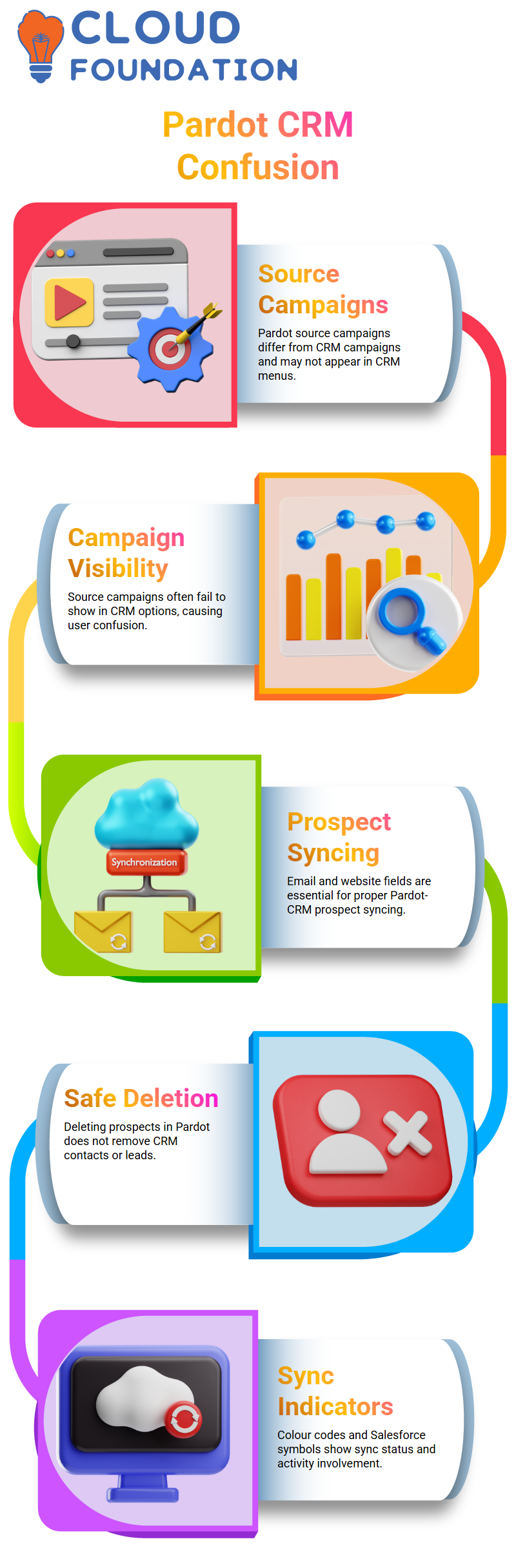
Source campaigns are shown differently in Salesforce Pardot, and when a campaign is not visible in the CRM campaign menu, many users get alarmed.
In Salesforce Pardot, I often verify the campaign’s creation location and whether it was intended as an e-blast or a source campaign.
In my experience, it is rather usual for Salesforce Pardot source campaigns not to always show up inside CRM campaign options.
Learners cease overanalysing the problem after they comprehend this Salesforce Pardot behaviour.
Salesforce Pardot Prospect Syncing and Assignment Logic
I check the email address and website field as soon as a prospect appears unlinked in Salesforce Pardot.
These variables are necessary for Salesforce Pardot to properly sync with Salesforce CRM.
I often show that removing prospects in Salesforce Pardot does not result in the deletion of CRM contacts or leads.
One crucial safety feature that many users overlook is that Salesforce Pardot only deletes its own information.
Assigning a user is only required in Salesforce Pardot when prospects are generated using Pardot assets, like as emails, landing pages, or forms.
Salesforce Pardot can sync without assignment if the prospect comes from CRM, as the email address serves as a unique identifier.
How Salesforce Pardot Handles Sync Status and Visual Indicators
While colour indications indicate current or inactive involvement, the Salesforce symbol lets me know whether synchronisation is occurring.
When the record originates from CRM, Salesforce Pardot can sync even if a prospect is not assigned to a user.
During Salesforce Pardot training courses, I emphasise this bidirectional sync a lot.
The whole system begins to make sense if you get how Salesforce Pardot handles form-based prospects as opposed to CRM-based prospects.
Teams can utilise Salesforce Pardot with confidence and accuracy because of this clarity.

Salesforce Pardot Course Price

Vanitha
Author
The capacity to learn is a gift; the ability to learn is a skill; the willingness to learn is a choice