Forgerock Training Class for Beginners
How to Configure Forgerock’s User Self-Service
I checked out after deleting the current service to start again and saw that there were no choices to establish an account or reset my password on the login screen.
This is to be anticipated, since Forgerock conceals those choices until we correctly set up the service.
I immediately went to Services in Forgerock after logging back in to add the User Self-Service module once again.
I always make sure that the fields I want are username, password, email, first name, and last name are there on the registration page.
I just used the default encryption key pairs that Forgerock currently supplies.
I lost my account, forgot my password, and enabled user registration. ForgeRock instantly enabled the self-service functionality after selecting “create” and saving the modifications.
ForgeRock also allows me to add Google reCAPTCHA to the setup, although I often exclude it in demonstrations since it requires a purchased key.
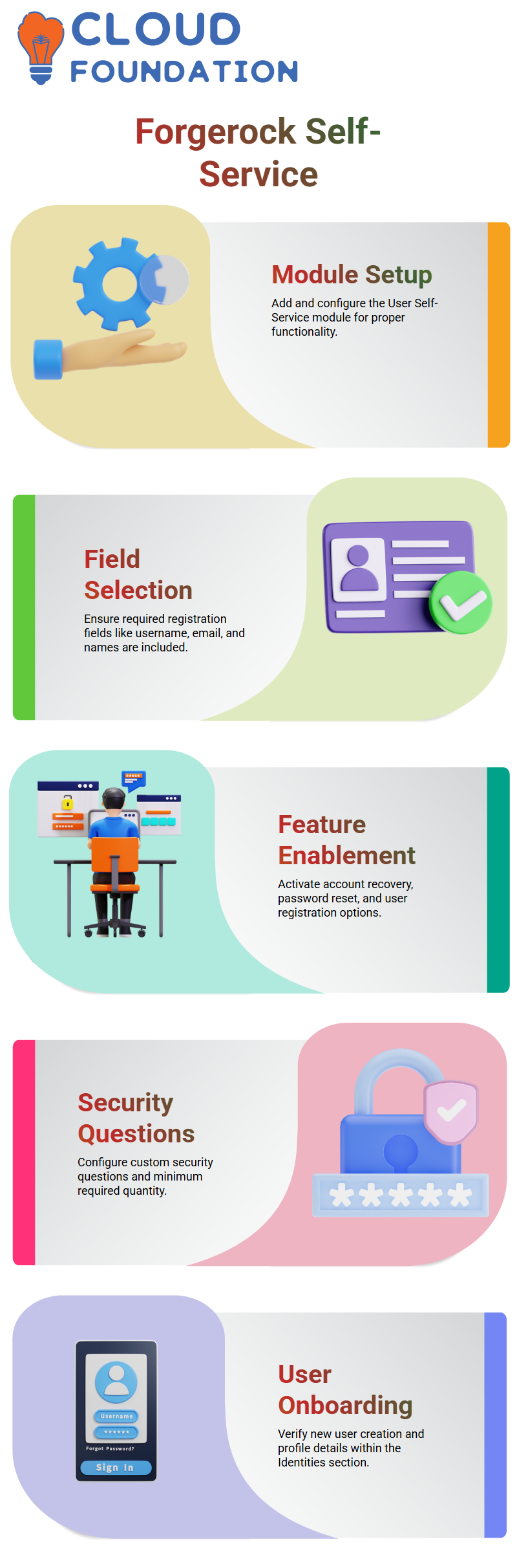
Demonstrating the operation of registration flows is crucial. The part on security questions is very crucial; with Forgerock, I can create my own questions and choose the minimum quantity.
Security questions are included in the user onboarding process when I enable them during registration and save.
When I refreshed the website after turning everything on, Forgerock showed the choices for creating an account, forgetting a password, and forgetting a username.
At that point, I created a new test user and accessed the site in a different tab.
The new profile, complete with email address, last name, and first name, was instantly saved by Forgerock under Identities.
The user may now examine permitted services, verify password settings, and access their profile from the dashboard.
What Takes Place Following a User’s ForgeRock Registration
ForgeRock saves the user profile with all of the information supplied at registration in the Identities area.
As with any secure identification platform, ForgeRock never keeps passwords in plain text, even though I may change them here. Instead, they remain encrypted.
ForgeRock makes it simple for me to extend the registration procedure.
For instance, I just activate and save the option if I determine that users should respond to security questions during registration.
The security questions are then shown to each new user who clicks on the registration link before entering their information.
Forgerock facilitates secure self-registration in this way, eliminating the need for an administrator to step in.
The fact that everything seems natural to the user is what I like most about teaching Forgerock.
As with any contemporary application, users may self-register when I give them the registration link.
Forgerock manages the account creation process, saves the user’s identification information, and enables instant dashboard access.

ForgeRock Training

Forgerock User Registration Process
Forgerock enables users to establish accounts with both security questions and email verification as I walk them through the registration process.
I clarify that users can access everything I enable on the admin side right away. This clarity helps students understand how identity platforms work behind the scenes.
I can freely switch between admin and user mode in Forgerock, allowing my students to see both viewpoints in real time.
ForgeRock’s Account Recovery
I stress the significance of account recovery.
I activate Forgerock’s forgotten-username function where users may recover usernames by inputting known information, such as email.
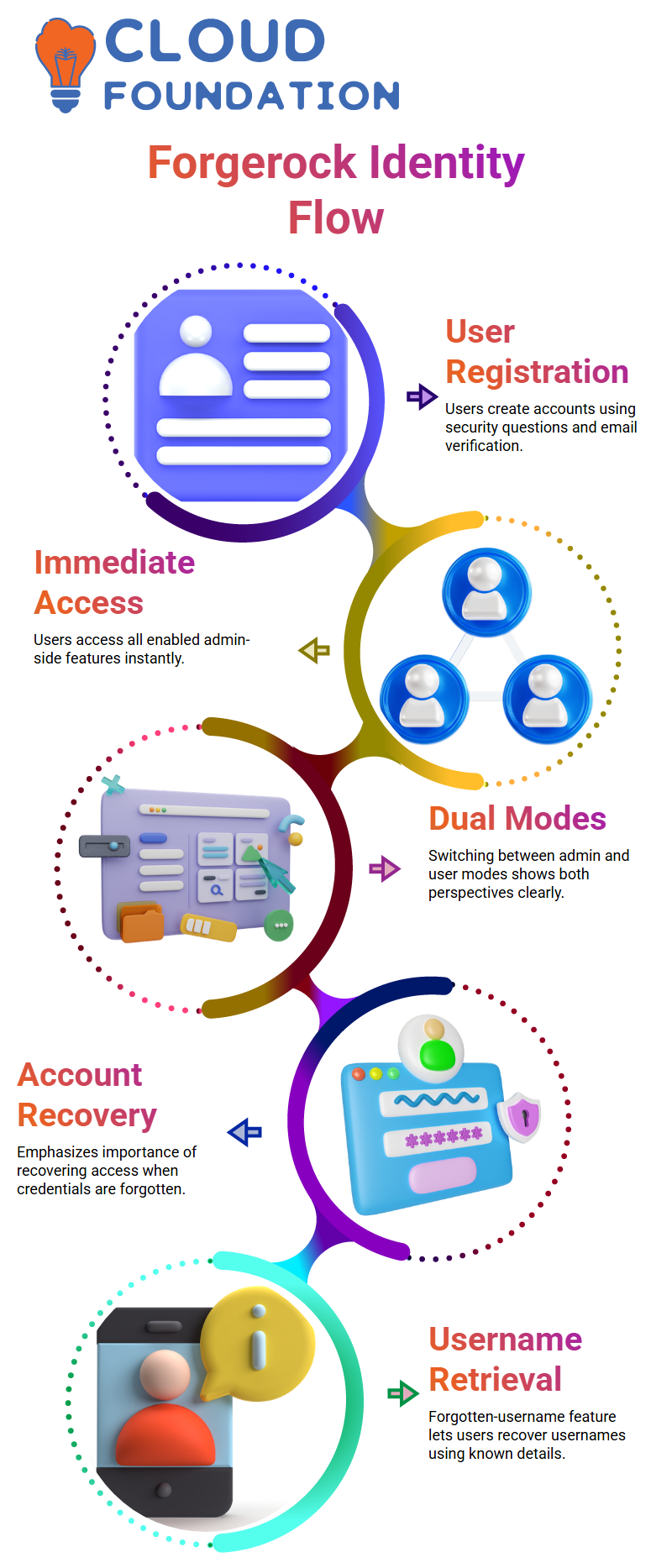
This option displays in the user interface as soon as I enable it in the admin panel.
Forgerock’s Several Realms for Various User Groups
I use Forgerock’s support for numerous worlds to illustrate scalability to my students.
In order to let you know how one group of workers may have user registration and password reset enabled.
While another group has extra features like lost username, I transition between realms.
I choose which features apply to which realm using Forgerock, and students can see right away how identification tools neatly divide environments without causing conflicts.
How I Set Up Forgerock’s Self-Service and Email Features
I usually begin my work with Forgerock in the technology program at our school by demonstrating to students how easy it is to manage user self-service choices.
Depending on the requirements of the project, I may easily activate or stop password recovery, username retrieval, or any other flow in Forgerock.
Forgerock’s username retrieval capability is instantaneous, allowing students to see how administrators really run actual production systems.
I like teaching Forgerock because it makes the whole process easy and useful.
I also take everyone through the process of email-based notifications.
Email services supported by Forgerock enable us to send links for password resets, verification messages, and registration emails.
I go over how to set up the sender address, authentication information, and SMTP settings in Forgerock step-by-step, even if we are using a testing setup like Mailtrap.
Forgerock still makes it simple to incorporate testing tools, even if some of them now need subscription plans.

ForgeRock Online Training
Configuring Forgerock’s Email Services
The “from” email address is the primary identification for sending alerts each time I set up an email service in Forgerock.
When a business adds a new user, ForgeRock notifies that defined address of notifications, like account creation or security upgrades.
The SMTP transport setup in Forgerock is simple: I establish a service name, input the host, port, authentication username, and password, and then save the settings.
Although Forgerock supports a variety of transport methods, such as Microsoft Graph API and SMTP, most businesses choose SMTP as it works well with internal email systems.
When the SMTP profile is prepared, I choose it to be the main email transport for the recovery, verification, and registration processes.
I use a trial signup to test the complete process after saving the email setup in Forgerock.
Forgerock immediately provides a verification link once I input a new login and email address.
Because they witness the whole process from flow setup to real-time testing working end-to-end within Forgerock, students are always excited to see the email materialise in Mailtrap.
Verification, Password Reset, and Username Recovery with Forgerock
Turning on email verification during user registration as soon as the email service is operational.
I just activated the email verification option in the signup process in Forgerock.
After I create a test account, ForgeRock provides a link for verification, which the user has to click in order to finish the setup.
I also show how lost usernames are handled in Forgerock. Forgerock immediately delivers the username to the user’s inbox when they input their registered email.
Because it demonstrates how Forgerock closely links identity recovery to secure email flows, this feature consistently dazzles students.
The same procedure is used for forgotten passwords: when selecting a new password, the user may instantly log in with their new login information when Forgerock delivers a reset link.
I show how each recovery and verification step moves via the email service that we previously set up during the whole presentation.
This enables you to witness that all aspects of user identity management, including registration, verification, username recovery, and password reset, function seamlessly once email is properly integrated into Forgerock.

ForgeRock Course Price

Vanitha
Author