ForgeRock Course Online
Understanding ForgeRock Push Authentication
When I click on the ForgeRock push node, the panel on the right pops up. I then scroll down to the ForgeRock push sender settings.
A lot of folks overlook this step, so I want to make sure it’s obvious.
When I go to the ForgeRock push sender settings, I change the numbers, save them, and get ready to test the flow.
I just use the same ForgeRock URL and change just the sections that need to be changed to test it.
When the ForgeRock notification service is turned on, the connection normally works well.
If the service isn’t on, however, ForgeRock won’t let you register your device.
Navigating ForgeRock Subscriptions and Setup
I always verify the signature and encryption information again while I’m working in the ForgeRock subscription panel.
Go to the ForgeRock subscription site, go down to the profile area, and check to see whether their memberships are showing up correctly.
ForgeRock won’t let the registration process proceed further if anything is missing.
I always set up the ForgeRock encryption service before I construct any trees.
This service keeps the key information safe, and ForgeRock gives you default passwords that you may use to test.
I check the ForgeRock service list after saving the encryption service to verify sure the configuration is okay.
Building a ForgeRock Web Authentication Tree
I choose the Web Authentication node and the Web Authentication Registration node when I start putting up a ForgeRock web authentication tree.
These two parts of ForgeRock determine whether the user already has a registered device or if they need to sign up for a new one.
I want them to observe how ForgeRock checks the user route by looking at the registration of existing devices.
I put the Username Collector within the tree initially.
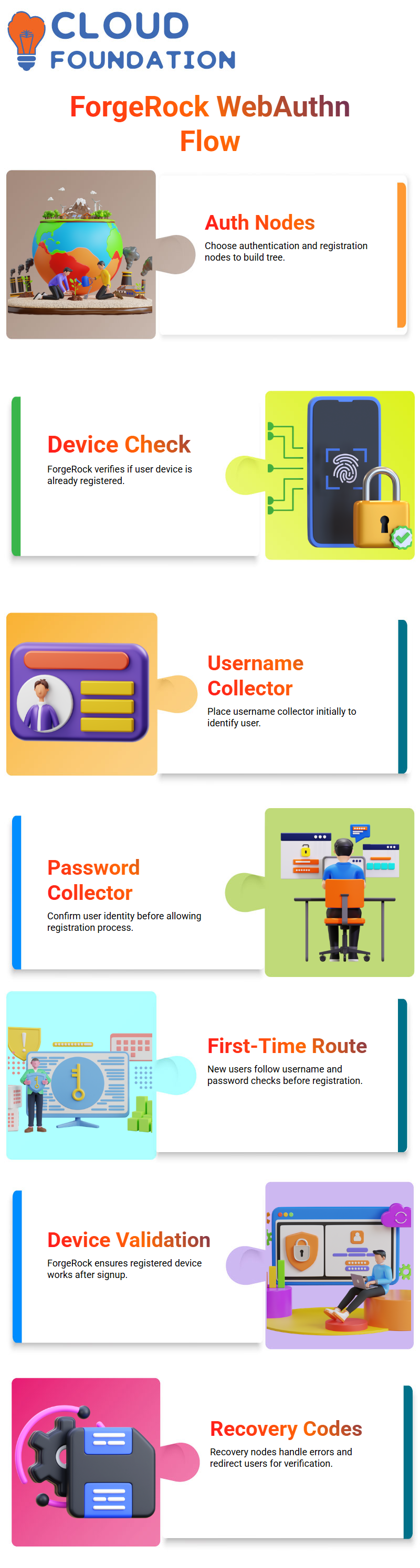
If the user already has a device registered with ForgeRock WebAuthn, the flow travels straight to the ForgeRock authentication node.
The flow leads the user to the Password Collector to confirm their identification before ForgeRock lets them register if they don’t already have a ForgeRock device.
How ForgeRock Handles First-Time Web Authentication
A first-time user always takes the same route through ForgeRock.
The Username Collector checks to see whether the user is online, and the Password Collector validates the user’s credentials.
Only then does ForgeRock advance to the Web Authentication Registration node.
I want to stress this point since a lot of students think that ForgeRock goes straight to registration without checking credentials first.
But ForgeRock always checks first.
In ForgeRock, the system directs the user to the registration procedure once the password is checked.
After signing up, ForgeRock still uses the Web Authentication node to make sure the device works before finishing the flow.
This additional step makes ForgeRock security strong yet dependable.
Managing Recovery and Error Paths in ForgeRock
When I set up recovery code nodes in ForgeRock, I make sure that every mistake leads to the right result.
Client faults lead to failure, recovery-code success advances the user along, and every failure route helps me figure out what’s wrong.
Instead of sending the user directly to success, the recovery code display node sends them back into the ForgeRock authentication phase.
This makes sense since ForgeRock has to verify the user again using the registered method; otherwise, ForgeRock can’t be sure the device is real.
Testing ForgeRock Web Authentication with Security Keys
When I try out the ForgeRock WebAuthn route, the browser gives me choices, such as utilizing a security key.
ForgeRock still displays the possible authenticator types, even if I don’t have a USB key plugged in.

If I pick a security key, ForgeRock waits for the USB devices to turn on before finishing the setup.
Even though the demonstration may not involve real hardware, ForgeRock shows the genuine system prompts just as they would be in a real deployment.
Using ForgeRock Authentication with Mobile Devices
If I switch to mobile authentication, ForgeRock lets me sign up for an iPhone, iPad, or Android phone.
As soon as I choose mobile registration, ForgeRock shows me a QR code.
I normally hold up my phone and scan the QR code to show how rapidly ForgeRock connects a device to a user account.
This mobile route lets students see that ForgeRock has more to offer than simply USB-based authentication.
ForgeRock works with both Android and iOS.
It immediately shows onboarding screens as soon as the mobile camera sees the QR code.

ForgeRock Training

ForgeRock Passkey Setup and Real-Time MFA Experience
When I initially attempted to scan the passkey on my laptop, ForgeRock quickly showed me what happens when anything goes wrong in the registration phase.
I kept getting an error on my device that said “invalid or missing auth type.”
This was mostly because my laptop was linked to Bluetooth and Wi-Fi in a manner that messed with the procedure.
Even so, ForgeRock showed the right passkey window, and I wanted you to see precisely how it appears when the system tells you to store and utilize a passkey.
When I connected my device, ForgeRock advised me that my Microsoft Authenticator didn’t support the passkey.
My phone immediately chose the Microsoft app over the ForgeRock Authenticator, hence the registration didn’t go through.
A lot of people don’t realize that they need to install the ForgeRock authenticator software individually.
ForgeRock still presented the WebAuthn panels where you may choose USB security keys or phone-based passkeys, even though it didn’t function on my device at the time.
This full process shows how ForgeRock does Web Authentication and how it checks user passkeys on USB and mobile devices.
ForgeRock Sessions and How They Work Internally
The cookies are how ForgeRock Access Management and the user share information about who they are.
AMLB is another load balancer cookie that ForgeRock makes.
This cookie will show up as soon as you log in via a ForgeRock load balancer, even if you’re on your own computer.
It has information about the domain and makes sure that the ForgeRock environment stays stable.
ForgeRock Session Quotas and Limiting Active Logins
Session limits in ForgeRock set a limit on how many active sessions a user may have.
For instance, ForgeRock keeps track of two active sessions if a user checks in on both a laptop and a phone at the same time.
If a third device tries to log in, ForgeRock determines whether to refuse the login or end one of the current sessions.
It’s like Netflix. They only let a few streams happen at the same time.
Netflix will restrict the additional stream if you go over the limit.
ForgeRock operates the same way with session limits.
To locate the session quota settings, enter the ForgeRock admin panel and go to Global Services > Sessions.
You may turn on quotas and then decide what ForgeRock should do if someone breaks the rules.
You may either refuse the new session, delete the next session that is about to end, or destroy all of the sessions that are already open.
You may choose how stringent or flexible your security policy should be with each choice.
So when someone asked, “What is the session quota?” I told them that ForgeRock uses the word to describe the number of active authorized sessions a user may have.
By default, ForgeRock lets you have two active sessions.
If a third session shows up, the quota is full, and ForgeRock does what you want it to do. That’s why we call it the session limit in ForgeRock.
ForgeRock Session Quotas Explained
I prefer to use Outlook as an example when I speak about session quotas in ForgeRock since it makes things easier to understand.
Consider how you can log into Outlook on both your laptop and your phone at the same time.
These two devices are now your active sessions.
ForgeRock keeps track of similar session activity by saving these current sessions on the server.
Now think about adding a third device, like your own laptop.
It stops you as soon as you attempt to turn on Outlook there.
It tells you to end one of the current sessions first. ForgeRock works in the same way.
It lets you have a set number of active sessions.
If you go over that limit, you have to end a current session before you may start a new one.
This ForgeRock rule makes sure that access is managed and that sessions don’t become overloaded.
ForgeRock Account Lockout Behavior
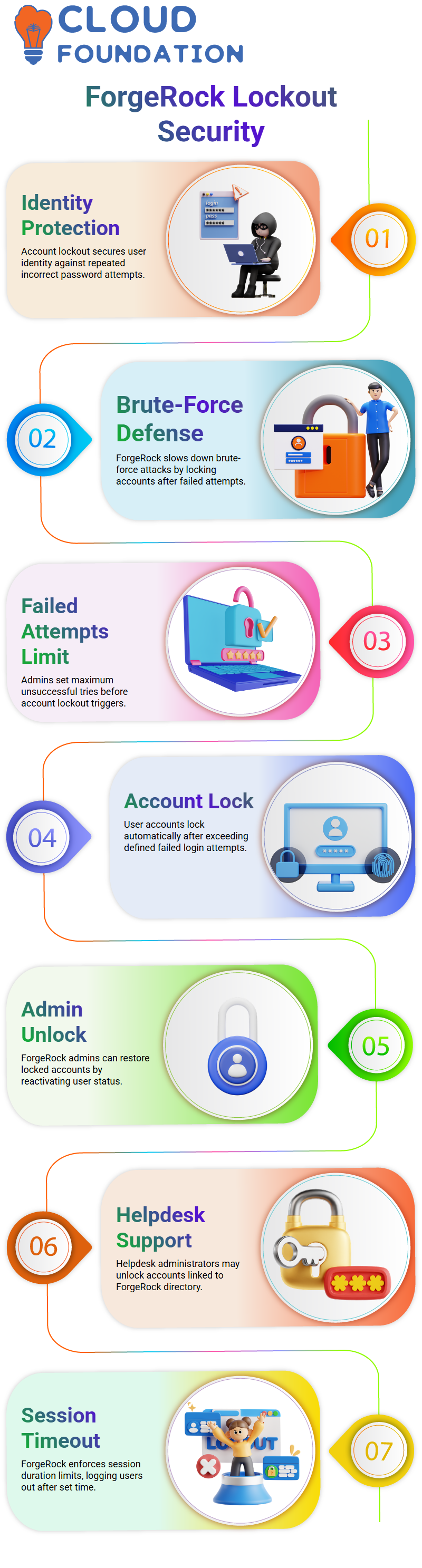
Account lockout in ForgeRock is an important way to keep your identity safe.
When someone keeps trying the incorrect passwords, ForgeRock kicks in to slow down brute-force efforts.
Think about someone in your workplace knowing your login and trying random passwords or using bots to guess them.
ForgeRock prevents this by locking the user’s account after a certain number of unsuccessful attempts.
I put this up in ForgeRock by going to the authentication settings and turning on account lockout.
ForgeRock allows me set the number of unsuccessful tries that should cause the lock.
When I set it to three tries and typed in the erroneous passwords on purpose, ForgeRock told me that my account was locked.
That’s precisely how ForgeRock stops anyone from getting in without permission.
The ForgeRock admin may unlock the account by going into the user identification and turning the account back on.
I can easily change the user status back to active since I have admin access in ForgeRock.
If users need assistance, the helpdesk administrators may unlock the identity from ForgeRock as long as it is in the ForgeRock directory or the data source that is linked to it.
If I set the test duration to five minutes and then stop engaging, ForgeRock logs me out immediately away after that period.
If I remain working over the allotted total time, ForgeRock still closes the session and asks me to log in again.
ForgeRock lets each organization set its own time, although they all have the same options.
ForgeRock Usage in Real Application Scenarios
I appreciate that ForgeRock can work with numerous kinds of apps.
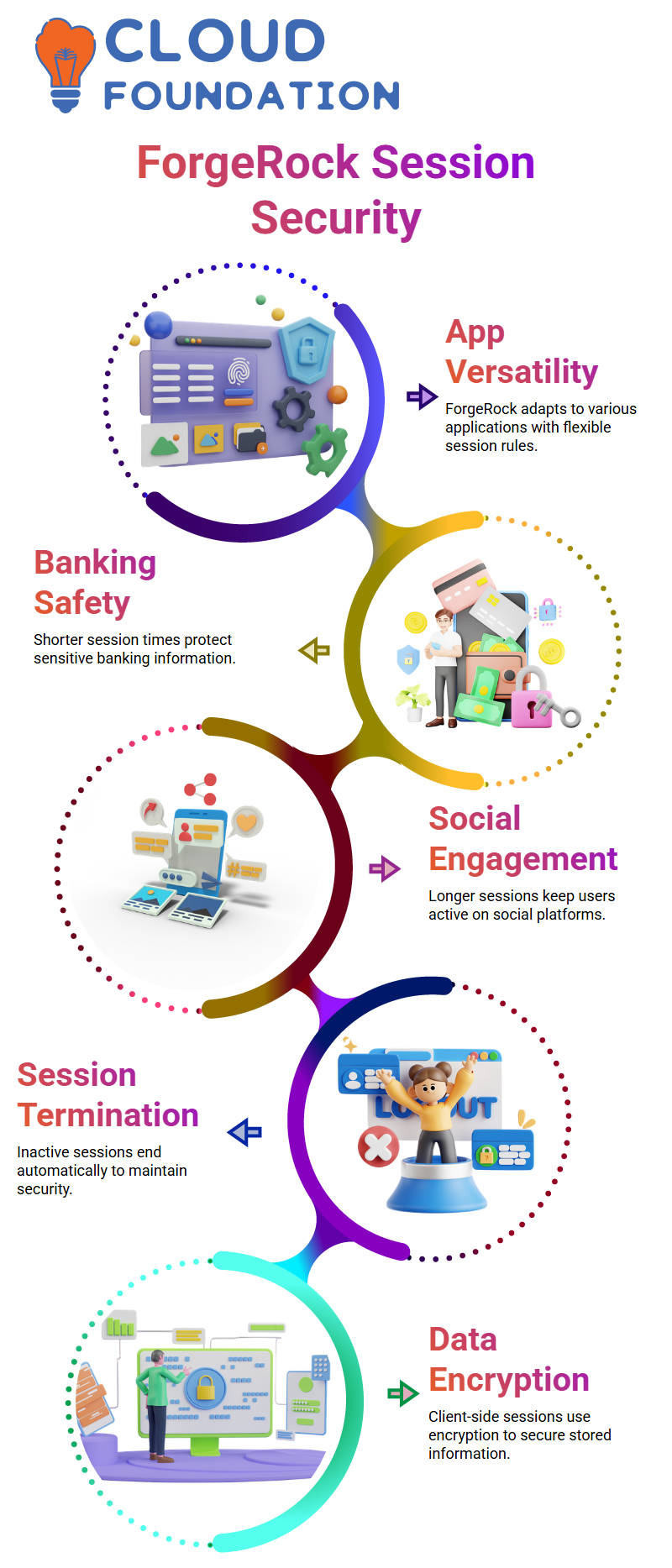
ForgeRock makes session times shorter for banking applications since they need to be very secure.
Social media sites want people to be engaged, so they set longer times.
When I work with teams to integrate ForgeRock, we talk about what type of experience they want from the app and set the session rules to fit.
ForgeRock has everything you need to safely regulate user behavior, from session limits to lockout rules to termination policies.
Companies may create authentication behaviors that fit their particular requirements without risking security because of ForgeRock’s versatility.
When I set up these features in ForgeRock, I saw how flexible and strong the platform is.

ForgeRock Online Training
Understanding Session Security in ForgeRock
When I began working with ForgeRock in my school’s IT department, I immediately learned how important it is to keep sessions safe.
Picture someone taking your phone when your banking app is still open.
They could easily get to anything if there weren’t sufficient session boundaries.
That’s why I always set ForgeRock to have short, secure session times to keep customers safe from hazards they didn’t foresee.
Session termination is very important in ForgeRock.
I depend on it to automatically cease sessions that aren’t being used so that the system remains safe.
When the session ends, the user loses access right away.
This helps keep sensitive information safe and prevents others from using it for bad things.
Managing Client-Side Sessions in ForgeRock
Because client-side sessions in ForgeRock save important session information, I am extra careful with them.
I typically turn on encryption or signing to make sure that no one can access the session data without the right permissions, even if they try to look at it.
I chose the algorithms from ForgeRock, such as SHA-256, SHA-384, and SHA-512, depending on how secure the project has to be.
When I set up JWT sessions in ForgeRock, I always make sure they are encrypted.
I’ve seen people enter raw JWTs into decoders and get information right away, however, with encryption on, none of that information is available till it is correctly decoded.
With ForgeRock, I can pick the correct amount of encryption based on what the customer wants.
Using ForgeRock to Prevent Replay Attacks
Replay assaults may be quite harmful. To fix this problem, I turn on authentication session allow-listing in ForgeRock.
This option helps stop unauthorized authentication attempts when someone tries to eavesdrop on communication between servers.
I normally go into ForgeRock’s authentication tree and turn on allow-listing and set a maximum time limit.
This setup maintains the system’s security while it is sent across multiple servers or networks.
I know how well it works when someone attempts to reuse an intercepted authentication request since ForgeRock stops it right away, keeping user data safe.
Securing Server-Side Sessions with ForgeRock
When I work on server-side sessions in ForgeRock, I pay attention to session limits, ending sessions, and locking accounts.
These features let me decide how many sessions a user can have open at once and how long those sessions may last.
ForgeRock’s global settings make it simple for me to control these functionalities.
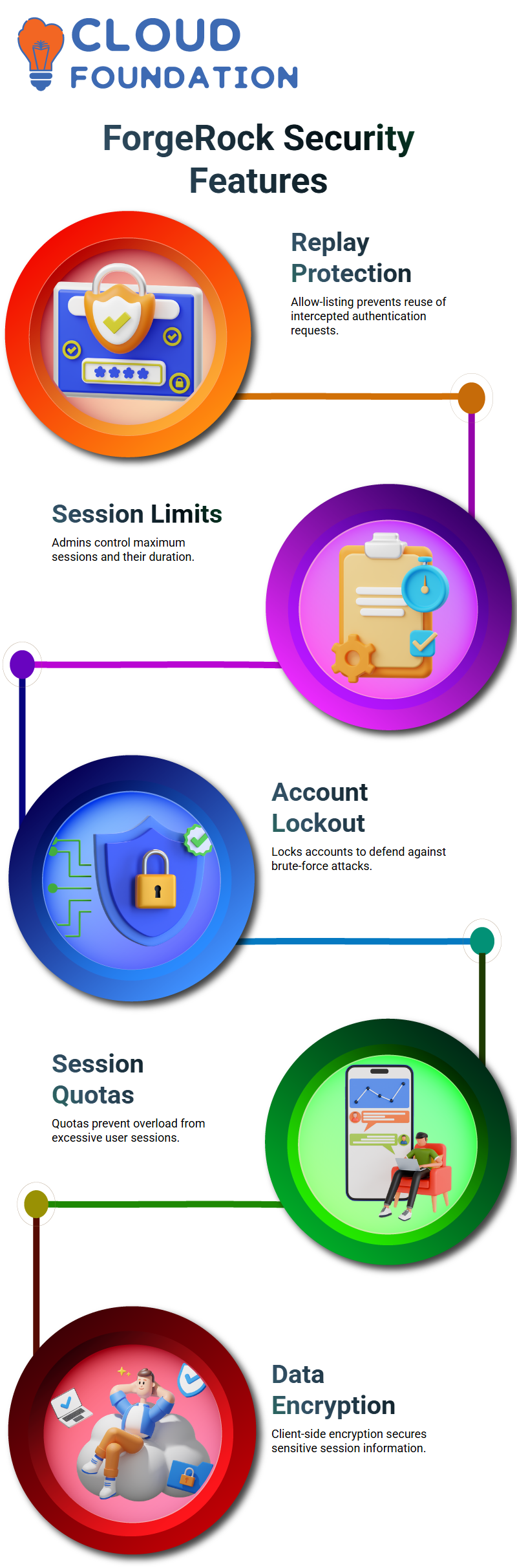
Session quotas in ForgeRock help me avoid problems when one user starts too many sessions and slows down the system.
Account lockout, on the other hand, keeps users safe from brute-force assaults. I always set these features up dependent on how severe the client’s security needs are.
Why I Rely on ForgeRock for Session Security
I have addressed a lot of interview questions concerning session management in ForgeRock over the years.
Many people want to know how to protect sessions, how to end sessions, or how to turn on account lockout.
I am sure that I can describe each one since ForgeRock offers several levels of security, such as session quotas, client-side encryption, and protection against replay attacks.
When I teach these ideas in our school’s technology classes, I show students real-life examples from ForgeRock.
They learn about encryption, JWT security, allow-listing, and session settings by doing them.
ForgeRock is one of my favorite tools for showing how to keep sessions safe in the current world.

ForgeRock Course Price

Vanitha
Author