SAP Ariba Online Training Classes
Creating Purchase Requisitions in SAP Ariba
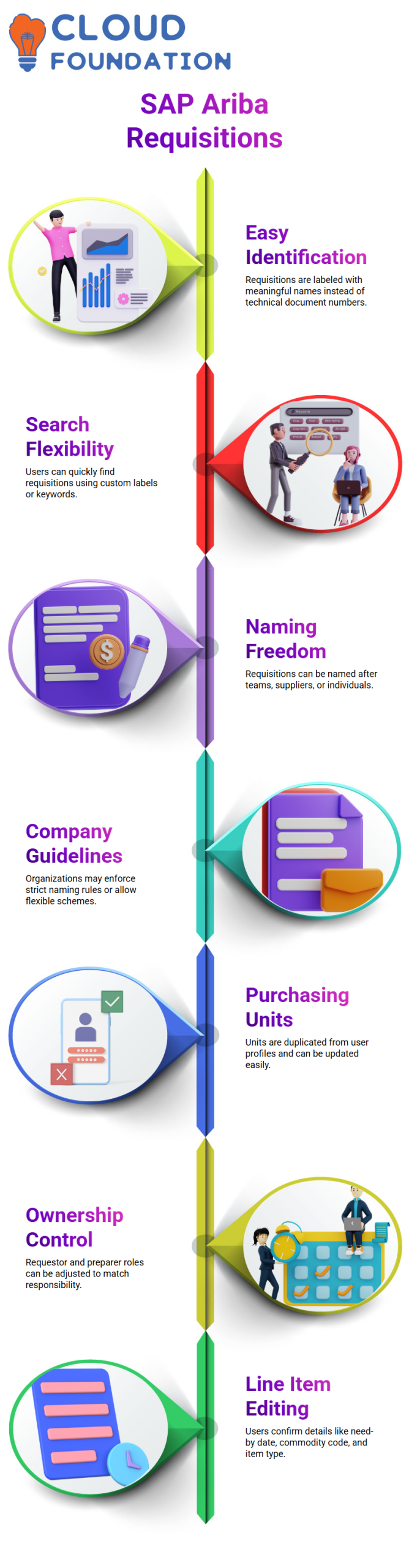
The ease of identifying a purchase requisition is the first thing I usually consider while working with SAP Ariba.
I don’t have to keep track of technical document numbers, such as PR 8493, when SAP Ariba. Rather, I give my request a label that makes sense to me.
For instance, I just refer to the gear I purchase as Intel hardware. Later, I used the phrase Intel to search SAP Ariba, and the document came up right away.
I often inform Learners that SAP Ariba offers complete freedom when it comes to naming requisitions.
You may use a team name, like sales, a supplier name, or even a person’s name, like Manohar, in SAP Ariba.
While some companies have stringent SAP Ariba name guidelines, others let purchasers choose the optimal naming scheme for monitoring and reporting.
Managing Purchasing Units and Profiles in SAP Ariba
The purchasing unit plays a key role in how requisitions behave in SAP Ariba. When I submit a purchase request in SAP Ariba, the purchasing unit is often duplicated from my user profile.
I choose the self-service option and update my profile as needed before saving the request.
Additionally, I explain how SAP Ariba handles circumstances when the requestor and preparer are different.
In SAP Ariba, the purchasing unit may appear by default if I’m someone else’s cart.
If I want the preparer and requestor to be the same person, I just change it, and SAP Ariba changes the ownership.
Editing Line Items and Accounting Details in SAP Ariba
SAP Ariba requests that I confirm crucial information once the products are in the cart. I can tell something is missing in SAP Ariba if I see a red indication.
I click on the line item details, make changes, verify the need-by date, select the commodity code, and determine whether the item is a material or a service.
Working with Catalogue and Non-Catalogue Items in SAP Ariba
I may include both catalogue and non-catalogue products in one request in SAP Ariba.
The majority of the data for catalogue items is automatically pulled from the supplier catalogue SAP Ariba.
I manually input information like the commodity code, quantity, price, and supplier data for non-catalogue products.
I often show how commodity codes are mapped to material groups in the backend ERP SAP Ariba.
SAP Ariba uses this mapping to determine if an item is a capital or an expenditure.
SAP Ariba continues to check the commodity against pre-existing settings even when I choose it at random for training.
Approval Flow and Submission Process in SAP Ariba
I always check “Show Approval Flow” in SAP Ariba before submitting. This clarifies for me who must authorise the request and why.
Approvals in SAP Ariba are dynamic and often rely on supervisor hierarchy, values, and corporate code.
The status instantly switches to submitted when I submit the request in SAP Ariba. That indicates to me that the paper is being approved.
I may overrule approvals as an administrator in SAP Ariba as necessary, which helps test scenarios and presentations.
From Requisition to Purchase Orders in SAP Ariba
The request is automatically moved to ordering status by SAP Ariba upon approval. SAP Ariba cleverly generates many purchase orders if I have things from several vendors.
The way SAP Ariba divides orders according to supplier and supply location is something I often bring up.
I can see all linked purchase orders, their history, and approval modifications in SAP Ariba’s orders tab.
I may modify, cancel, receive, close, or print a purchase order once I open it in SAP Ariba.
Custom print layouts with logos and formatting choices are also possible with SAP Ariba, which elevates documentation to a high level of professionalism.

SAP Ariba Training

Working with SAP Ariba Receipts and Quantities
I usually begin my work with SAP Ariba by explaining to Learners that we do not customise this section.
As functional users, we concentrate on execution; customisation is part of SAP Ariba development.
I access the particular receipt document by going straight to the receipts area from the SAP Ariba main page.
I can verify each step with clarity thanks to SAP Ariba’s clear display of the ordered and received quantities.
After the receipt is generated in SAP Ariba, I examine it and check the amounts. I click modify and approve everything if it all matches.
The remaining amounts are automatically updated by SAP Ariba. I often show this straightforward SAP Ariba flow as it mirrors actual project activity and typical daily usage.
Handling Negative Receipts in SAP Ariba
Managing negative numbers is a typical interview and project situation in SAP Ariba. I provide a detailed explanation since errors do occur in real life.
Let’s say I requested four things, but only got three or unintentionally accepted one more.
Since SAP Ariba would regard accepted plus rejected as total received, I shouldn’t make an improper adjustment to the rejected amount.
In SAP Ariba, I go to the approved quantity and type minus one to properly reverse a receipt.
SAP Ariba recognise that I am reversing a previously approved amount once I update the totals and submit.
Because SAP Ariba closely records inventory, I usually emphasise that this is the proper technique to conduct a negative receipt in SAP Ariba.
Tracking Multiple Receipts in SAP Ariba Purchase Orders
I can easily view how many receipt papers are sent when I initiate a purchase order in SAP Ariba.
For instance, I could see two receipt papers in SAP Ariba under a single PO. The remaining open quantity is always shown on the most recent receipt.
Buyers and auditors may better comprehend the whole receiving history thanks to this SAP Ariba visibility.
The open quantity displays seven if the PO quantity is 10, and I have previously accepted three in SAP Ariba.
One of the reasons businesses depend so heavily on SAP Ariba for procurement control is that it computes this automatically without the need for human tracking.
Creating Buyer Invoices in SAP Ariba
SAP Ariba enables purchasers to generate invoices when necessary, even though suppliers often do so.
To illustrate this, I go to the SAP Ariba home page, pick Create, and then select Invoice.
I may use the PO number or the PIVO tool in SAP Ariba to find the PO-based invoice.
All open PIVO amounts are clearly shown by SAP Ariba. SAP Ariba automatically replicates the line items when I choose the proper PO.
I verify the document and insert the reference and invoice dates. This SAP Ariba procedure guarantees that invoices match receiving and procurement data.
Invoice Reconciliation Process in SAP Ariba
The SAP Ariba system immediately generates an invoice reconciliation document as soon as I submit an invoice. I usually direct them to the SAP Ariba references page to discover this.
Because SAP Ariba employs invoice reconciliation to verify quantity and pricing, this step is crucial.
SAP Ariba creates an exception if there is a discrepancy.
The system highlights a received quantity discrepancy, for instance, if the invoice lists ten quantities but SAP Ariba indicates that only three have been received.
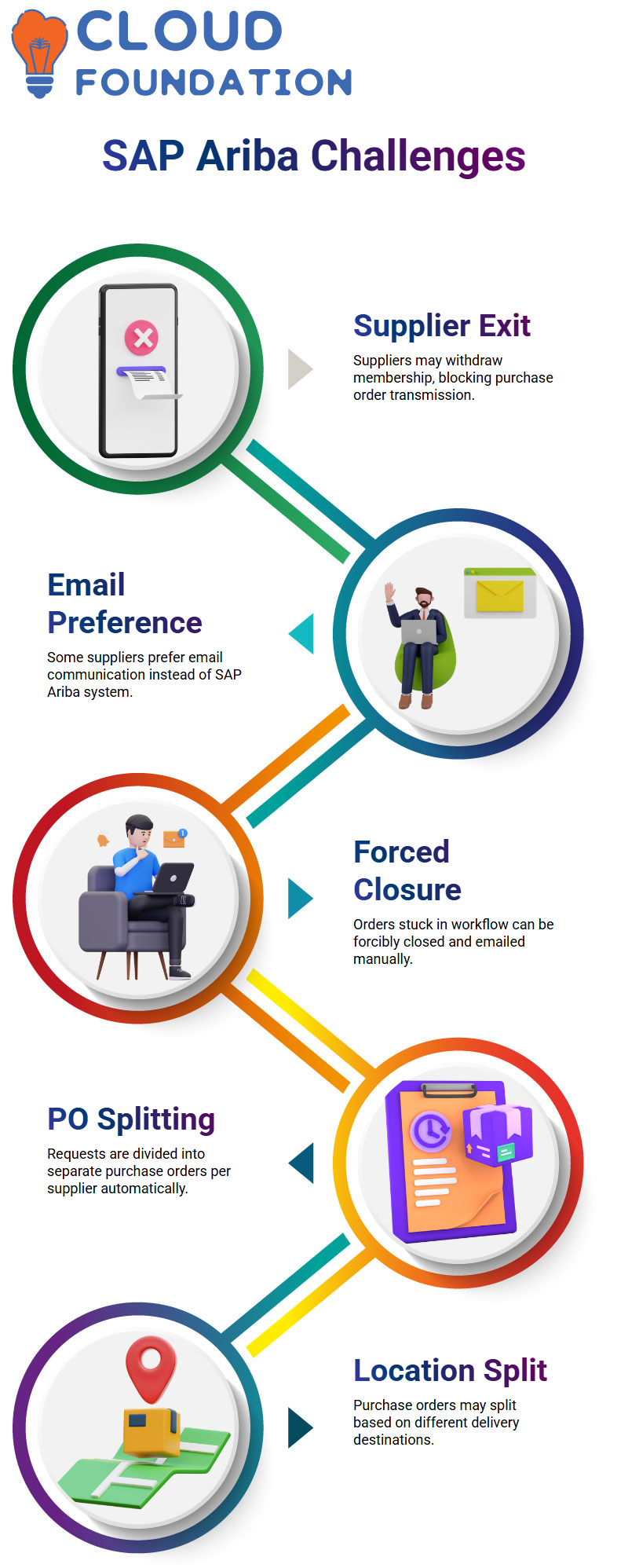
By giving the invoicing agent this exemption, SAP Ariba makes responsibility extremely evident.
Clearing Exceptions Through SAP Ariba Receipts
I have alternatives when SAP Ariba generates a quantity exception. I have three options: wait, make a correction, or complete the remaining products receipt.
In the majority of training cases, I accept the leftover amount to finish the product receipt in SAP Ariba.
SAP Ariba instantly changes the PO and removes the invoice exception as soon as I turn in the receipt.
I can see that the problem has been fixed automatically when I revisit the invoice reconciliation document in SAP Ariba.
One of SAP Ariba’s best features is this automation.

SAP Ariba Online Training
Approvals and Payments Flow in SAP Ariba
SAP Ariba passes the document via the approval cycle after reconciliation.
I always explain how approval processes operate and why removing approvers from SAP Ariba’s right-hand side prevents needless alerts.
During practice and actual operations, this little element in SAP Ariba saves a great deal of misunderstanding.
SAP Ariba designates the invoice reconciliation as ready for payment once it has been accepted.
SAP Ariba displays payment requests, due dates, and conditions such as net 30 or net 45 in the history tab.
If available, SAP Ariba even accounts for early payment discounts, which aid finance teams in precisely planning cash flow.
Force Pay and Status Updates in SAP Ariba
I show force pay in SAP Ariba in a few different circumstances. When I want to manually close the document, this is helpful.
I verify the payment status in SAP Ariba by choosing force pay, and SAP Ariba changes the invoice to paid.
Additionally, I explained that independent systems do not utilise SAP Ariba invoice reconciliation.
SAP Ariba always transmits data to the backend system in integrated landscapes and waits for a response.
Real-world assistance and troubleshooting in SAP Ariba require when and when to employ force pay.
SAP Ariba When the Backend Is Not Connected
Allow me to describe this situation from the standpoint of an actual project utilising SAP Ariba. The backend ERP system and the SAP Ariba system are sometimes disconnected.
In such a scenario, the backend will not be immediately updated by whatever activity I take in SAP Ariba.
I handled the document outside of the system and chose not to submit it over the SAP Ariba network.
For this reason, I always remind Learners that system connection has a significant impact on SAP Ariba behaviour.
The same thing might occur with more than one document in SAP Ariba.
For instance, I could make a purchase order in SAP Ariba, but the supplier may have already removed or deactivated their SAP Ariba Business Network account by the time the PO reaches them.
Because the supplier is no longer on the network, SAP Ariba attempts to transfer the document but is unsuccessful.
SAP Ariba Purchase Orders and Supplier Network Challenges
Now consider this from the perspective of the SAP Ariba workflow.
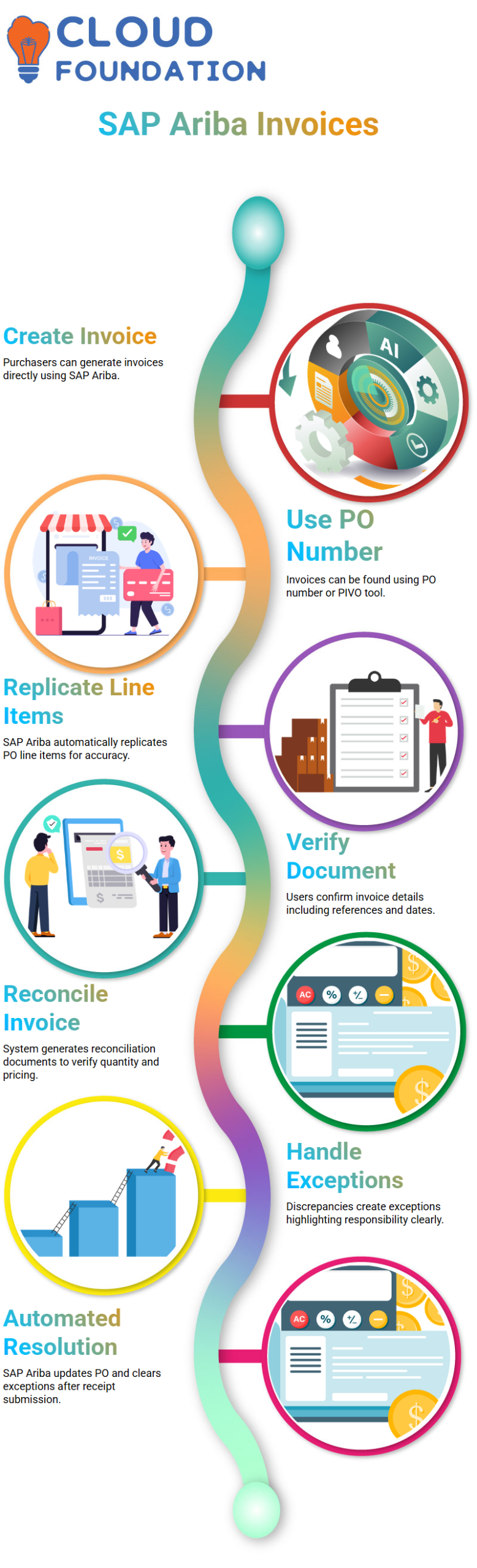
When SAP Ariba tries to send the purchase order over the Business Network, the supplier withdraws their membership.
SAP Ariba is unable to send the PO as a result. The paper remains in ordering status at this point and does not proceed.
This is where SAP Ariba business choices are relevant.
I’ve observed instances when suppliers expressly state that they would rather communicate via email rather than utilise SAP Ariba anymore.
Nonetheless, the management choice is often pretty clear: either the supplier rejoins SAP Ariba or the organisation discontinues doing business with that supplier.
Convenience is not a reason for SAP Ariba to break the law.
Forced Close Process in SAP Ariba Explained Clearly
Allow me to discuss a crucial SAP Ariba interview topic: forced closure.
I have the option to forcibly close a purchase order when it is locked in ordering state in SAP Ariba and cannot be forwarded to the Business Network.
This indicates that I have formally chosen not to use SAP Ariba to transmit the PO.
When I forcibly close a purchase order in SAP Ariba, the document status changes to “order,” but it doesn’t go to the next step of its lifecycle.
Next, I print out the purchase order and manually email it to the supplier.
SAP Ariba is no longer engaged in document transmission; this procedure is called externalising the document.
SAP Ariba Requisition and PO Splitting Logic
I always provide thorough explanations of requests and PO generation throughout my SAP Ariba courses.
I may make a single request for many suppliers in SAP Ariba; SAP Ariba will never make a single purchase order for several vendors.
The request is automatically divided by SAP Ariba, which creates a purchase order for each supplier.
For instance, SAP Ariba divides line items by supplier and generates distinct purchase orders if they belong to Vendors A and B.
When catalogue and non-catalogue products are included in the same request, SAP Ariba also uses another crucial split logic.
Because catalogue items are typically auto-processed, and non-catalogue goods need to be prepared manually by the provider, SAP Ariba divides them into separate processes.
SAP Ariba PO Splitting Based on Delivery Locations
Another sophisticated SAP Ariba case pertains to ship-to locations.
SAP Ariba may divide the buy order according to the delivery location if I generate a purchase request with line items supplied to Hyderabad and Mumbai, for example.
The transaction rules set up in the SAP Business Network determine this behaviour in SAP Ariba.
SAP Ariba produces distinct POs if the network restrictions prohibit multiple ship-to destinations in a single PO.
Because SAP Ariba allows both buyers and suppliers to specify these rules, system behaviour may differ across installations.

SAP Ariba Course Price

Vanitha
Author
The capacity to learn is a gift; the ability to learn is a skill; the willingness to learn is a choice