Workday Reporting Training for Calculated Fields
Workday Reporting Counting and Basic Calculations
For instance, I utilise Workday Reporting’s Count Related Instances feature to determine how many workers there are in each nation.
This functions just like Oracle’s COUNT function. Workday Reporting counts the occurrences that match when the condition is true.
Workday Reporting counts each employee in the data set if no conditions are applied.
However, I define a constraint in the computed field if I just want to count workers in the USA or India.
This functions similarly to a where clause in Workday Reporting. The system only counts employees who comply with the requirement after I set it.
I often use Workday Reporting to demonstrate to my Learners how a single calculated field may drastically alter a report’s outcome.
We intentionally filter rather than pull everything. That is how organised workday reporting works.
Date Fields Effectively in Workday Reporting
When it comes to Workday Reporting, dates are crucial. I utilise a date constant field when I require a set date.
I may choose a date, date and time, or date with time zone Workday Reporting.
I set it up directly in the computed field if I require a static value, such as a text or numeric constant.
I use Workday Reporting’s Date Difference feature to determine tenure.
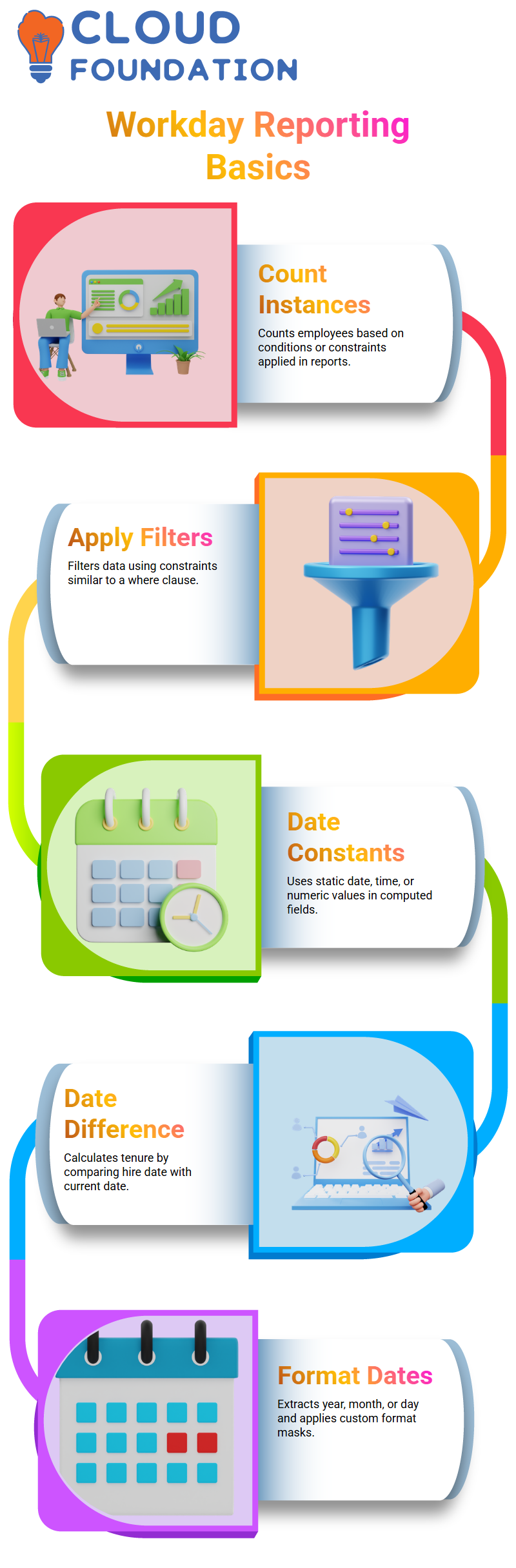
For instance, to determine how many months or years a person has worked for the firm, I compute the difference between the present date and the hiring date.
Once I properly create the two date fields, Workday Reporting makes this simple.
When I want to extract only the year or show a date in a certain format, such as DDMMYYYY, I also utilise Workday Reporting’s Format Date function.
I can extract elements like the year, quarter, month, or even the day of the week from Workday Reporting.
I just add a format mask if I want a specific format, such as January, February, or March.
Handling One-to-Many Relationships in Workday Reporting
Learners often have queries about Workday Reporting’s multi-instance fields.
I use Extract Multi-Instance Fields in Workday Reporting when I deal with a one-to-many connection, such as a worker who has numerous educational records.
This enables me to appropriately include relevant data in my report.
But in Workday Reporting, I utilise Extract Single Instance if I just want one particular record out of numerous.
For instance, I specify the source field as education, apply a condition if necessary, and then set the sort field if I want to show just the most recent degree out of an employee’s three education records.
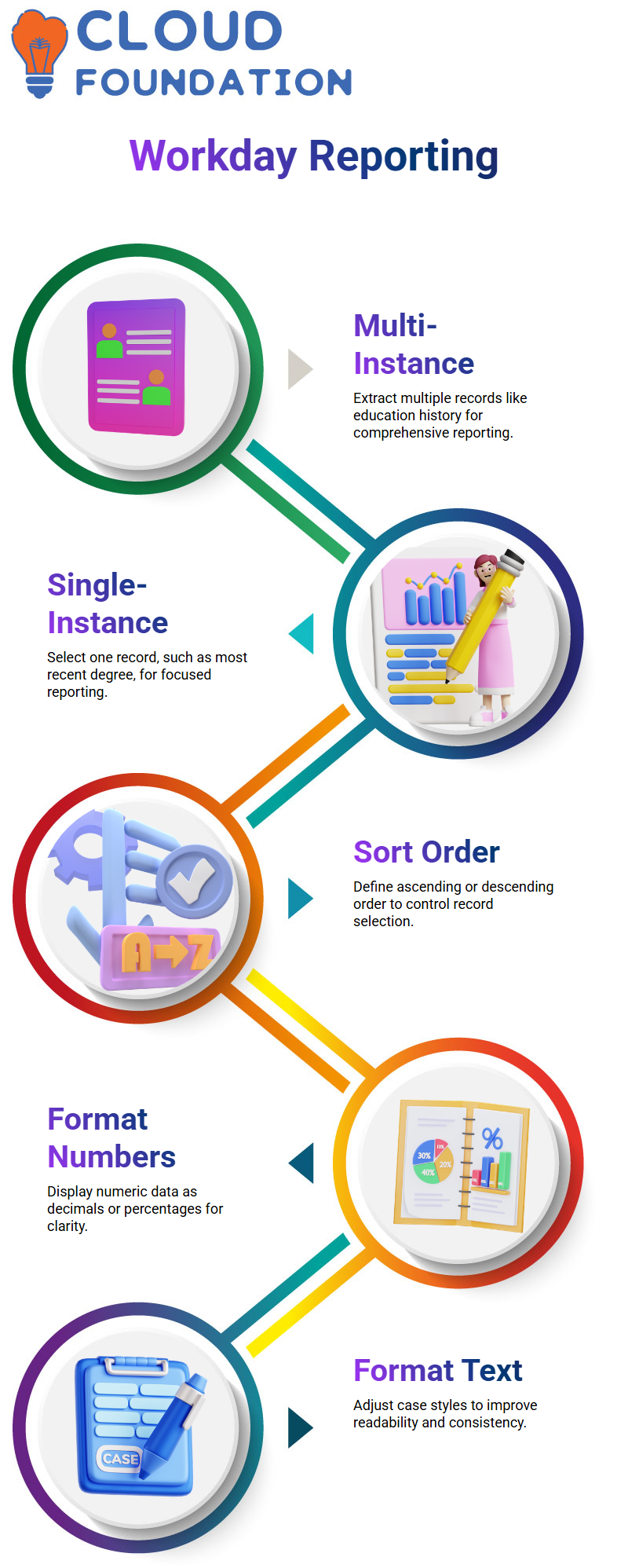
I take great care while selecting the sort direction in Workday Reporting.
Workday Reporting chooses the most current record as the first occurrence if I choose descending order by year of degree earned.
If I require the third item, I can also choose the final occurrence for the oldest record or even define a particular occurrence.
Workday Reporting is quite useful for actual business use cases because of its versatility.

Workday Reporting Training

Formatting Data Clearly in Workday Reporting
In Workday Reporting, a clear presentation is important. I utilise the Format Number calculated field when working with numeric data, such as base pay.
I can show numbers like 0.00 or even as percentages like 0.0% Workday Reporting. This guarantees that data is presented to stakeholders in an orderly and expert manner.
Similarly, I manage text cases in Workday Reporting by Format Text.
I specify manually whether I want all of the data to be in uppercase or lowercase.
The original format, as it is stored in the system, is preserved in the proper case.
These minor changes to Workday Reporting enhance readability and facilitate report interpretation.
I stress that formatting is not only decorative when I teach Workday Reporting.
It has a direct impact on how consumers utilise data. Strong report design discipline is shown in Workday Reporting’s clean layout.
Prism and Studio in Workday Reporting
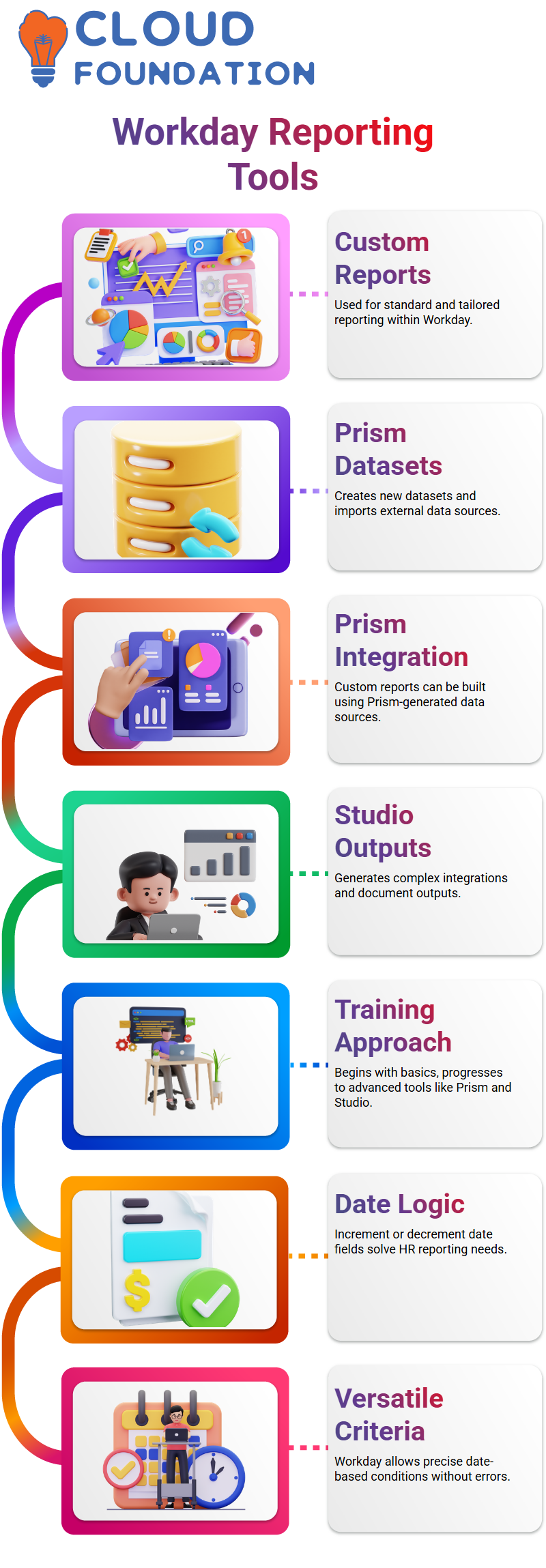
I always make sure to explain the distinctions between Custom Reports, Prism, and Studio as we go further into Workday Reporting.
Contrary to popular belief, custom reporting does not apply to everything.
Standard and custom reports are included in Workday Reporting; however, Prism and Studio have distinct functions.
Prism is more than simply another kind of Workday Reporting custom report.
I can make my own datasets, tables, and data sources in Prism. I use Prism whenever I need to create a brand-new dataset or import data from an external source.
I am unable to use a custom report in Workday Reporting to directly generate a new data source. I have to use Prism to construct it first.
After creating a data source in Prism, I can construct custom reports in Workday Reporting the data source that Prism produced.
One of the main architectural ideas of Workday Reporting is this.
Conversely, Studio serves as a development tool that aids in producing sophisticated outputs, such as intricate integrations or document outputs.
I often start my Workday Reporting training classes with basic reports, progress to more complex computations.
Then go over matrix reports, and end with more complex tools like Prism and Studio.
This approach aids Learners in gradually gaining confidence while learning Workday Reporting in a methodical and useful manner.
Workday Reporting and Increment or Decrement Date Logic
I utilise actual HR circumstances when I go to date computations in Workday Reporting.
One typical need in Workday Reporting, for instance, is to verify whether an employee quit within a year of their hiring date.
I utilise the increment or decrement date computed field to fix this.
I may extend the hiring date in Workday Reporting by one year, twelve months, or even 365 days.
I may create precise criteria within Workday Reporting without mistakes because of its versatility.
Workday Reporting and Common Calculated Field Types
I add fields like text constant and numeric constant as I go more into Workday Reporting.
Numerical constants are helpful in Workday Reporting when you want a fixed number, like 100, to appear in every report row.
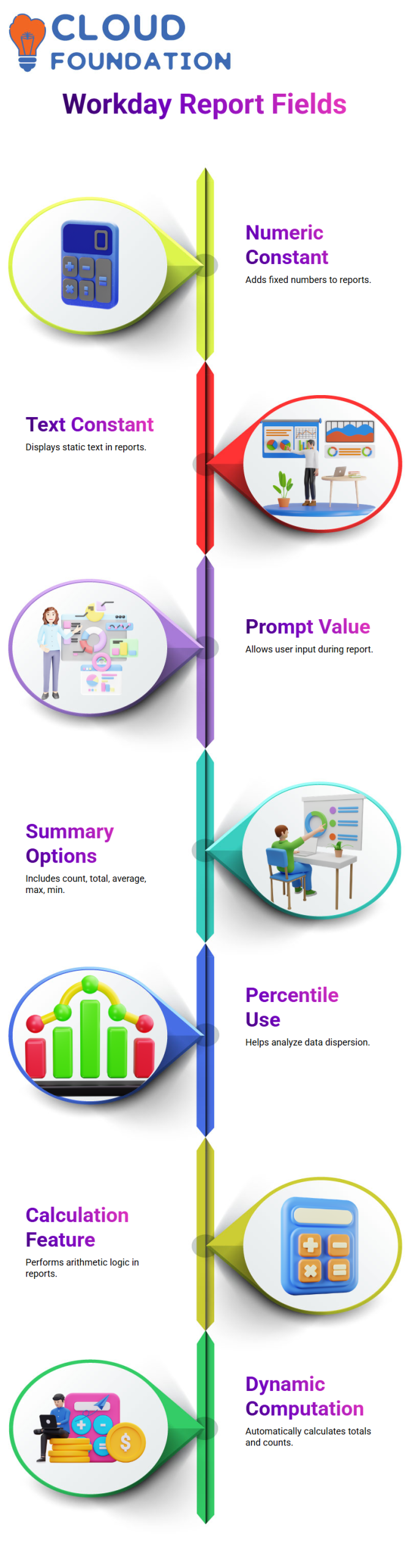
When displaying static text in a custom report, text constants come in handy.
Additionally, I describe Workday Reporting’s prompt for value, which enables the user to add data as the report is being generated.
Workday Reporting reports are dynamic and easy to use because of this functionality.

Workday Reporting Online Training
Advanced Calculations in Workday Reporting
Workday Reporting provides a number of additional summary choices in addition to count and total, including computation, average, maximum, minimum, percentile, and unique count.
Depending on what the company want to measure, I use various choices.
For instance, I choose maximal if I wish to find the nation’s highest income. I may use the percentile if I wish to examine dispersion.
The calculation option in Workday Reporting is one feature that often perplexes new users.
I do a summary computation when I choose calculation. For example, I divide the total yearly base pay by the number of workers to get the average compensation.
I can provide this arithmetic logic right in the report thanks to Workday Reporting.
Assume a nation employs six people, each earning a different salary.
I use the count function to divide the total by six after adding up all of the wages, and the sum function.
This computation is dynamically carried out by Workday Reporting the data.
Handling Errors Effectively in Workday Reporting
I sometimes run across division mistakes while Workday Reporting for computations. This often occurs when the value of the yearly base salary is zero.
The report cannot run because Workday Reporting produces an error since division by zero is not feasible.
I utilise the “Return 0 on Error” option in the calculated field settings to deal with this circumstance.
When I choose this option, Workday Reporting stops the full report but instead replaces it with zero.
This method guarantees that the output still contains the remaining valid data.
The whole report might be blocked by a single inaccurate computation if I don’t activate this option.
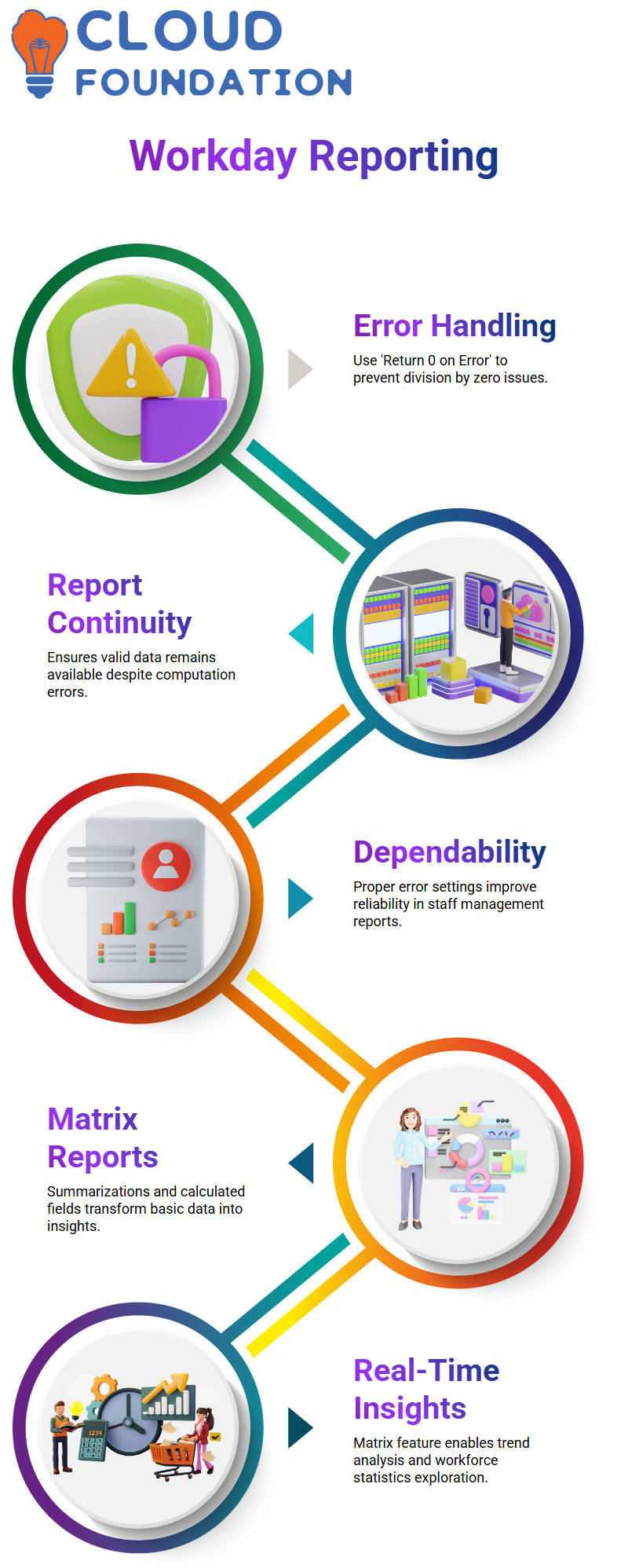
That causes needless uncertainty in situations of staff management.
I improve Workday Reporting’s dependability and usefulness for practical applications by appropriately setting error handling.
Building Powerful Matrix Reports with Workday Reporting
I can apply several summarizations, construct calculated fields, and alter the way the data displays in rows and columns.
Workday Reporting. With the right setup, I can transform basic personnel data into insightful knowledge that aids managers in making wise choices.
I’ve found that being proficient with Workday Reporting’s matrix feature alters your perspective on workforce statistics.
You may engage with real-time data, look for trends, and get insights from inside the system rather than relying on static figures.

Workday Reporting Course Price

Vanitha
Author