Workday Reporting Course for Beginners
Getting Started with Workday Reporting and Custom Report Creation
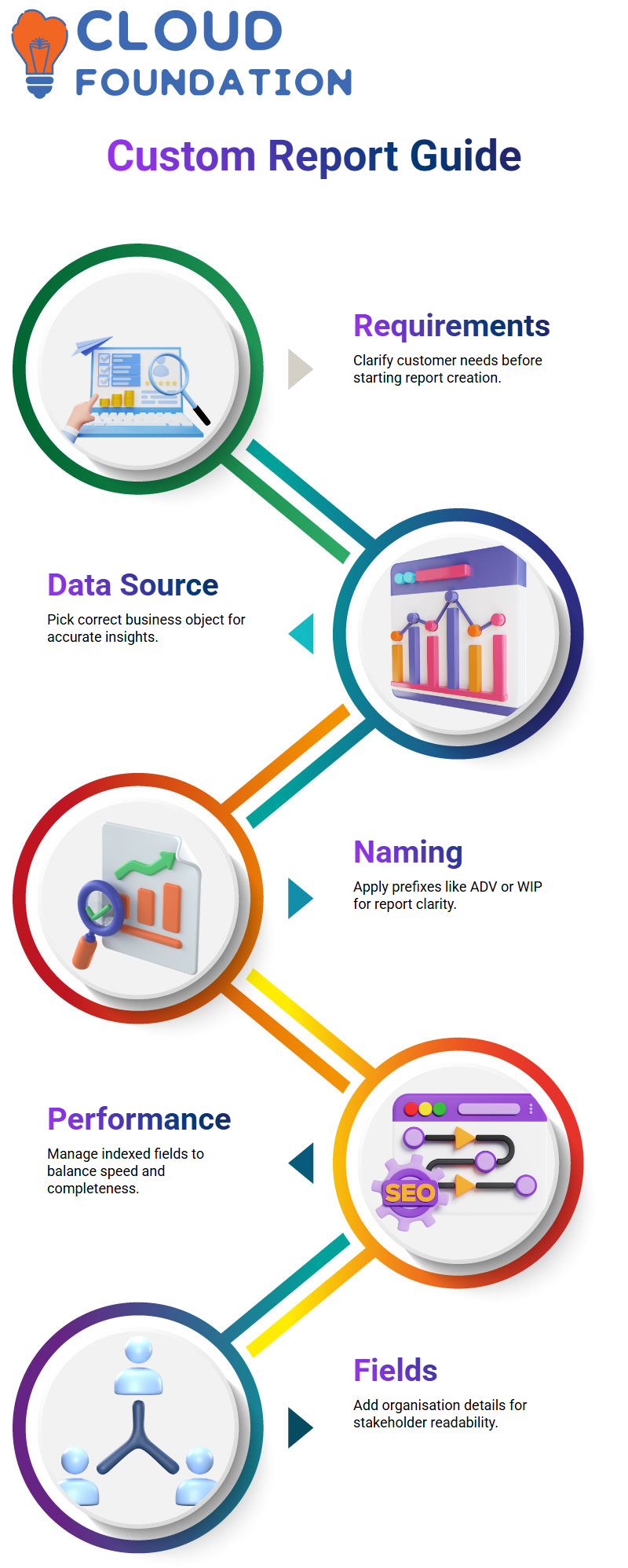
When a customer requests the number of workers in each supervisory organisation, I want to show you how I handle Workday Reporting today. I usually start by making sure I fully get the requirements and that the assignment entails creating a unique report Workday Reporting as opposed to editing an already-existing one.
Since selecting the appropriate data source is essential to the success of any report, I start my daily Workday Reporting exercise by determining the relevant business object. Workday Reporting is unable to provide precise personnel counts or organisational insights if the wrong basis is chosen.
I take care to adhere to naming rules when I build a custom report in Workday Reporting. Typically, I begin the report name with a prefix that indicates the report status, such as ADV for advanced reporting or WIP for work in progress. I maintain an orderly and manageable workday reporting environment because of this behaviour.
Choosing the Right Data Source in Workday Reporting
I constantly assess which data source best links to supervisory organisation information when I’m working with Workday Reporting. I investigate organisation-related data sources rather than going straight to worker data since the need centres on staff numbers per supervisory organisation.
The Optimise for Performance option is a crucial choice in Workday Reporting. Workday Reporting may conceal non-indexed fields that I may really want for in-depth analysis if I activate this option. In order to guarantee complete visibility in Workday Reporting, I often deactivate this option since supervisory organisation data is not always indexed.
In addition, I check the data source type to see whether Workday Reporting classifies it as indexed or not. Knowing this distinction enables me to strike a balance between data completeness and report performance, which is an essential ability in professional workday reporting.
Adding Fields and Objects in Workday Reporting
I go to Workday Reporting’s column setup step after choosing the appropriate data source. To make the report legible and relevant for stakeholders, I include data like organisation name and organisation ID here.
I pay great attention to field types in this Workday Reporting stage. Instead of acting as ordinary text, certain fields behave like self-referencing instances. I can confirm that I chose the right reference by clicking on these fields in Workday Reporting, which open comprehensive organisational pages.
In Workday Reporting, I try other fields or look over related activities if a field does not yield the required result. My confidence and productivity in Workday Reporting assignments are enhanced by this practical troubleshooting method.
Workday Reporting Naming Conventions I Follow Every Time
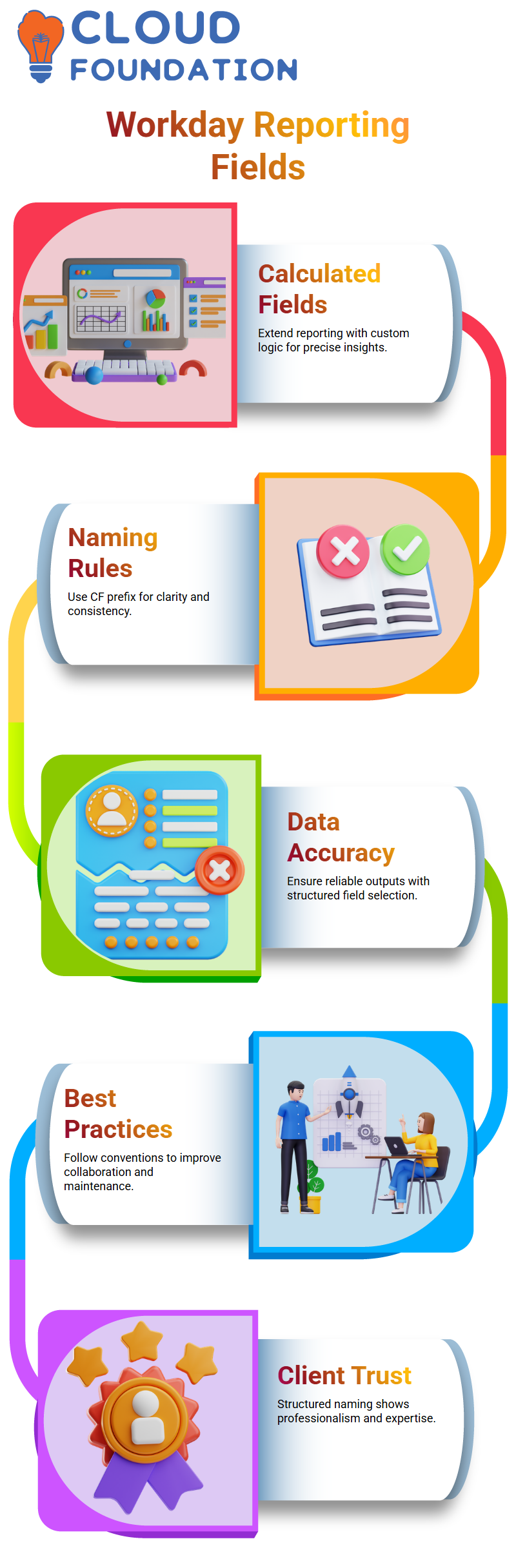
Naming conventions are the first thing I cover when I teach Workday Reporting. I advise my Learners to choose professional, consistent, and unambiguous names for their computed fields. I start each calculated field in Workday Reporting with CF in uppercase characters. When working with actual clients, this little habit has a significant impact.
I never give a calculated field I build to determine Country a random name. I use a structured format in Workday Reporting, such as CF_LRV_Country. Anyone looking over my report may identify that I utilised a Lookup Related Value (LRV) function because of this. Clients can see right away that I understand best practices when I adhere to these guidelines in Workday Reporting.
I always tell my Learners that creating reports is just one aspect of Workday Reporting. The goal is to construct them expertly. In Workday Reporting, following proper naming standards greatly facilitates collaboration, maintenance, and troubleshooting.
Workday Reporting Business Object Selection Strategy
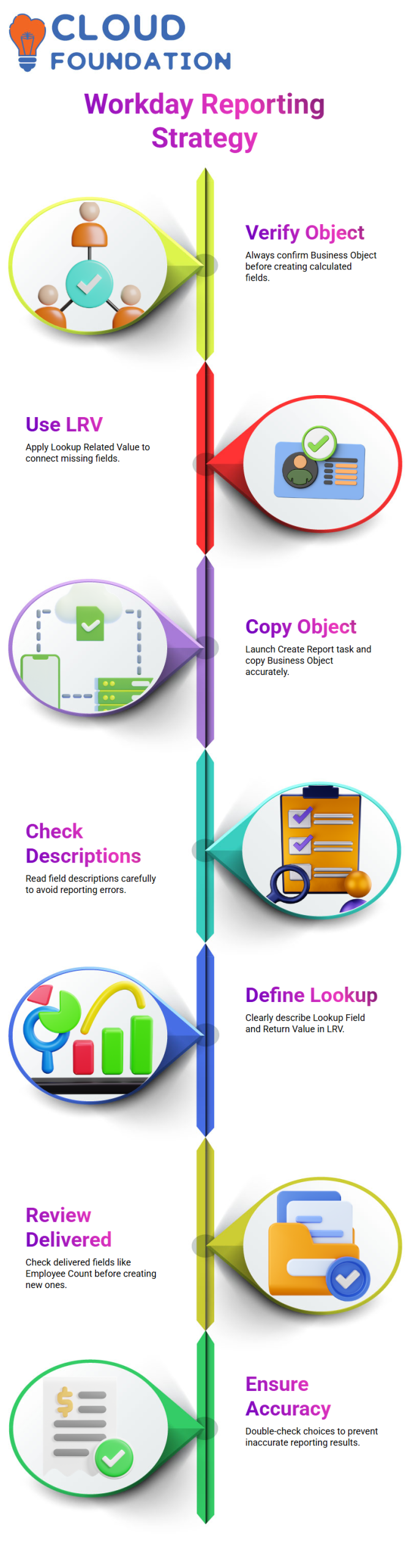
I always verify the report’s Business Object before creating a calculated field in Workday Reporting. In the event that I create a report on Supervisory Organisation, I ensure that my computed field corresponds with that Business Object. In Workday Reporting, this step is essential.
I don’t freak out when I need to add a field, like Country, but it’s not there in my existing business object. I utilise Lookup Related Value to connect Business Objects in Workday Reporting. One of the most effective methods I teach in Workday Reporting is this one.
When generating calculated fields, I always launch the Create Report task, check the Business Object, copy it, and utilise it appropriately. Accuracy at this point in Workday Reporting helps to avoid significant mistakes later.

Workday Reporting Training

Workday Reporting Lookup Related Value (LRV) in Action
In Workday Reporting, I utilise Lookup Related Value when the country is not immediately accessible. My current Business Object and the linked object where the real value is located are connected via LRV. This is how I extract variables like Country from Location in Workday Reporting.
I always read the field description and look at the relevant activities before choosing a field. I never choose a field in Workday Reporting at random. For instance, before selecting a location, I check to see whether it is the Supervisory Organisation’s Primary Location.
I meticulously describe the Lookup Field and the Return Value after configuring LRV in Workday Reporting. The objects are connected by the Lookup Field, and the Country is returned via the Return Value. This is a fundamental idea in Workday Reporting that I need my Learners to practice regularly.
Workday Reporting Filters and Custom Report Creation Process
I don’t run a custom report in Workday Reporting right away after creating it. I set up filters first. For instance, I provide a filter that enables users to dynamically choose a Supervisory Organisation. Because of this, the Workday Reporting solution is adaptable and simple to use.
I also make sure I’m utilising the right task. Searching and viewing an existing report is not the same as creating a custom report in Workday Reporting. Before starting a new report, I always make sure it doesn’t already exist.
An organised process to design Business Objects, add computed fields, verify naming standards, set filters, and test the results makes Workday Reporting simpler. Because Workday Reporting is more memorable when Learners construct it themselves, I teach it to them via practical experience.
Workday Reporting Project Timelines Based on Complexity
I am often asked by Learners how long it takes to construct Workday Reporting. I tell them that intricacy is the only factor that matters. A basic report in Workday Reporting might take two days to complete. It may take four days to complete a report of medium complexity.
The schedule may go up to six days or more when I work on complicated Workday Reporting needs, particularly those that include many computed fields.
If I have to generate hundreds of computed fields for certain complicated Workday Reporting applications, it might take weeks.
When reports extract a lot of data or include many Business Objects, Workday Reporting becomes more difficult. For this reason, I always thoroughly examine needs before committing to Workday Reporting schedules.
Getting Started with Workday Reporting and Custom Reports
I use the search box to look for “View Custom Report” whenever I want to view a custom report. Because Workday Reporting significantly relies on the proper language, I always make sure I choose the appropriate assignment. When I confuse “Create Custom Report” with “View Custom Report,” I get lost.
Once I open the report, I save it immediately. Saving is essential while Workday Reporting. I lose my setup if I shut the window without saving it correctly.
This is something I discovered the hard way. I use “View Custom Report” to reload the report after saving, closing all other tabs, to make sure everything is saved properly in Workday Reporting.

Workday Reporting Online Training
Editing Fields in Workday Reporting for Accurate Results
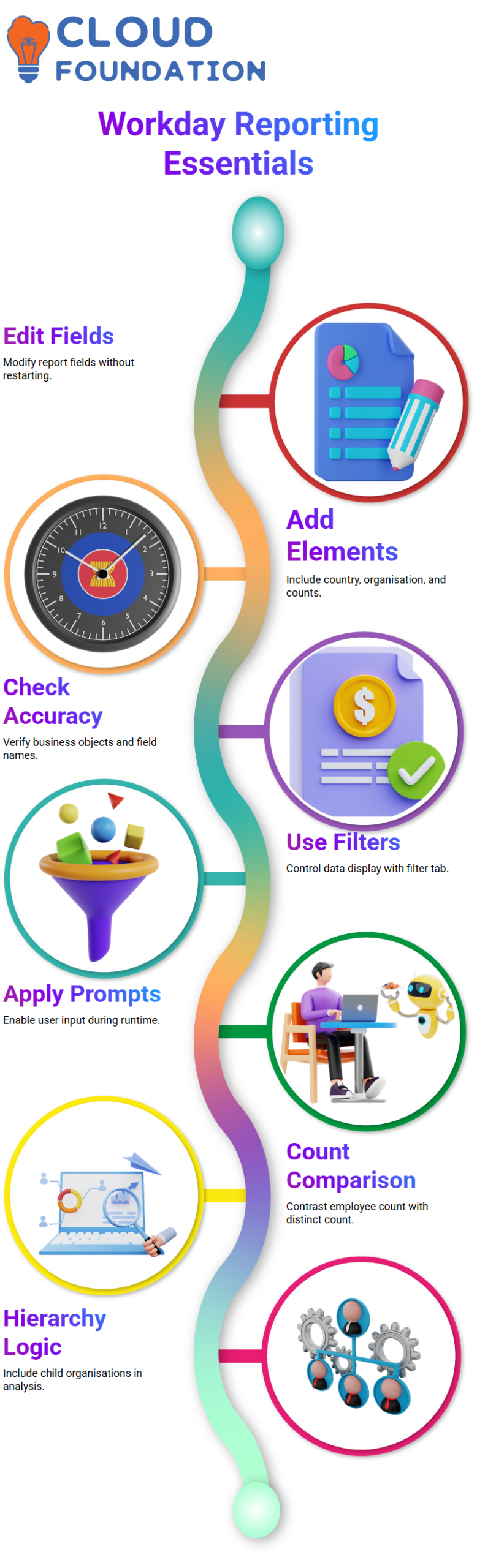
In Workday Reporting, I carefully go over the fields I entered when I launch my custom report. I utilise the Related Actions and choose Edit if I see that fields are missing. This phase in Workday Reporting enables me to modify the report without having to start from scratch.
For instance, I provide elements such as Country, Supervisory Organisation, Employee Count, and Employee Count Distinct. I can create several rows and include various fields simultaneously in Workday Reporting. Since even a little error affects the outcome of my Workday Reporting results, I take care to choose the appropriate business object and double-check the field names.
Filters and Prompts in Workday Reporting to Control Data
In Workday Reporting, filters are crucial. I go to the Filter tab after adding fields. I specify here how I want the data to look. To allow the user to choose which organisation to inspect while running the report, I included Supervisory Organisation as a filter.
I often prefer the operator “In the selection list” in Workday Reporting, as it lets users choose more than one organisation. The comparison type is then set up to ask the user for values. With this configuration, Workday Reporting will ask for input during runtime and will continue to function even if the user leaves the prompt empty.
Employee Count Logic in Workday Reporting
I choose one or more supervisory organisations when I run the report in Workday Reporting. After that, I contrast Employee Count with Employee Count Distinct, taking into account lower-level companies. Workday Reporting becomes effective at this point.
I can tell right away that Workday Reporting is obtaining information from the hierarchy if I see a greater distinct count, including subordinates, but zero workers in the primary organisation.
Employees of child organisations under the primary supervising organisation are included. One of the fundamental ideas of Workday Reporting is this hierarchical structure, which I constantly have in mind while doing data analysis.

Workday Reporting Course Price

Vanitha
Author
The capacity to learn is a gift; the ability to learn is a skill; the willingness to learn is a choice