Workday Integration Training on File Transfers and Scheduling
Workday Integration File Transfer Logic
When we use Workday Integration, things move from one folder to another on their own.
The SFTP team sets up rules so that when a file is put in a certain folder, it is deleted from that folder and sent to the target folder immediately. This takes place in real time and is controlled by scripts.
There might not always be a folder that both people can view. That’s when everyone has their own box.
Workday Integration makes sure that the file gets to the recipient’s folder directly after you put it in yours. This is like a safe way to copy and paste.
Workday Integration and Scheduled Integration
I don’t have to worry about live delays now that Workday API is in place. Once I send the information, the receiver gets it on time, as planned. The integration is set up to run itself, so the person who is supposed to receive the file only needs to check the designated folder to see if it has come.
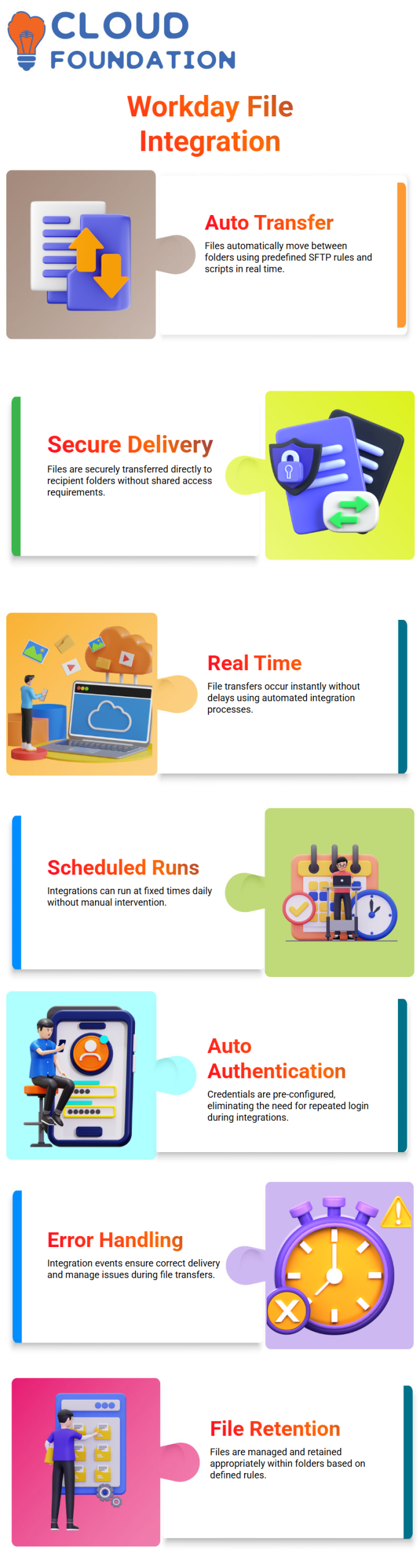
It’s easy to set up a connection in Workday Integration. As an example, if I set an integration to run every day at 6 p.m. AEST, it will do so immediately.
I don’t have to enter my ID and password every time because they are already set up in the interface. The integration event takes care of identification and makes sure that files are sent safely.
Workday Integration File Retention and Error Handling
Now that Workday API is set up, I don’t have to worry about live delays. The person I send the information to gets it on time, as planned.
It’s set up so that the integration runs itself, so the person who should get the file only needs to check the right place to see if it has arrived.
Building a link in Workday Integration is simple.
Take the case of setting a merger to run every day at 6 p.m. AEST, it will do that right away.
My ID and password are already set up in the screen, so I don’t have to enter them every time.
The integration event looks for the right person and makes sure the files are sent safely.

Workday Integration Training

Workday Integration and SFTP Archiving
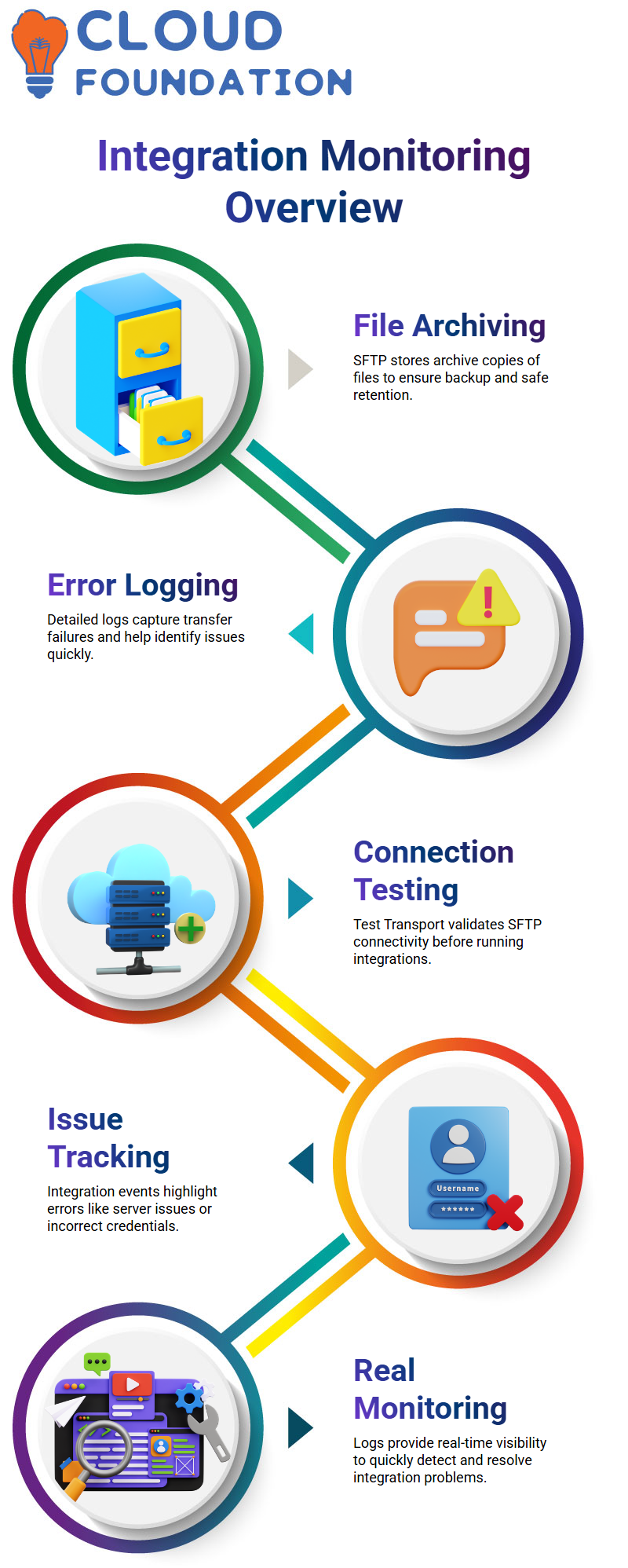
SFTP also stores files for later use in Workday Integration. When a file is sent to an SFTP folder, the server makes an archive copy and sends a second copy to the same folder.
This keeps things safe and copies them over.
Workday Integration keeps track of all problems, even if something goes wrong while transferring files.
These logs give detailed messages and show if the file failed to send. These logs help me figure out what’s wrong and make sure files are sent properly.
Workday Integration Testing and Connectivity
It’s easy to test Workday Integration. The ‘Test Transport’ choice in the integration lets me check if the SFTP connection is working.
The system gives me an error message if the link is wrong, so I can fix the settings before running the integration.
The integration event shows any problems that happened with Workday Integration, like a server going down or wrong passwords.
The method makes it clear when deliveries fail and when errors happen. This helps me find problems and fix them fast.
Workday Integration Logs and Error Monitoring
Workday Integration logs are how I keep track of success.
Everything you need to know about an error that happens during an integration in core connections and EIBs is in the integration event.
I can see error numbers, warning numbers, and specific messages that help me keep a close eye on the integration.
These logs make Workday Integration clear and dependable. I can see any problems right away and fix them without having to wait for human reporting.
It makes sure that every day the connection works well.
Workday Integration Events in Daily Scheduling
How Workday Integration works when you set it to run every day and what you should do if it finishes with problems or warnings.
When something goes wrong, I always tell my kids that’s when they really learn. There, you’ll really Workday Integration.
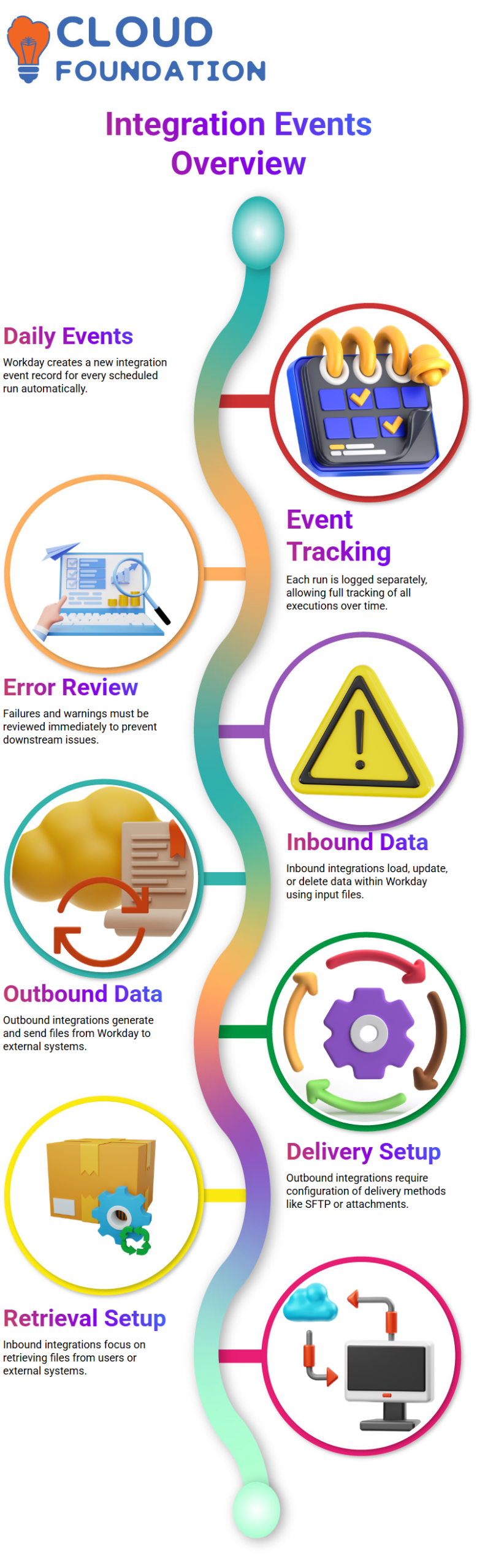
Working with Workday is easy. If I set an integration to run at 6 a.m. or 6 p.m. AST, Workday will make a new integration event every day at that time.
The system makes a new event record every time Workday Integration starts. You see one row if it runs once.
You see five rows if it runs five times. You’ll see 10,000 rows if it runs 10,000 times. Workday Integration keeps track of each and every operation.
Let us say that up until yesterday, everything was fine. The Workday Integration runs today at 6 p.m., but it fails or ends with failures.
So, I open the most recent merger event right away to figure out what went wrong.
I never ignore Workday Integration states that say “warning” or “error,” because even a small problem can affect processes that come after it.
I open the individual Workday Integration by its integration ID to look at the integration event.
Then I click on Integration System in Related Actions and then on Integration Events. It shows me all past execution records when I hit OK without applying any filters.
After that, all I have to do is click on the failed event and look over the information.

Workday Integration Online Training
Workday Integration Outbound vs Inbound Explained Clearly
Now I want to clear up a common missing, I see in about the difference between outbound and inbound Workday Integration.
A file is made and sent out of Workday by the system when I talk about outgoing Workday Integration. We put data into Workday when I say “inbound Workday Integration.”
Inbound Workday Integration is what I use when I make a report in Workday, extract the data, put it into an Excel or XML template, and then use EIB inbound to upload it back into Workday.
In this case, Workday Integration reads the file and changes, adds, or removes information in Workday.
I set up a distribution method for outbound Workday Integration. Workday Attachment is one way to send.
The Workday Integration makes the file and saves it in the integration event itself when I choose Workday Attachment. The file is not sent to any other servers.
If I pick a different delivery method, like SFTP, I have to set up passwords, server information, and folder paths.
In that case, Workday Integration makes the file and sends it to the external place that was set up.
Outbound Workday Integration Links Workday to other systems in this way.
Configuring Retrieval and Delivery in Workday Integration
I don’t set up shipping in inbound Workday Integration. I set up recovery instead.
Attach File at Launch is a choice I often make. It asks me to share a file when I choose this in Workday Integration and run the process.
When I attach the file, Workday Integration reads it and puts the information into Workday.
A lot of people think that “inbound Workday Integration ” always means that data comes from a different system.
That’s not always correct. I still use inbound Workday Integration when I insert, update, or delete data from Workday, even if I take it out, change it, and then put it back.
Sometimes, a file is put on an SFTP server by a different machine. Then, Workday Integration gets the file from SFTP on its own and handles it as an incoming integration.
The flow stays the same: the system reads the file and loads the info.
I always stress this difference when I teach Workday Integration: outbound is about setting up delivery, while inbound is about setting up recovery.
If you this basic idea, you’ll be able to create and fix any Workday Integration problem with ease.

Workday Integration Course Price

Vanitha
Author