Workday Integration Reporting Specialists Training
Workday Integration Through Contextual Reporting
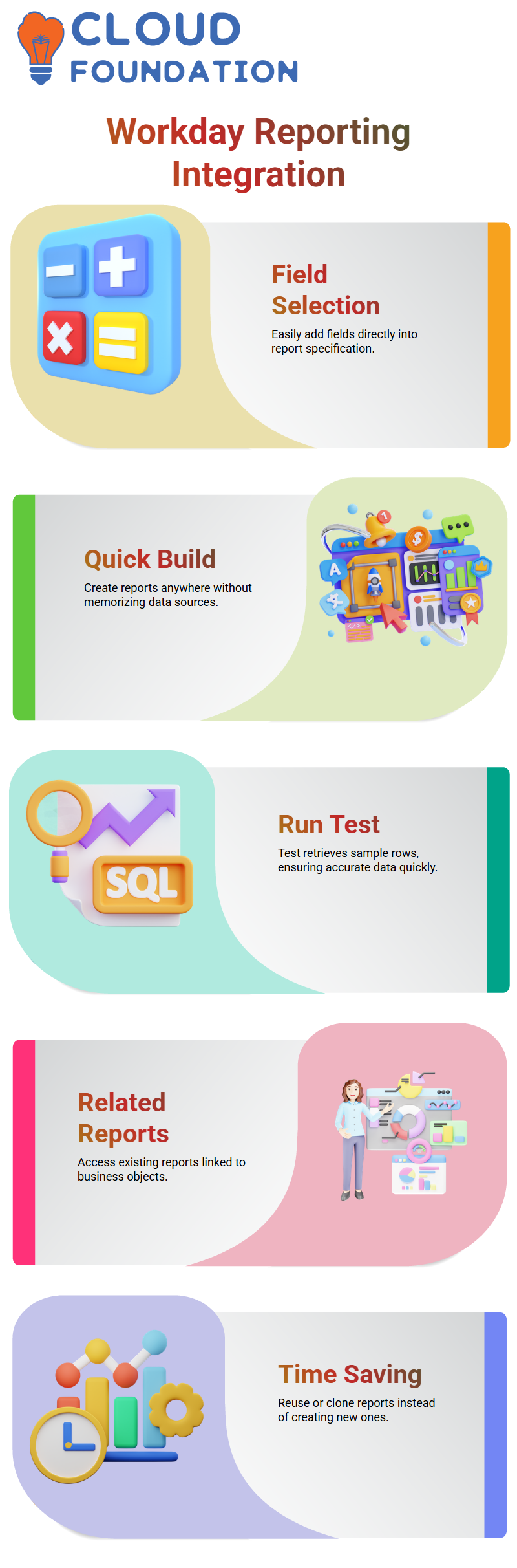
Contextual reporting is one aspect of Workday Integration reporting that I really like.
Let’s say I choose eight fields straight off the screen. Those eight fields appear in the report specification automatically when I generate the report.
This greatly speeds up the development of Workday Integration.
I can create a Workday Integration report from anywhere in the system thanks to contextual reporting.
I don’t have to commit all business objects and data sources to memory. I can apply related activities, go straight to the field, and quickly build the report structure, making Workday Integration easy.
Workday offers me two choices when I save the report: Run and Test.
Workday Integration runs the report on the whole dataset if I select Run. Only around 10 or 12 rows are retrieved when I hit Test.
I usually utilise Test First while developing Workday Integration. It operates fast and assists me in confirming that the data returned by my fields is accurate.
Contextual reporting in Workday Integration enables me to recognise business items, comprehend field activity, and investigate associated reports without speculating.
I utilise contextual reporting to expedite my Workday Integration analysis rather than doing manual searches.
Reports in Workday Integration
I click on the relevant steps, which show up as the three dots, after opening a worker profile and choosing a job profile like Business Admin.
I then choose Related Reports under Reporting. When designing Workday Integration, this step is quite helpful.
Workday displays all of the reports based on that business object when I choose Related Reports.
These reports may be generated by the tenant or provided by Workday.
This helps me in determining if an existing report already has the information I want for Workday Integration.
Instead of creating a new report, I often reuse or clone an old one in Workday Integration situations.
I’ve learned how the Job Profile business object provides reporting and how it aligns with my Workday Integration need by looking at related reports.
Because I can see how different reports utilise the same business item right away, this Workday Integration tool saves time.
Before creating a new Workday Integration report, I usually advise reviewing Related Reports.
Report Fields and Values for Better Workday Integration
I then choose Report Fields and Values. I have total insight into the business item with this option in Workday Integration.
Workday displays all of the fields that are accessible and their values for that particular instance when I choose Report Fields and Values on the Job Profile business object.
For instance, I can view every field related to the Job Profile if it is Business Admin.
I can detect if a field is single instance, multi-instance, Boolean, or text. My Workday Integration design is strengthened by this level of information, as I can easily comprehend the data’s structure.
I often struggle with Workday Integration projects when I’m unsure of which data source to utilise.
I investigate relevant business objects and accessible data sources from the Report Fields and Values screen.
I can choose the best data source for my Workday Integration report thanks to this.
Analysing fields straight from the business object makes Workday Integration considerably simpler.
I use contextual reporting to confirm everything rather than speculating on field names. With each Workday Integration build, this method increases data accuracy.
I also verify field classifications, descriptions, and associated business objects, this capability.
I invest time here each time I get ready for a Workday Integration to make sure I understand the data model well.
Creating Custom Reports Directly for Workday Integration
Workday Integration’s most potent contextual reporting option: Create Custom Report from Here.
This option directly facilitates the development of reports for Workday Integration, while the other two alternatives mostly provide information.
Workday automatically sets the main business object when I choose Create Custom Report from the Job Profile business object.
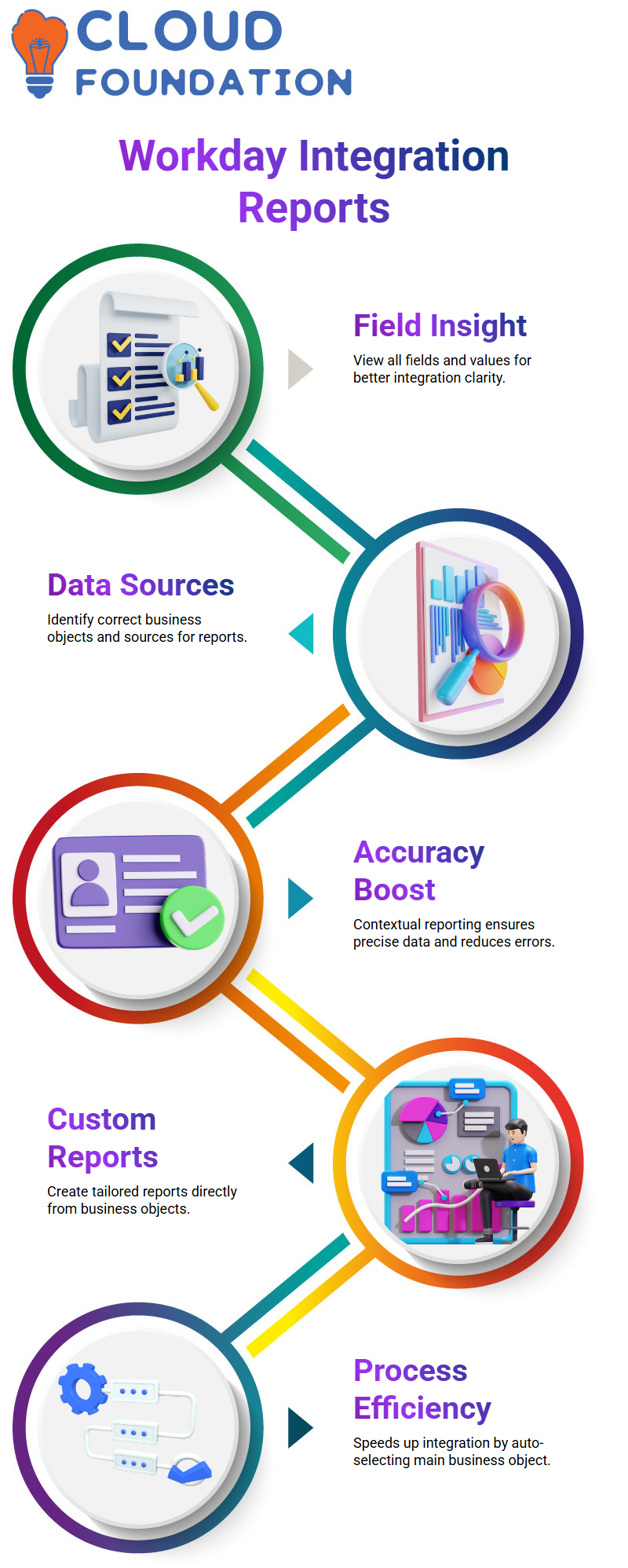
Because I don’t have to look for the right business item by hand, this speeds up my Workday Integration process.
I now choose the information needed for my Workday Integration.
I may choose Job Family, Compensation Grade, Grade Profile, Job Code, Job Description, or Job Classification, for instance. I only provide the fields that meet my requirements for Workday Integration.
This straightforward approach to report creation guarantees the accuracy and effectiveness of my Workday Integration architecture.
In order to minimise mistakes in downstream Workday Integration platforms, I create reports precisely where the data is available.
I stress this method whenever I teach Workday Integration.
I want you to be able to perform related actions, investigate reporting choices, go to any field with confidence, and begin constructing.
The tenant’s approach to Workday Integration is revolutionized by contextual reporting.

Workday Integration Training

Workday Integration Naming Conventions
Naming conventions are my priority when I begin working on Workday Integration reports.
I assure you that this has a significant impact. Suppose I hit OK after selecting a few fields.
A job profile name is requested by the system. I can provide any arbitrary name, but I never do it in actual projects.
When I create anything pertaining to Workday Integration, I adhere to a certain framework.
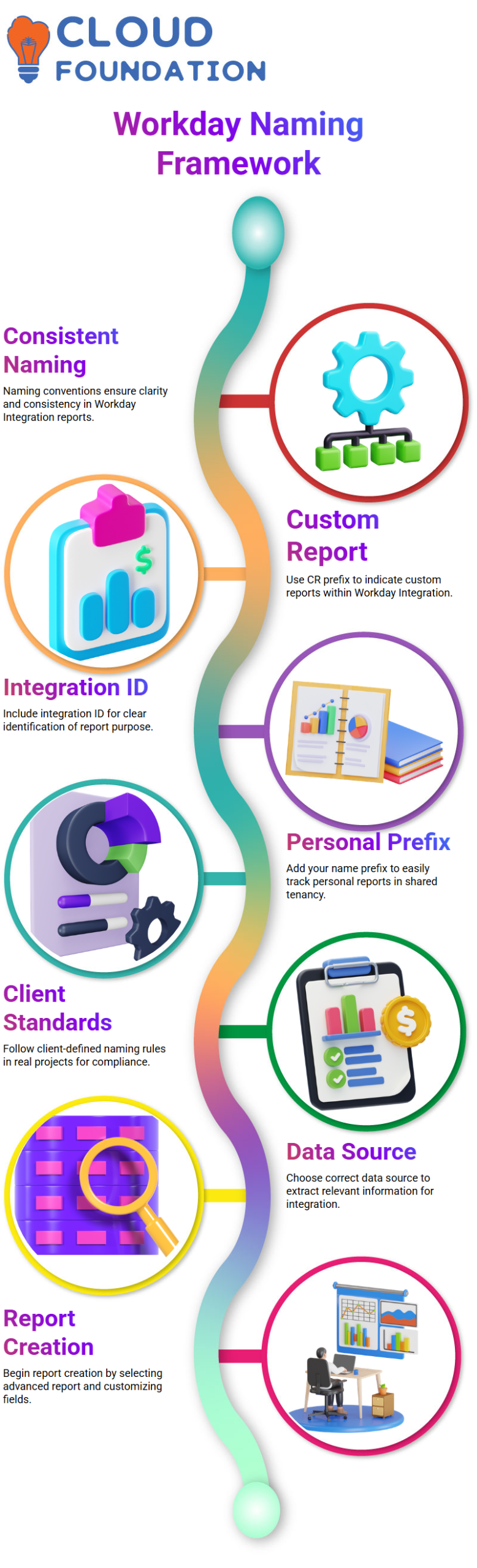
For instance, I often start with CR, which stands for Custom Report, when I produce a custom report.
I add something like RPT-INT-2000020-WorkerData if the report is compatible with Workday Integration.
This makes it clear to anybody seeing the tenancy that this report is part of Workday Integration and was created for a particular integration ID.
In our practice tenancy, I also use my name as a prefix. I put my name at the top of each report I write.
This makes it easier for me to find anything I made under Workday Integration.
Without a prefix, it becomes difficult to distinguish my own Workday Integration objects since many individuals share a tenancy and produce reports with identical names.
When working on a real-time project, you have to adhere to the client-defined Workday Integration naming requirements.
But always specify your own prefix while you’re studying or practising. When handling many Workday Integration reports, this practice will help you save time.
Workday Integration Data Sources and Report Creation
I choose the data source after giving the report a name.
This step is crucial in Workday Integration since the data source affects what data your report may extract.
Options like All Active Job Profiles, All Job Profiles, or Job Profiles with Compensation, for instance, can be shown to me.
I chose the right one based on my Workday Integration requirements.
I choose all employment Profiles if I wish to extract both current and dormant employment profiles for Workday Integration.
I choose the appropriate data source if my Workday Integration simply requires information about remuneration.
Building effective Workday Integration solutions requires data sources.
After choosing the data source, I click OK after selecting Advanced Report.
The production of Workday Integration reports now officially starts.
I may begin controlling fields and adding tags to satisfy my Workday Integration need when the system generates the custom report structure.
Workday Integration Business Objects
A lot of Learners question me about whether they have to keep in mind every business item and data source for Workday Integration.
To be honest, I don’t remember everything, even after years of experience. You don’t have to keep track of every single business item while Workday Integration.
I begin producing a bespoke report as soon as I get a new Workday Integration need. I enter pertinent terms like Payroll, Compensation, Position, or Worker in the data source area.
Matching data sources are immediately suggested by Workday Integration. I can typically tell which one best suit my Workday Integration situation after reading their titles.
Rarely, I employ contextual reporting if I am unable to locate the right data source.
I pick Report Fields and Values after navigating to the precise page where the information is saved, clicking on Related Actions, then going to Reporting.
This method makes the business purpose behind that field very evident to me.
This approach expedites the creation of reports and streamlines Workday Integration analysis.
As you engage in many Workday Integration projects over time, you will inevitably get acquainted with frequently used data sources.
Use testing, contextual reporting, and search till then. I tackle each new Workday Integration need in this manner.
Tabs and Fields in Workday Integration Reports
Knowing where the data truly resides is the first thing I concentrate on while working on Workday Integration reports.
There are many tabs in each Workday Integration section, and each one contains particular data.
For instance, I don’t do haphazard searches when I need to get a worker’s name.
Since Workday Integration keeps name-related information there, I move straight to the Personal Information tab.
My search strategy in Workday Integration is always based on the requirements.
I enter terms associated with employment, worker, or employee data when I want employment data.
This straightforward practice enables me to swiftly investigate the appropriate business item inside Workday Integration.
I look with purpose rather than making haphazard guesses.
Additionally, I use Workday Integration’s Business Object Reports, Data Source Reports, and Contextual Reporting.
I can choose the right business item with the aid of each alternative. I can reliably and unambiguously construct a report once I locate the appropriate item in Workday Integration.

Workday Integration Online Training
Three Ways to Create Custom Reports in Workday Integration
I use three primary methods to generate custom reports in Workday Integration.
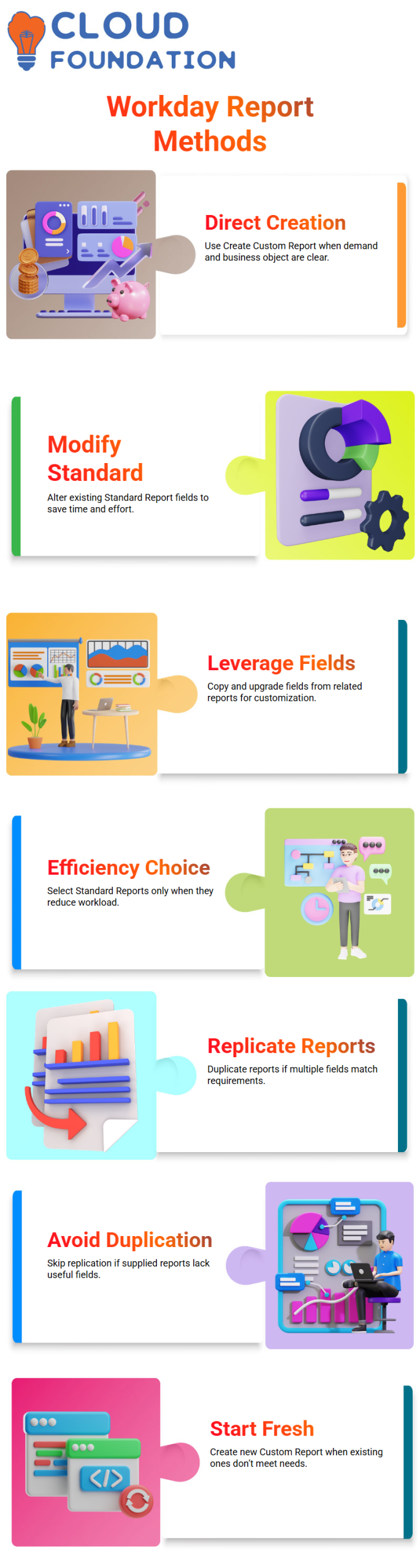
The Create Custom Report task directly is the first method.
When I fully understand the demand and the business object, this is the easiest approach in Workday Integration.
Report Writer to modify a Standard Report is the second method in Workday Integration.
When the provided report already has fields that meet my requirements, I utilise this technique.
I save time by altering what already exists in Workday Integration rather than creating everything from scratch.
The third technique in Workday Integration is by leveraging existing fields from related reports and upgrading them.
I merely copy and modify any pertinent fields I discover in a provided report.
I routinely describe these three strategies in Workday Integration interviews as they amply demonstrate practical expertise.
When to Use Standard Reports in Workday Integration
I only use Standard Reports in Workday Integration when they are really beneficial.
For instance, I would replicate a report if I looked through 10 supplied Job Profile reports in Workday Integration and found that five of the fields matched my requirements.
Then I delete extraneous fields and maintain just what I need.
However, I don’t spend time duplicating reports if I examine many supplied reports in Workday Integration and none of them assists me.
It makes no sense to have to erase everything and reconstruct the structure. If so, I immediately start a new Custom Report in Workday Integration.
Therefore, my choice in Workday Integration is straightforward: I choose the basic report if it saves work.
I have to start again if it doesn’t. This methodical technique maintains the efficiency and cleanliness of my Workday Integration reports.
Creating a Worker Data Report in Workday Integration
Let’s say the company needs each employee in the system to have their name, hiring date, gender, and birthdate.
In this instance, it is evident to me that the need relates to Workday Integration worker data.
In Workday Integration, I begin by entering Create Custom Report. I then provide a report name, such as Worker Data Report.
I carefully chose a Workday Integration data source linked to Worker since I require employee information.
Choosing the right data source is essential for Workday Integration.
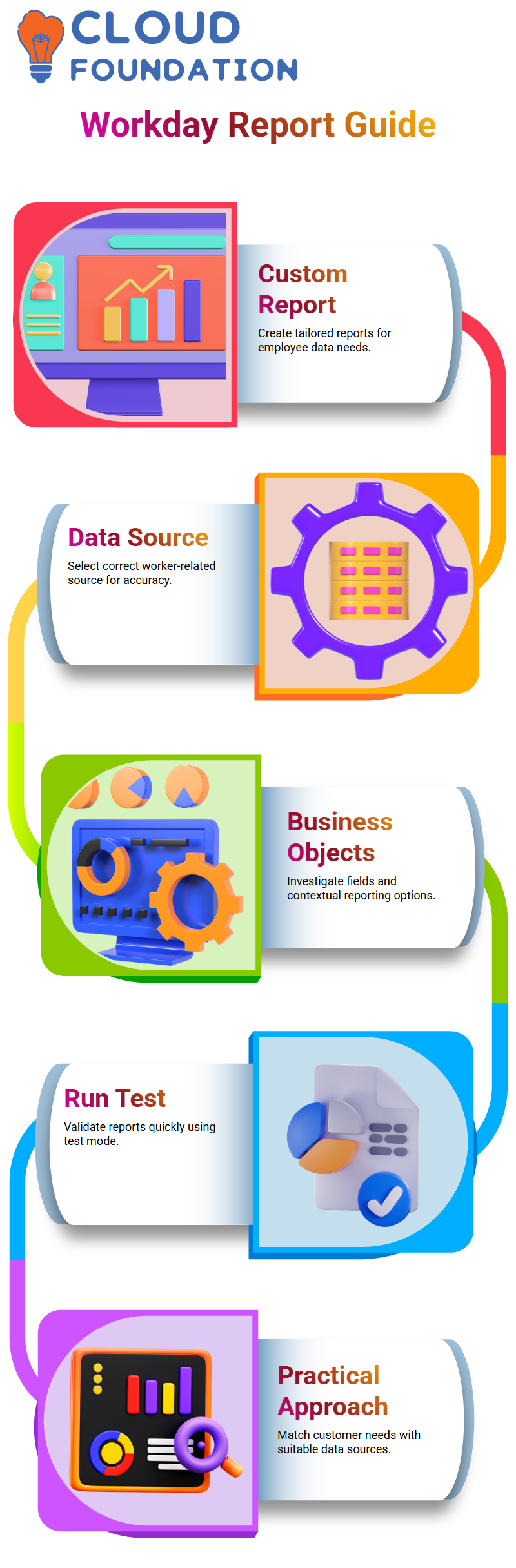
I can easily get information like name, hiring date, gender, and date of birth if I choose the appropriate worker-related data source.
My Workday Integration report will satisfy the demand without needless complexity thanks to this methodical approach.
As I continue to work at Workday Integration, I concentrate on comprehending business objects, investigating fields, and selecting the best method.
Whether it’s contextual reporting, a bespoke report, or a copy of a standard report. I do deal with reporting situations in Workday Integration in this manner daily.
Running and Testing Reports in Workday Integration
In Workday Integration, I have two choices after creating a report: Run and Test.
The system processes the whole dataset when I choose Run, which might take longer depending on the number of entries.
I like to use the Test option in Workday Integration for rapid validation.
It helps me confirm that the fields and data show properly since it only fetches a small number of rows, often between 10 and 12.
I verify if fields with values appear appropriately and whether blank fields display blanks while testing Workday Integration.
Before I share the final report, I save time by doing this fast validation step.
Business Objects for Workday Integration Requirements
Every time I get a new Workday Integration need, I attempt to find out what kind of information the customer is looking for.
I begin by building a custom report and investigating pertinent data sources rather than learning every business item by heart.
When choosing the data source in my practical approach to Workday Integration, I use terms like payroll, salary, or position.
The algorithm proposes many similar data sources, and I examine them to select the most suitable one.
I utilise contextual reporting to trace the field in Workday Integration if I am unable to quickly locate the proper source.
I go to the screen containing the value, look at the reporting choices, and then go over the specifics of the business item.

Workday Integration Course Price

Vanitha
Author