Workday Integration Online Reporting
Reporting Basics in Workday Integration
When I say “report,” I just mean the facts I gather and present in a way that makes sense. Reports make choices in every business.
Structured reporting is important to me whether I’m sharing data in an Excel sheet, making analytics, or making reports.
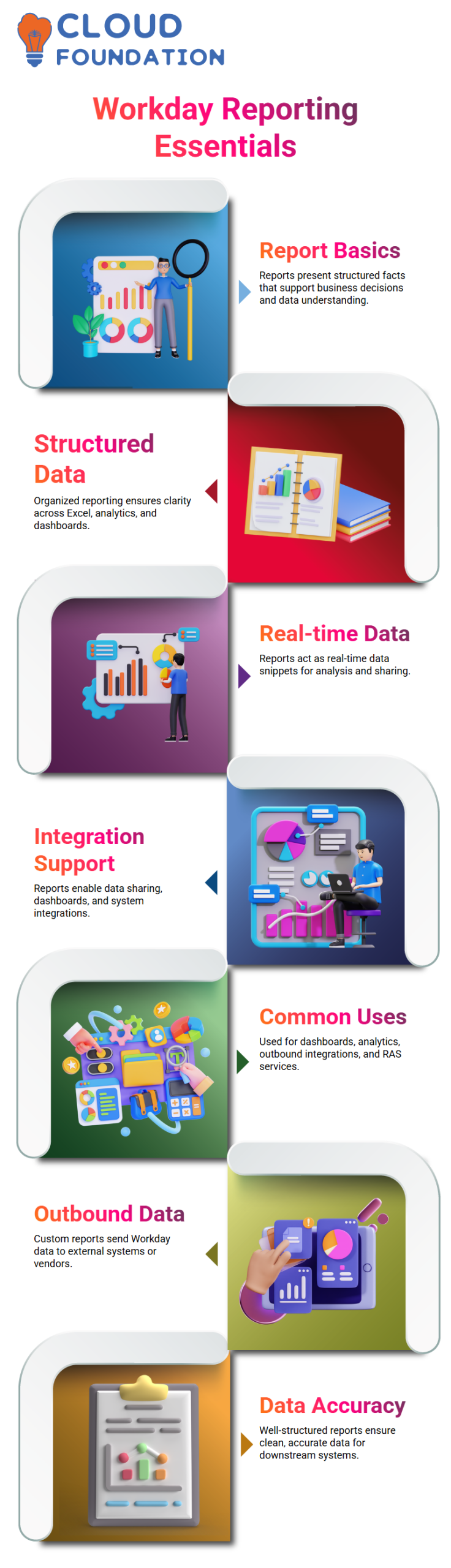
When I work with Workday Integration, I think of reports as snippets of real-time data. I look at data with Workday Integration reports, share it with business teams, make dashboards, and help with connections.
Workday Integration reporting does more than just show data; it also drives analytics, processes that send data to other systems, and services that other systems use.
Most of the time, I use reports for dashboards, analytics, outbound connections, and Report as a Service (RAS) when I work on Workday Integration projects.
These are the real-world situations where Workday Integration data helps with integration work.
Using Workday Integration Reports for Outbound Integrations
When I use outbound integration in Workday Integration, I take data from the Workday tenant and send it to a provider or system outside of Workday.
In Workday Integration, I make a unique report to do this. My outbound Workday Integration method is built on top of that custom report.
When I make a custom report for outbound integration in Workday, I make sure it has all the needed fields, filters, and data structure that the vendor wants.
I change the output of the Workday Integration report to XML or another file if the vendor asks for it. This means that Workday Integration data is closely linked to integration design.
Reporting that is correct is needed for every outgoing Workday Integration flow. The system that comes after will get clean, accurate data if my Workday Integration report is well put together.
That’s why I always check the format of the report before I finish any outbound Workday Integration.
Enabling Report as a Service (RAS) in Workday Integration
RAS stands for “Report as a Service.” It is another powerful tool I use in Workday Integration. When I make a custom report in Workday Integration, I can make it work as an online service.
Workday Integration makes a URL for that report once it is turned on.
I give vendors this Workday Integration RAS URL, and they use it to get real-time info from Workday Integration.
This method gets rid of the need for human steps and lets data be retrieved safely and automatically. In simple words, Workday Integration RAS works a lot like a REST-based service.
When I build Workday Integration integrations, I think about whether I should use a Workday Integration RAS endpoint or a file-based outbound method.
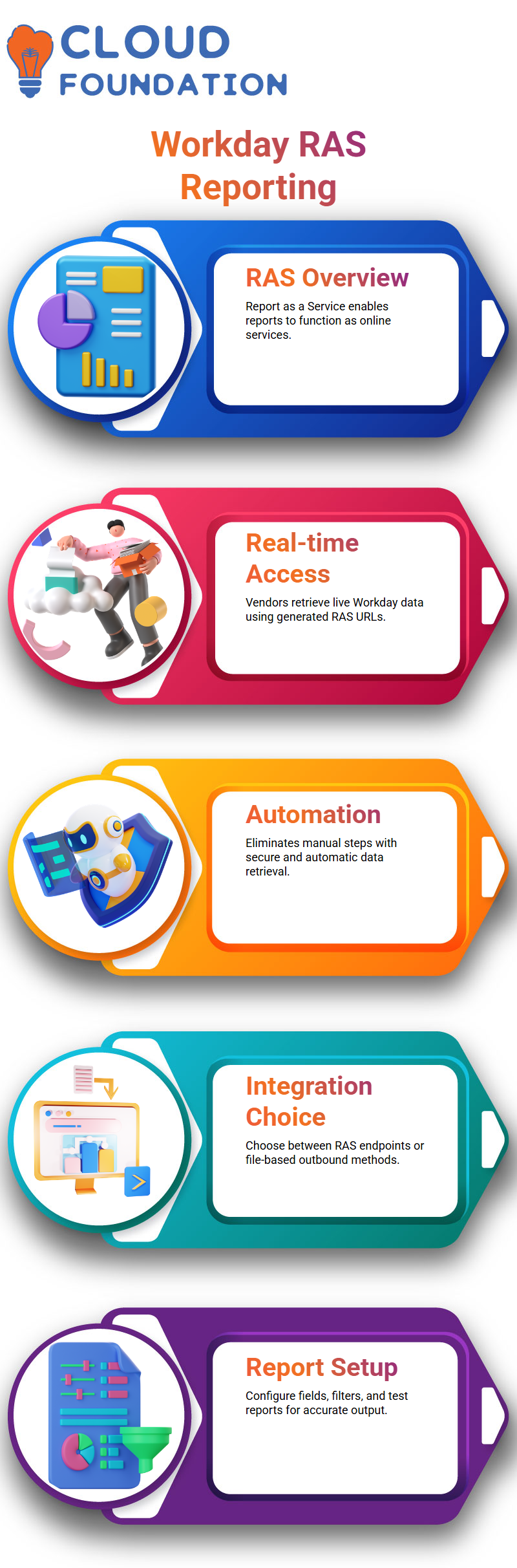
They both count on reports and having well-set up Workday Integration reports.
Creating and Running Reports in Workday Integration
First, I choose a business item when I make a Workday Integration report. I add fields, set up sections, and set up filters and sorting from that business object.
Each step in the setup process has an effect on how Workday Integration pulls data out.
I run the Workday Integration report to see what it will look like after I’ve set it up. Workday Integration shows the extracted data right away in an organized way.
Within Workday Integration, I can download the data, add more filters, and look at records in real time.
This hands-on method helps me make sure that my Workday Integration report meets the needs of the business. I change fields or filters in the Workday Integration report definition and try again if something doesn’t look right.

Workday Integration Training

Using Search and Prefixes Effectively in Workday Integration
The search bar is something I use a lot in Workday Integration to get to reports, tasks, and other things.
Workday Integration shows me results grouped by types like Tasks, Reports, Security, and other sections when I type a keyword and press enter.
This organized search makes it easy to find your way around Workday Integration.
Use labels to find reports in Workday Integration that you want to find. Let’s say I type rd: to look for reports in Workday Integration.
I use rdt: to get what a report means. This is what I use to look for fields in Workday Integration: field:. The letter “bp” stands for “business processes,” while “integration:” stands for “integration.”
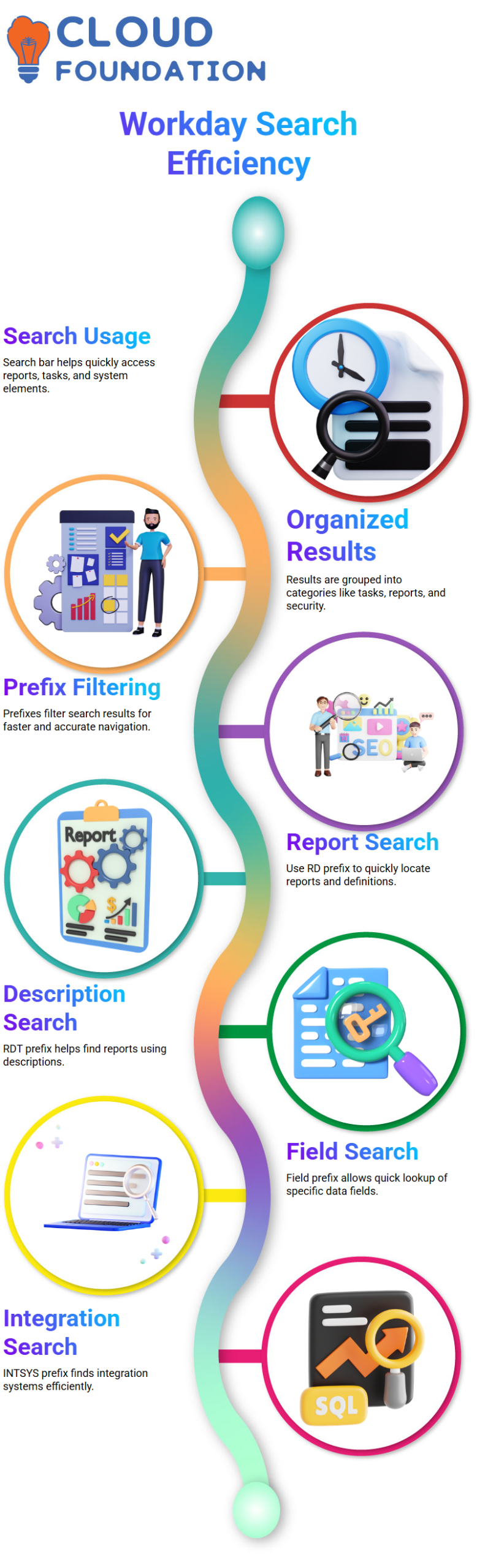
In Workday Integration, these prefixes help me find the exact item I need quickly. I don’t have to look through various modules; instead, I filter results directly in the Workday Integration search.
This saves me time and helps me keep track of my Workday Integration tasks and reports.
Using Prefixes in Workday Integration to Search Reports and Integrations
In Workday Integration, I use the word RD: to look for a report that has a certain string in it.
If I type RD: and then my name, for example, the system will show me all the reports and report definitions that have that string in them. This makes it much faster and more accurate to find inside Workday Integration.
It shows report and report descriptions again if I use RDT: in Workday Integration. When I work with a lot of reports in Workday Integration and need to quickly sort them, both RD and RDT come in handy.
Now, if I type INTSYS: then a string, Workday Integration looks for integration systems that have that text in them.
For instance, if I type INTSYS: Ganesh, Workday Integration will show me all the integration systems whose names contain the word “Ganesh.”
This is something I often use when I’m in charge of several Workday Integrations and need to quickly find a certain one without having to browse through each one individually.
Workday Integration Standard and Custom Reports
When you connect Workday, there are two main types of results: standard Workday reports and custom reports.
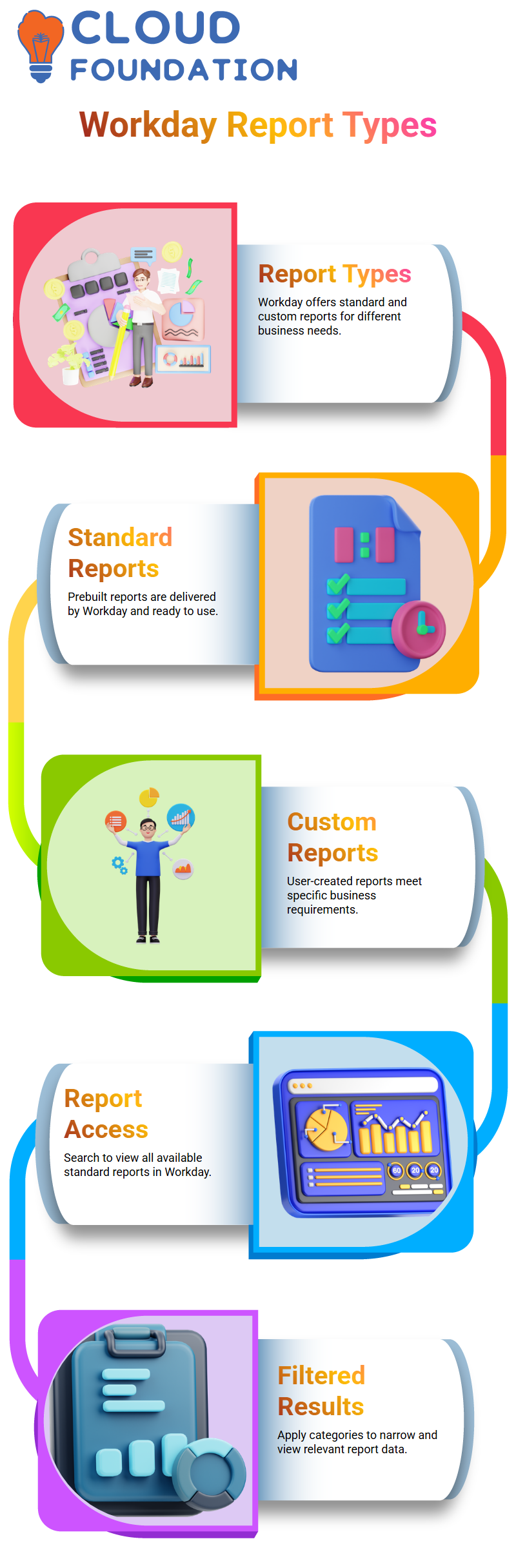
The results that come from Workday are called “Workday standard reports” in Workday Integration. These reports are already ready to go when your company gets Workday Integration.
You don’t make them. They are part of the goods that Workday sells.
Custom reports in Workday Integration, on the other hand, are reports that are made by the user.
If the reports that Workday Integration sends you don’t fully meet your needs, you can make your own unique report to meet your business’s needs.
Viewing Workday Integration Delivered Reports
In the search box, type “Workday Standard Report” to see all of the provided reports that are available in Workday Integration. It asks me for report groups when I open this in Workday Integration.
Workday Integration makes a list of all delivered results across all categories if I don’t choose a category and just click OK.
I saw more than 5,000 given reports in Workday Integration in one case. This report has already been made and is ready to be used.
Workday Integration lets you choose which type of reports you want to see, like Staffing reports. You do this before running the report.
With this, you can narrow down the results and only look at the records that are useful inside Workday Integration.

Workday Integration Online Training
Working with Delivered Report Types in Workday Integration
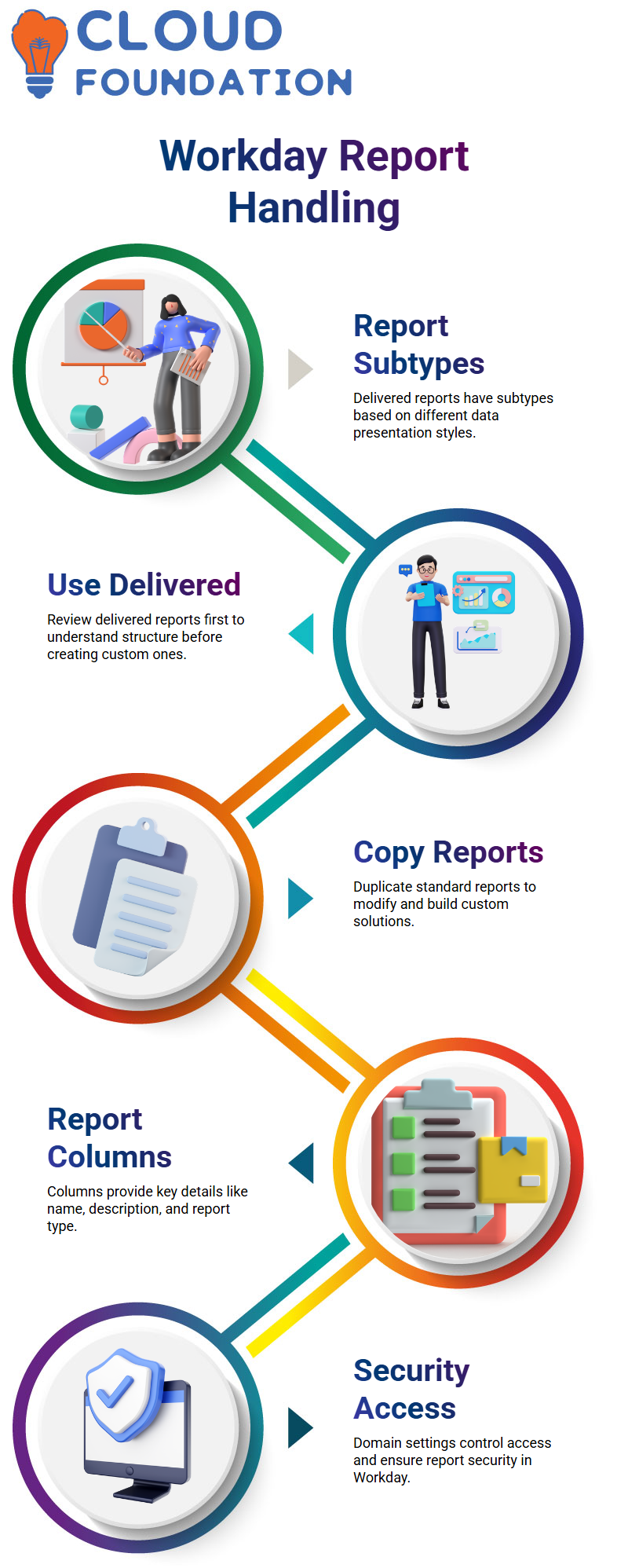
You will also see subtypes in Workday Integration delivered data. There are different ways to set up these reports based on how the data is presented, even though they are already built into Workday Integration.
As someone who teaches people how to use Workday Integration all the time, I always tell them to look at delivered results in Workday Integration first before making their own.
This helps you understand how Workday Integration organizes data and how you can use or copy a given report to make a custom report that you can change further.
You can’t change a given report directly in Workday Integration. You can, however, copy the report that was sent to you and change it into a custom report.
After that, you can make changes to Workday Integration based on your business needs.
Workday Integration Standard Reports and Columns
In Workday Integration, every normal report has more than one column. Each column tells you something important about the report.
You can look at each report in Workday Integration by doing actions that are connected to it. In Workday Integration, when you click on the linked action of a report, you see all the things you can do with that report.
This makes it much easier to move around in Workday Integration.
The name of the report is shown in the name column of Workday Integration, and what the report is about is shown in the explanation column.
When I’m not sure how to do something in Workday Integration, I just read the text to make sure the report meets my needs. It takes a lot less time to do this small step in Workday Integration.
The type field is another important part of Workday Integration. When you use Workday Integration, you will mostly see two types of reports: Expression and Report Writer.
When you work with Workday Integration, these types are very important.
The plan level column is also shown by Workday Integration. This tells me if the report can be scheduled in Workday Integration or not.
I can make the report run automatically if Workday Integration lets me schedule it. If not, I have to do it by hand.
In Workday Integration, the domain field tells me which domain the report is protected under.
Each item in Workday Integration is part of a domain. To run the report, I need to be able to connect to that site in Workday Integration. This is how security is handled by Workday Integration.
Expression vs Report Writer in Workday Integration
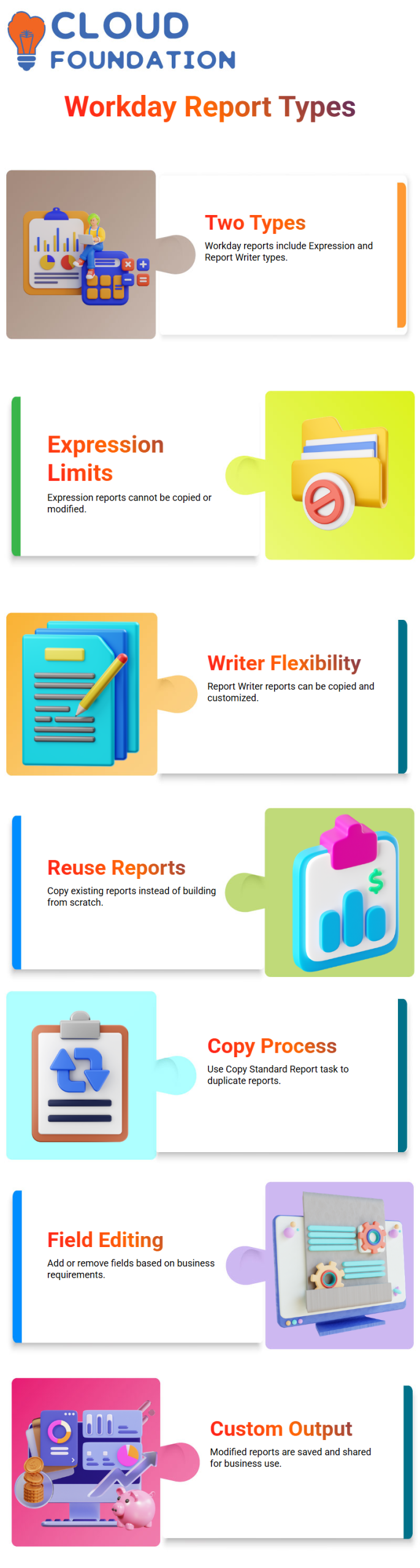
When Workday Integration sends reports, there are two main types: Expression and Report Writer.
This is something I always make sure is clear because it has a direct effect on how we work in Workday Integration.
You can’t copy or change Expression results in Workday Integration. They can only be done in Workday Integration. My Workday Integration account doesn’t let me change an Expression report if I need to.
There are different ways to use Report Writer results in Workday Integration. I can copy them in Workday Integration and then change the copied version to fit the needs of the business.
Because of this, Report Writer files in Workday Integration are very useful.
As an example, let’s say that Workday Integration sends you a report called Active Worker Detail that has 25 fields. Works with 25 fields;
the company might not need all of them. I copy the given Report Writer report and make changes to it instead of making a new report from scratch in Workday Integration.
One of the most useful things about Workday Integration is this function. I use what’s already there in Workday Integration and change it to fit the needs of the business.
How I Copy and Customize Reports in Workday Integration
I use the task called “Copy Standard Report” whenever I need to change a report that has already been sent in Workday Integration.
In Workday Integration, I can either look for this job by name or use the report’s related actions.
When I click on Copy in Workday Integration, I make my own copy of the report that was sent to me. For instance, in Workday Integration, I can copy a No Show Event Detail report, change its name, and save it as my own version.
The report can be changed after copying in Workday Integration. In Workday Integration, I can see plus and minus signs that let me add or take away fields.
In Workday Integration, I just delete a field that I don’t need, like a status field or a hire restriction field.
My company asks me to add new fields to Workday Integration, so I do. I add them to the copy I made. This is how I make sure that Workday Integration reports meet all of the needs of the business.
The modified version is available in the tenant as soon as I save it in Workday Integration. When I’m done, I give the business the new report name.
They can then run this personalized Workday Integration report to get the data they need.
I always remember that this method only works for Workday Integration Report Writer reports.
If the Workday Integration report type is Expression, I won’t even be able to see the copy button.

Workday Integration Course Price

Vanitha
Author