Workday Integration Developer Training
How I Use Workday Integration Filters with AND and OR Conditions
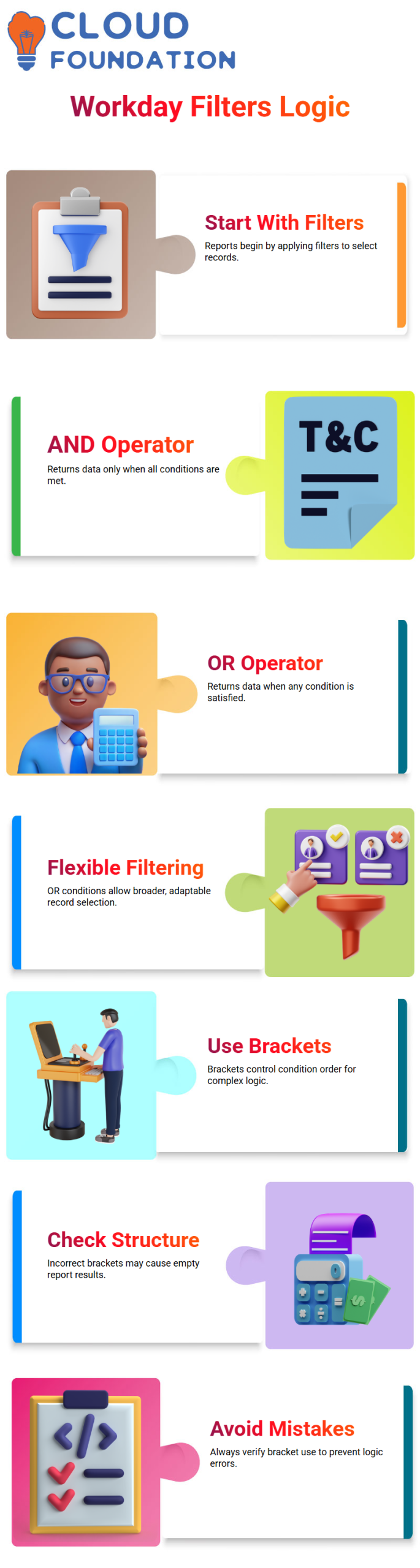
Every time I use Workday Integration to make a report, I begin with filters. The records that Workday Integration will return are chosen by filters. Workday Integration only gets the data where all of the conditions are met when I use the AND operator.
Those conditions must all be met for the record to show up in my Workday Integration report. The way it works changes when I use the OR operator in Workday Integration. Now, Workday Integration picks records when any of the conditions are met.
Workday Integration will return data as soon as one of the conditions is met, like if I say “Worker is from a certain list OR Location is USA.” This line of thinking is something I use a lot when I want my Workday Integration filtering to be flexible.
Brackets in Workday Integration for Complex Logic
Brackets help me change the order of conditions in Workday Integration. Let me tell you how I use them. Say I want to hire someone after January 1, 2026, and I want them to be in the US or India.
I put the location conditions in Workday Integration inside quotes to make them easier to find. So, Workday Integration first checks to see if the location is in the US or India, and then it uses the Hire Date condition.
If I don’t use brackets correctly in Workday Integration, the process might not work the way it should. One person cannot be a citizen of both the US and India at the same time.
That means that Workday Integration won’t show any records if I use AND between those two numbers by accident. In Workday Integration, I always check my bracket structure twice to make sure I don’t get any empty returns.
Free Text and Value Selection in Workday Integration
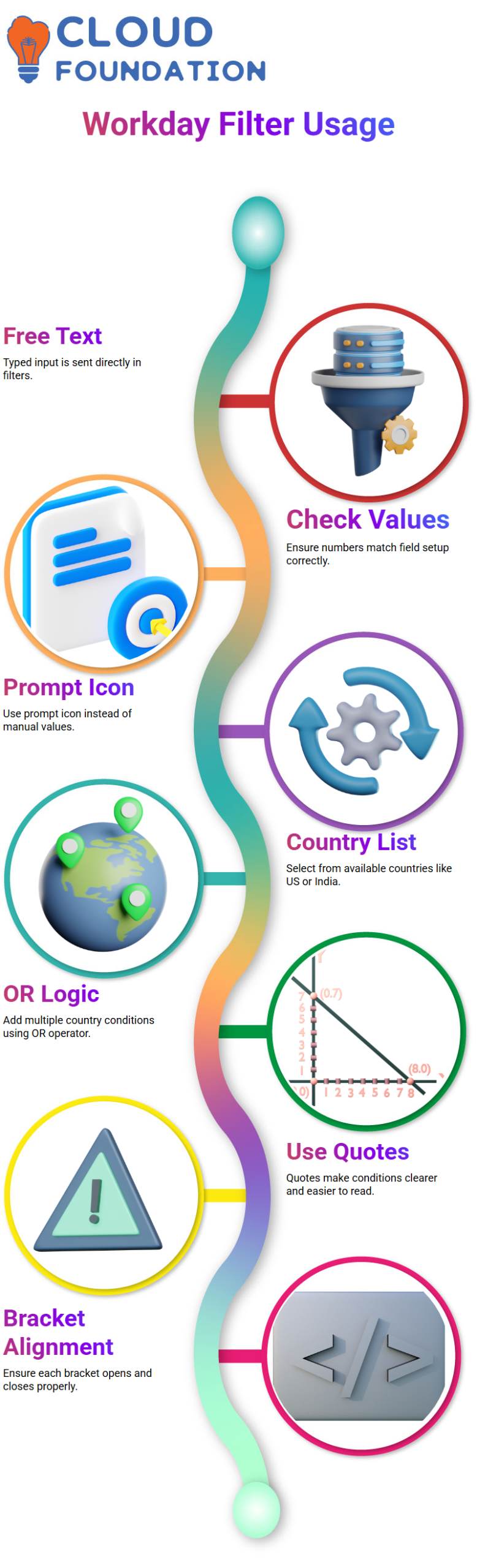
Some filter fields in Workday Integration let you use free text. That means anything I type will be sent. But just because Workday Integration lets me use free text doesn’t mean I should type in anything.
I always check that the numbers match how the field is set up in Workday Integration.
I don’t put values into Workday Integration fields that only have one instance. I click on the prompt icon instead, and Workday Integration fills in the choices.
In Workday Integration, if I sort by Location Country, it will show me a list of countries like the US or India. I pick out the right number and use the right operator.

Workday Integration Training

How I Create Multiple Country Conditions in Workday Integration
I use OR logic in Workday Integration when I need conditions for more than one country. First, I choose Location Country as the US. Then I add another row with OR and pick Location Country as India. To make these conditions stand out in Workday Integration, I can also use quotes.
I open and close multiple frames inside Workday Integration if the situation gets more complicated. This helps me think that it is structured and easy to read. When I use complicated filters in Workday Integration, I make sure that each starting bracket is perfectly lined up with a closing bracket. This way, the system can correctly evaluate the conditions.
How I Optimize Filter Order in Workday Integration for Better Performance
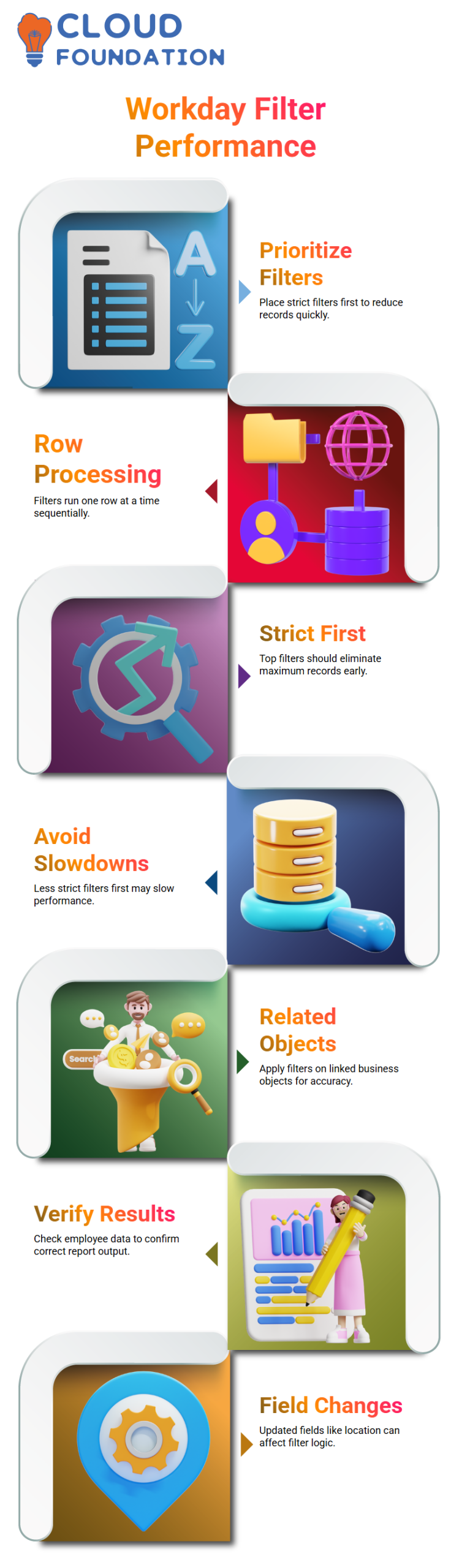
In Workday Integration, performance is very important. When I make more than one filter, I put the condition that gets rid of the most records at the top of the list. Workday Integration works with filters, one row at a time. When the first filter gets rid of a lot of records, the next filter only looks at the ones that are left.
If I put a less strict filter at the top of Workday Integration, the system will handle more records at first, which could slow it down. That’s why I always take my time when making Workday Integration reports. I think about which situation gets rid of the most instances and puts it at the top.
How I Apply Filters on Related Business Objects in Workday Integration
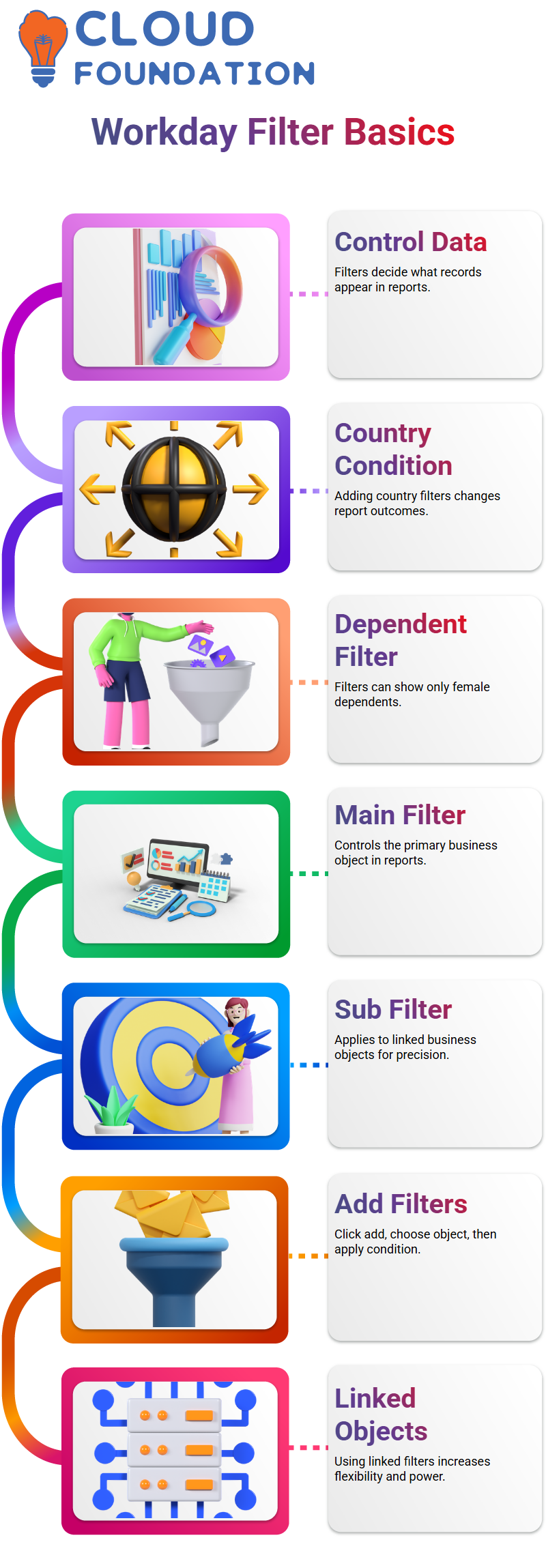
I don’t just work with the main business object in Workday Integration. I also use filters on business items that are related. In order to do this, I go to linked Actions, change the custom report, and add a filter that refers to the linked Workday Integration business object.
If I want to sort Dependents in Workday Integration by gender, for example, I choose the field like Dependent Gender that is tied to the business object. Workday Integration gives you a value list because this is a single instance field. I just picked “Female” and used the filter.
After putting the filter to use in Workday Integration, I carefully look over the findings. Workday Integration only shows the dependents who meet the filter condition if an employee has more than one. If I filter for women, male children will not show up. I always make sure my Workday Integration reports are correct by looking at employee information and making sure I understand why some records show up or not.
When I test in Workday Integration, I see that a person doesn’t always show up. I look at the facts instead of assuming there is a mistake. I use the worker’s address or other fields in my Workday Integration filters to check them. Quite often, I find that someone changed a field like Location Country, which affects how Workday Integration checks the logic of the filter.

Workday Integration Online Training
Filters in Workday Integration Reports
In one Workday Integration report, I used a filter to make sure that only female dependents showed up in the “Dependents” part. The Workday Integration report only showed female information because of that filter. I didn’t change the info itself. I only changed how Workday Integration gets it and shows it.
As part of our free technology classes, I teach Workday Integration. I make sure that my learners know the difference between a main filter and a sub filter. In Workday Integration, the main business object is controlled by a main filter, and linked business objects are controlled by a sub filter. This is something you need to understand about Workday Integration before you can make reports.
Applying Advanced Filters in Workday Integration
You can filter more than just the main business item in Workday Integration. When you have more than one related business object in your Workday Integration report, you can also use filters on those related objects. This is something I generally show people live so they can see how flexible Workday Integration really is.
In Workday Integration, all I have to do to add a new filter is click “Add,” pick the business object that goes with it, and then pick the field where I want the condition to be applied. Then, Workday Integration lets me clean up the data based on that linked object. With this method, I have full power over how Workday Integration sets up the output.
In Workday Integration, I always tell my learners that one of the most important skills is knowing how to use linked business object filters. The more you know about how to use business objects in Workday Integration, the more powerful and flexible your results will be.
Configuring Prompts in Workday Integration for Dynamic Reporting
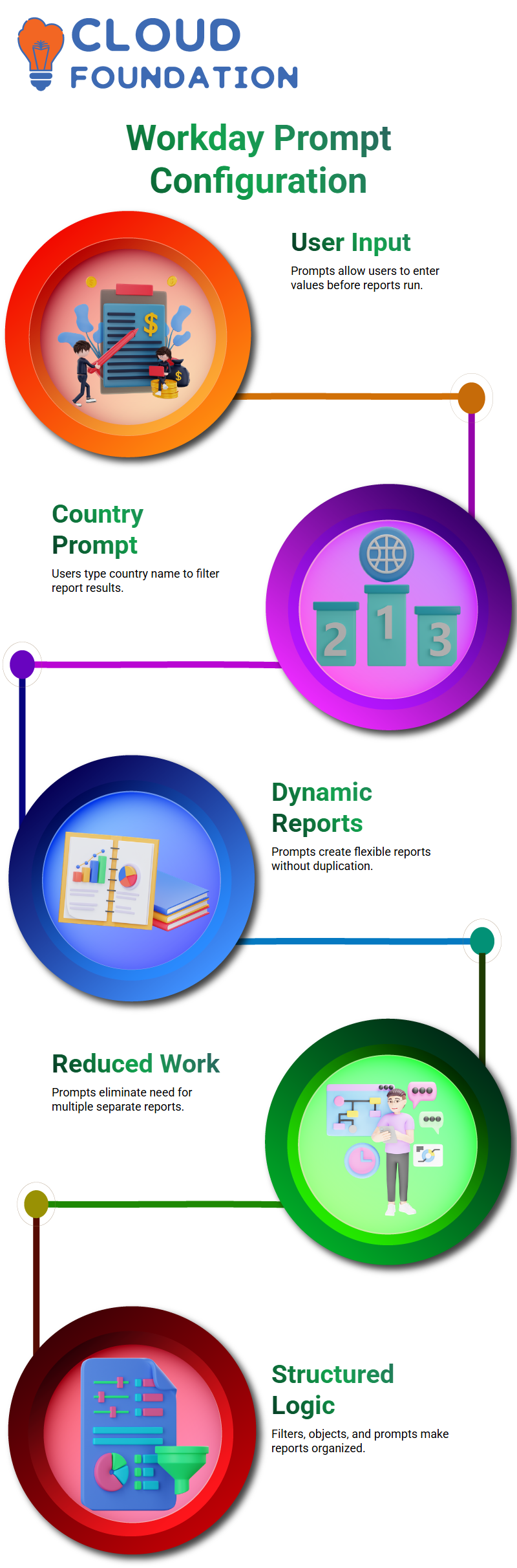
In Workday Integration, let’s say the company wants a report on the users. Everything in the world needs to be able to use the same Workday Integration report. Still, they don’t want one report for each country. This is where the suggestions in Workday Integration come in very handy.
I set up a country alert in the Workday Integration report for this situation. The company types in the name of the country when they run the Workday Integration report. Workday Integration only gets the workers from that country based on that input. The logic stays the same, but Workday Integration filters the data on the fly while the program is running.
I like prompts in Workday Integration better because they cut down on unnecessary work. So, I don’t have to make multiple Workday Integration reports for different areas; I make one flexible report with questions. This method makes Workday Integration clean, scalable, and simple to keep up to date.
You can see how structured and logical Workday Integration is when you look at filters, sub-filters, linked business objects, and prompts all together. Every setting in Workday Integration is there for a reason, and you’ll feel confident making advanced Workday Integration reports once you’ve tried it out for yourself.

Workday Integration Course Price

Nishitha
Author