Workday integration data source training
Workday Integration Workday Integration Report Data Sources in Real Time
Report data sources are the most important part of anything useful, so that’s what I always start by talking about when I teach Workday Integration.
I see data sources as a subset of business objects that have been sorted so that they only give me the info I need.
I work with a clean, organized dataset instead of pulling everything, which speeds up reports. It’s easy for me to see how the data is flowing, so I often compare them to database views.
This method helps me make my reports more correct, scalable, and simple to handle.
Types of Data Sources in Workday Integration
When I use Workday Integration, I mostly work with two types of data sources: Standard and Indexed. The choice of which one to use has a big effect on speed.
I’ve seen that Standard Data Sources connect straight to business items with little filtering, which lets you get to a lot of data.
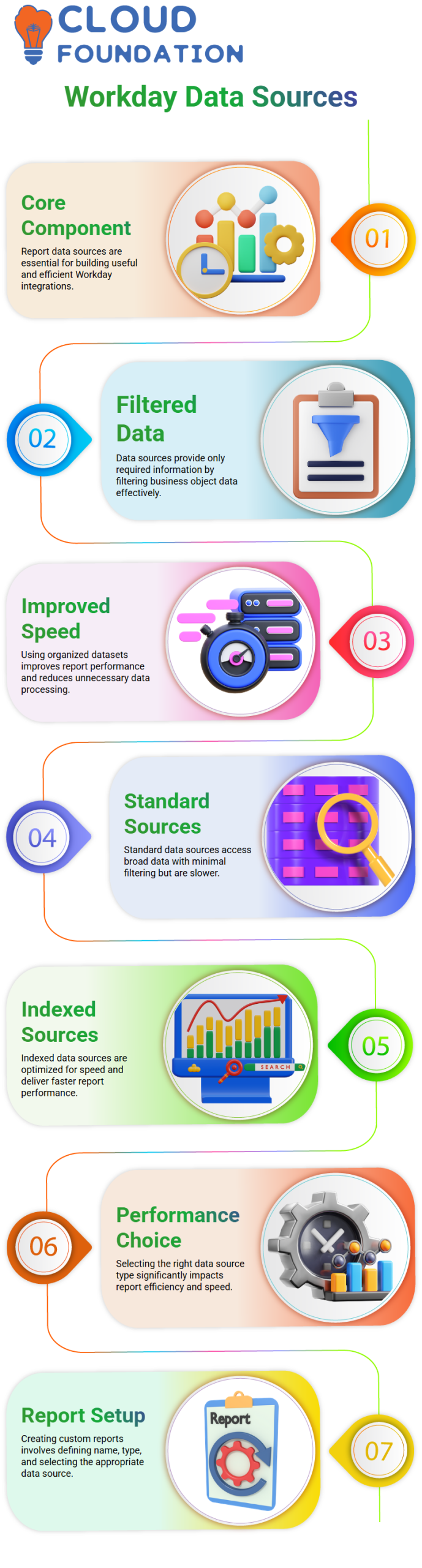
Most of the time, I find them easy to use, like when I want to pull “All Active and Terminated Workers,” but never the fastest.
Indexed Data Sources work better for me most of the time because they are meant to be fast and effective.
So, when speed is important, I always try to use indexed sources first to keep reports smooth and quick.
How to Select Data Sources While Creating Reports in Workday Integration
I always start the “Create Custom Report” task in Workday Integration when I want to make a custom report.
This is where I fill in important areas like Report Name, Report Type, and Data Source, which is necessary for everything to work properly.
The “Optimize for Performance” choice is very important to me because it changes the data sources I can use.
When I click it, I only see indexed sources, which keeps me from having to look at choices I don’t need.
When I don’t check it, I get both normal and indexed sources, which can be hard to understand.
Like I said, I usually leave it checked because it keeps things clean and makes report speed better right away.
Why Indexed Data Sources Improve Workday Integration Performance
I have seen that Indexed Data Sources in Workday Integration are faster than regular sources when dealing with large amounts of data.
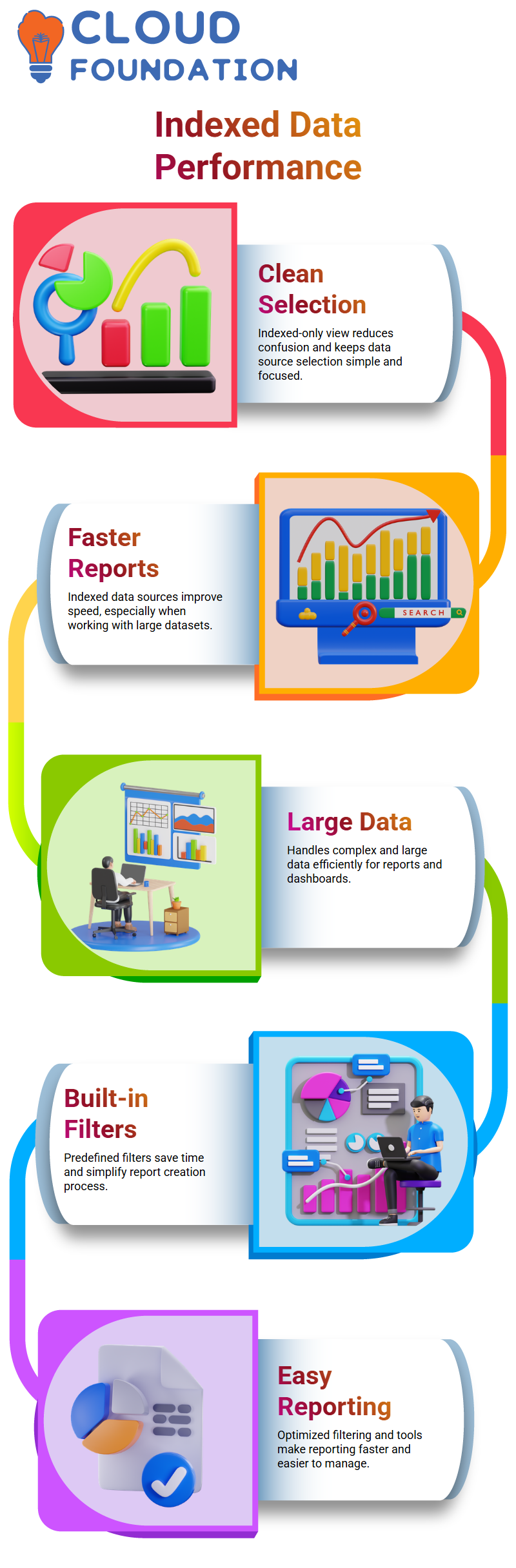
This is their biggest benefit. They help me handle large datasets quickly and effectively, which is very important when I’m making complicated reports or dashboards.
Also, the built-in tools are very helpful because they save me time. This makes it easy for me to quickly get specific subsets, like current workers.
In general, it speeds up reporting and makes it a lot easier to handle.
Using Data Source Filters Effectively in Workday Integration
When I use Indexed Data Sources in Workday Integration, I see that they already have filters set up, such as “All Workers” or “All Active Workers.”
This saves me time. I’ve seen that with Standard Data Sources, I have to make these filters by hand, which takes more time and work to set up.
From what I’ve seen, indexed sources make reporting a lot easier because they give you ready-to-use, optimized filtering choices.
Worker for SCM Reporting, Trended Worker, and Expense Reports for Worker are some examples that help me remember things when I’m getting ready for interviews.
I’ve learned that during interviews, people usually test how well I understand these real-world performance ideas in Workday Integration situations.

Workday Integration Training

Report Field Types You Must Know for Workday Integration
When I use Indexed Data Sources in Workday Integration, I save time by using their predefined filters instead of setting up Standard Data Sources by hand.
With ready-to-use, improved filters, these indexed sources make reporting faster and more effective, as I’ve seen.
When I’m getting ready for interviews, I think about important cases and try to understand how real performances work.
When I look at the Worker business object, I use the Business Object Details report to see how all the data is organized.
I also review field-level details carefully so I can identify useful data and know how to use it effectively in my integrations.
Workday Integration: Field Sources and Usage
When I work on Workday Integration projects, I always check to see if a field is Workday Delivered or Calculated.
This is because delivered fields are normal and are used a lot. I’ve seen that thousands of fields are already there, and the rest are estimated fields that are made based on what the business needs.
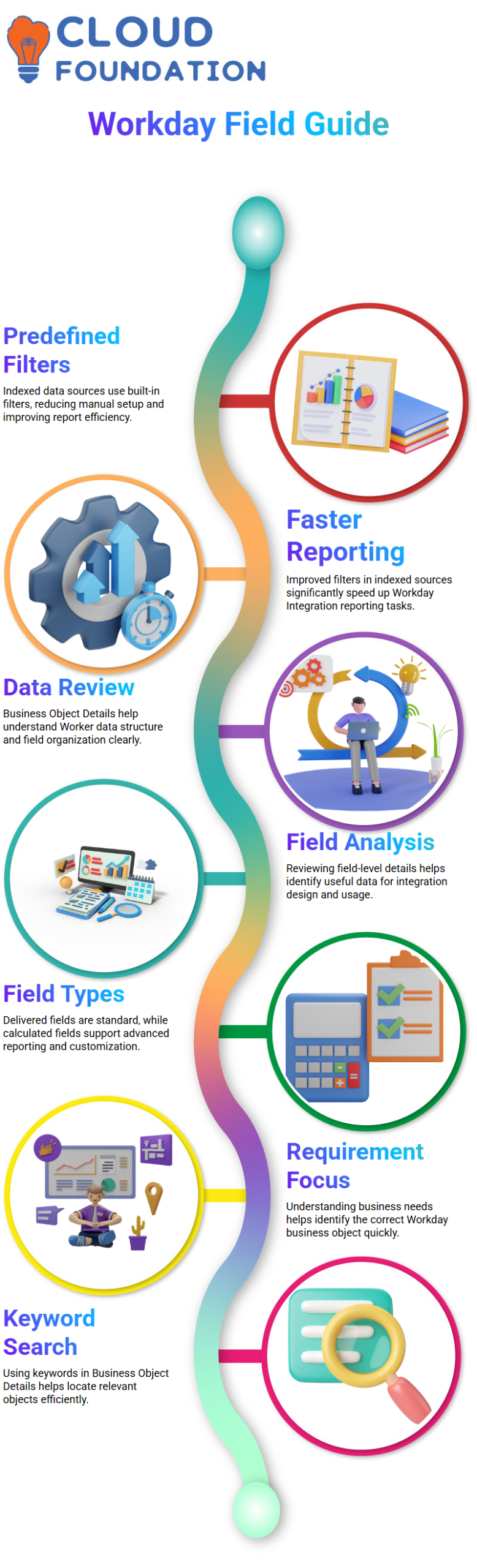
I look at the difference between total fields and given fields when I’m designing solutions to see how much customization is already there.
Based on what I’ve seen, calculated fields are very important for advanced reporting and interfaces.
I don’t try to remember everything; instead, I make sure I understand each criteria before I build anything.
Workday Integration: Identifying the Right Business Object
I often don’t know the right business item at first when working with Workday Integration. That’s okay, I’ve learned.
Before I do anything else, I first pay attention to what information the requester needs.
I often use keywords to quickly find objects that meet in the Business Object Details report.
Then I look at the choices that were given to me until I find the one that best meets my needs.
I’ve learned that experience helps me see trends over time, but when I’m first starting out, exploring is what really makes me feel confident.
Workday Integration: Exploring Relationships Between Business Objects
When I look into Workday Integration, I use the Links tab in the Business Object Details report to get a good idea of how objects are connected.
I’ve seen that the Worker business object links to a huge number of other objects. For interface design, these links are very important.
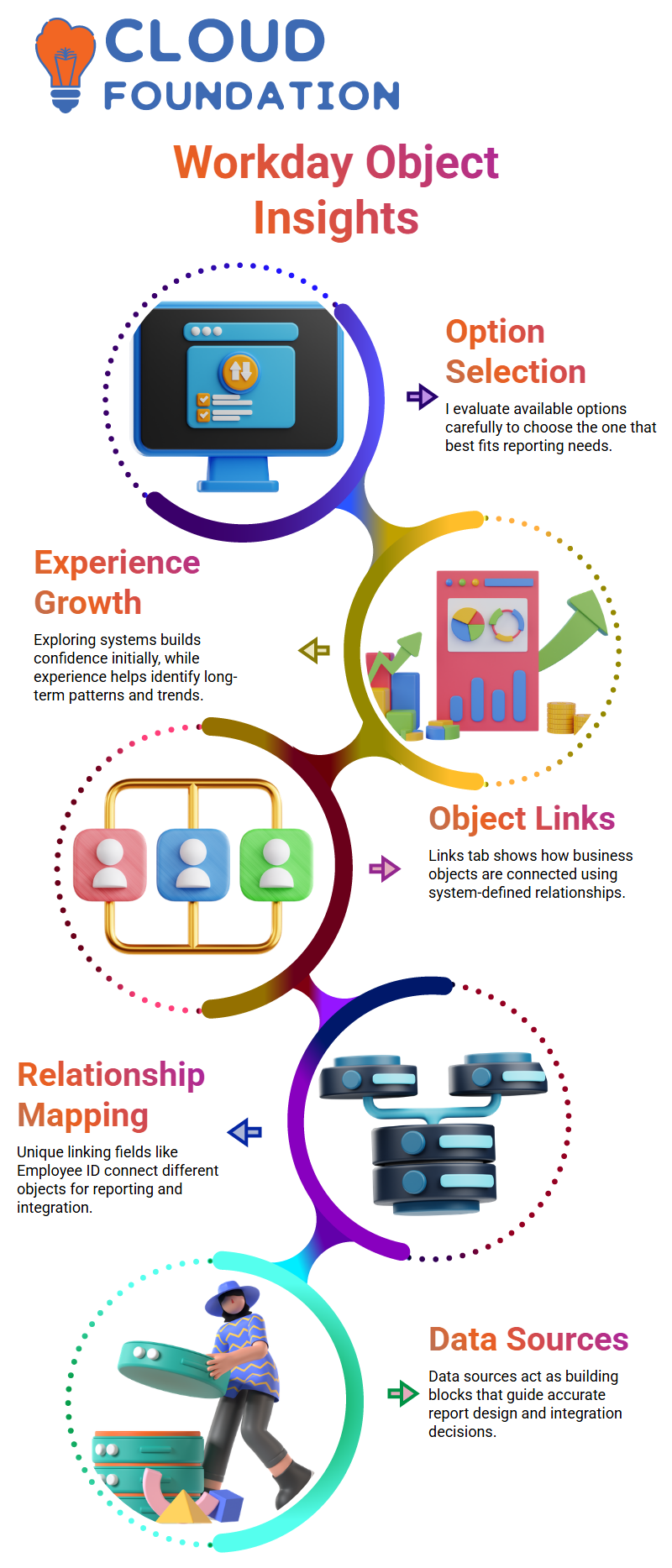
When I need to be sure of something, I look at the Links section to see how two things are linked.
From what I’ve seen, each relationship is controlled by a unique linking field, such as the Employee ID that links two objects that are linked.
I don’t have to guess how to connect things when I use these system-defined links to make reports and interfaces that look better.
Workday Integration: Data Sources and Reporting Impact
I think of data sources as the building blocks of Workday Integration. To find out what’s out there, I always begin by looking at the Worker object’s Data Sources tab.
This helps me choose the right data source before I start making a report, so I don’t have to guess and fix things later.
When someone asks me to do something like add missing information to a pay report, I take a moment to think about whether it’s possible.
From what I’ve seen, these are from different places, so I tell them that they might need separate reports.
I’ve learned that data sources help me avoid making bad designs and make sure that my ideas work with Workday.

Workday Integration Online Training
Workday Integration: Reviewing Delivered and Custom Reports
When I explore the Reports tab in Workday Integration, I get a deeper view of how widely the Worker business object is used across delivered and custom reports.
I see it as a strong indicator of system usage, even though I don’t rely on this tab in my daily tasks.
Sometimes, I open these reports to understand how they were built, which gradually improves my knowledge.
In real projects, I mainly focus on fields, links, and data sources to guide my decisions.
By business objects properly, I’m able to design more accurate and scalable Workday Integration solutions.
Workday Integration Data Source Reports
I can see more about how the Worker business object is used in provided and custom reports when I look at the Reports tab in Workday Integration.
I see it as a way to learn more about how the system works, even though I don’t use it every day for my regular chores.
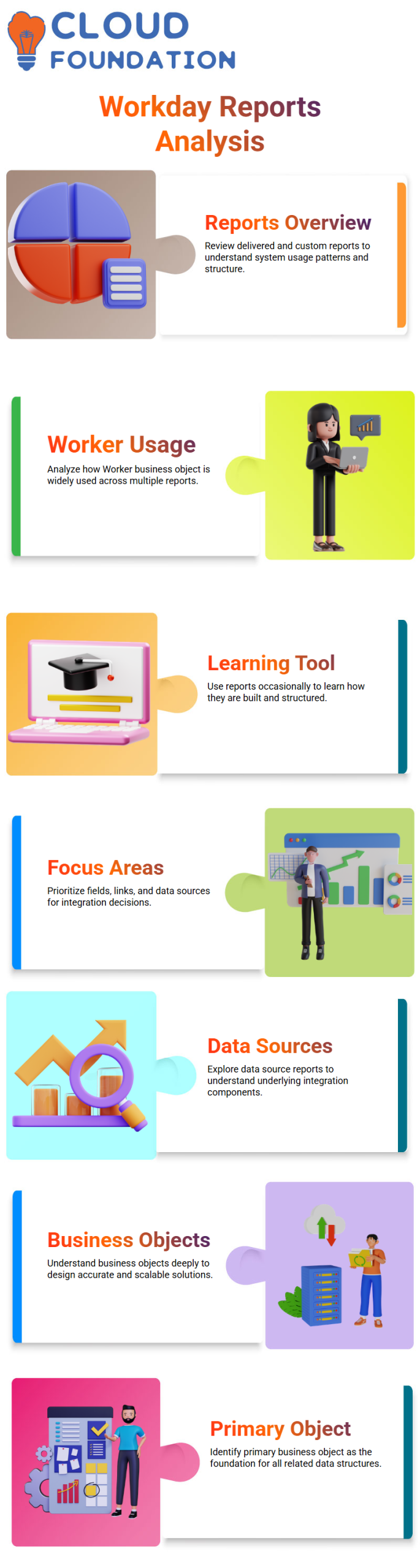
I sometimes look at old papers to learn how they were put together, which helps me get better over time.
In real projects, I mainly focus on fields, links, and data sources to guide my integration and reporting decisions.
I can make more accurate and scalable Workday Integration solutions by looking into the details of business objects in the right way.
Exploring Workday Integration Data Source Details
I look at the Data Source Name first when I open the Workday Integration Data Source report to make sure I know what I’m working with.
Then I look at the Primary Business Object because it’s the basis for all the other objects, and I’ve seen cases like Worker being used a lot.
I always read the description column carefully because it tells me what the column is for and saves me time when I’m making the report.
The Type of Data Source tells me whether the data is Standard or Indexed, which is something else I pay attention to.
From what I’ve seen, knowing this helps me plan how to perform and get data in Workday Integration.
Built-In Prompts and Security in Workday Integration
In Workday Integration, I work with data sources. Some of them don’t have built-in prompts, so I always pay attention.
I know that prompts tell you what information you need to run reports, and some of it is required and some is not.
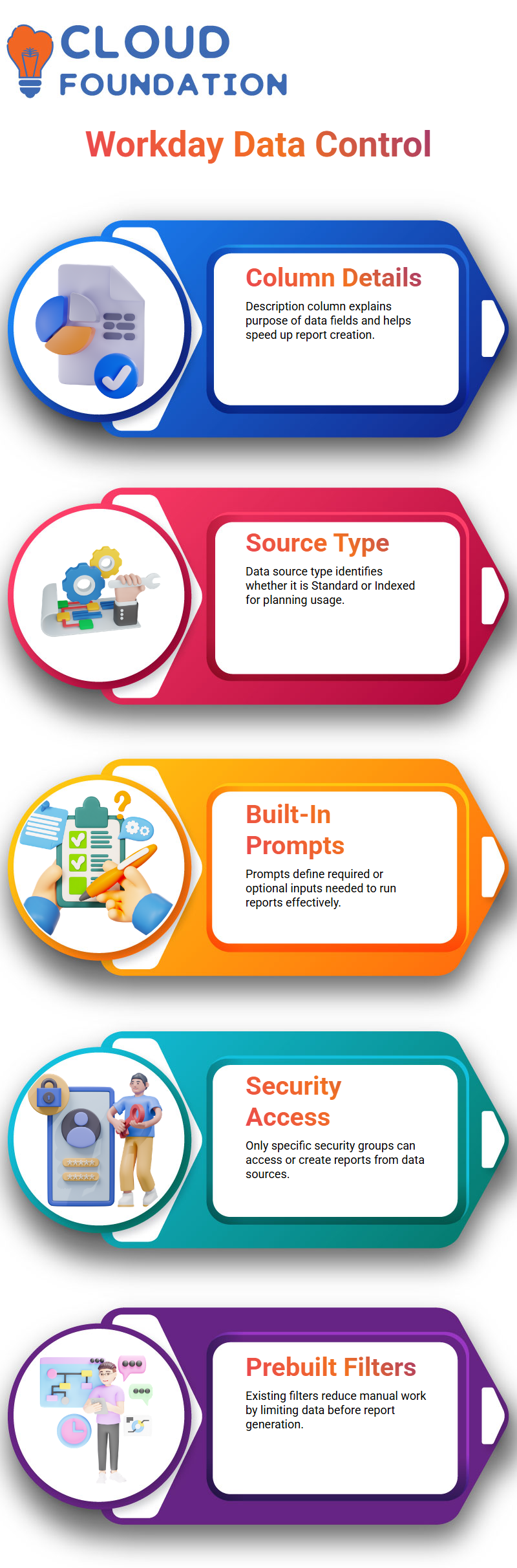
Before I start working on a report, I always check these tips to make sure I know exactly what information I need to enter.
I also pay a lot of attention to security, since only certain security groups can get to a data source or make reports from it.
It’s also easy for me to find the right data sources across different areas thanks to categories.
Data Source Filters in Workday Integration
When I look at different data sources in Workday Integration, I see that some of them already have filters set up that limit the data before it gets to my report.
I often look at cases like Worker for SCM to see how different filters are already being used on the same data source.
I also read the filter titles carefully because they tell me what conditions and prompts are already there.
I always look over these filters before I make a custom report so I don’t have to do extra work.
I always look at the Data Source report to see all of my business items, prompts, filters, and security access in one place.

Workday Integration Course Price

Vanitha
Author