Workday Integration Course Online
Differentiating Transactions and Integrations in Workday Integration
Transactions and integrations are not the same in Workday Integration.
When you submit journals or upload time balances, you monitor how many transactions you process day to day.
The quantity of integrations is not shown by this. The connections made to transfer or modify data are referred to as integrations, and each execution of these integrations is referred to as an integration event.
It’s important to comprehend this difference. It’s possible that you carried out an integration more than once, resulting in several integration occurrences.
You may report on execution counts without conflating them with transaction counts thanks to Workday Integration’s ability to monitor both the integration and each event.
Naming Conventions in Workday Integration
Naming conventions aid in the identification and management of integrations created in Workday Integration.
In the same vein, each integration and integration event must adhere to a precise nomenclature.
This guarantees that while monitoring execution or examining documentation, you are aware of which integration you are referring to.
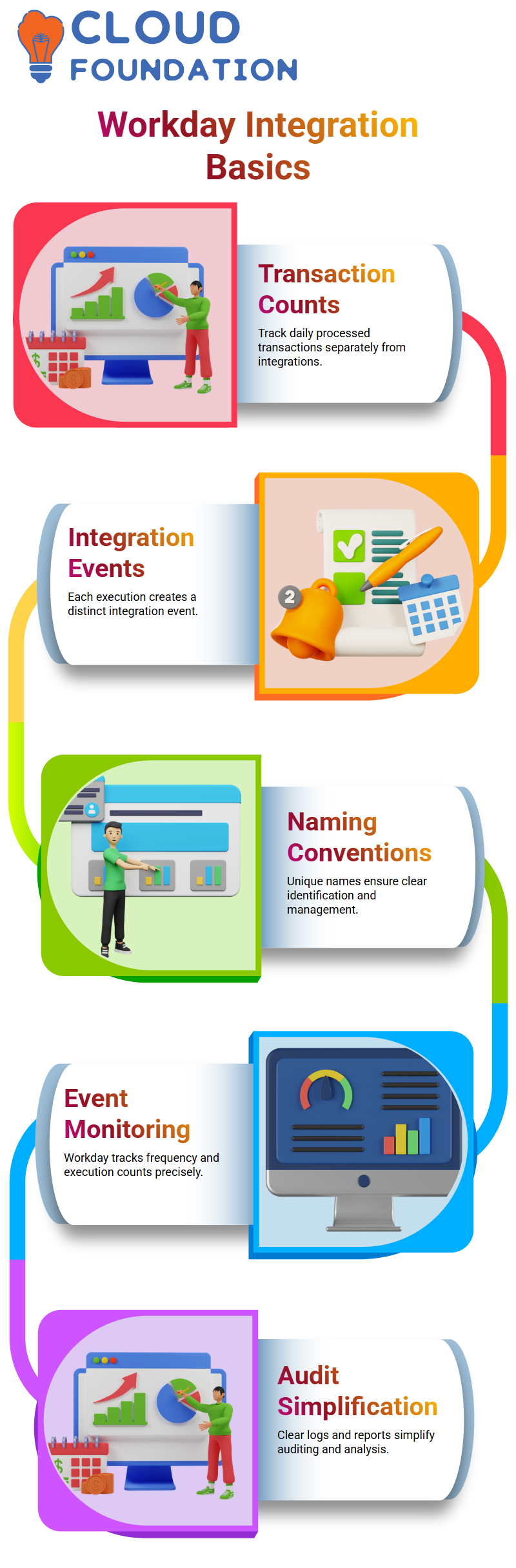
In Workday Integration, unique naming is crucial. To avoid misinterpretation, each integration must have a distinct identification, even if they provide similar functions.
This makes it easy to manage active integrations, analyse logs, and produce reports.
Integration Events in Workday Integration
There are many ways to see integration events in Workday Integration. You go to integration events to see every execution of a certain integration.
Every execution generates a different event. For example, if you conduct an outbound EIB integration twice, Workday Integration will display two unique events, each tied to the profile that ran it.
With this method, you can keep track of both the number of integrations and their frequency of operation.
Workday Integration guarantees precise monitoring of every execution, whether it’s your profile or a colleague’s, which greatly simplifies auditing and reporting.
Reporting on All Workday Integrations
You may construct reports in Workday Integration to see all of the system’s integrations.
The ‘Integration System’ data source allows you to list all of the available integrations, including those that are currently in use and those that are awaiting execution.
Without examining each one separately, this offers a comprehensive summary of all integrations.
Reports for certain execution counts may also be generated.
For instance, you may find out how many times a certain integration has been used since it was created.
These reports, which provide insight into all integration activities and execution history, may be swiftly generated by Workday Integration.
How Workday Integration Identifies Unique Integrations
How does Workday Integration recognise the differences between two integrations that have the same name? It first seems perplexing, particularly when both are outgoing or incoming.
In Workday Integration, an integration’s name is not what really distinguishes it.
Multiple integrations may be made with the same name. You are not prevented from doing that by Workday Integration.
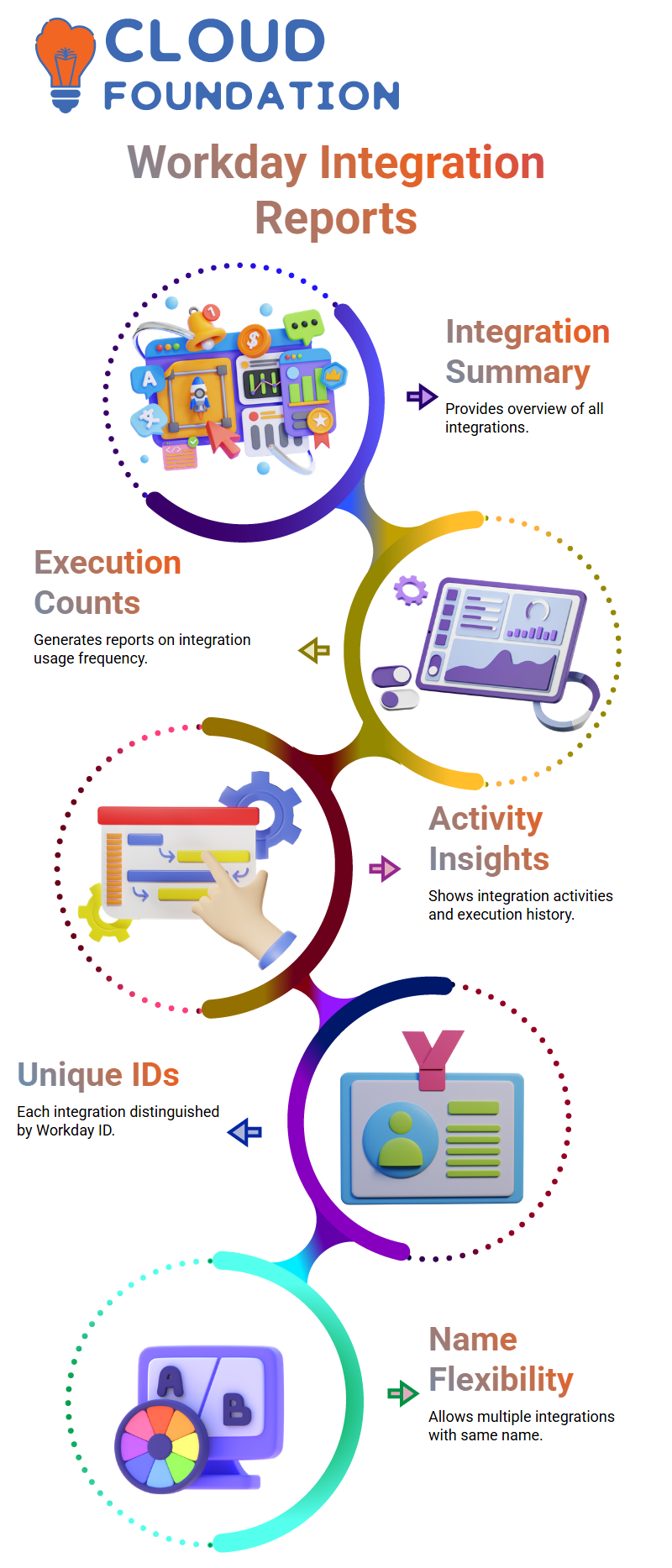
The unique Workday ID issued internally is what really distinguishes each Workday Integration.
The system automatically creates a unique Workday ID for each item you create in Workday Integration.
Go to the integration’s associated activities, choose Integration ID, and then click View IDs to view this.
You’ll see that two integrations with the same name have entirely distinct Workday IDs when you compare them.
In this way, Workday Integration sets one integration apart from another.
In Workday Integration, you cannot build more than one object with the same Workday ID.
The mechanism rigorously preserves that individuality.
The same naming scheme, such as INT001, INT002, or even repeating the same name, may be used to construct several integrations.
The name field is not validated in that manner by Workday Integration.

Workday Integration Training

Validation Rules and Naming in Workday Integration
Some of you wondered whether it would be possible to add validation such that when we attempt to build an integration with an already-existing name, Workday Integration produces an error.
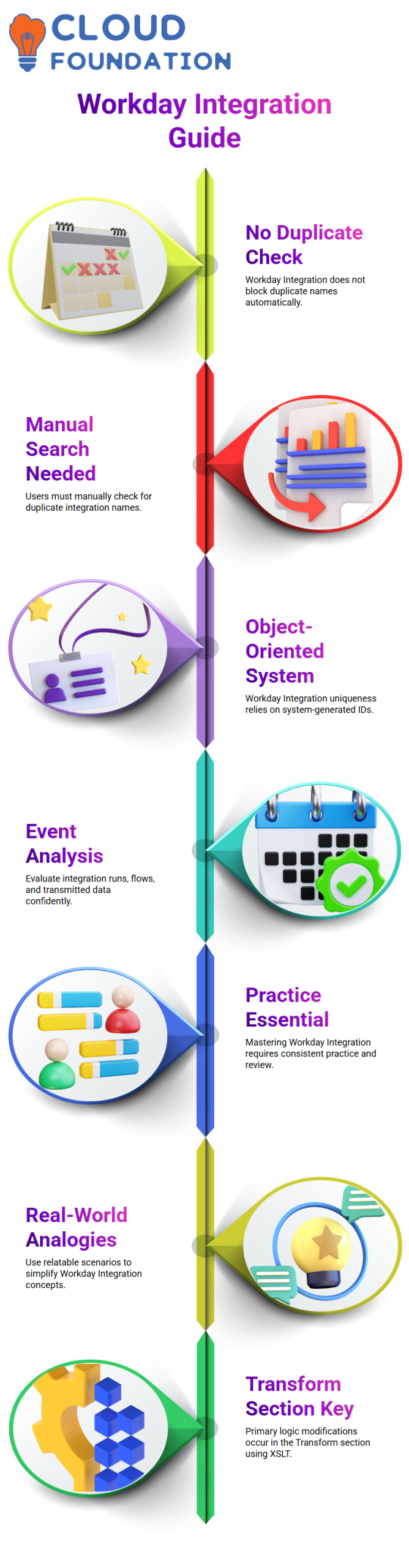
No, is the response. Workday Integration does not function in the same way as a conventional database, where duplicate names cause an error right away.
Before developing a new integration, you must manually search the system if you need to prevent duplicate names in Workday Integration.
That is not so much a technological restriction as it is about governance and usability. Flexibility is provided via Workday Integration, but it must be used properly.
Workday Integration is object-oriented, as I often explain to my Learners.
The system-generated ID, not the label we write, is what makes it unique.
Therefore, instead of anticipating rigorous name validations while working with Workday Integration, concentrate on comprehending how objects act.
Workday Integration Events and Analysis
I want you to evaluate Workday Integration events, integration runs, incoming flows, and outbound flows with confidence.
You should be able to follow what transpired, if Workday Integration transmitted data properly, and how the process ran, if I give you a Workday Integration event and ask you to examine it.
I constantly assess your ability to comprehend the Workday Integration flow throughout our interactive sessions.
The objective is not just to build a Workday Integration but also to comprehend its post-execution behaviour. The secret to mastering Workday Integration is practice.
Learning Workday Integration Without a Technical Background
The vocabulary used in Workday Integration may seem intimidating to those without a technical background.
We talk about new ideas in Workday Integration every day, which might be difficult to understand.
When you study Workday Integration, attempt to link it to real-world scenarios.
Consider going inside your home, for example.
To open the door, a key is required. Similarly, Workday Integration controls access and flow via settings and identifiers.
You travel to several rooms after you’re inside the home. You navigate between parts like Get Data, Transform, and Deliver in Workday Integration in a similar manner.
Always ask questions if anything in Workday Integration doesn’t make sense.
To make Workday Integration topics relatable to all people, regardless of technical knowledge, I like to use straightforward visualisations.
Transform Section in Workday Integration EIB
Once a Workday Integration EIB has been created, you may change it by choosing Change under Related Actions, then Enterprise Interface.
The Get Data and Deliver portions may already be set up in a standard Workday Integration EIB.
The Transform section is often where the primary logic modification takes place.
There are two kinds of transformations in Workday Integration: Custom Transformation and Custom Report Transformation.
New Custom Report Transformation is used when creating a Workday Integration transformation for the first time.
As a result, Workday Integration may organise the output according to the report description. Custom Transformation is used if you want more sophisticated control.
Extensible Stylesheet Language Transformation, or XSLT, is used in Workday Integration Custom Transformation.
With this method, we may write XSLT code inside a file to convert XML output into the desired format for Workday Integration.
I highly advise the fundamentals of XSLT if you want to become proficient in Workday Integration transforms.
You have strong control over how Workday Integration forms and organise outgoing data once you understand how XSLT works.

Workday Integration Online Training
Custom Transformation vs Custom Report Transformation in Workday Integration
We mostly deal with two kinds of transformations in Workday Integration.
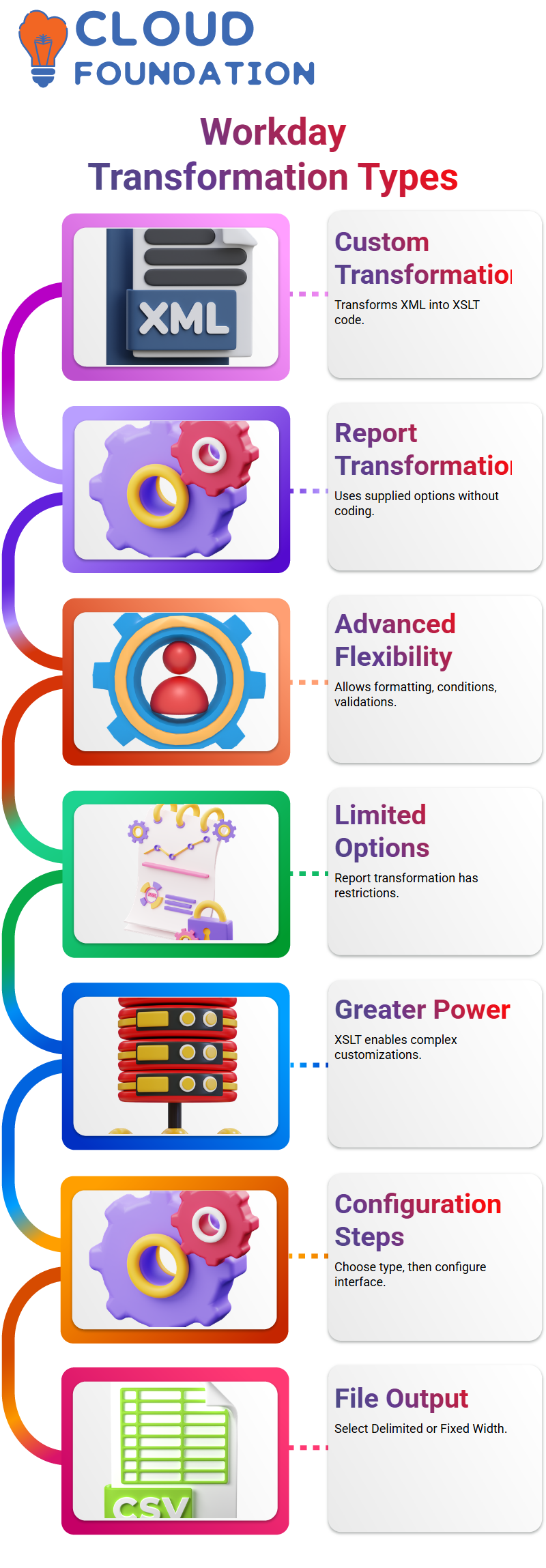
The first is Custom Transformation, in which XML data is transformed into XSLT code.
The second is Workday Integration’s Custom Report Transformation capability, which is supplied and customizable.
I create XSLT code to control the output when I use Custom Transformation in Workday Integration.
I am able to use formatting adjustments, concatenations, conditions, and validations. The XML data may be fully reshaped to my specifications.
I don’t write code when I utilise Workday Integration’s Custom Report Transformation. Rather, I use supplied options to tailor the output.
Although it has restrictions, this makes it simpler to use.
You may wonder why, given the existence of Custom Report Transformation, we even need Custom Transformation in Workday Integration.
The solution is straightforward. There aren’t many possibilities for Custom Report Transformation in Workday Integration.
I am unable to apply sophisticated validations or complicated conditions there.
However, I can use XSLT for almost anything, such as Custom Transformation in Workday Integration. Custom Transformation in Workday Integration is hence more potent.
How I Configure Custom Report Transformation in Workday Integration
When I set up my Workday Integration, I first chose Custom Report Transformation as the transformation type. The first step is that.
The second stage in Workday Integration is to set up the transformation. I choose the transformation type, then move to the interface area by going to the corresponding activities.
I could only see the edit option before. However, I also saw the Configure Transformation option after choosing Custom Report Transformation in Workday Integration.
The system asks me what kind of file I want to create when I click Configure Transformation in Workday Integration.
I have a choice between Delimited and Fixed Width. This Workday Integration setting step is crucial.
Delimited vs Fixed Width Files in Workday Integration
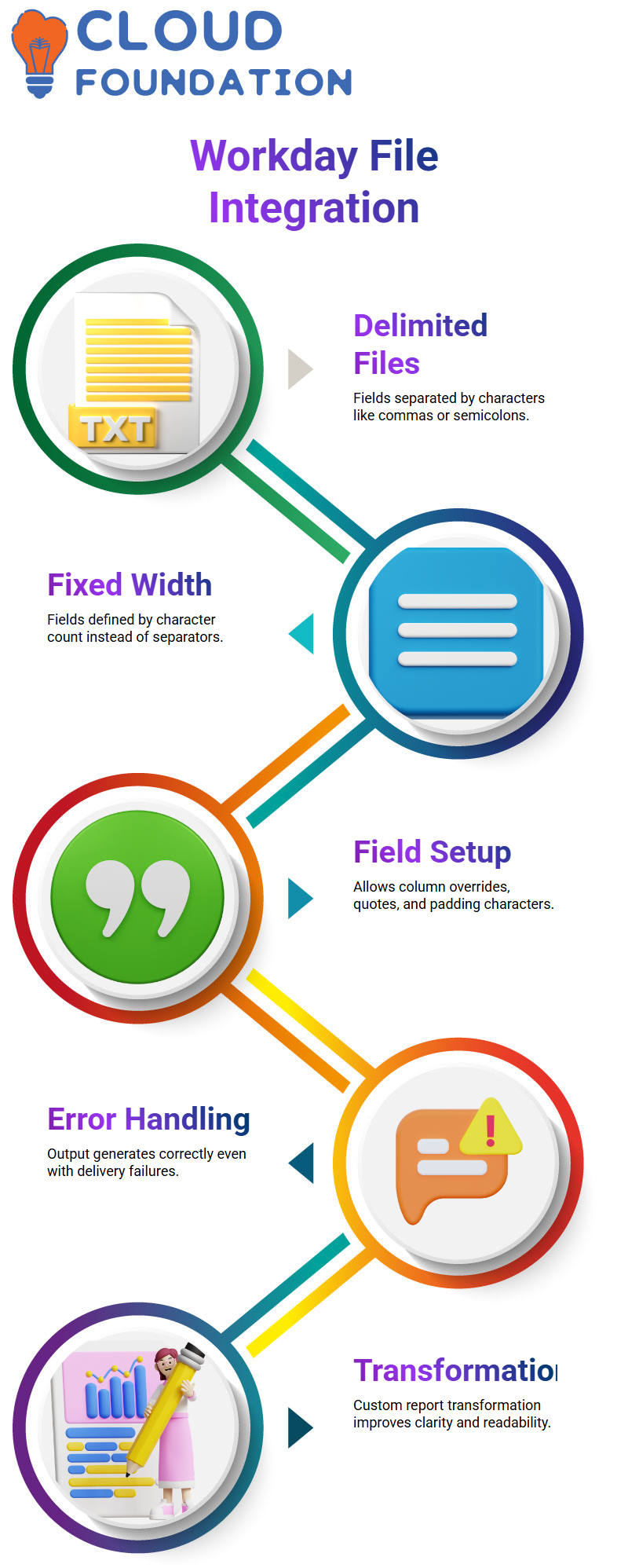
When I choose a delimited file in Workday Integration, a certain character, such as a comma or semicolon, separates the fields.
For instance, a comma may be used to separate First Name, Last Name, and Date of Birth. In Workday Integration, this is straightforward and adaptable.
I provide the character count for every field when I choose Fixed Width in Workday Integration.
For instance, I may set a fixed length for the Date of Birth, five characters for the First Name, and five for the Last Name.
Character count, not separators, determines the file structure. When other systems demand it, Workday Integration also supports this format.
I used the Delimited option in my Workday Integration example. Next, I set up field-level parameters and line ends.
Workday Integration enables me to specify the source column, override column headers, add double quotes if necessary, and even set padding characters for each field in my report.
Running and Testing the Workday Integration Output
The output file was created even though I purposefully included wrong SFTP information in my Workday Integration setup.
Only at the delivery stage did the integration fail. You must comprehend Workday Integration.
I click on the number of problems to get the comprehensive message when the Workday Integration status indicates unsuccessful.
The mistake makes it extremely evident that the delivery of the document was unsuccessful. This indicates that Workday Integration produced the output file correctly but failed to send it.
After that, I opened the Workday Integration output file and compared it to the run before, when I didn’t apply any transformations.
There was a noticeable change. The file produced by Workday Integration’s Custom Report Transformation seemed far more organised and legible.
For this reason, it’s essential to comprehend transformation in Workday Integration.
Your output becomes clearer, more meaningful, and simpler for downstream systems to interpret when you set up Custom Report Transformation in Workday Integration correctly.

Workday Integration Course Price

Vanitha
Author