Workday Integration Core Connectors Training
Workday Integration Core Connector Types
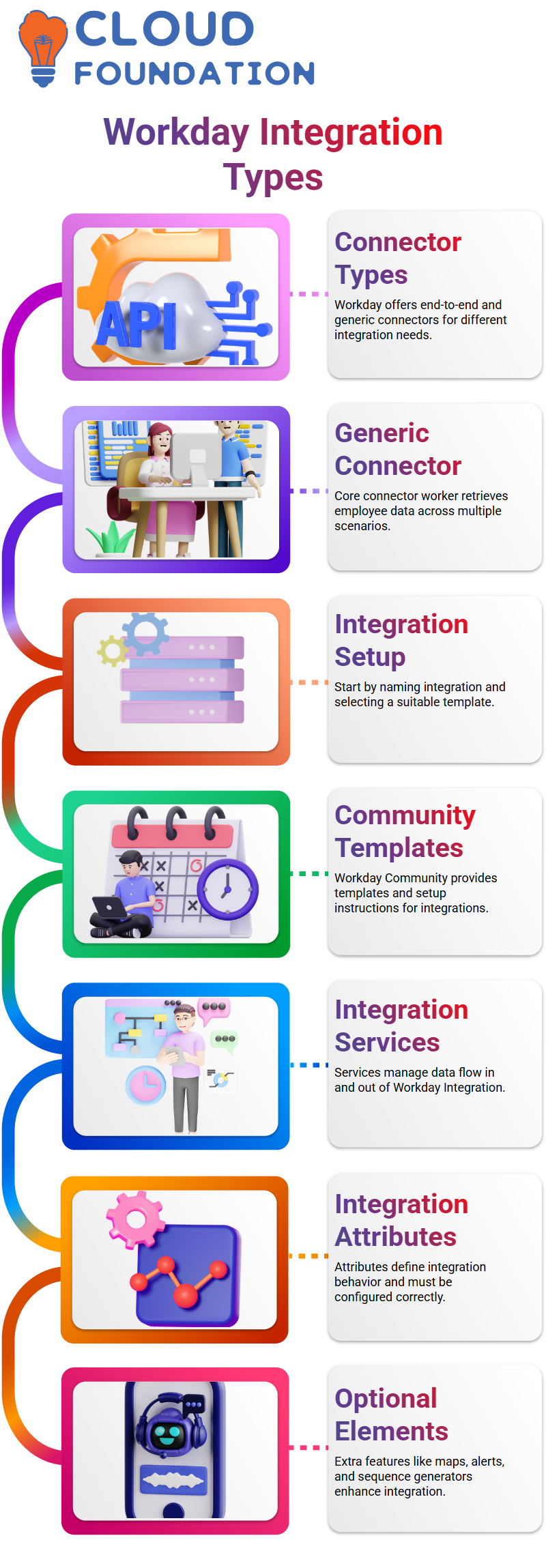
Workday Integration Core connections come in two varieties: end-to-end connectors and generic connectors.
While generic connections are more adaptable and may be used in a variety of scenarios, end-to-end connectors have a defined function for a certain system.
For instance, a popular generic connector used by many of us to get employee data in Workday Integration is the core connector worker.
When developing Workday Integration procedures, it is crucial to comprehend the distinctions between these connection kinds.
Creating an Integration System in Workday Integration
Developing and integrating a solution is the initial stage in every Workday integration project.
Entering the integration name and choosing an integration template are the first steps.
You may examine the specifics of the several templates that Workday provides in the Workday Community.
For example, the community offers instructions on how to set up compensation data in your core connector worker.
You may set up the integration system after choosing the template and entering the integration name.
In order to successfully set up a Workday Integration, this is an essential step.
Configuring Integration Services in Workday Integration
I set up the integration services after building the integration system.
Services regulate the movement of data into and out of Workday Integration.
Depending on your needs, you may need to explicitly activate certain services, while others are enabled automatically.
I make care to review every service, including the areas pertaining to personal information, status information, job information, contact information, and remuneration information.
The Workday Integration will obtain the appropriate data for your requirements if you choose the appropriate services.
Setting Integration Attributes in Workday Integration
I then set up integration characteristics. You may provide characteristics that govern how each integration behaves, Workday Integration.
Certain properties may not have default values, although they are necessary for launch. To prevent mistakes during execution, you must supply the proper values.
You may improve the dependability of your Workday Integration and minimise runtime problems by correctly configuring integration properties.
Configuring Optional Elements in Workday Integration
Additionally, Workday Integration allows you to set up extra features, including sequence generators, integration maps, field overwrites, alerts, and transaction locks.
These are optional, but I normally check them to see if they make the integration process better.
For instance, the sequence generator aids in preserving transaction order, which is crucial in intricate Workday Integration situations.
Selecting Data Sections in Workday Integration
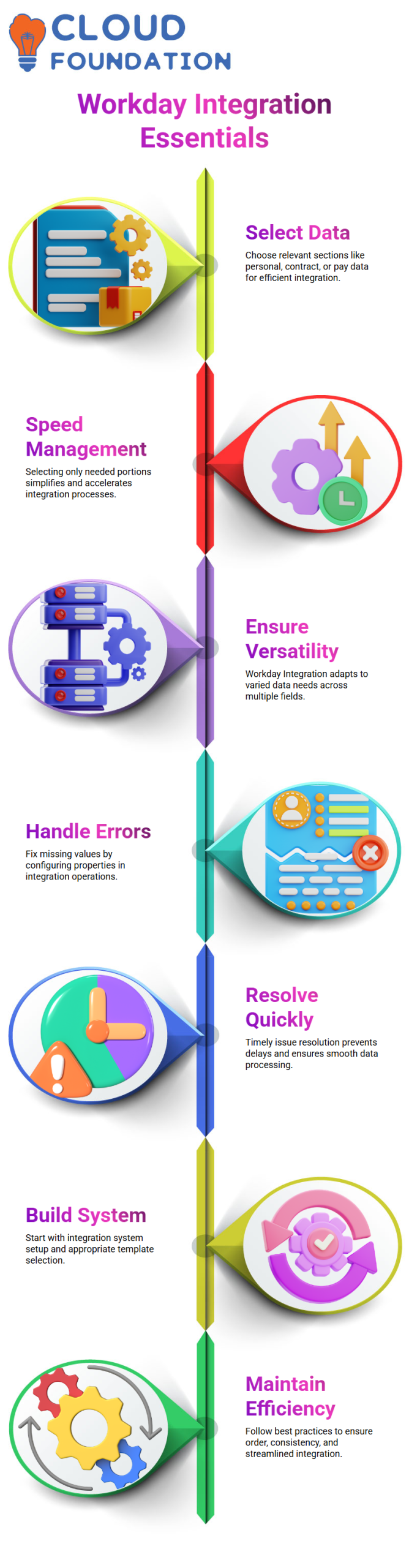
Choosing the appropriate data sections is a crucial step in Workday Integration.
You may choose sections for personal data, status data, position data, contract data, or remuneration data based on your needs.
I’ve found that choosing only the data portions you want speeds up and simplifies the management of your Workday Integration.
Specific fields, such as personal information, contract terms, or pay details, are included in each data area. This is where the versatility of Workday Integration really shines.
Handling Errors in Workday Integration
You can run into problems while Workday Integration. For example, the system may show that some necessary integration characteristics have no given values.
In order to fix these problems, I often go to the integration system’s corresponding operations and configure the missing properties.
Resolving issues quickly guarantees that your Workday Integration functions properly and minimises data processing delays.

Workday Integration Training

Best Practices in Workday Integration Configuration
I adhere to a few recommended practices while working on Workday Integration projects.
Always begin by building the integration system and choosing the appropriate template.
Second, set up the necessary services in accordance with the integration requirements. Third, go over optional components like sequence generators and alerts.
I maintain order, consistency, and efficiency in my Workday Integration procedures by adhering to these guidelines.
Configuring Integration Attributes
Setting up integration properties is the first step in Workday Integration.
Field characteristics and generic attributes should not be confused. ‘Configure Integration Attributes’ must be chosen first. Options such as “Required for Launch” are shown here.
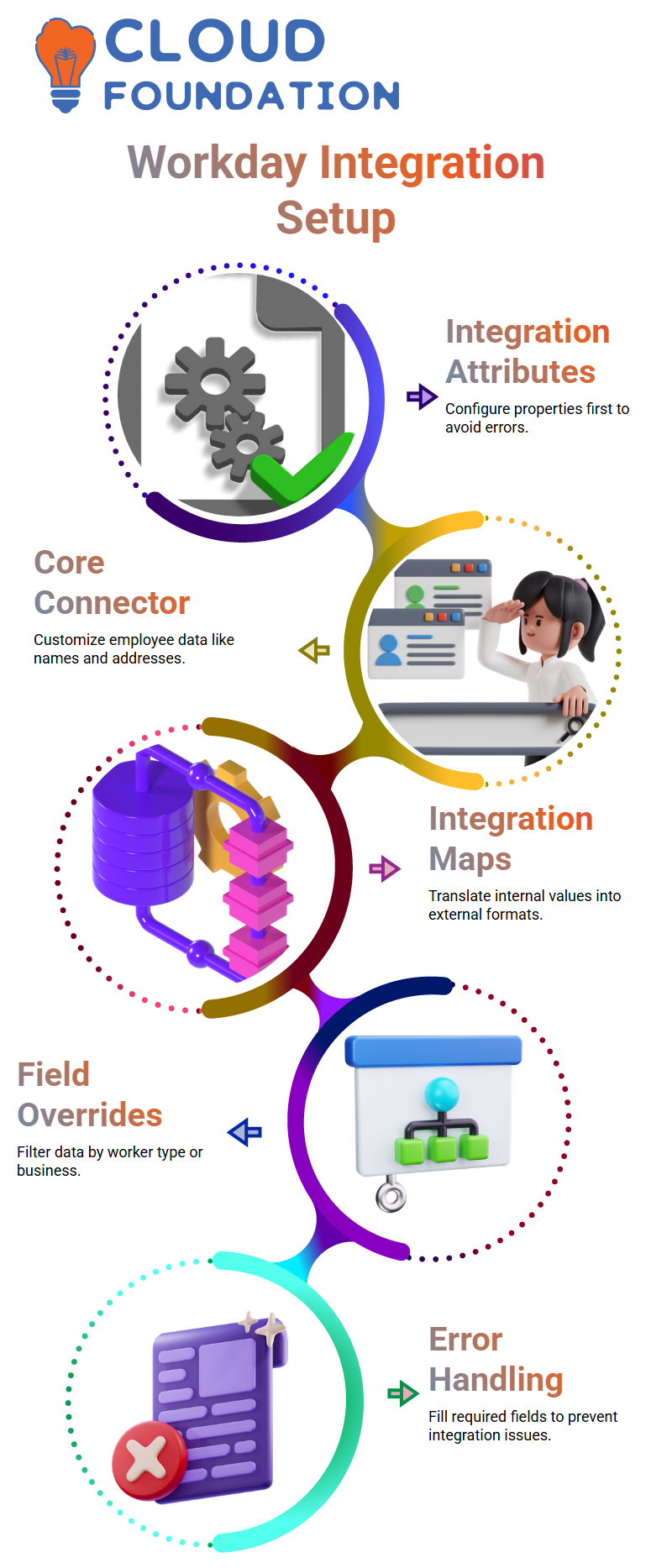
If a necessary field is empty, you could sometimes get an error. To add the value, click the + sign under Workday Integration.
You may choose the appropriate Workday version from a textbox that will show up. We chose version 40, for instance. The necessary field is ready once configured, and errors vanish.
Core Connector Attributes
Workday Integration’s Core Connector displays a number of configurable properties.
For example, you may choose to pull either your chosen name or your legal name. Each employee may have more than one address type thanks to Workday Integration.
You have the option to include your work address, home address, or both in your output file.
Additionally, you may choose between private and public addresses for Workday Integration. Phone kinds may also be customised.
It chooses work numbers by default, but you have the option to pick home numbers.
You may adjust preferences according to your requirements since each characteristic includes an override option.
Integration Maps
In Workday Integration, integration maps are crucial. They enable you to translate internal values into external ones.
For instance, Workday records data as male, female, or undefined in gender mapping.
For your output files, you may map them to M, F, or ND. This guarantees the consistency and readability of your data.
In Workday Integration, mapping may be applied to a variety of fields.
The output file displays your mapped values rather than the raw Workday data after it is set up. This makes it easier for you to handle personnel data with clarity.
Configuring Field Overrides
You may manage eligibility via Workday Integration’s field overrides. Let’s say you simply want the data of permanent workers.
A calculated field that verifies if “Worker Type” and “Employee” match may be created. The integration output only includes those workers.
Additionally, you may restrict data to certain businesses. With Workday Integration, you may use calculated fields to choose the precise workers you want.
This allows you to filter any group according to your requirements, including contractors and temporary employees. Because of this, Workday Integration is very adaptable.
Handling Missing Data
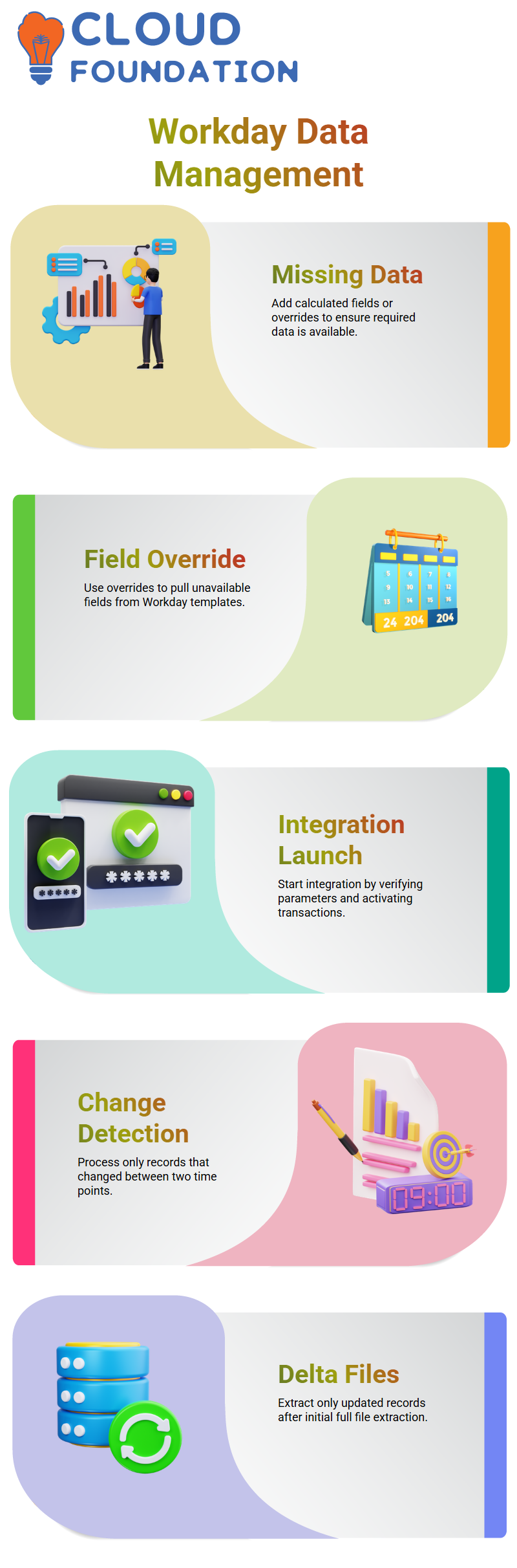
Occasionally, your integration may not have the fields you need. Calculated fields, such as security keys, may be included in Workday Integration.
To make sure your output has all you need, you may add calculated fields or set overrides if a needed field does not display data.
Field Override to Pull Data
Sometimes the template in Workday Integration lacks certain necessary fields.
Field override may help with it. To get data that isn’t in the template, I utilise field override.
To get any missing data required for your connection, you may set up Workday connection field overrides.
Workday Integration: Launching the Integration
I chose ‘Launch’ from the integration option to start a Workday Integration.
Since every parameter is crucial, I make sure to verify them all. In Workday Integration, these conceptual factors are crucial.
The system begins to take up transactions inside the designated date range as soon as I activate it.
Change Detection
One of the main ideas of Workday Integration is change detection. Assume for the moment that I choose two points in time: time one and time two.
Daily transactions include requests for leave, transfers, and promotions.
Only the records that have changed between these two points are processed by Workday Integration.

Workday Integration Online Training
Handling Large Worker Data in Workday Integration
Assume that Workday has 50,000 employees. I extract all 50,000 records in Workday Integration as a whole file on the first day.
Only modified records are extracted in the days that follow. For instance, Workday Integration only transmits those five entries if there are only five employees with modifications.
By doing this, duplicate data is avoided, and time and resources are saved.
Full File vs Delta File
A complete file with all employee data is always the initial extraction in Workday Integration. A delta file is used in subsequent extractions.
Thus, only updated records are sent via Workday Integration. For example, only 25 entries are processed in the delta file if 25 employees make information changes.
This approach guarantees accuracy and is effective.
Workday Integration: Core Connector Parameters
I pay close attention to important aspects while setting up Workday Integration in Core Connector.
These settings control which transactions are recorded and guarantee that only essential modifications are reflected in the output file.
Accurate Workday Integration requires setting the settings correctly.
Workday Integration: Processing Time and Output Files
Depending on the template and the quantity of data, Workday Integration may take some time.
The system is carefully searched for template-based connections, which may take longer.
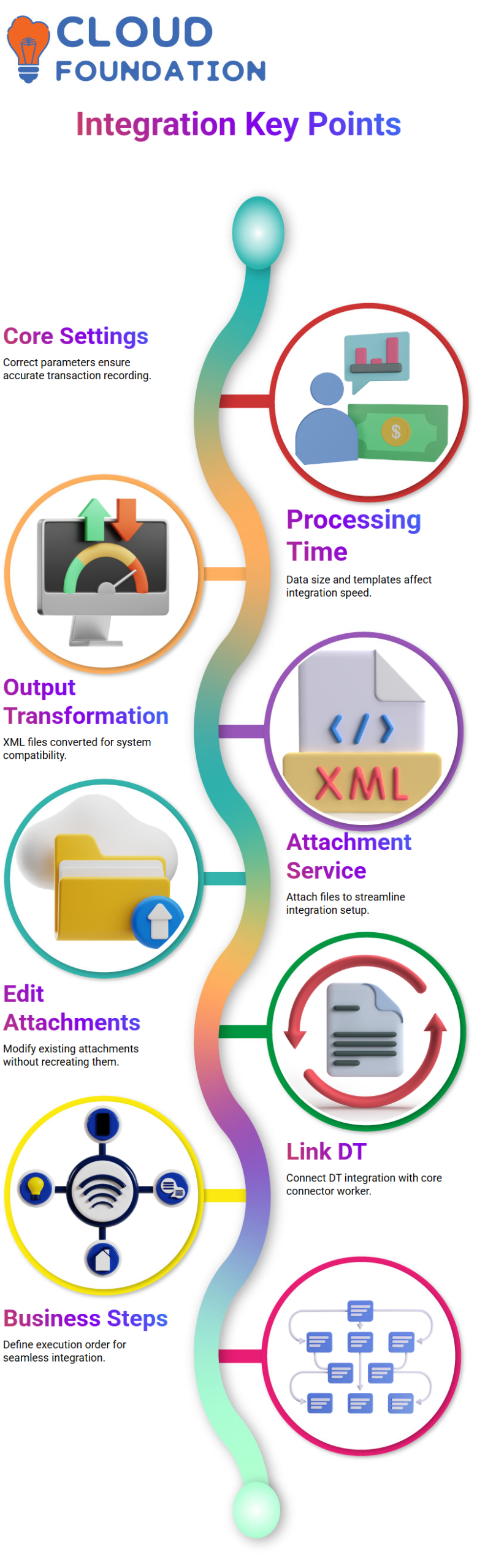
However, the advantage is that Workday Integration provides accurate data. When dealing with huge outputs, I also have ways to improve processing.
Workday Integration: Transforming Output for Other Systems
An XML file is often the result of Workday Integration. I convert the data into an appropriate format if the receiving machine is unable to process XML.
This guarantees smooth integration and preserves the accuracy of every Workday Integration transaction.
Configuring Attachment Service
I chose ‘Configure Integration Attachment Service’ under the relevant action in the integration system to resolve this.
Here, I attach the XSLD file by selecting “Create Integration Service Attachment.” I’ve attached my ATV file, for instance. The attachment service is prepared when this is finished.
You don’t have to start from scratch every time if you already have an attachment service and just need to make changes. You may make changes to already-existing integration service
attachments in Workday Integration. For ease of identification in the future, I always make sure to give each batch a distinct name, such as “Batch 4.”
Workday Integration: Editing Existing Attachments
I look up the name of an existing service attachment and choose “Edit Integration Service Attachment” when I need to make changes.
Because of this, I may make changes to it without always making a new attachment. Integration IDs to uniformly name each batch make it easier for me to effectively handle many attachments.
Workday Integration: Linking DT Integration to Core Connector Worker
I must connect the DT to the core connector worker integration once it has been configured.
I developed an integration business procedure to do this. I choose ‘Create Copy or Link Definition’ under business process in the integration system’s associated activity.
I click OK, leaving the default settings in place. As a result, a new concept of business processes is created.
Here, I provide a step that connects the core connection worker to the DT integration.
I provide the order of execution, ensuring that the DT integration processes the file after the core connector worker integration.
Workday Integration: Adding Steps in Business Process
I click the + sign and choose ‘Integration’ to add a new phase. I then specify the sequence of execution. For instance, step C calls the DT integration, but step A starts the base integration.
I ensure that step C doesn’t start until the file has been produced by the core connector worker integration.
If the integration hasn’t been set up yet, an error may show up once the step is introduced.
In the new step, I choose “Configure Integration System” and input the name of the DT integration. This guarantees the seamless operation of the Workday Integration business process.

Workday Integration Course Price

Vanitha
Author
The capacity to learn is a gift; the ability to learn is a skill; the willingness to learn is a choice