Workday integration calculated field online course
Workday Integration Calculated Fields Overview
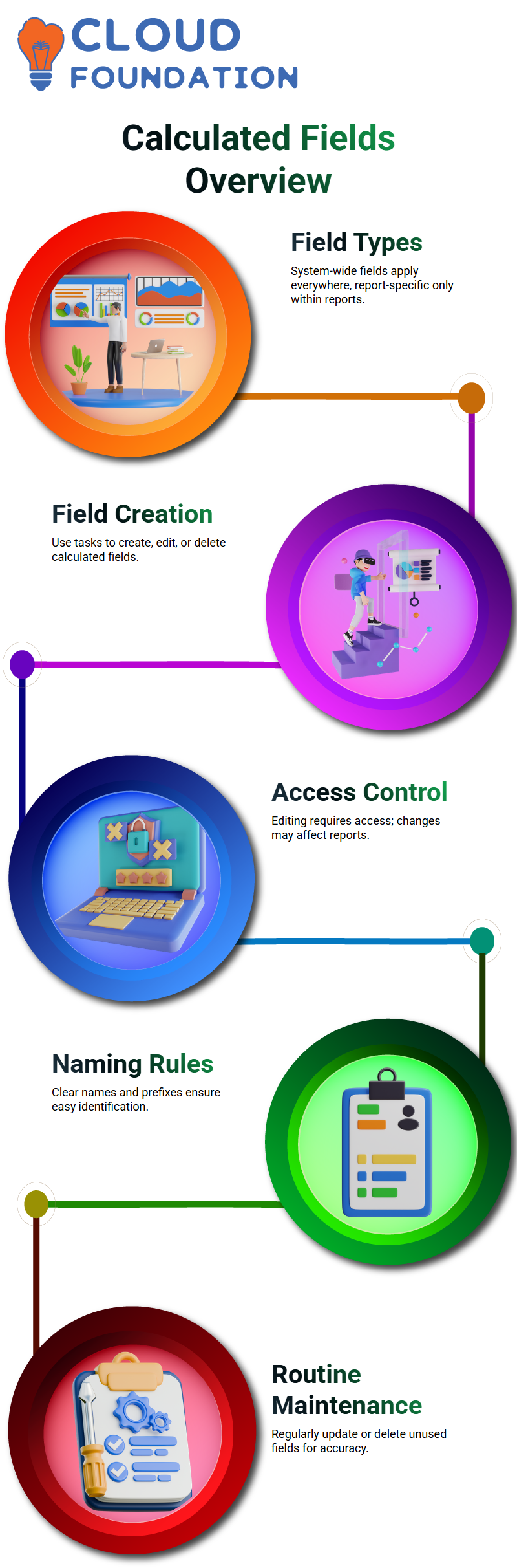
Calculated fields are essential when working in Workday Integration. Calculated fields are not used to set up typical organizational data, such as cost centers, or to generate basic reports. Calculated fields are mostly used for backend configuration rather than end-user chores.
Calculated fields in Workday Integration can be classified as either system-wide or report-specific. Report-specific calculated fields are limited to the report in which they are prepared, whereas system-wide calculated fields can be utilized anywhere in Workday Integration. It’s crucial to understand the distinction while handling your Workday Integration reports.
Workday Integration True False Condition Calculated Field
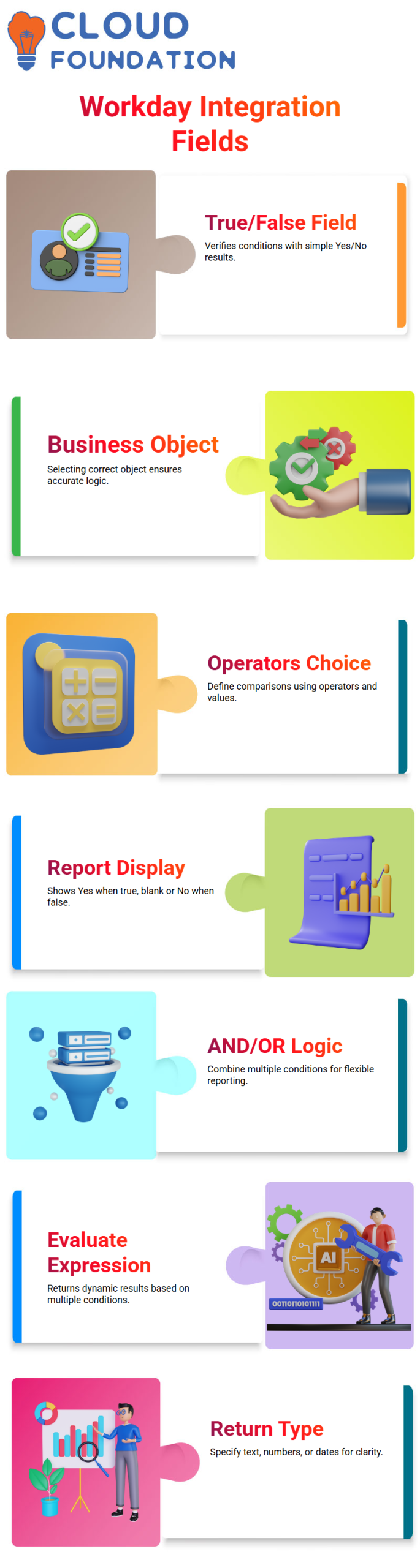
Working on Workday Integration reports frequently requires you to verify that a particular condition is met. The True False computed field is quite helpful in this situation.
I use the True/False condition calculated field in Workday Integration whenever I need to verify something, such as whether a worker is female, whether a pay exceeds a certain threshold, or whether a job profile matches a particular value. I can use Workday Integration’s function to assess conditions and provide a straightforward Yes/No result.
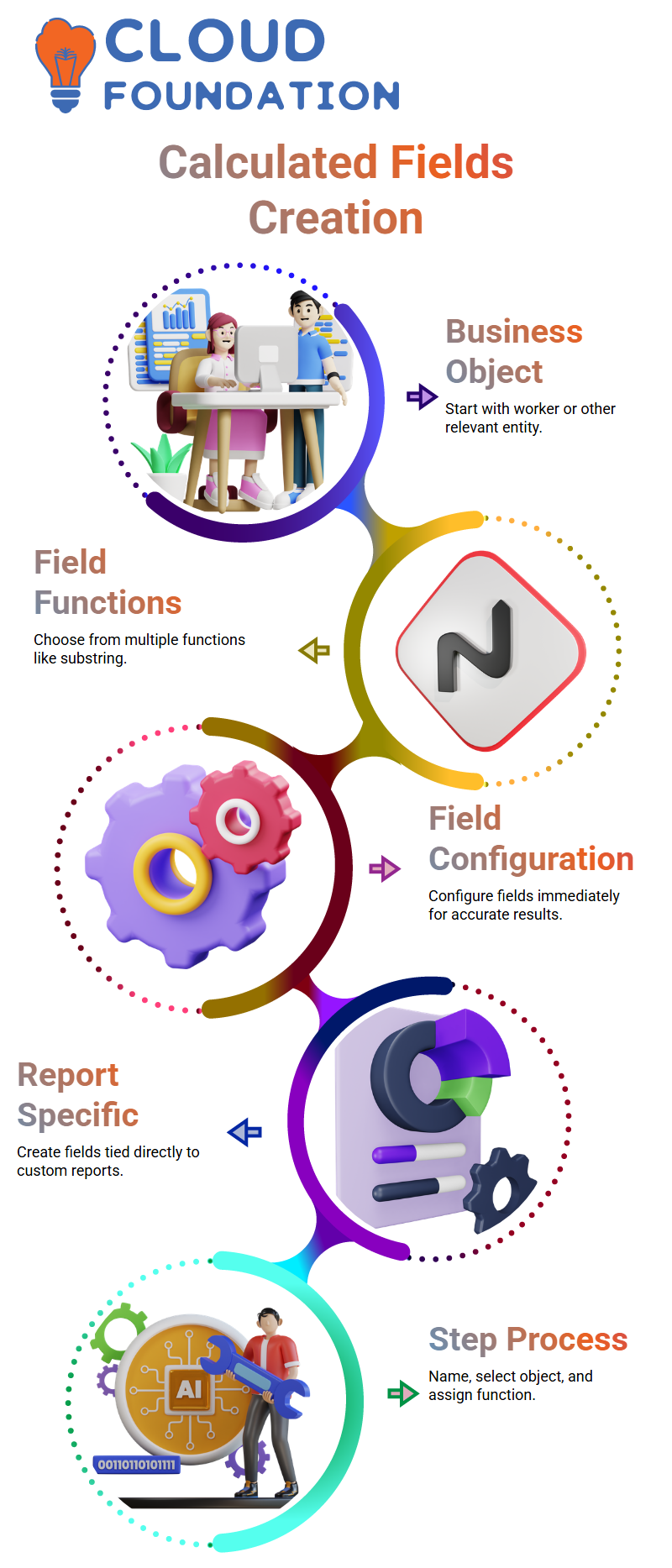
I begin by opening the report and the Calculated Field task in Workday Integration to create this. On the relevant business object, such as Worker, I define a calculated field. Because the logic of Workday Integration depends on the available fields, choosing the right business object is crucial.
I construct my reasoning in Workday Integration after selecting the function type as a True/False condition. For instance, I choose the operator, create the comparison value, and select the provided Gender data to determine whether Gender equals Female. The system returns True in Workday Integration if the values match. It returns False if it doesn’t match.
When I add this calculated field to a Workday Integration report, I can immediately view the results. Workday Integration displays “Yes” wherever the criteria are met. If the criterion is not met, the default display may be blank.
I go to the report column options and turn on “Show No when False” if I want Workday Integration to display No when the condition is false explicitly. For business users, this tiny Workday Integration parameter greatly improves the clarity of the output.
I frequently include several conditions in real-time Workday Integration scenarios. I can use the AND operator and add more rows with Workday Integration. Workday Integration guarantees that all conditions must be true AND. Workday Integration uses OR to determine whether at least one condition is true. Workday Integration reporting is particularly powerful because of this flexibility.
Evaluate Expression in Workday Integration
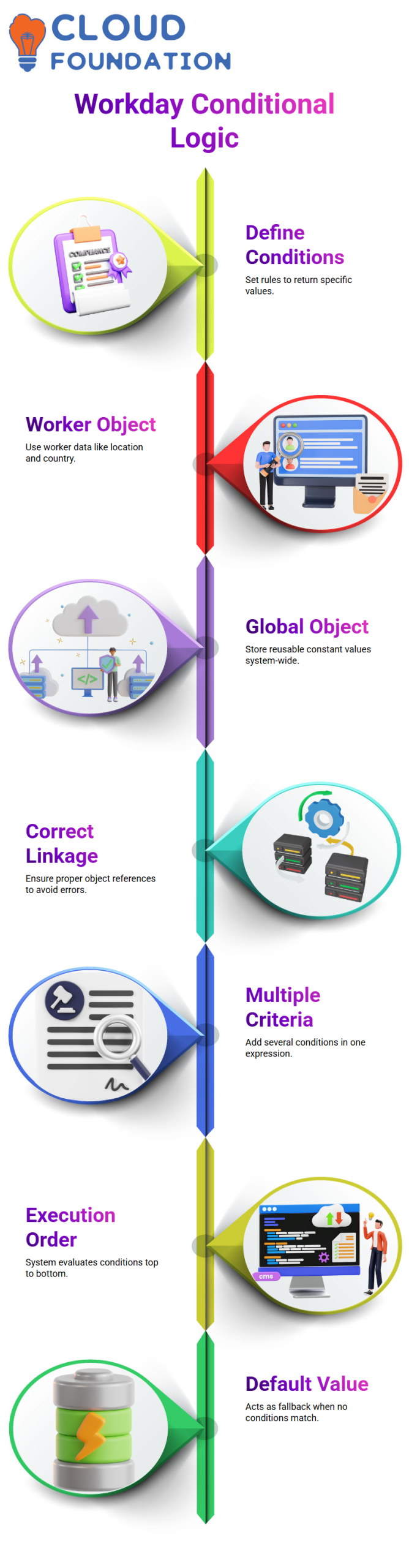
Let me now describe Evaluate Expression, another crucial Workday Integration method. When I need to return different results depending on several circumstances, I use Workday Integration’s Evaluate Expression.
For instance, I could choose a language depending on the country in a Workday Integration scenario. I might return to English by default. However, I would like to return Hindi in Workday Integration if the nation is India. I return Chinese if the nation is China. I reply in French if the nation is France. This type of multi-condition logic is ideal for Workday Integration’s Evaluate Expression.
I create a calculated field again and set Evaluate Expression as the function type to construct this in Workday Integration. Workday Integration then prompts me to specify the return type. Whether I’m returning text, dates, numbers, currency, or another type of data, I have to be very explicit about what I’m returning. Choosing the appropriate return type in Workday Integration ensures the report runs as intended.
I define each condition individually within Workday Integration’s Evaluate Expression logic. Workday Integration enables me to assign a specific return value to each condition I evaluate. I can specify a default value if none of the requirements are met. Workday Integration logic is simple to handle because of this methodical approach.
In Workday Integration, I frequently compare Evaluate Expression with True and False. Only Yes or No is returned by True or False in Workday Integration. However, depending on which criteria are met, Workday Integration’s Evaluate Expression returns dynamic results.
Workday Integration has functions similar to Lookup Range Band and Evaluate Expression Band. Despite their identical appearances, I select the appropriate one in Workday Integration depending on whether I’m assessing discrete conditions or value ranges.
I always advise you to practice these computed fields when I create reports for Workday Integration training sessions. Your confidence in managing real-time Workday Integration reporting requirements increases as you develop True, False, and Evaluate Expression logic in Workday Integration.

Workday Integration Training

Building Conditional Logic in Workday Integration
Building conditions is the next step once I’ve defined my default value in Workday Integration. For instance, I would like Workday Integration to return Hindi rather than English if the worker is from India. I do this by clearly defining the requirement and creating a True/False calculated field.
Because my condition depends on worker-related data, such as location and country, I navigate to the Worker Business Object in Workday Integration. I choose Location, then Address, then Country, and gradually construct the criteria. This ensures that my Workday Integration logic uses the correct data source.
Workday Integration returns Hindi if the condition evaluates to true. It reverts to the default value, which I previously set to English, if it evaluates too false. I can precisely manage Workday Integration’s behavior in many instances thanks to this methodical technique.
Multiple Conditions and Performance in Workday Integration
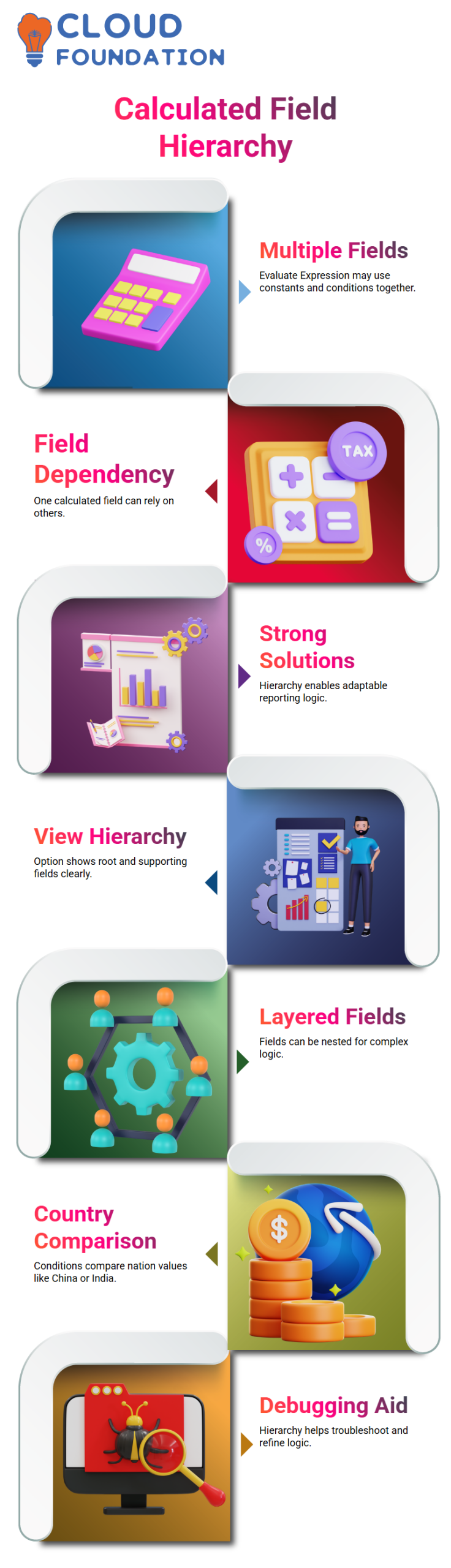
I may create several criteria in a single Evaluate Expression computed field in Workday Integration. For instance, I might return Hindi after first confirming that the nation is India. After that, I can include an additional requirement to determine whether the nation is China and provide a different language.
In Workday Integration, I always stress the importance of execution order. Conditions are assessed by the system from top to bottom. Workday Integration quickly returns that value and ceases assessing other conditions if the initial condition is met. In that scenario, it never verifies the second condition.
I rank the condition that filters the most records at the top in terms of performance. Because the system resolves results more quickly when the most frequent scenario arises first, this method increases Workday Integration’s efficiency.
Workday Integration returns the default value I previously specified if none of the requirements are met. That default value works as a safety net in my Workday Integration design.
Calculated Field Hierarchy in Workday Integration
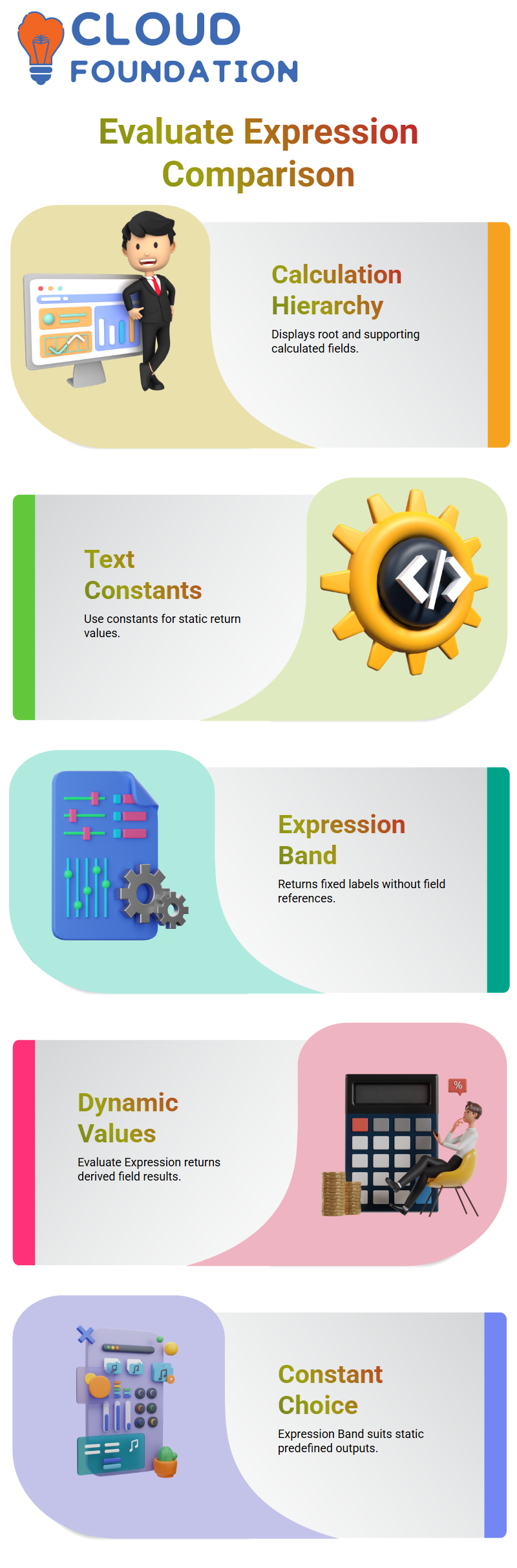
I frequently use many computed fields while creating an Evaluate Expression in Workday Integration. For instance, I occasionally employ additional derived fields, text constants, and true/false conditions. Within a single Workday Integration structure, all of these elements collaborate.
I always want my leaners to grasp this hierarchy. One calculated field in Workday Integration may rely on several other calculated fields. You can create strong and adaptable solutions if you know how each component works.
You’ll see that this pattern keeps coming up as I develop more situations in Workday Integration. You can confidently manage intricate Workday Integration reporting and integration requirements once you have mastered text constants, conditional logic, and business object selection.

Workday Integration Online Training
Workday Integration Calculation Hierarchy
One of the first things I look at while working on Workday Integration computed fields is the calculation hierarchy. You can choose View Calculation Hierarchy by going to the relevant action of the computed field in Workday Integration. This Workday Integration option displays the root calculated field along with all of its supporting calculated fields.
I utilized an Evaluate Expression calculated field with two criteria and three text constants in my Workday Integration example. I can easily see which fields I utilized and how each condition relates to the root computed field when I open the folder inside the Workday Integration calculation hierarchy.
Every time my leaners generate many calculated fields while learning Workday Integration, I advise them to investigate this hierarchy. I didn’t use many intermediate computed fields in previous Workday Integration sessions. However, you will begin layering calculated fields inside other calculated fields as you progress through Workday Integration. You can comprehend everything in one location thanks to Workday Integration’s calculation hierarchy.
I looked at Location, Location Address, and compared the nation to values such as China and India in this particular Workday Integration setup. The Workday Integration calculated field then produced a text constant based on the country. For this reason, when debugging or improving logic, the Workday Integration calculation hierarchy is crucial.
Workday Integration Evaluate Expression to Determine Language
One of the first things I look at while working on Workday Integration computed fields is the calculation hierarchy. You can choose View Calculation Hierarchy by selecting the relevant action for the computed field in Workday Integration. This Workday Integration option displays the root calculated field and all supporting calculated fields.
I utilized an Evaluate Expression calculated field with two criteria and three text constants in my Workday Integration example. I can easily see which fields I utilized and how each condition relates to the root computed field when I open the folder inside the Workday Integration calculation hierarchy.
Every time my leaners generate many calculated fields while learning Workday Integration, I advise them to investigate this hierarchy. I didn’t use many intermediate computed fields in previous Workday Integration sessions. However, you will begin layering calculated fields inside other calculated fields as you progress through Workday Integration. You can comprehend everything in one location thanks to Workday Integration’s calculation hierarchy.
I looked at Location, Location Address, and compared the nation to values such as China and India in this particular Workday Integration setup. The Workday Integration calculated field then produced a text constant based on the country. For this reason, when debugging or improving logic, the Workday Integration calculation hierarchy is crucial.
Workday Integration Evaluate Expression vs Evaluate Expression Band
I presented the Evaluate Expression Band after describing Evaluate Expression in Workday Integration. While both options are available in Workday Integration, their functions differ. Without choosing a particular field type, you can insert free text as return values in the Workday Integration Evaluate Expression Band.
For instance, I can use the Evaluate Expression Band in Workday Integration to detect the language of static text, such as English, Hindi, or Chinese. Instead of referencing another calculated field in this Workday Integration configuration, I enter the return values directly.
I’ll describe how I choose which one to use in Workday Integration. I select Evaluate Expression Band in Workday Integration if I have several criteria and I want to return a static value for each condition. For fixed labels like High, Medium, or Low-income ranges, this is effective.
But in Workday Integration, I use the Evaluate Expression calculated field rather than the Evaluate Expression Band if I need to return a dynamic value, which means the result must come from another field or another calculated field. When you require derived values, Workday Integration does not permit dynamic field references inside the Evaluate Expression Band.
Therefore, when creating logic in Workday Integration, consider whether you are returning a derived value or a constant. Workday Integration Evaluate Expression Band is typically sufficient if it remains constant. The Workday Integration Evaluate Expression computed field is the appropriate method if it is generated from another field.
I strongly recommend practicing both techniques in Workday Integration. Your confidence in selecting the appropriate logic for your reports and integrations will grow as you explore more with Workday Integration calculated fields.

Workday Integration Course Price

Nishitha
Author