Workday integration advanced reporting training
Workday Integration Through Advanced Report Configurations
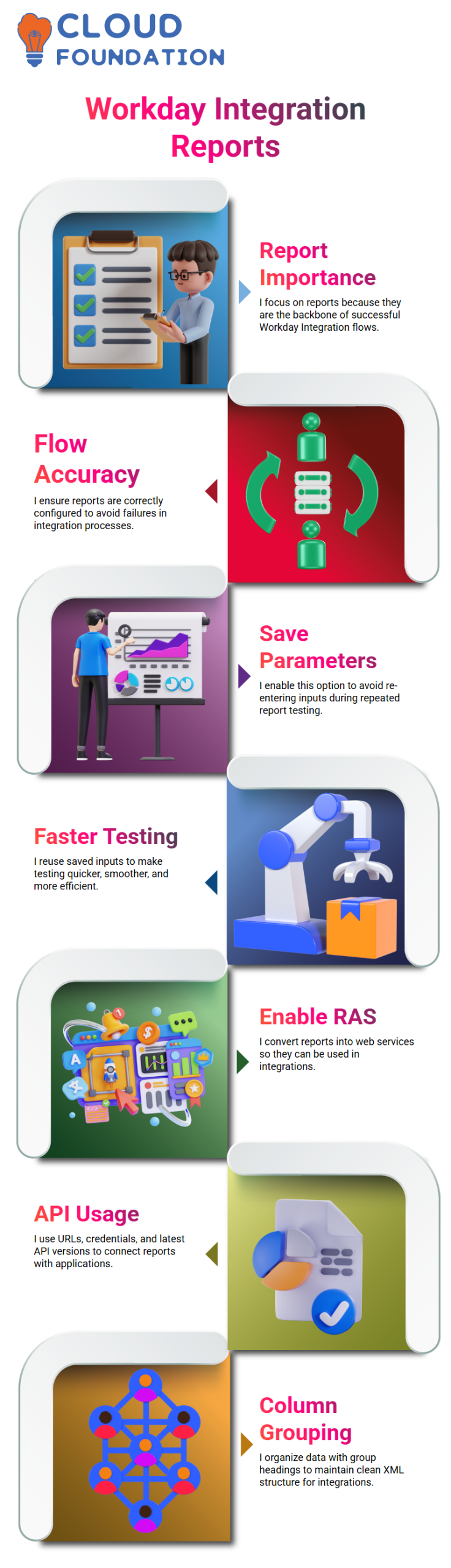
I always pay attention to how reports work when I’m working on connections because I think reports are the most important part of most integration use cases.
If they’re not set up correctly, the whole flow can go wrong.
The “Save Parameters” option in the “Advanced” tab is a simple but useful tool that I use a lot, especially when I’m checking reports more than once.
If I turn it on, I won’t have to enter the same information over and over again; instead, it will save them while the program is running.
After I close the report and open it again, everything is already filled in for me. This makes testing faster, easier, and more effective while I work on Workday Integration.
Enabling Workday Integration Report as a Service (RAS)
The most important part of Workday Integration: making a report available as a web service so I can use it for more than just getting data.
You can run or plan my advanced reports, but they can’t be used directly as an API. This is how they are set up by default. I fix this by turning on the Web Service option.
This turns my report into RAS so I can use it in applications like a REST API. I use a URL and passwords to do this, and Workday gives me a Web Service API version. I always choose the most recent version.
Workday also makes a namespace, which I know is important because it gives the report a unique name and makes working with XML and XSLT in interfaces easier.
Configuring Group Column Heading for Workday Integration Reports
When I’m done setting up a report for Workday Integration, I always check the Columns tab to make sure everything is right.
Workday makes me use a group column heading to avoid mistakes whenever I use a related business object other than the main one. Okay, I get it.
This is important because when the report is used as a web service, the system needs a clear format.
I add each linked business object under the Group Column Heading and make new rows as needed.
This way, I make sure the XML stays clean and grouped correctly, which lets the Workday Integration work without any problems.
XML Alias in Workday Integration Data Output
When I work with integrations, I know that data generally moves in XML or JSON formats, with tags that set apart each field.
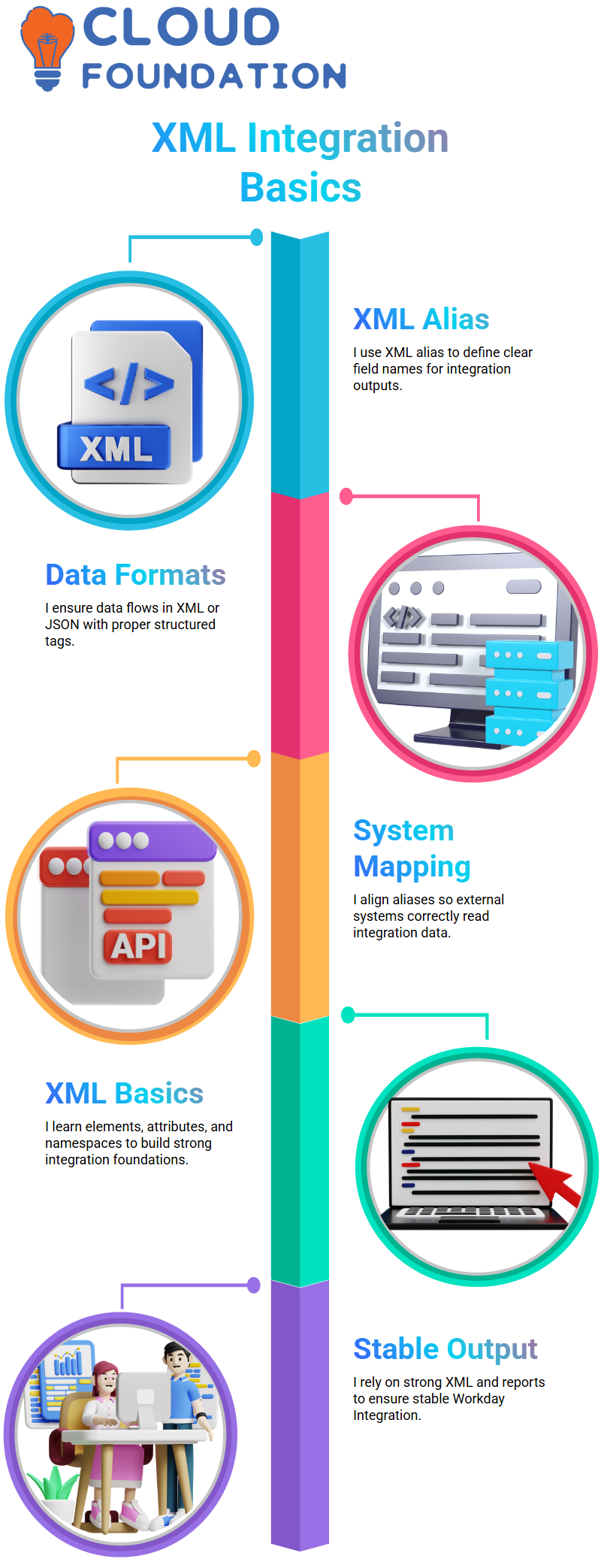
I also know that these XML or JSON tag names are the only thing that external systems use to read reports, not report styles like Excel does. So when a system hits the RAS URL, I make sure the data is lined up correctly and has the right aliases.
I change the XML alias at the column level if I need to in order to follow name rules and make sure everything works the same way in the target system.
Learning XML Basics to Strengthen Workday Integration Skills
To keep things simple for those of you who come from a functional background, I only talk about the basics of XML and Workday Integration.
I always start with basic ideas like elements, attributes, nodes, and namespaces because they help me create integrations and fix problems with them.
I suggest that you use w3schools to quickly learn and practice XML. This will help you feel more comfortable working with results from Workday Integration.
I talk about XSLT in a general way when we get to it, but I make sure I understand how XML works first so that everything makes sense.
I depend on strong principles for everything from setting up reports to configuring XML because I know that a well-built report leads to a stable Workday Integration.

Workday Integration Training

Why Enabling Workday Integration as a Web Service Is the First Step
The first thing I do when I work on Workday Integration is make sure that the advanced report is set up as an online service.
I found out that I can’t use the report in any integration situation unless I turn this option on.
This step is necessary for me because if I skip it, the connection won’t work at all.
I also pay close attention to XML alias names because they are read exactly as they are written by systems further down the line.
I change these names as needed to keep my Workday Integration organized, clean, and simple to handle.
How I Generate URLs for Workday Integration Reports
After setting up the report as a web service, I make sure I have the right URL for Workday Integration.
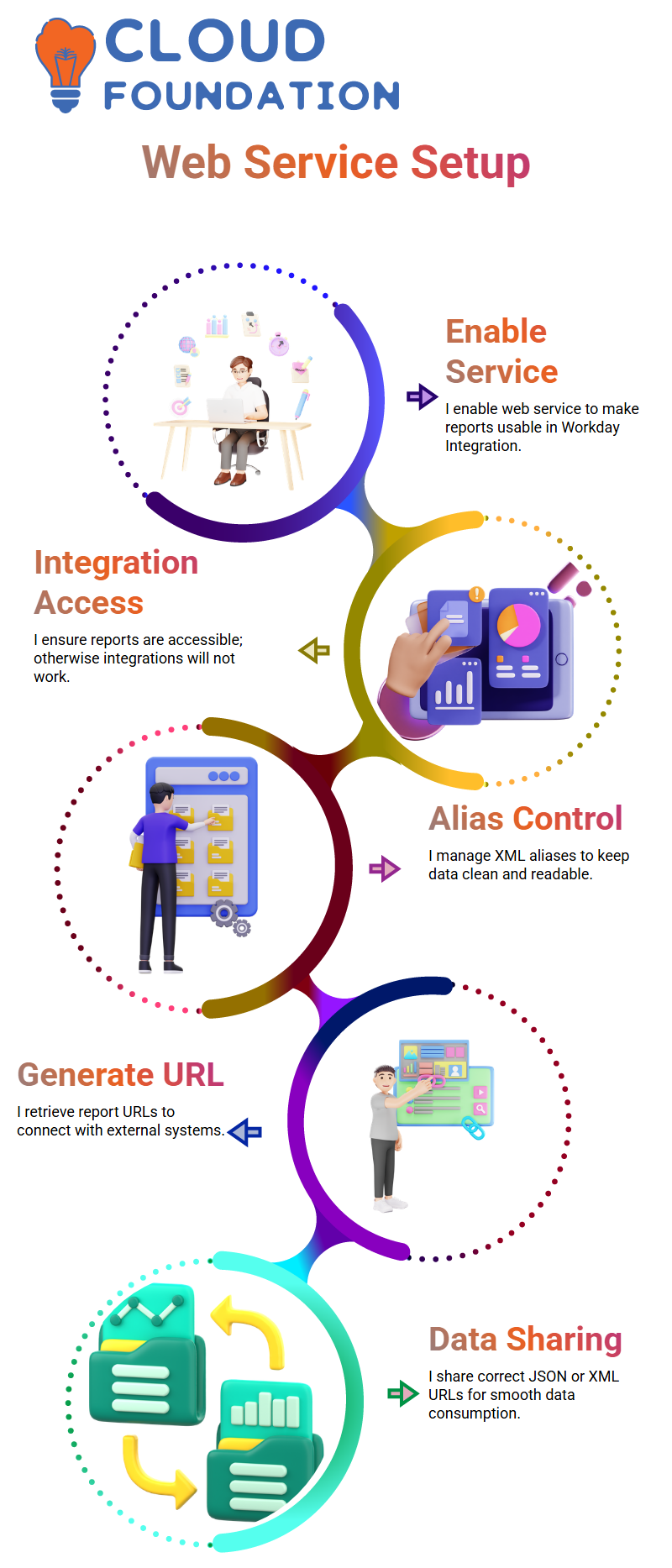
Most of the time, I think of outside tools like Power BI that need the RaaS URL to get data from Workday.
I open Web Service, go to related tasks, and choose View URLs to get this. It is important for me to only pass the necessary settings so that the integration goes quickly and fully.
Based on the requirement, I copy the correct format URL like JSON or XML and share it with the external system for data consumption.
Parameters and Formats in Workday Integration
I know that the values always go after the question mark when I work with Workday Integration URLs.
These parameters, such as worker type as “Employee,” help me sort the info that is being sent.
Before sending a URL to a different server, I always check it in my browser first. I also pay attention to WIDs or Integration IDs because they are important in more complex situations.
These IDs help outside systems find and use items in Workday that are unique.
Why ISU Matters in Workday Integration Security
ISUs are one of the most important parts of Workday Integration, and I’m going to talk about them now.
For integrations, I never use my personal account. Instead, I make a different virtual account just for that.
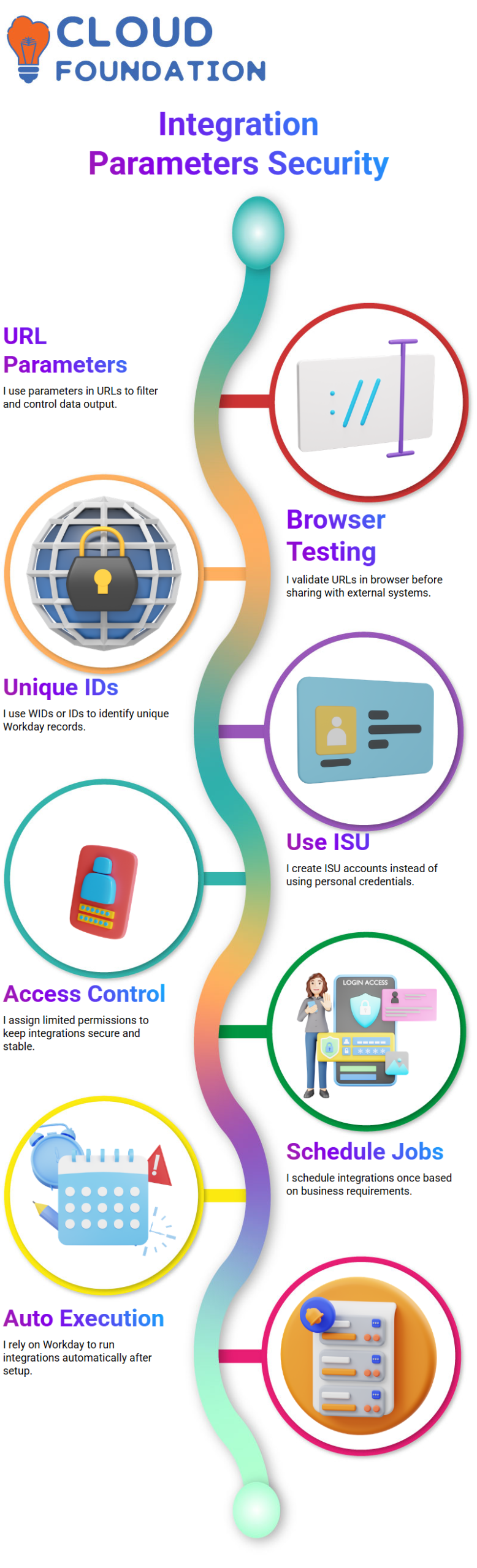
I give the ISU only the rights it needs and treat it like a service account with its own profile.
This lets me keep the interface safe and stable without having to use my own access.
Since the connection is built on the ISU and not on me, it will still work even if my account is banned.
Scheduling and Ownership in Workday Integration
When I make a Workday Integration like an EIB, I give it to an ISU and set it to run at a certain time based on business needs.
I make sure that ISU credentials are used for the integration so that everything is handled safely and reliably, from who owns what to who runs it.
After I set this up just once, the connection works on its own without any help from me.
I always say that scheduling is a one-time thing that only needs to be done once, and that Workday will handle the daily performance after that.
When I use reports, the right parameters, structured URLs, and ISU security together, I can make connections that always work well.

Workday Integration Online Training
Custom Reports in Workday Integration
Before I set up a connection, I make sure I fully understand how to set up the web service and make a report work as a web service.
This base helps me connect everything easily to the Workday Integration process as a whole.
When I make my own reports, I play around with advanced reports by adding fields and business objects that are linked to them.
By doing things myself, I can better understand how things work and feel more comfortable with Workday Integration reports.
Workday Integration Output Formats: JSON, XML, and CSV
A lot of the time, outside systems need data in Workday XML or JSON format when I work with Workday Integration.
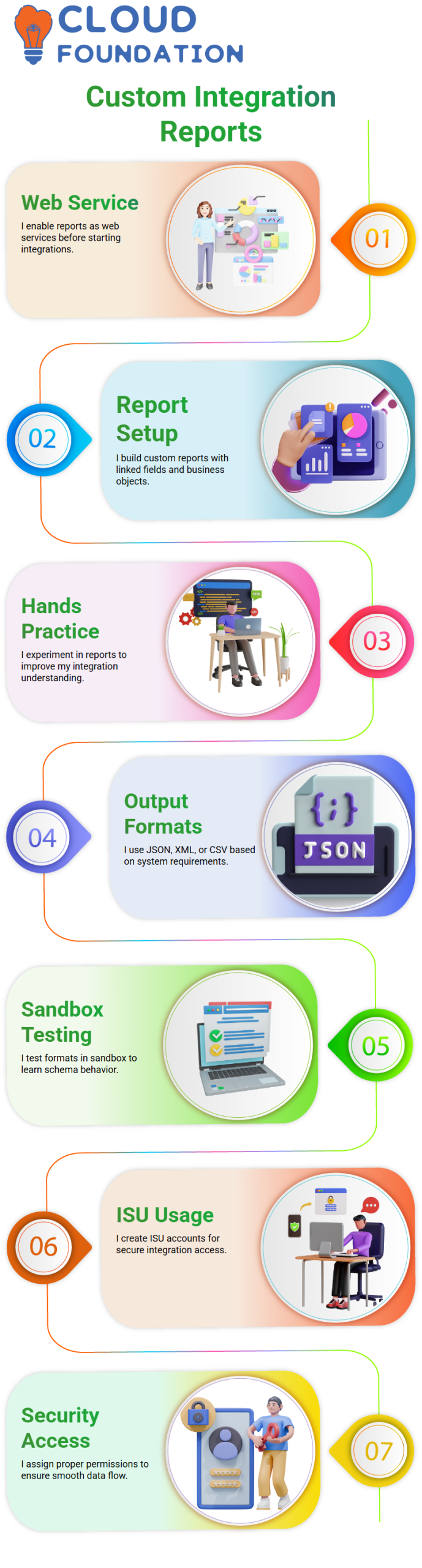
These are the file types that are most often used in real-time interaction situations where I work. Another thing I know is that Workday can send to CSV files. This gives me more choices when I need them.
When I pick CSV, all I have to do is enter my login information, and the file is sent straight to my device.
JSON and XML are used most of the time. I always try out new forms in my sandbox, though, so I can learn more about how the schema changes.
ISU in Workday Integration
I always make sure that the ISU has the right access because the Workday Integration will not work without the right security.
I usually make a separate ISU for each connection and give it the right security group.
After that, I make sure that security group has access to the custom report that was used for the connection.
Setting up security is just as important as the integration code itself, so this way I can be sure that everything works well.
Security and Proxy Access in Workday Integration
I use the Start Proxy feature a lot to try business processes that need more than one approval while I’m working on Workday Integration.
When I start a transaction, if I don’t have the permissions to approve it myself, I use the given approver’s proxy access to finish the flow.
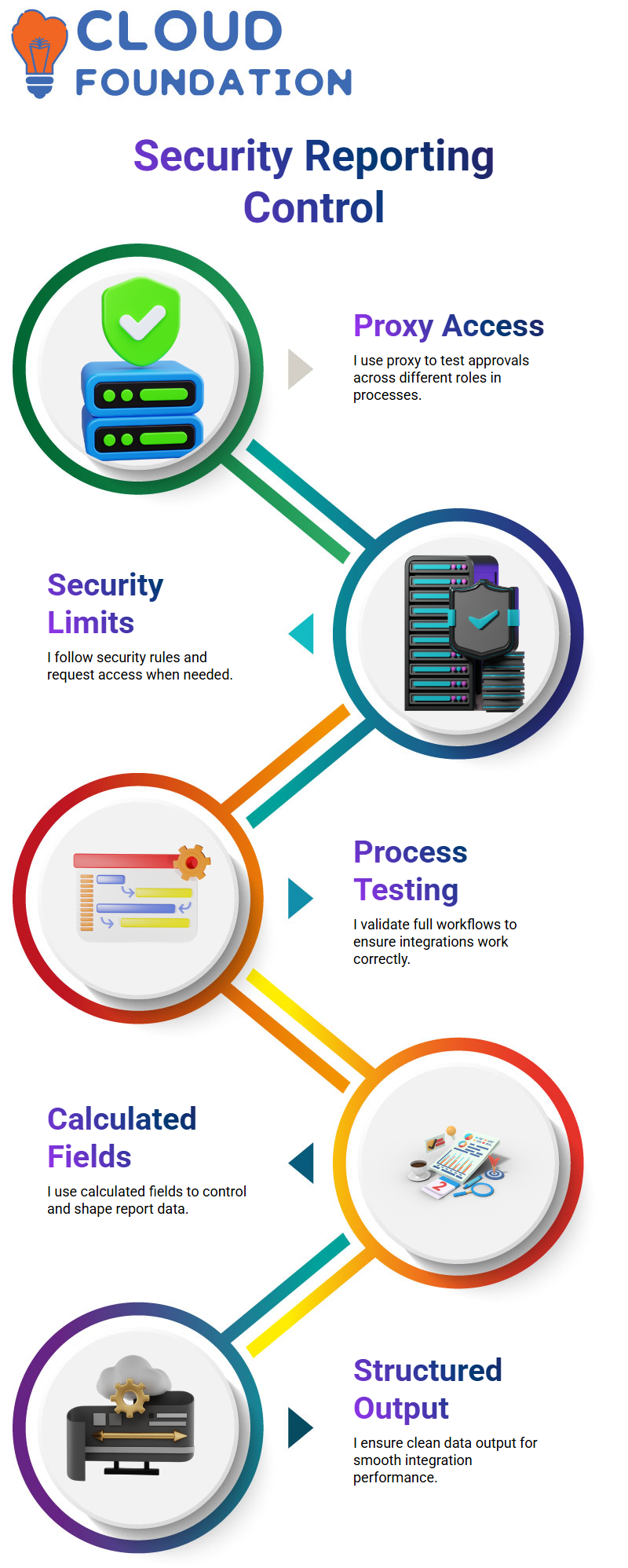
This helps me test the whole setup and make sure everything works the way it should.
I know, though, that security rules govern proxy access, so I can’t just proxy any person.
Since Workday Integration always stays within set security limits, if I need more access, I either work with the right team or ask for permissions.
Calculated Fields in Workday Integration Reporting
When I make reports for Workday Integration, I use calculated fields a lot because they make it easy to shape and control the data.
Based on what I put in, I use them to do easy logic like counts, lookups, and yes/no conditions.
To make my work with Workday Integration more accurate, I mostly use calculated fields in reports, business processes, and qualifying rules.
Reporting is where I spend most of my time because interfaces depend on output that is clean and well-organized.
As a way to learn more about how data flows in JSON or XML, I add different calculated fields and try them through web services.

Workday Integration Course Price

Vanitha
Author