Veeam Certification Training
Veeam Transport Modes in VMware Backups
Veeam’s transport modes determine how data moves from the VMware environment to the Veeam backup repository.
Veeam didn’t come up with transport modes. Transport modes are a feature of VMware, and Veeam just uses them for agentless VMware backups.
Still, knowing how Veeam uses these transport modes makes a big difference when you set up or fix Veeam backups.
Only VMware backups can use Veeam’s transport modes. You won’t see these choices in file backups, agent-based jobs, or other types of work.
When we talk about transport modes in Veeam, we are only talking about how Veeam works with VMware storage in VMware environments.
Veeam Transport Mode Options
When you open Backup Infrastructure and go to Backup Proxies, you can see the transport mode settings in Veeam.
Veeam automatically chooses “Automatic Selection.”
There are four transport modes in Veeam.
The first choice is “Automatic Selection.”

The second is Direct Access to Storage.
Many people also call the third option “HotAdd,” which is a virtual appliance.
In Veeam, the fourth option is Network mode, which is also called NBD or LAN mode.
When Automatic Selection is turned on, Veeam picks the best transport mode for the backup on the fly.
Your proxy server, your VMware setup, and your storage access all play a role in this choice.
Most of the time, leaving Veeam on Automatic Selection works just fine.
How Veeam Uses Direct Storage Access (SAN Transport Mode)
People often call Veeam’s Direct Storage Access “SAN transport mode.”
In SAN mode, Veeam’s proxy server gets to the data through the storage fabric, which is usually Fibre Channel.
Backups go much faster in this mode because Veeam reads data directly from the storage LUNs.
In a SAN-based Veeam setup, storage teams give the VMware datastore LUNs directly to the Veeam proxy server.
Instead of pulling the data across the network, Veeam reads it from the proxy during the backup.
The fact that it reads from the local SAN is what makes Veeam backups work so well in SAN mode.
Veeam Virtual Appliance and Network Transport Modes
Veeam temporarily connects virtual disks from the target VM to the proxy VM and reads the data that way.
When SAN access isn’t available, Veeam’s Virtual Appliance mode works well.
It doesn’t use a lot of LAN and often works better than pure network mode.
I see that this Veeam transport mode works well in a lot of settings.
NBD or LAN mode in Veeam sends all backup traffic over the local area network.
When using this transport mode, the Veeam proxy gets data from the VMware datastore over the network and then sends it to the Veeam repository.
This method can slow down backups and affect production traffic, especially if the network is already busy.
Understanding Veeam Snapshots in a VMware Environment
When I talk about snapshots in Veeam, I always start with what you can see in the VMware environment.
I open the VM, look at the snapshot manager, and point out where the snapshot entries are.
This clears up any confusion right away.
In Veeam, snapshots are real things, not just ideas.
When Veeam starts a backup, you can see it clearly in vSphere.
I usually say that Veeam doesn’t come up with its own naming scheme for snapshots.
The names of the snapshots follow VMware’s rules.
VMware uses the name you give the VM to make snapshot files.
To do this, Veeam just uses VMware binaries.
I show how the zero-zero files go away right away when I delete a snapshot.
At that point, students know that the snapshot has been added back to the parent VMDK.
This clean merge process is important for Veeam to keep backups safe.

Veeam Training

Why Veeam Transport Modes Matter for Performance and Troubleshooting
When someone tells me their Veeam backups are slow, the first thing I do is look at the transport mode.
A lot of the time, problems with Veeam’s performance are caused by an unexpected transport mode being used during backup.
There are a lot of places where Fibre Channel works, but Veeam keeps going back to network mode because of problems with permissions or settings.
In these situations, knowing how Veeam chooses transport modes can help you find the problem quickly.
In places where there is more than one Veeam proxy server, the way transport mode works depends on whether the proxy is real or virtual.
You can use SAN and LAN modes with a physical Veeam proxy, and you can use Virtual Appliance and LAN modes with a virtual Veeam proxy.
Veeam automatically picks based on proxy capability, but you can change this if you need to fix something.
You can also turn on encryption for host-to-proxy traffic during VMware backups with Veeam.
When this option is turned on, Veeam encrypts data as it moves between VMware hosts and the Veeam proxy.
This adds security without changing the way transport modes work in general.
What happens when proxies fail in Veeam?
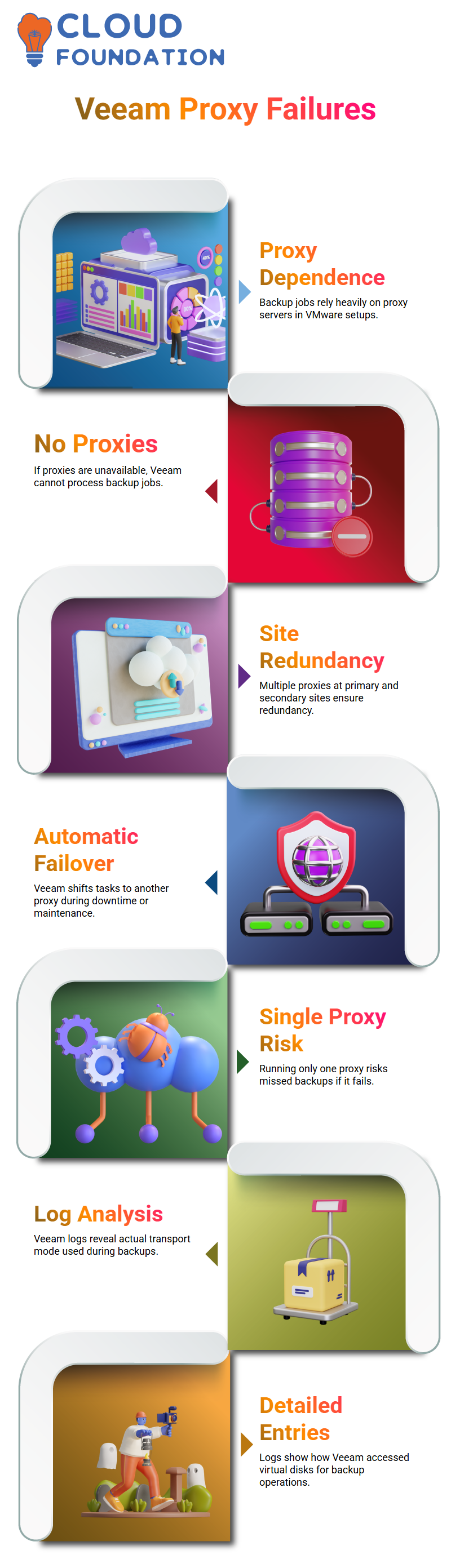
In a Veeam setup that uses VMware, backup jobs rely a lot on proxy servers.
Veeam can’t process the job if none of the proxies are available during the backup window.
We have several Veeam proxies in our lab that we use at both primary and secondary sites.
This arrangement helps students learn about redundancy.
If a Veeam proxy goes down because of a Windows update or maintenance, Veeam automatically moves the work to another proxy that is available.
But I want to make it very clear that if you run Veeam with only one proxy and that proxy goes down, there is no backup.
That means that Veeam jobs will be missed.
When I teach Veeam architecture, I always stress that this is one of the most important design factors.
Checking Active Transport Modes Using Veeam Logs
A common question I get is how to find out what mode of transport Veeam really used during a backup.
My answer is clear: look at the logs.
The Veeam console gives you a big picture view, but logs tell you what really happened.
By default, Veeam stores log files in the ProgramData directory on the Veeam Backup & Replication server.
Every job has its own folder inside the Veeam backup folder.
I usually open the folder that has the same name as the VMware backup job.
Veeam logs are very detailed, but you only need to look for certain entries that have to do with reading and writing.
These entries show very clearly how Veeam got to the virtual disks while making a backup.
How Veeam Uses Snapshots During Backups
A lot of the time, beginners get confused here, so I go over it slowly.
A Veeam backup makes a copy of the virtual machine when it starts.
This snapshot makes another VMDK file that all write operations go to during the backup.
Veeam does this to keep the production workload safe.
If both reading and writing happened on the same VMDK file, performance and data consistency would suffer.
Veeam makes sure that backups are stable by using snapshots, which don’t bother users.
I will let you know that snapshot VMDK files have five zeros and a number in the filename.
After the Veeam backup is done, these snapshot files should automatically combine back into the main VMDK and then be deleted.
Troubleshooting Snapshot Issues Related to Veeam
Sometimes, Veeam’s snapshots don’t clear up right.
When that happens, the amount of storage used goes up, and over time, it can have an effect on the VMware environment.
I tell them that even if Veeam jobs seem to work, leftover snapshots can cause problems in the future.
From the vSphere side, I show you how to find Veeam-related snapshots and use options like Consolidate Disks.
This process combines the data from the snapshot back into the parent disk. I always you not to do this casually in customer environments.
I also want to remind everyone that deleting snapshots from vSphere doesn’t always mean that the data is gone from storage.
This is where knowing how to fix Veeam problems and VMware problems comes together.
Even though we’re still focused on Veeam, knowing how this works helps students become better at managing backups.

Veeam Online Training
How Veeam Uses Snapshots During Backup Operations
People often ask me if the snapshot that Veeam takes is the same as the one we take before we patch a server.
I always make this clear.
In Veeam, the snapshot is made to send all write operations to a different location during the backup window.
This is not a rollback point, just in case.
Let’s say that Veeam takes five hours to make a backup of a VM.
Users are still working during those five hours.
There has to be a place for all those changes to go.
The backup reads data from the parent disk while Veeam uses the snapshot file to record these writes.
After the Veeam backup is done, the snapshot file is added back to the parent VMDK.
This merge is very important.
Disks would keep getting bigger and bigger.
That’s why I always tell people to keep an eye on snapshots when Veeam jobs are running.
Why Veeam Relies on CBT and CTK Files
Change Block Tracking, or CBT, is another thing I always talk about.
You will find CTK files in the datastore.
As soon as I see CTK files, I know CBT is on.
I check these CTK files right away if a customer says that Veeam is doing full backups every time.
CBT isn’t working right if they are missing or broken.
Moving the CTK files to a temporary location, letting Veeam recreate them, and then trying the job again is a common fix.
This quick check saves hours of trying to fix things.
Managing Snapshot Consolidation with Veeam Awareness
I also talk about consolidation because it can be hard to understand.
VMware combines snapshot data back into the parent VMDK when you consolidate disks.
This does not roll back or revert the VM.
When snapshot files stay in the datastore for weeks or months, they usually need to be consolidated.
Veeam admins see this a lot in the environments of their clients.
There might still be snapshot files even after they have been combined.
That’s why I always go back to the snapshot manager and delete snapshots the right way.
Veeam backups stay stable only if snapshots are cleaned up the right way.
How Veeam Manages Snapshot Creation and Deletion
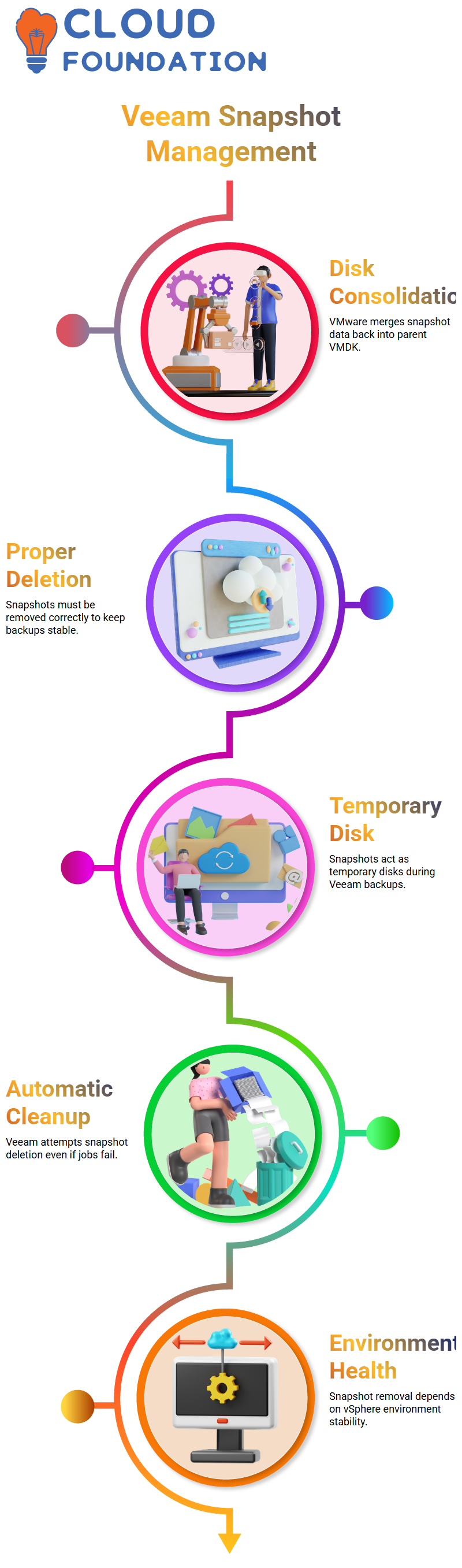
A snapshot in Veeam is just a temporary extra disk.
This snapshot disk gets every write operation during the Veeam backup.
After the backup, Veeam tells vSphere to combine the snapshot with the original disk and get rid of it.
Veeam is still responsible for the cleanup even if the job fails after the snapshot is made.
Veeam tries to delete the snapshot on its own.
This is why I trust Veeam to work in production.
You don’t need a new script just because Veeam didn’t work once.
Veeam works closely with VMware to keep this safe.
But I want to stress that Veeam also depends on the health of the environment.
Veeam can ask for a snapshot to be deleted, but vSphere does it.
That’s why snapshots sometimes stay even after Veeam has done its job right.
Common Veeam Snapshot Issues in Large Environments
I’ve seen snapshot problems reported along with Veeam jobs in real-world settings, especially with big and sensitive systems.
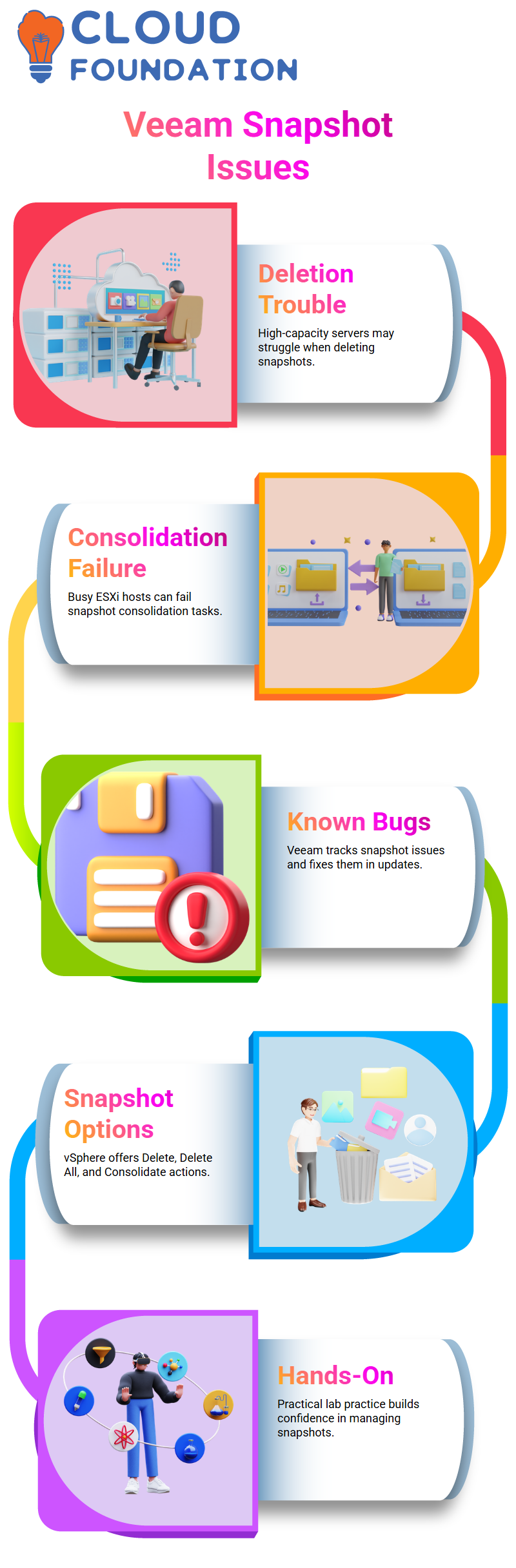
When you delete a snapshot, high-capacity servers with a lot of I/O load may have trouble.
In these situations, Veeam is not always the main problem.
Making snapshots is usually quick, but deleting them can take a long time.
If an ESXi host is very busy, snapshot consolidation might not work.
This leaves behind snapshots that aren’t linked to anything, which a lot of people wrongly blame on Veeam.
That being said, I always suggest looking for known Veeam bugs.
Veeam keeps track of problems with snapshots and fixes them in updates.
Before blaming the infrastructure, I check the Veeam knowledge base to see if the problem has already been reported.
Learning Veeam Snapshot Actions Inside vSphere
In vSphere, when you open the snapshot manager, you can choose from three options: Delete, Delete All, or Consolidate.
Do not just click these.
Even though Veeam often runs them automatically during backup jobs, each action works in its own way.
Consolidate merges snapshot data into the parent disk without deleting snapshot entries right away.
Delete takes away a snapshot that has been chosen.
Delete All deletes all of the snapshots that are linked to that VM.
Veeam usually does these things behind the scenes, but knowing how they work will help you feel more confident when you have to fix something.
I want everyone in our lab to try things out in a safe way.
Take pictures, run a Veeam backup, delete pictures, and put them all together.
This hands-on practice helps you understand how Veeam works with vSphere during each backup cycle.

Veeam Course Price

Vanitha
Author