Tricentis Tosca Training Course
Working with Tables in Tosca
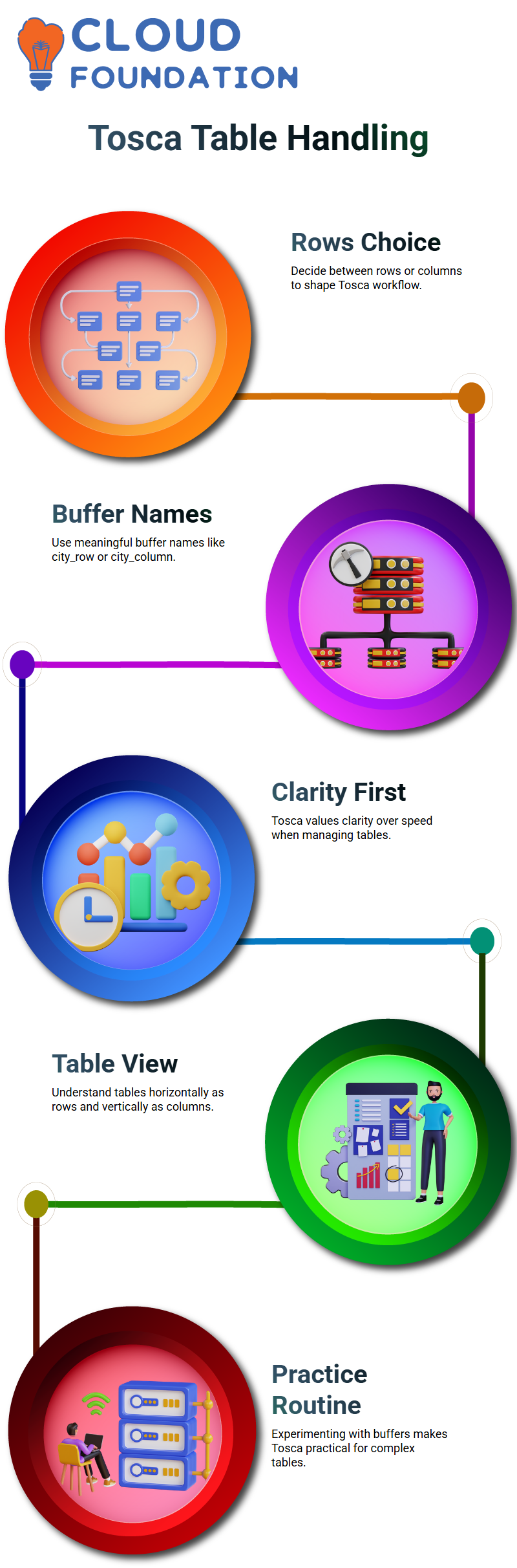
I usually begin working with tables in Tosca by taking my time and determining whether I need rows or columns.
This choice completely alters Tosca. I consider whether the city obviously sits as a row or a column when determining its worth.
After realizing that, I chose to act as my action method and proceed with Tosca with confidence.
In Tosca, I often buffer information about obvious names like city_row or city_column.
Buffering works well in Tosca, but only if I give objects meaningful names.
I sometimes pay $2 or $5 to utilize a cell, and sure, Tosca may be perplexed in this situation.
However, Tosca begins to make sense after I see the table both horizontally and vertically.
I remind myself that Tosca adheres to the same principle that a row goes horizontally and a column runs vertically.
Cell Addressing in Tosca
There are many methods to reach a single cell in Tosca, and I like to show them all.
Depending on the table structure, I may utilize combinations of rows and columns or reverse them. I make good use of the freedom that Tosca affords me.
I can see the behavior of each method in Tosca when I buffer the same city data in various combinations.
Occasionally, one combination is effective while another is not.
I acknowledge that Tosca still shocks me in this regard as a necessary component of actual automated work.
I explain to my audience that Tosca may be productive without feeling at ease. You can do a lot with a single scan if you comprehend how Tosca reads a table.
I keep practicing table handling in Tosca because of this. This method of Tosca eliminates the need to manually scan each row and column.
This is very helpful to me when tables become big. Once I stop resisting it and start paying attention to how it acts, Tosca starts to save me time.
Automating Shopping Cart Scenarios with Tosca
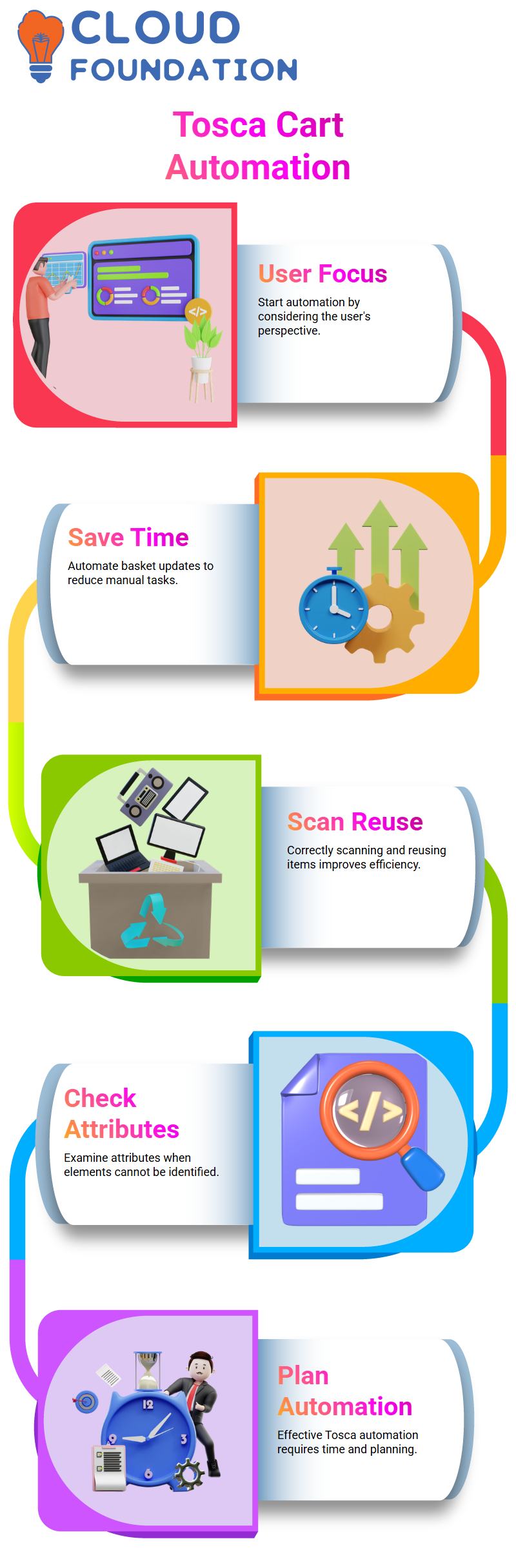
I usually start by considering the user’s perspective while automating shopping cart situations in Tosca.
I update the shopping basket, add products, and open it. I can automate this whole process, Tosca, saving time by eliminating the need for tedious manual tasks.
When I correctly scan and reuse items, Tosca excels. Even if checkout and other components may not be required right away, I nevertheless scan them as part of Tosca’s best practices.
Sometimes, a checkbox or button cannot be individually identified by Tosca. Many alternatives are available on Tosca, but not all of them are trustworthy.
In Tosca, I never trust fluctuating values, particularly percentages or dynamic figures.
An element is not always effective just because it can be identified once. Tosca automation requires time and planning.

Tricentis Tosca Training

Index Identification in Tosca
When items recur in Tosca, index-based identification becomes crucial.
Tosca still has to take care of everything, even if I have four checkboxes today and six tomorrow.
Index handling comes in handy in this situation. I clarify that Tosca to identify by index is a strategy rather than a quick fix.
I make my situation quite clear: I want to choose every item, regardless of how many there are.
When I rationally construct my test, Tosca supports this. I usually run the test case many times by hand before automating anything in Tosca.
When I really comprehend the business environment, Tosca automation performs at its finest.
Tosca becomes a tool to carry out my purpose after I specify the situation.
I put functional flow out of my mind and concentrate on automation logic. This is how Tosca adjusts to my approach.
Handling Embedded Controls and Buffers in Tosca
Checkboxes and quantity fields are thoroughly scanned when I deal with embedded controls in Tosca.
I let Tosca handle them as recurring items and eliminate any characteristics that make them too specialized.
To make my workspace legible, I often rename controls in Tosca.
Automation is simpler to manage when names like remove checkbox or item quantity are used.
When someone reads a Tosca test, it should always tell a narrative. I sometimes use Tosca to extract characteristics from a table module.
I have greater control when I cut and paste them as separate characteristics. When the situation calls for it, I take advantage of the flexibility that Tosca provides.
I use loops, repeats, and buffers in Tosca to make everything dynamic. I plan my scans with that future logic in mind, even if I propose these ideas later. This progressive attitude is rewarded by Tosca.
Value Ranges in Tosca Through Everyday Examples
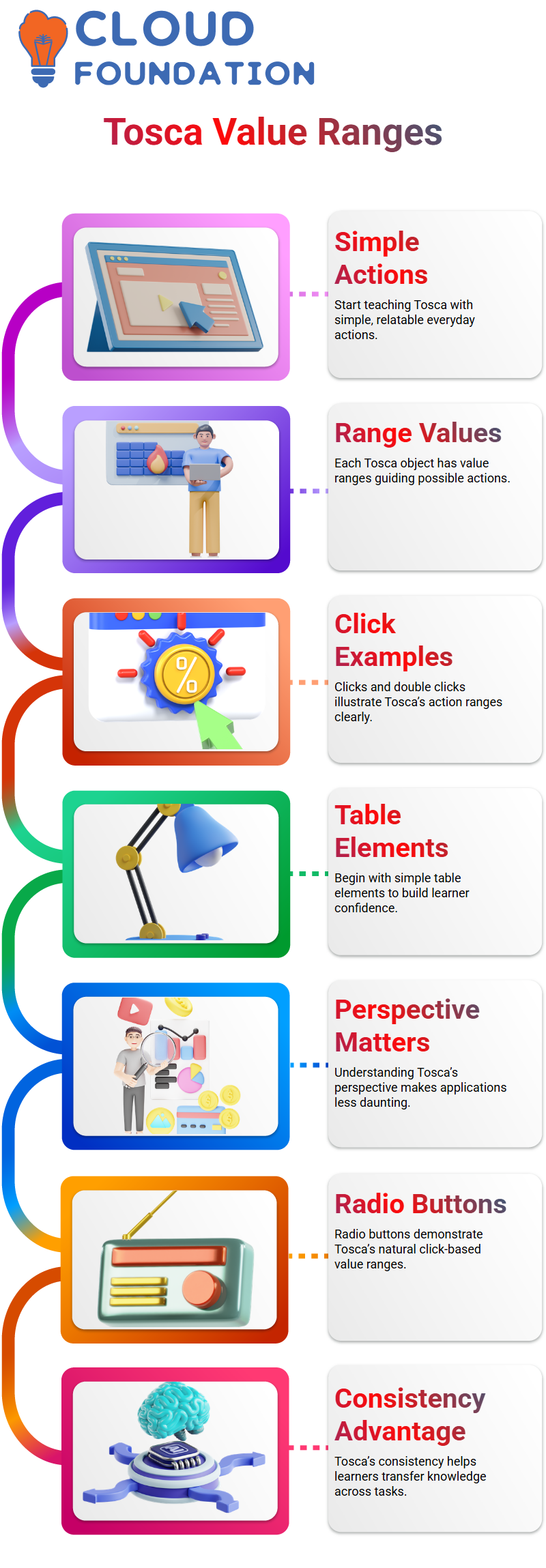
Simple, relevant acts are usually the first thing I do while teaching Tosca in our free technology sessions.
Every object you interact with in Tosca has a range of values that determines the kind of action that may be taken by the program.
Since everyone can comprehend clicks, double clicks, and choices right away, I prefer to use them to illustrate this.
A value range, such as a click or a double click, in Tosca instructs the tool on how to work with an element. I normally start with a simple table element when I show Tosca in class.
I invite them to see how Tosca instantly permits click-based activities after identifying the table. With Tosca, this is one of the simplest methods to gain confidence.
I always remind Learners that comprehending value ranges is more than just remembering alternatives as we go through Tosca.
It’s important to comprehend Tosca’s perspective on the application. Tosca becomes a lot less daunting and much more natural if you adopt this approach.

Tricentis Tosca Online Training
Working with Radio Buttons in Tosca During Real-Time Practice
Tosca often provides a click as the main value range when I choose a radio button.
This makes sense because Tosca mimics the natural action of clicking a radio button, which is its intended function.
I often stop when teaching Tosca and ask the class to guess the range of values before I display it on the screen. They learn to think like Tosca from this little habit.
They eventually cease speculating and begin to comprehend the reasons behind Tosca’s recommendations.
I stress in Tosca sessions that radio buttons act uniformly in the majority of apps.
One of Tosca’s advantages is its consistency, which makes it easy for Learners to transfer their knowledge from one assignment to another.
Exploring Checkbox Behavior in Tosca with Practical Insights
Tosca begins to seem a little more intriguing when it comes to checkboxes. I make care to make it obvious that not every checkbox in Tosca acts in the same manner.
A delete checkbox, for instance, could not depend on a straightforward click value range. I explain that some checkboxes use true-false logic when I work with Tosca in class.
In contrast to ordinary clickable components, Tosca offers various value ranges.
This is an excellent opportunity for Learners to see how Tosca adjusts to the application’s underlying logic. I constantly explain to my pupils that curiosity is rewarded by Tosca.
You may learn more about test design by investigating the reasons for a checkbox’s unique behavior in Tosca.
This method gives Learners greater self-assurance while working on their own.
How I Help Learners Build Confidence with Tosca Step by Step
My objective in each Tosca lesson is to encourage Learners to ask questions.
Tosca may seem complicated at first, but it becomes simple when you break it down into actions like click, select, or true and false.
I often tell them that Tosca is not about hurrying. It involves letting Tosca lead you and paying attention to how the elements act.
You begin to make better automated choices when you take your time and pay close attention to what Tosca has to offer.
Learners begin to trust their comprehension when they practice with Tosca regularly.
They begin intentionally employing Tosca and stop relying on trial and error. In every Tosca session, I try to achieve that transformation.

Tricentis Tosca Course Price

Nishitha
Author
A mind once stretched by a new idea never returns to its original dimensions.