Tosca Certification Training Online
Creating Classes in Tosca
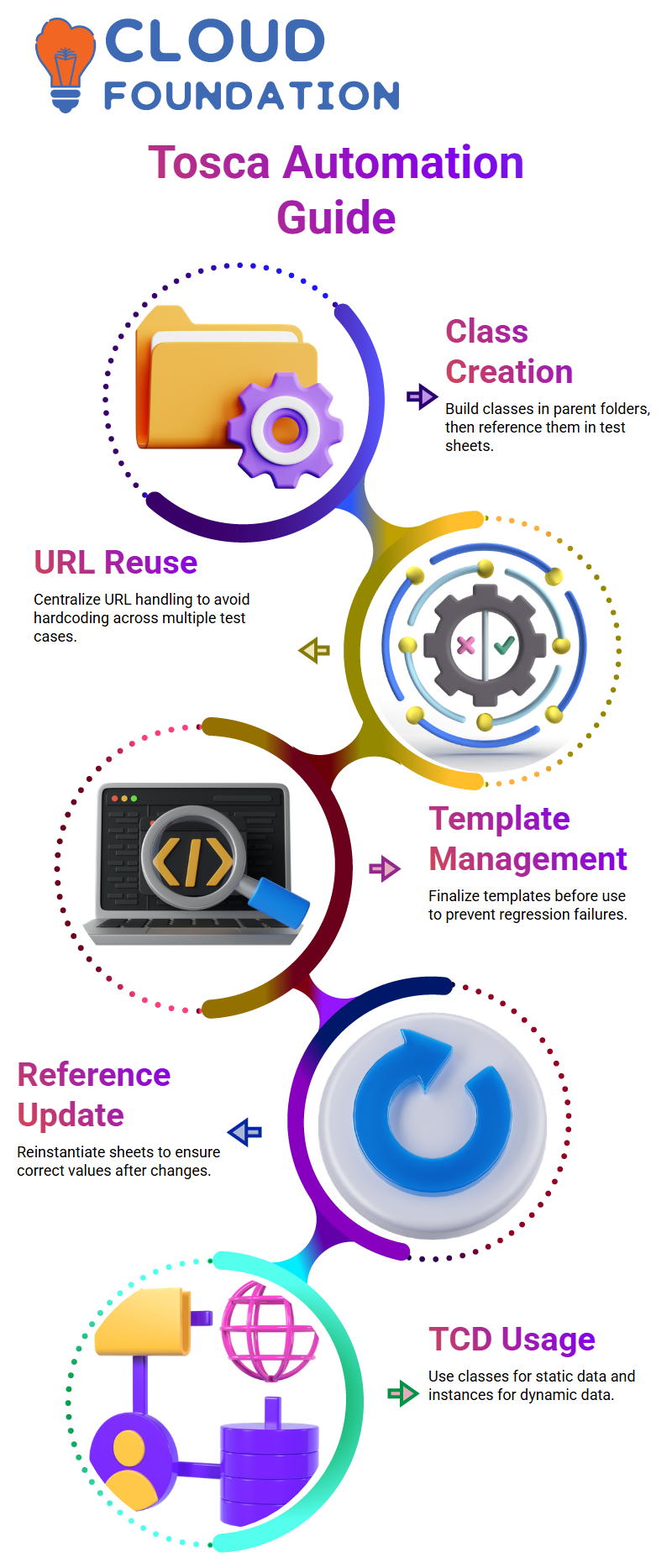
I am unable to immediately build a class within a test sheet in Tosca. I usually construct classes in a parent folder or library since Tosca sees test sheets as separate pieces.
Tosca lets me drag and drop the class onto the test sheet as a reference once it’s ready.
This behaviour in Tosca is appealing to me as it makes a clear distinction between execution logic and reusable design.
A class shows up as a filled reference in my Tosca test case when I drag it in.
It seems to me that Tosca is referring to the first class. My job is predictable since reusable test blocks in Tosca follow the same logic.
URL Reuse in Tosca
I would like handle the URL centrally in Tosca rather than hardcoding it in each test case since the instance does not change often.
This method keeps my Tosca test cases tidy and manageable.
I often create a class in Tosca just for the URL. I do this action as I am aware that I will utilise the same URL in many Tosca test cases.
I allowed Tosca to handle the value via a single class instance rather than repeatedly repeating it.
In this manner, the associated test cases remain intact, and I can edit the URL once in Tosca if it changes in the future.
Managing References and Templates in Tosca
Templates are a key component of Tosca. I refrain from making direct changes to a template until I’ve finalised it in Tosca.
Tosca templates and TCD are designed to shield test cases from unintentional modifications that can lead to regression run failures.
I always make sure to reinstantiate the test sheet or template in Tosca after making changes.
After that, Tosca makes sure the right values enter the test case by updating the references.
Even when many individuals are working on the same project, this discipline enables me to maintain robust automation in Tosca.
Applying Tosca TCD Concepts for Test Data
The major reason I use Tosca TCD is to test the same feature with several data sources. Tosca simplifies this by letting me specify instances and characteristics.
Tosca classes are ideal for static data, such as a single URL.
I have more freedom with Tosca characteristics and instances for dynamic data, such as nations, regions, or goods.
I adhere to a basic guideline in Tosca. I create a class if I wish to reuse something in several test cases.
I let Tosca handle the characteristics and instances if the data changes a lot. This equilibrium maintains the scalability and readability of my Tosca automation.
Validating Login Scenarios Tosca
A legitimate username with a valid password, a valid username with an incorrect password, an unregistered email, and an invalid email format are just a few of the situations I explore in Tosca.
Tosca assists me in methodically validating each situation, which yields a distinct system reaction.
I make sure the logout link is there for a successful Tosca login. I scan and verify error messages for failure situations.
I can concentrate more on test logic rather than tool complexity since Tosca simplifies item scanning and verification.
Learners get an overview of both automation and intelligent test design via this practical approach to Tosca.
Tosca Screen Scanning
I never just scan everything while working with Tosca. I always pay attention solely to the particular message or screen that I want to automate.
This method keeps my modules tidy and saves time in Tosca.
For instance, I instantly assign a meaningful name, such as Invalid Password Error, to each non-unique object I come across during login validation.
Tosca’s clear nomenclature makes it easier for my team and me to quickly comprehend each module’s function.
I often rename the module and the screen in Tosca to accurately reflect the error notice. “Yes, the credentials provided are incorrect” is one example of the inner text that I chose and saved.
Tosca then builds a specific module for that situation once I do this.
Because Tosca enables me to continue scanning without restarting the process, I don’t always shut the Xsan off.
Tosca provides me the option to simply minimise the scan window if I ever feel that a certain screen has to be handled manually and doesn’t need automation.
I can maintain control and determine where automation really provides value in this manner.

Tricentis Tosca Training

Handling Multiple Error Messages Effectively in Tosca
Upon entering a legitimate user ID with an incorrect password or an unregistered email address, Tosca displays an error message such as “No customer account found.
I re-scan this screen and mark the module as having an invalid user ID. Naming consistency throughout Tosca greatly facilitates future maintenance.
I usually strive to choose the appropriate attributes in Tosca to make my modules stand out. Inner text works most of the time flawlessly.
I don’t make things too complicated if Tosca already indicates that the item is unique.
I just completed the scan and minimised the window since all of these issues show up on the same login page.
Tosca needs a little more care when it comes to format issues, such as improper email structure.
I changed the module to Invalid Format Error, scanned the screen, and then played around with other properties.
Designing a Structured Test Sheet in Tosca
After my modules are complete, I use Tosca to create a test sheet. Features like Precondition, Process, and Validation, I like to have a folder-like organisation in Tosca.
In Tosca, I first create a validation property before adding scenarios to it. I generate examples such as Invalid Format, Invalid Password, Invalid User ID, and Success.
The project convention determines the name, and adhering to a uniform standard is crucial for teamwork in Tosca.
In Tosca, I often put the application URL under Precondition. I provide properties for the Email ID and Password in the Process section.
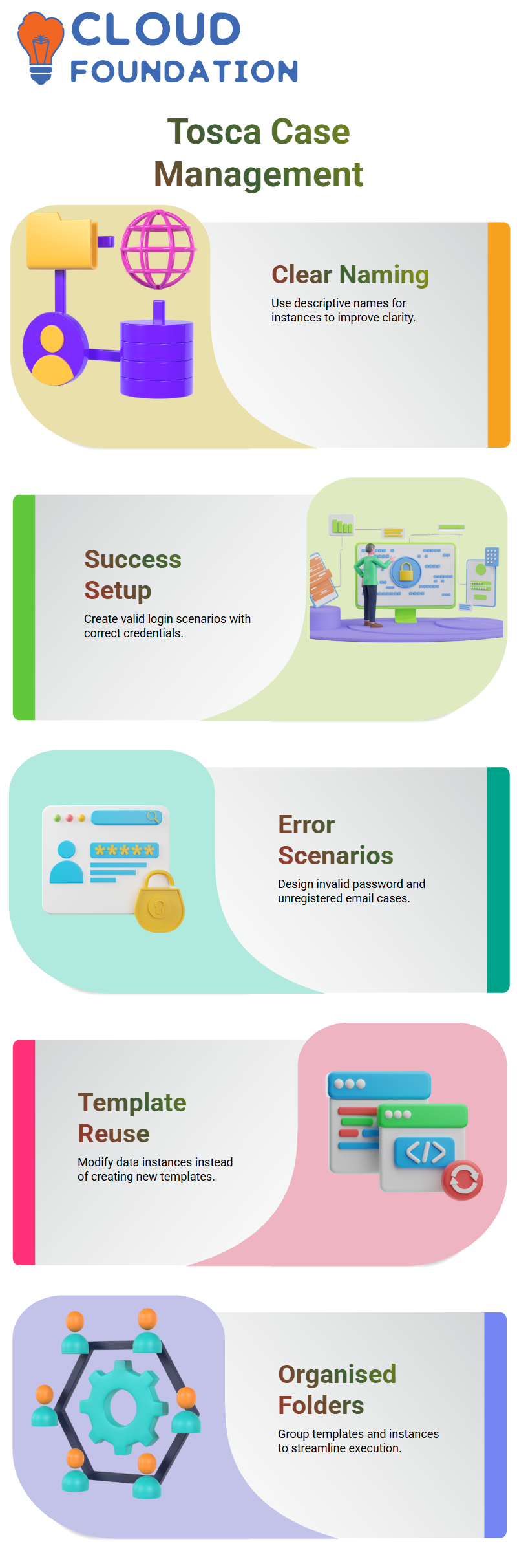
I make instances for input that is legitimate, input that is invalid but formatted appropriately, and input that is formatted utterly incorrectly.
Tosca makes handling these variances simple and clear.
I usually save one valid and one invalid value for passwords in Tosca. Making an excessive number of password combinations merely makes things more complicated.
By this method, my Tosca test sheet covers all necessary cases while being straightforward, readable, and future-proof.
Tosca Test Case Design and Instances
Making situations that are understandable and significant is the first step I usually take while working with Tosca.
I can apply many criteria to a single template in Tosca without having to create numerous test cases, thanks to instances.
The first thing I generally do is create an instance named success. Because Tosca depends so largely on proper naming rules to make things clear and manageable, I purposefully picked this name.
I choose the sample webshop URL in Tosca and determine whether I need a second URL. I only add another URL when the situation really calls for it, based on my experience with Tosca.
I input the right login and password, a regular password, and a working email address for the success scenario. In Tosca, this becomes my basic situation.
I go to the negative cases in Tosca once the success instance is prepared.
Because I can reuse the same template and merely modify the data instances, Tosca makes this incredibly simple. This is one of the reasons I really like instructing novices in Tosca.
Creating Multiple Login Scenarios in Tosca
I construct a second instance in Tosca for the case of an incorrect password after I’ve set up the first instance. I still use a working email address in Tosca, but I purposefully input the incorrect password.
I provide the instance a clear name, such as invalid password, since instance names that describe the situation make the Tosca test design much clearer.
I then set up a situation in Tosca where the username is incorrect. I sometimes refer to this situation as an unregistered email ID.
When I refer to a value in Tosca, I see that it is highlighted in a pale-yellow hue, while the rest of the text remains grey. I can verify that references are functioning properly with Tosca’s visual cue.
Additionally, I made an invalid format scenario in Tosca where the username format is incorrect. I can input anything since Tosca does not limit the password value in these situations.
After completing this step, Tosca provides me with a comprehensive test sheet that includes several situations handled by instances.
Organising Templates and Folders in Tosca
I concentrate on organisation once my cases in Tosca are prepared. I create a folder named laminated and put the instances and template inside it.
Keeping instances and templates together in Tosca prevents confusion during execution.
When introducing Tosca, I constantly emphasise that, in contrast to many other automation technologies, Tosca does not need distinct test cases for every situation.
Tosca instantly creates four test cases for four situations, a single template, when competing tools would need four.
I often establish precondition, workflow, process, validations, and postcondition folders inside Tosca.
In order to provide trustworthy test data rather than relying on erratic external data, I sometimes build a precondition folder in Tosca when there is a data dependence.
Applying Conditions at Folder and Step Level in Tosca
Tosca may feel confused at times, so I maintain my composure when I begin applying conditions.
I remind myself that if I apply circumstances appropriately, Tosca always works. To apply conditions, I drag instances into folders or stages after linking the test sheet.
For instance, the symbol changes and the condition is immediately inserted when I drag the success instance into a validation step in Tosca.
Tosca helps me prevent errors by visually confirming if the condition is implemented at the folder level or the step level.
I can also use logical operators like AND and OR in Tosca. Tosca recognizes that the folder should run for any condition if I drag both success and invalid formats into the same folder.
Tosca allows me to add as many conditions as needed, even though I seldom need more than one.

Tricentis Tosca Online Training
Execution Flow and Data Handling in Tosca
I only carry out the logout steps in my Tosca processes in the event of success.
Tosca only executes the condition when the login is successful since I apply it immediately to the logout step.
I really appreciate Tosca’s degree of control. But in Tosca, closing the browser works in every situation.
I want Tosca to shut down the browser and reset the state regardless of whether the login is successful.
This maintains the consistency and cleanliness of my execution. Lastly, I describe how Tosca facilitates processing external data.
Not everyone has access to the repository since Tosca is a licensed tool.
Clients often want to update data on their own in actual projects.
I can attach local Excel sheets to templates, Tosca, so that customers may change data without having to interact with Tosca Commander.
Tosca is thus quite useful for corporate automation.
Working with Shared Paths in Tosca
One of the first things I look for when working with Tosca on actual projects is file accessibility.
When many team members and DEX machines are involved, Tosca always need the proper access.
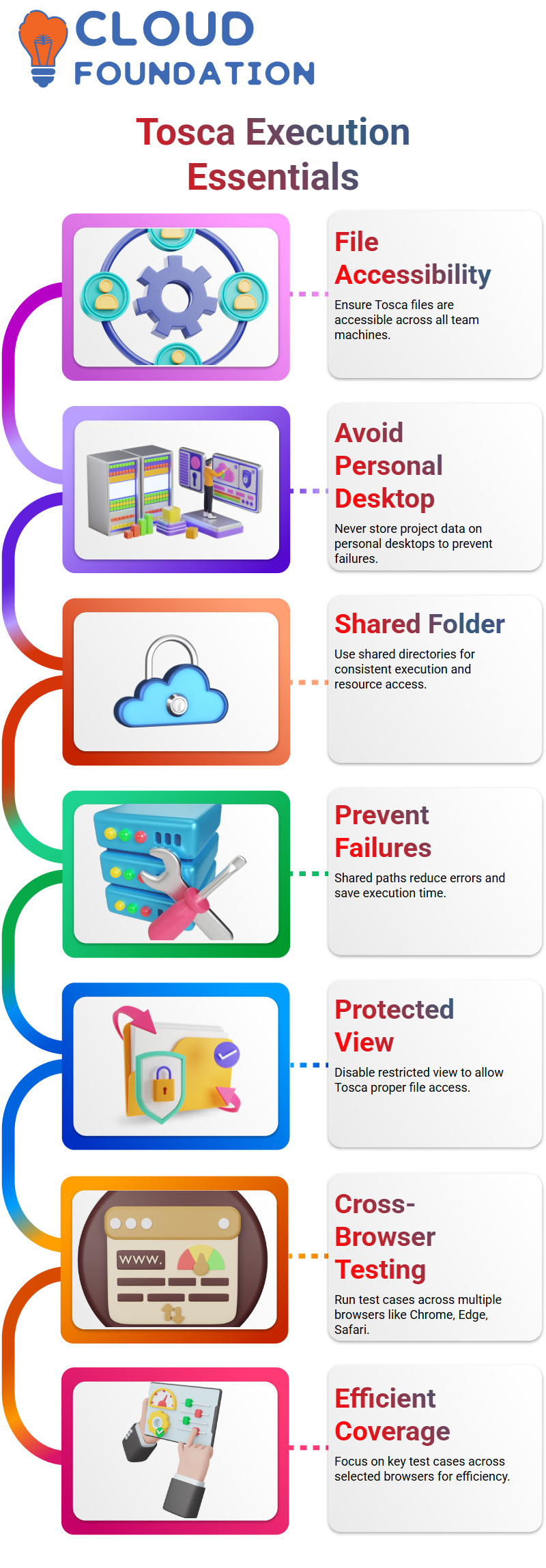
Important data should never be saved on a personal desktop since Tosca, on a different computer, will just not be able to locate that location.
I usually use a shared folder instead. With Tosca, a common route guarantees uninterrupted access to the same resources for all DEX machines and project participants.
After I put the files in a common directory, Tosca execution becomes much more consistent, and I don’t have to worry about changing path names again.
I make this very obvious in many projects: you don’t need to change system-specific directories if Tosca can access the shared folder.
This little practice prevents needless failures and saves a significant amount of time during execution.
Handling Protected View and File Access in Tosca
The office sometimes displays a protected view warning when I access files that Tosca uses.
Usually, I notice alerts stating that making changes to the file might be dangerous. Tosca can continue working with the data in these situations, and I manually allow editing.
In my experience, Tosca can correctly read the file once I select “Edit Anyway.”
Tosca won’t act as it should if the file remains in protected mode. Before executing every scenario, I always make sure to double-check this step.
This is a simple but crucial check. Many novices believe Tosca has a problem, but in most cases, access is simply blocked by the restricted view.
Cross-Browser Execution Tosca
I often receive inquiries about Tosca’s cross-browser testing. Usually, I buffer the browser data to demonstrate how simple it is to manage this.
For instance, Tosca starts the test case in Chrome when I just change the buffer value to Chrome rather than Internet Explorer.
I may choose Edge, Chrome, Safari, or any other browser that Tosca supports.
Tosca offers a variety of alternatives for users who want to run the same test cases on other browsers.
I can either make a new execution list and switch the browser there, or I can reuse the same test case.
We don’t test everything on every browser in the majority of genuine applications.
I often use Tosca to run just five or six important test cases across two or three browsers. This strategy maintains coverage while keeping execution effective.

Tricentis Tosca Course Price

Vanitha
Author