Online Course on Workday Integration XSLT
Workday Integration Conditions in XSLT
If you’re making integrations with EIB, I think setting conditions is just as important.
When I work with data on employees, I see that fields like “gender” show up in Workday as Men or Women.
But I often have to change these numbers because the system I’m sending them to needs formats like M or F instead.
Because of this, I use conditional logic in XSLT to make sure that every record is checked and changed properly during the transformation process.
Workday Integration XSLT If Condition Syntax
In Workday Integration, I use XSLT to change XML data into a style that target systems can understand.
It seems that XSLT counts on the xsl:if structure more than other programming languages like Python or Java, which use full if-else blocks.
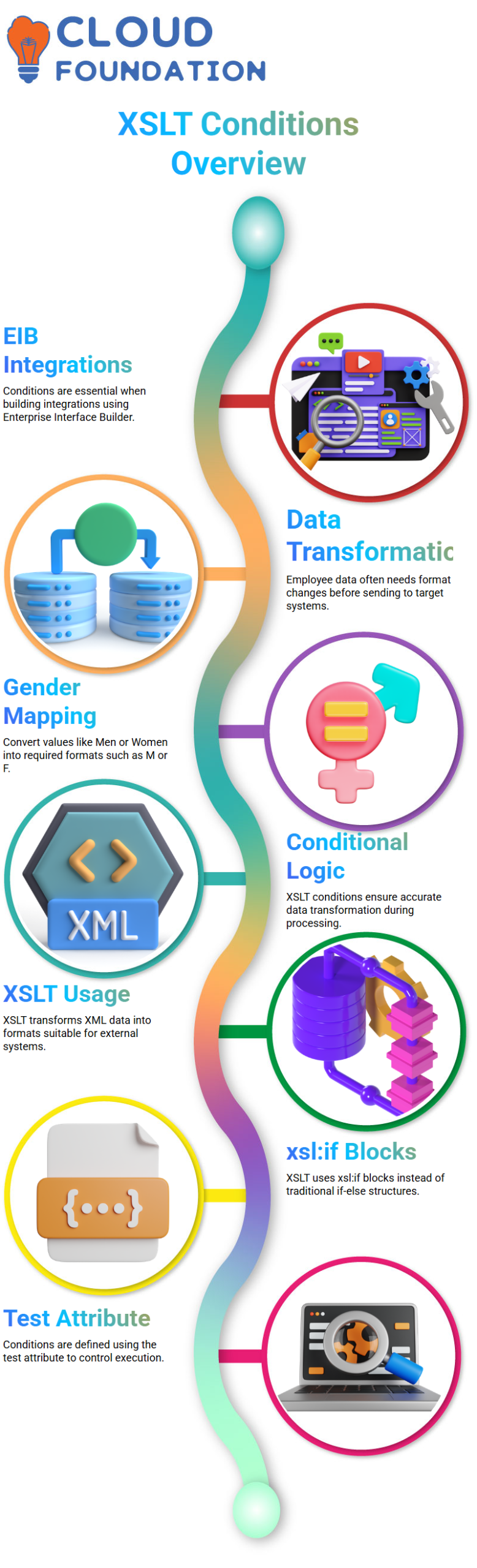
As far as I know, XSLT doesn’t have a straight else condition, so I deal with each one on its own.
As soon as I start an xsl:if block, I make sure to end it correctly. I also know that any code inside it will only run if the condition is true.
Most of the time, I use the test attribute to set these conditions. For example, if gender is Male, I write M, and if gender is Female, I add another xsl:if block to handle it correctly.
Workday Integration XPath Navigation for Gender
When I use EIB to connect to Workday, I make sure I fully understand the XML format for every step, from Report Data to Report Entry and finally to fields like Gender.
I look at the XML very carefully and use XPath to get the exact node value that the interface needs.
As I’m designing, I find the right path for wd:Gender and look at the ID number that stands for the gender code.
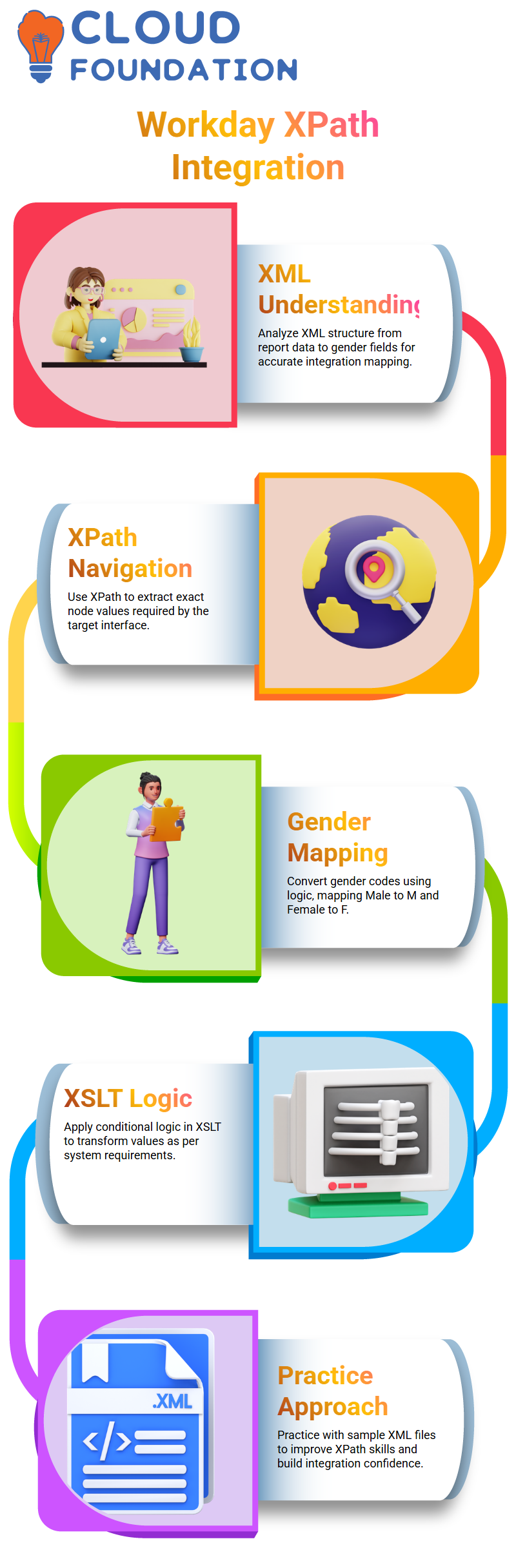
I use conditional logic to change this number as needed once I get it back in my XSLT. Male is mapped to M and Female is mapped to F so that the end output is exactly what the target system needs.
Workday Integration Learning Approach and Practice
Instead of just using AI tools to learn Workday Integration, I always make sure I understand the basics of XSLT first.
I’ve learned that tools can make XSLT, but I might not be able to handle real-time problems well if I don’t understand the theory behind it.
To get better at XPath expressions and easy conditions, I copy and paste a sample XML from a Workday Integration EIB into my editor.
To feel more confident as I learn how test conditions work in changes, I do things like this.
I keep practicing even though real integrations like payments aren’t available in the learning tenant.
This is because I know that the same file structure will be used when files are provided through SFTP.

Workday Integration Training

Workday Integration File Delivery and Encryption
When I build a Workday Integration that sends data outside of Workday, security is the first thing I think about.
I know that these connections often deal with private information about employees that could be stolen if it’s not properly protected once it leaves Workday.
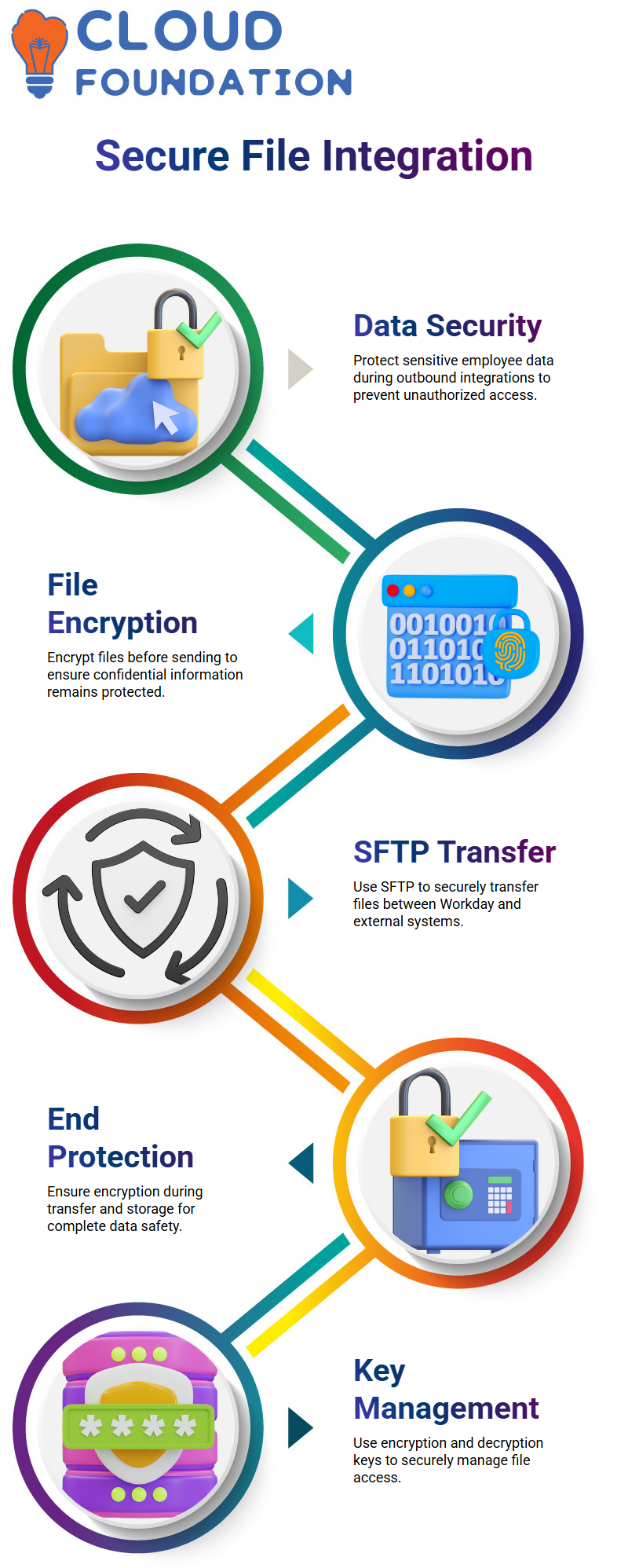
I always send files encrypted, especially ones that contain private information like my SSN, PAN, Aadhaar, or date of birth.
As part of my plan, I make sure that Workday encrypts the file before it is sent. I also make sure that the system that receives the file is in charge of decrypting it.
This keeps the whole process of sending data safe and legal.
Workday Integration Encryption Between Workday and SFTP
It’s encrypted when data goes from Workday to an SFTP folder and then to another system. I talk about this in this Workday Integration session.
I want to make it clear that the file stays protected during the whole integration process. This way, no one can read the data while it’s being sent.
When I create integrations that send employee data to a third party, I make sure that the file is encrypted both during transfer and while it is stored in the SFTP location.
When I think about encryption, one key keeps the file safe and another key is used to decrypt it when it gets to the other end.
Overall, I think security is an important part of all SFTP-based Workday Integrations because it helps me send data safely and reliably.
Workday Integration Sequence Generator for Dynamic File Names
Now I’ll talk about another important idea in Workday Integration. It’s called the Sequence Generator, and I use it every day when I send employee data.
I make sure not to use the same file name more than once because I know it makes things harder for the system getting the files in the integration flow.
To avoid this, I use the Sequence Generator to make new file names on the fly that include dates.
This makes it easier for me to make sure that every file made by Workday Integration can be found and followed.
I add sequence numbers to keep track of things and keep them from being overwritten when I run the integration more than once a day.
Workday Integration Create Sequence Generator Configuration
The “Create ID Definition Sequence Generator” task in Workday Integration is where I set up sequence creation.
This is where I give the sequence a name and decide how it grows. I usually set it to go up by one so that the count is updated instantly every time the integration runs.
When I create the file format, I use square bracket syntax to combine static text like “employee_data” with dynamic elements.
Workday has built-in models that help me, so I don’t have to remember how to format things. I use DD for day, MM for month, and YYYY for year for the dynamic numbers.
I also include SEQ for the sequence and a.txt extension to keep the naming style uniform.

Workday Integration Online Training
Workday Integration Configure Sequence Generator in EIB
Once the Sequence Generator is set up in Workday Integration, I go to the EIB configuration and connect it through the Interface and Deliver parts.
I hook up the Sequence Generator to make sure it becomes a part of the setup for integration.
As soon as I save everything, I know that the interface is ready to make up new file names as the program runs.
I pick “Determine Value at Runtime” and press “Next” when I run the integration so the process keeps going up on its own.
At the end, I get a file with the right name, date, and order, which helps me keep track of every integration I build.
Workday Integration Sequence Generator in File Naming
When I teach Workday Integration, I always stress to my students how important it is to name their files correctly.
In files like employee_data_note_date_2.txt, where the number goes up based on earlier runs, I explain how the system automatically give them sequence numbers.
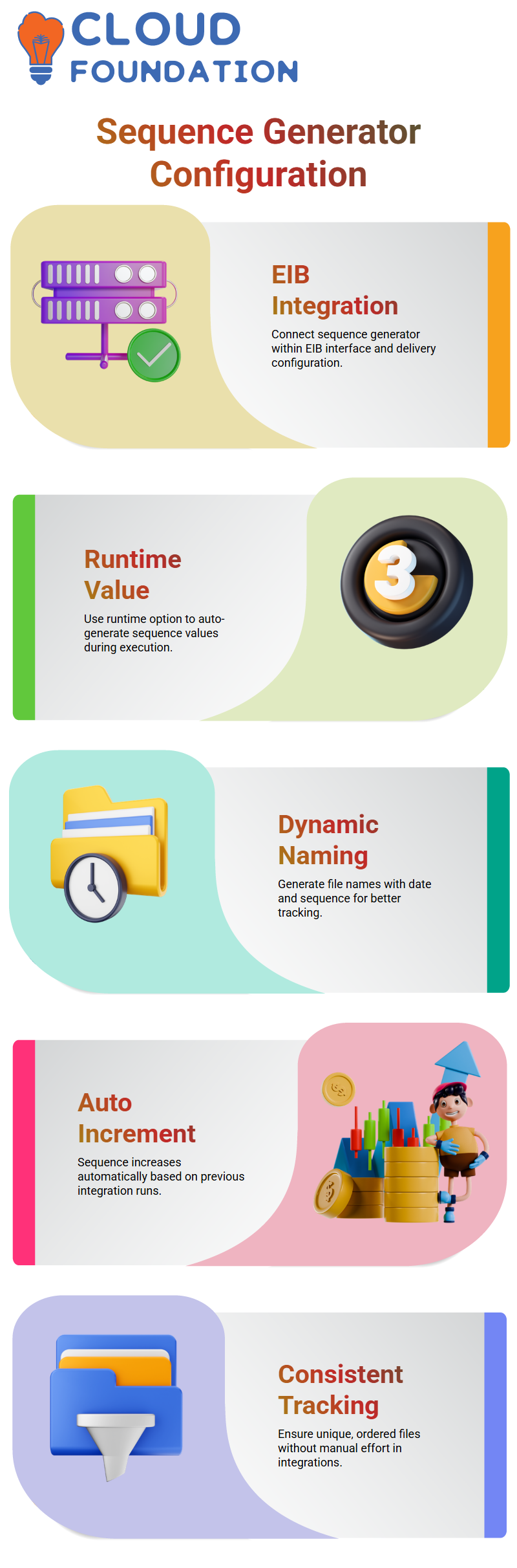
I want to make it clear that this order is not random; it was made by Workday to make sure that each file is unique.
From what I’ve seen, the sequence creator is very important because it checks the last file and adds one to the list with each integration run.
I should also say that this system helps keep things consistent and on track without any extra work from you.
How Workday Integration Automatically Handles Date and Sequence
I talk about how the date and sequence work together to automatically name files in my Workday Integration classes.
It seems that every time I run an integration on a new day, the system changes the date and increases the sequence number based on the last run.
I always tell people to try integrations over several days, that way I can see how these changes happen in real time.
From my own experience, this helps me understand how Workday keeps things consistent without any help from a person.
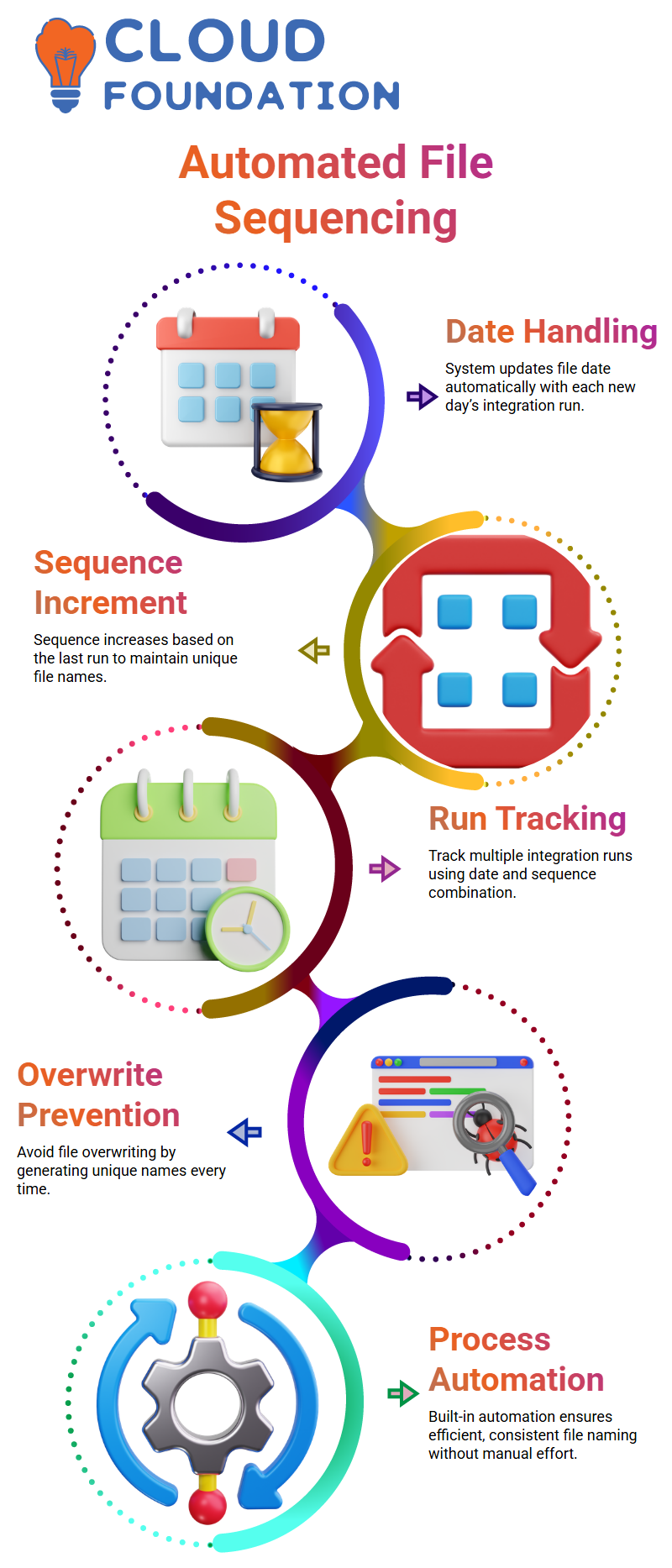
This built-in automation makes the whole process of integration more effective and quick for me.
Why Workday Integration Sequence Generator Is Important
Workday Integration isn’t hard once I understand the idea behind each part, which I always tell myself and my students.
I think the sequence generator is a simple but useful tool, as long as I understand how it works.
When I set it up, I pay attention to how it finds the last number used and raises it automatically.
This keeps me from overwriting files and makes sure that I can keep track of every integration run.
In general, I depend on being able to understand this organized logic to make Workday Integration go more smoothly and quickly.

Workday Integration Course Price

Vanitha
Author