ForgeRock Training Online
How I Set Up User Self-Service in ForgeRock
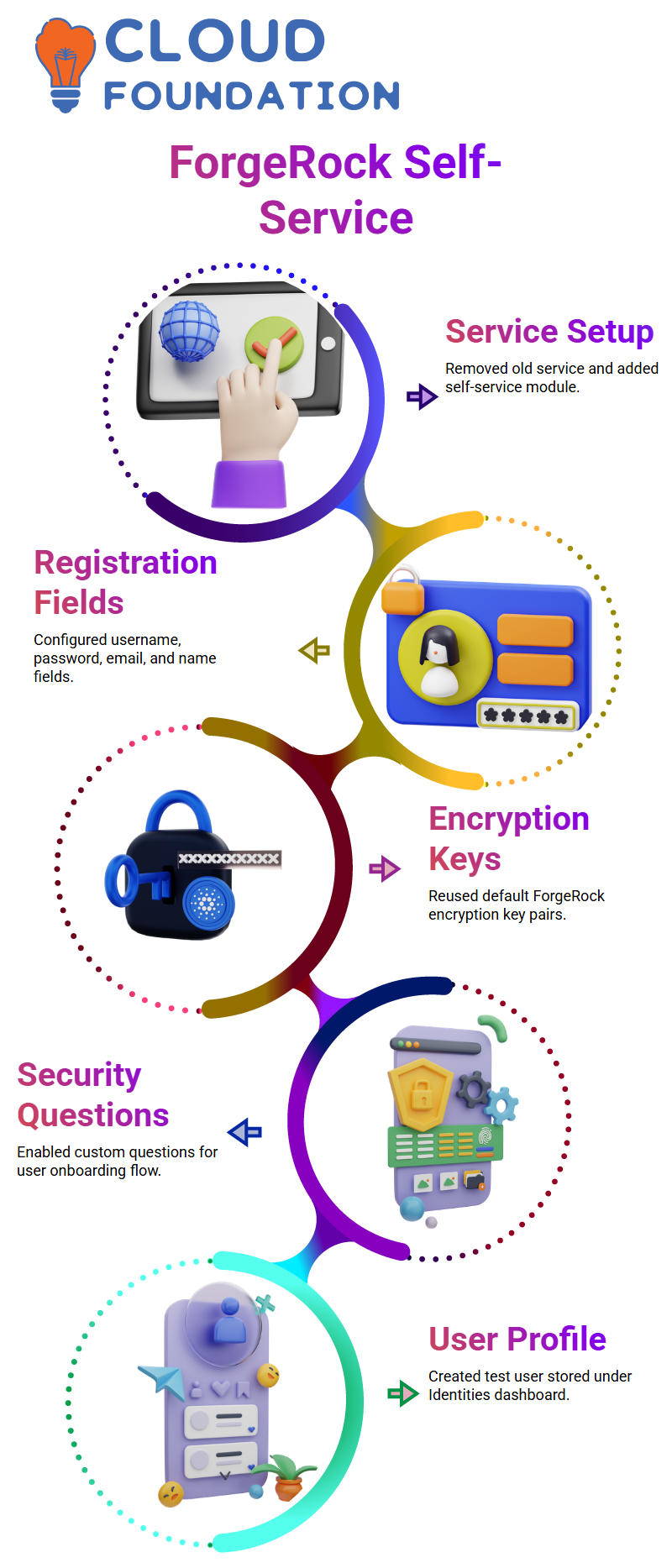
After removing the existing service to start fresh, I logged out and noticed that the login page showed no options like create account or forgot password.
That’s expected, because ForgeRock hides those options until we configure the service properly.
Once I logged back in, I went straight to Services inside ForgeRock to add the User Self-Service module again.
I always make sure that the registration page has the fields I want username, password, email, first name, last name.
ForgeRock already provides default encryption key pairs, so I simply reused those. I enabled user registration, forgot password, and forgot username.
After clicking create and saving the changes, ForgeRock immediately activated the self-service features.
Inside the configuration, ForgeRock also lets me add Google reCAPTCHA, but since that needs a paid key, I usually skip it in demos.
What matters is showing how registration flows work.
The security questions section is also important; in ForgeRock, I can set the minimum number of questions and even write custom ones.
When I enable security questions during registration and save, they become part of the user onboarding flow.
After enabling everything, I refreshed the page, and ForgeRock displayed the forgotten-username, forgotten-password, and create-account options.
That’s when I opened the page in a separate tab and created a new test user. ForgeRock immediately stored the new profile under Identities, including first name, last name, and email.
From the dashboard, the user could now access their profile, check password settings, and view allowed services.
After removing the existing service to start fresh, I logged out and noticed that the login page showed no options like create account or forgot password.
That’s expected, because ForgeRock hides those options until we configure the service properly.
Once I logged back in, I went straight to Services inside ForgeRock to add the User Self-Service module again.
I always make sure that the registration page has the fields I want username, password, email, first name, last name.
ForgeRock already provides default encryption key pairs, so I simply reused those. I enabled user registration, forgot password, and forgot username.
After clicking create and saving the changes, ForgeRock immediately activated the self-service features.
Inside the configuration, ForgeRock also lets me add Google reCAPTCHA, but since that needs a paid key, I usually skip it in demos.
What matters is showing how registration flows work.
The security questions section is also important; in ForgeRock, I can set the minimum number of questions and even write custom ones.
When I enable security questions during registration and save, they become part of the user onboarding flow.
After enabling everything, I refreshed the page, and ForgeRock displayed the forgotten-username, forgotten-password, and create-account options.
That’s when I opened the page in a separate tab and created a new test user. ForgeRock immediately stored the new profile under Identities, including first name, last name, and email.
From the dashboard, the user could now access their profile, check password settings, and view allowed services.
What Happens After a User Registers in ForgeRock
Whenever I create a new user in ForgeRock, I like showing my students where that data actually goes.
Inside the Identities section, ForgeRock stores the user profile with all attributes entered during registration.
Even though I can update passwords here, ForgeRock never stores them in plain text they stay encrypted, just as any secure identity platform should.
If I need to expand the registration process, ForgeRock makes it easy.
For example, when I decide that users should answer security questions during registration, I just enable that option and save.
After that, any new user who opens the registration link sees the security questions before submitting their details.
This is exactly how ForgeRock supports secure self-registration without needing an admin to intervene.
I hand them the registration link, and they can self-register just like they would on any modern application.
ForgeRock handles the account creation, stores the identity details, and allows the user to log into their dashboard right away.
Whenever I create a new user in ForgeRock, I like showing my students where that data actually goes.
Inside the Identities section, ForgeRock stores the user profile with all attributes entered during registration.
Even though I can update passwords here, ForgeRock never stores them in plain text they stay encrypted, just as any secure identity platform should.
If I need to expand the registration process, ForgeRock makes it easy.
For example, when I decide that users should answer security questions during registration, I just enable that option and save.
After that, any new user who opens the registration link sees the security questions before submitting their details.
This is exactly how ForgeRock supports secure self-registration without needing an admin to intervene.
I hand them the registration link, and they can self-register just like they would on any modern application.
ForgeRock handles the account creation, stores the identity details, and allows the user to log into their dashboard right away.

ForgeRock Training

How Forgotten Username Works in ForgeRock
I enable the forgotten-username feature in ForgeRock and show students how users can retrieve usernames by entering known details like email.
Once I activate this option in the admin console, it instantly appears in the user interface.
I often let learners try it themselves so they clearly understand how ForgeRock handle’s identity retrieval without compromising security.
How I Configure Email and Self-Service Features in ForgeRock
In ForgeRock, I can quickly enable or disable username retrieval, password recovery, or any flow depending on what the project needs.
Whenever I toggle the username retrieval feature in ForgeRock, the change reflects instantly, and this helps students see how administrators truly manage real production systems.
ForgeRock makes this entire experience smooth and practical, which is why I enjoy teaching it.
Another area I walk everyone through is email-based notification.
\
ForgeRock supports email services that let us send registration emails, verification messages, and password reset links.
Even when we use a testing setup like Mail Trap, I explain step-by-step how to configure the sender address, authentication details, and SMTP settings in ForgeRock.
Although some testing tools now require paid plans, ForgeRock still lets us integrate them easily so students understand what details companies expect hostnames, ports, authentication usernames, SMTP security, and more.
Setting Up Email Services Inside ForgeRock
Whenever I configure an email service in ForgeRock, I remind learners that the ‘from’ email address is the key identity for outgoing notifications.
If a company registers a new user, ForgeRock sends alerts such as account creation or security updates to the configured address.
Inside ForgeRock, the SMTP transport setup is straightforward: I define a service name, enter the host, port, authentication username, and password, and then save the configuration.
ForgeRock supports multiple transport types, including SMTP and Microsoft Graph API, but most organizations rely on SMTP because it fits easily with internal email systems.
Once the SMTP profile is ready, I select it as the primary email transport for registration, verification, and recovery flows.
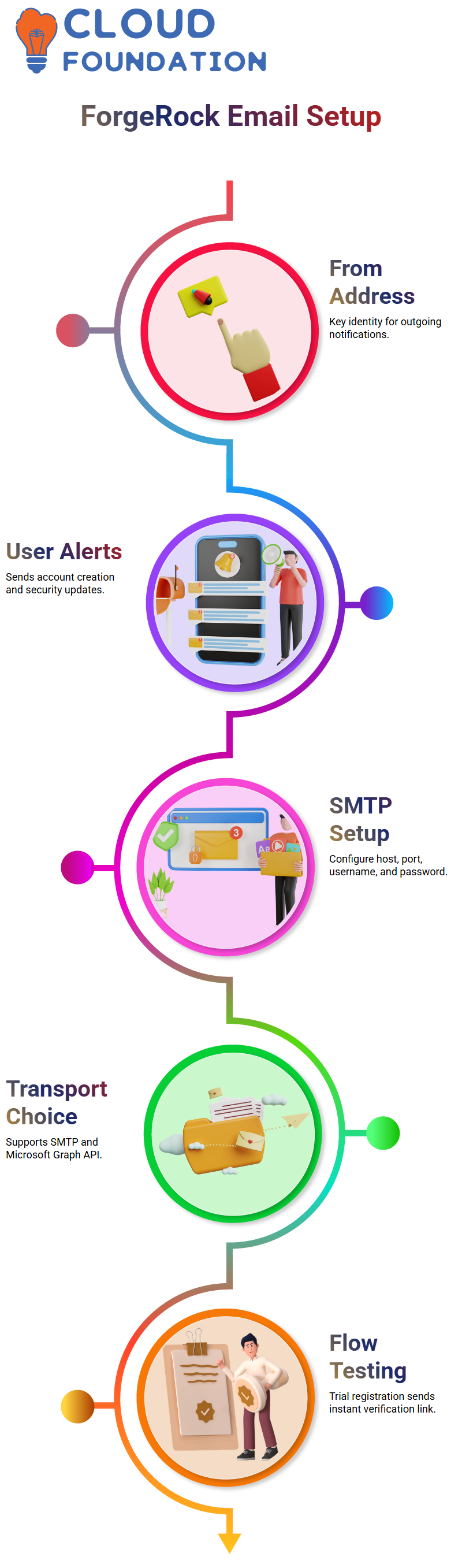
After I save the email configuration in ForgeRock, I test the entire flow with a trial registration.
I enter a new username and email address, and ForgeRock instantly sends a verification link.
Watching that email appear in Mailtrap always excites students because they see the full process from flow configuration to real-time testing working end-to-end inside ForgeRock.

ForgeRock Online Training
Why ForgeRock Makes Security Question Setup Easy
With ForgeRock, I adjust the minimum number of answers required, save the settings, and instantly apply them to the user side.
When users log in again, they see the updated questions exactly as I configured them.
I like how direct and predictable the ForgeRock interface feels when I test the flow as a normal user in a separate browser.
Using ForgeRock for Verification, Username Recovery, and Password Reset
Once the email service is active, I guide everyone through enabling email verification during user registration.
In ForgeRock, I simply turn on the email verification toggle inside the registration journey.
Then I create a test account, and ForgeRock sends a verification link that the user must click before completing the setup.
This mirrors exactly what students experience when signing up for apps like banking portals, e-commerce sites, or learning platforms, showing how ForgeRock powers real-world systems.
When a user enters their registered email, ForgeRock automatically sends the username to their inbox.
This feature always impresses learners because it shows how ForgeRock ties identity recovery tightly to secure email flows.
The same process applies to forgotten passwords ForgeRock sends a reset link, and once the user chooses a new password, they can immediately log in using the updated credentials.

ForgeRock Course Price

Nishitha
Author