Best Workday Integration Training from scratch 2026
Workday Integration Field Overrides and Eligibility
Integration Field Overrides are one of the most important ideas in Workday Integration, and I’m going to talk about them now.
From what I’ve seen, these overrides mostly help me define who is eligible and add fields that aren’t in the normal template.
I often see that the templates that are sent to me don’t have all the areas that are needed for certain business needs.
As an example, I add calculated fields to the Worker object to get information that isn’t available in Workday Integration by default.
Field Overrides are what I use to include those calculated fields in the output because I can’t choose them straight from the template.
Custom Integration Service Creation
To go beyond the standard design, I start by making a Custom Integration Service whenever I need to add calculated fields to Workday Integration.
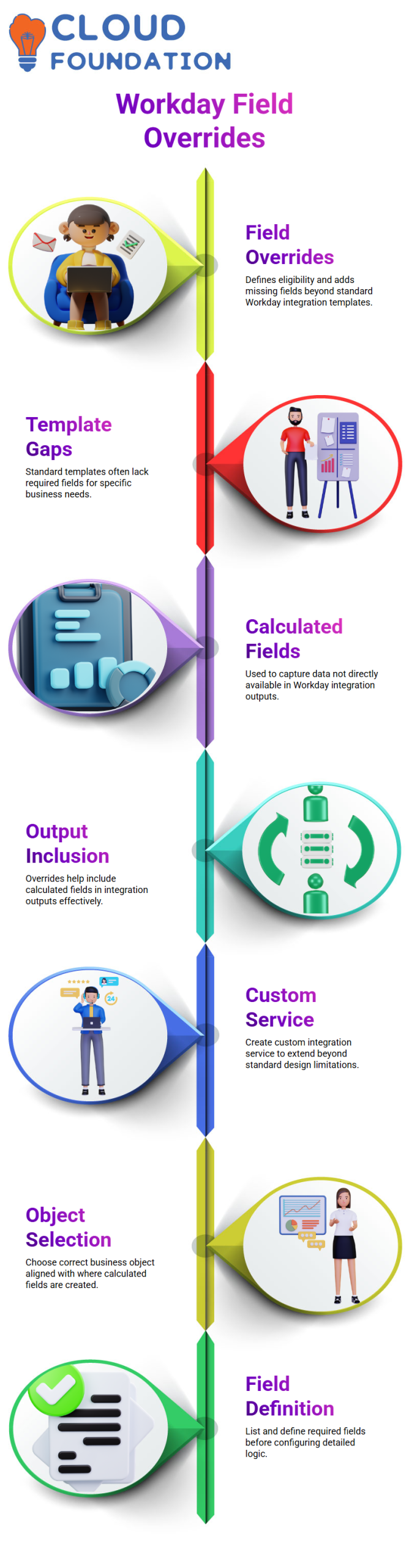
Then I open the current integration and go to Integration Services to get to the section for Custom Integration Services.
After that, I use the plus sign to make a new service and give it a clear name that makes sense as an Integration Field Override Service.
Next, I carefully pick the right business object by making sure it matches where my calculated fields were made in the first place.
Lastly, I define the necessary fields in the integration. At this point, I’m only concerned with making a list of them; I’ll set up their logic later.
Workday Integration Field Configuration and Output Mapping
First, I make the Field Override Service in Workday Integration and save it. Then, I go back to the main screen and see it mentioned under Custom Integration Services.
After that, I learned that Workday doesn’t automatically figure out where the data comes from, so I use the Configure Integration Field Overrides tool to set up each field.
As soon as I open my custom service, I go over the fields I described earlier and start mapping each one to the right calculated fields based on the need.
When I’m done with the maps, I save the configuration and make sure that all the calculated fields are properly added to the setup and shown in the output file.
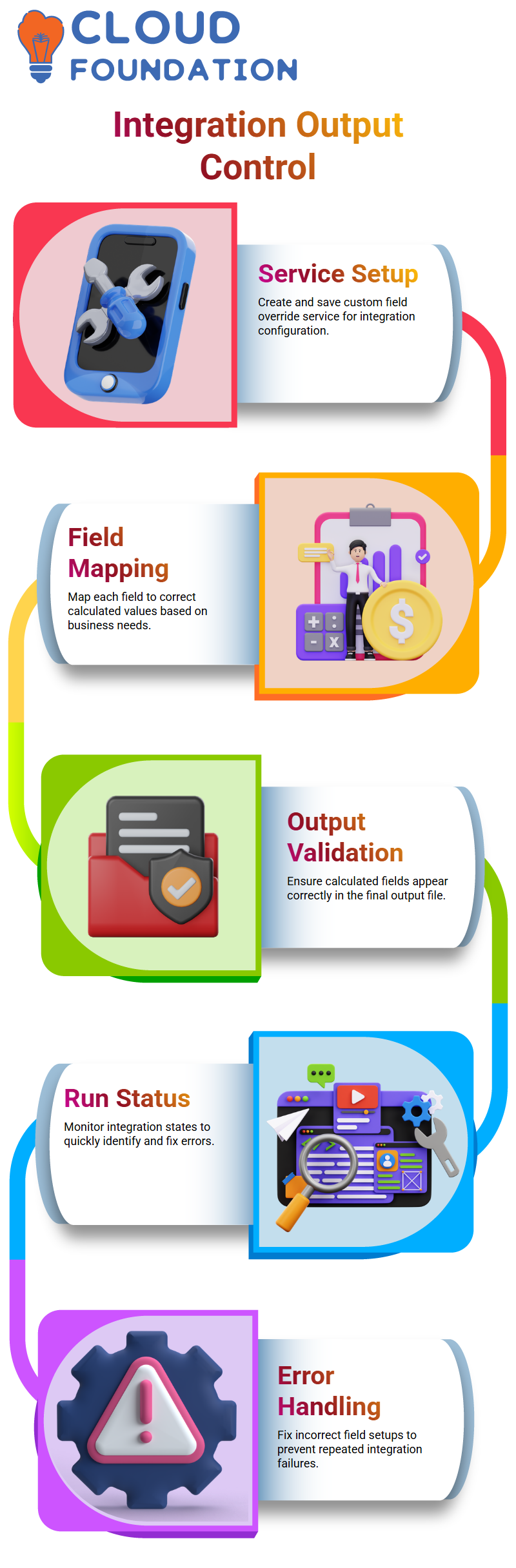
This way, I can be sure that my interface correctly handles custom logic while still giving me full control over which data is sent and how it is selected.
Configuring Your Calculated Fields in Workday Integration:
Right away, before I begin setting up Workday Integration, I make sure that everything is in order.
Tenants can be slow at times, which can make things hard to understand. I can see the calculated fields clearly after I change how things are set up.
This is important because Workday Integration depends on calculated values being correct.
You can make a field bypass service in Workday Integration. I walk you through each step: make a new field override service, add the field names, click OK, and then set up the interface system correctly.
This lets you successfully handle calculated fields. Running the Workday Integration after setting it up gives you more data, and you can make the result file without any problems.

Workday Integration Training

Integration Run Status in Workday Integration:
While the integration is running, I often talk about the state of the integration run in Workday Integration.
There are different states that you can see, such as processing, finished, finished with errors, finished with warnings, failed, or aborted.
To quickly fix problems, it’s important to know what these states mean.
Take the case where an integration fails because of a problem with a determined field.
You need to fix the problem before the Workday Integration can continue.
Using someone else’s calculated number without checking it first can lead to failures over and over again.
Always make sure that fields are set up properly to avoid problems.
Using Sequence Generators in Workday Integration:
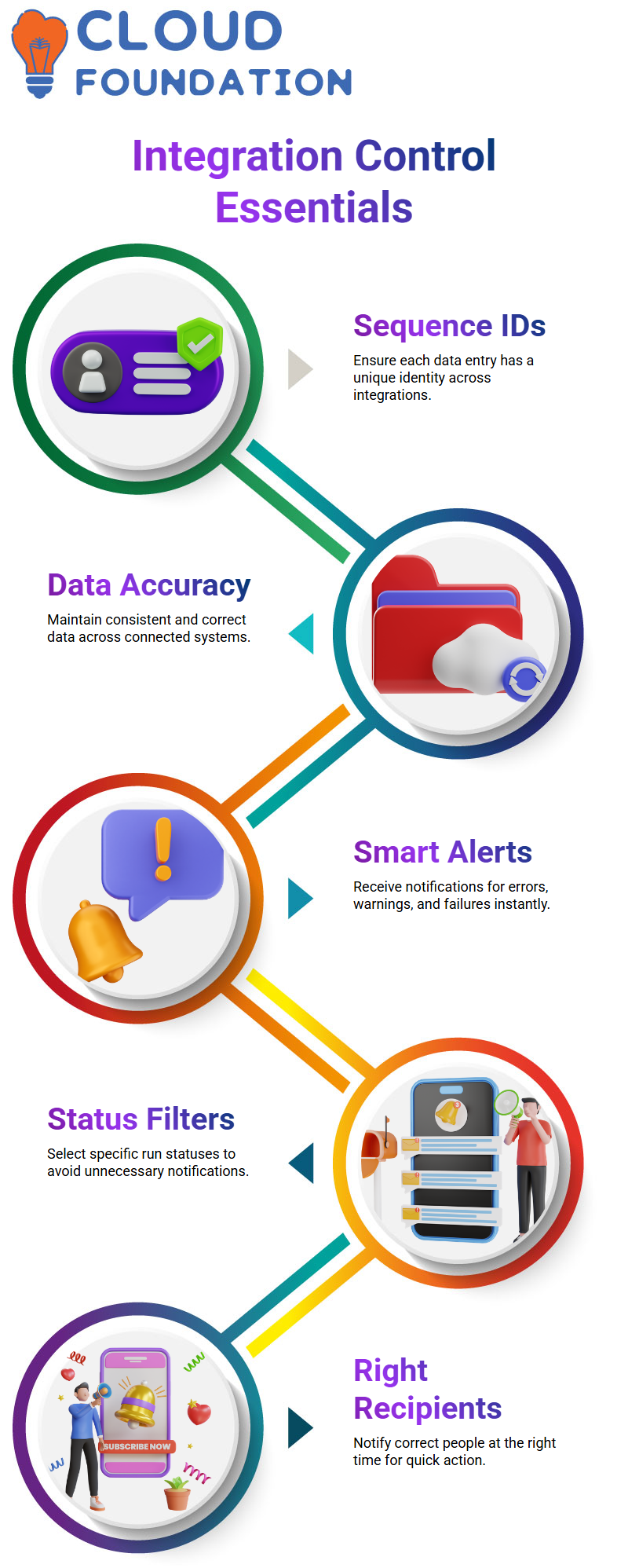
Sequence generators are very important when setting up Workday Integration.
I use them to make sure that each data entry has its own unique identity.
Knowing how sequence generators work can help you keep your data correct across connections.
Configuring Notifications in Workday Integration:
Notifications are very important to me in Workday Integration, especially when integrations run on a schedule.
They let me know right away about problems, warnings, or failures, so I don’t have to keep checking.
These alerts were set up through the integration’s related steps. I can choose when to receive them.
To make sure I only get useful information, I pick run statuses like errors, warnings, failures, or exceptions.
I also name the right recipients to make sure that the right people are told at the right time.
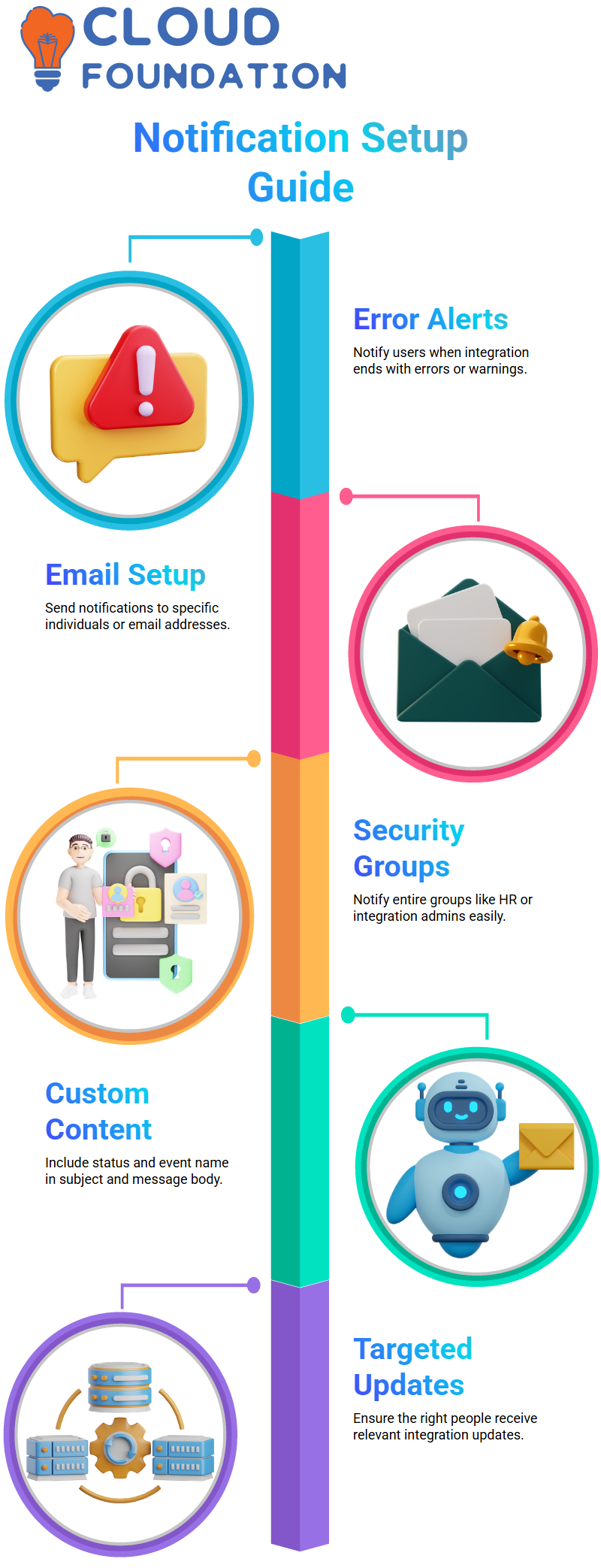
So, even when integrations run on their own, I can still stay updated and keep things running smoothly without having to keep an eye on them manually.
Workday Integration Notifications Setup
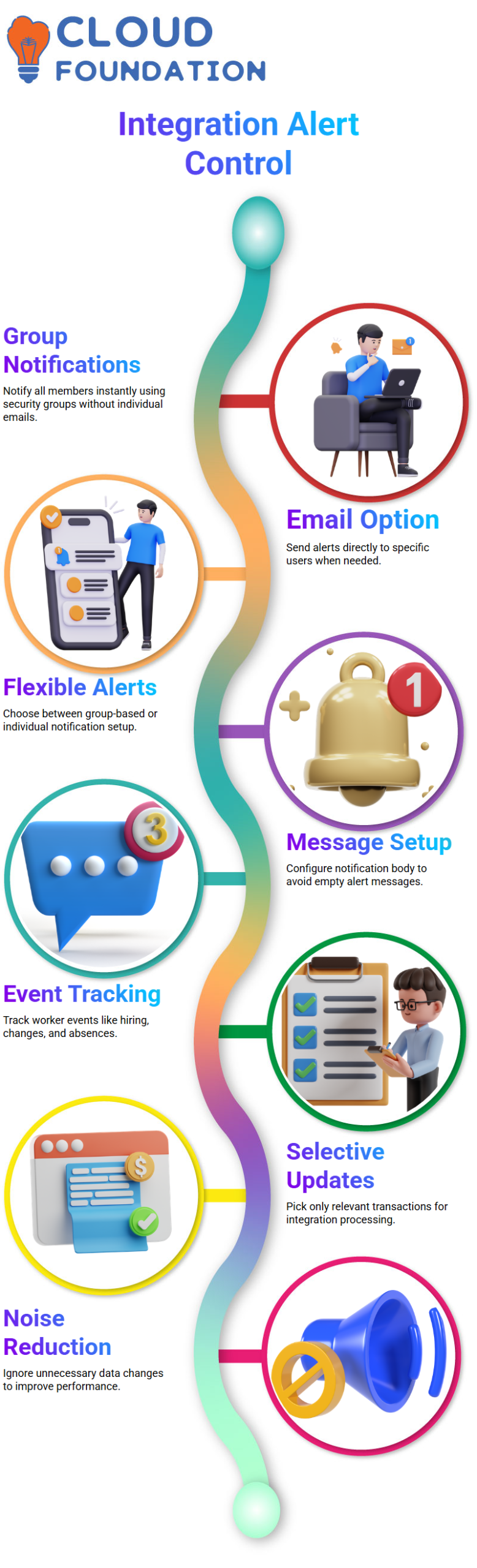
You can set up notifications in Workday connection to let you know when a connection ends with errors or warnings.
It can be set up to send emails to specific people or to whole protection groups.
Say you want all HR admins or integration admins to get alerts, all you have to do is add the security group.
You can also choose specific emails if you only want to tell certain people.
You can add the integration status and the name of the individual integration event to the subject and body of the notification in Workday Integration.

Workday Integration Online Training
Workday Integration and Security Groups
You don’t need to include an email when you create a security group when you use Workday Integration.
Everyone in that group is instantly notified by the integration. This gives teams more options for how to handle alerts.
For example, if you have five people on your integration team, you can set up Workday Integration to send emails or use a security group to inform all five of them.
The important thing is to set up the notification’s body; if you don’t, you’ll only get the subject line and nothing else.
Workday Integration Transaction Logs
Workday Integration lets you keep track of many events in worker profiles, like hiring, firing, job changes, absences, and more.
But not every transaction is important for every connection.
Workday Integration lets you choose which activities should update data, which speeds things up.
For instance, you can choose to only show transactions that are relevant, like picture changes or leave applications, while ignoring transactions that aren’t relevant, like personal information changes, cost center updates, or manager changes.
Configuring Workday Integration Transaction Detection
You can turn on the worker transaction log service in Workday Integration.
This lets the integration see when worker details change. Once it’s turned on, you can set up the integration to subscribe to any type of activity or just a few.
You can decide which transaction events are important for your connection. These could be absence balances, accruals, or other events that happen in a business process.
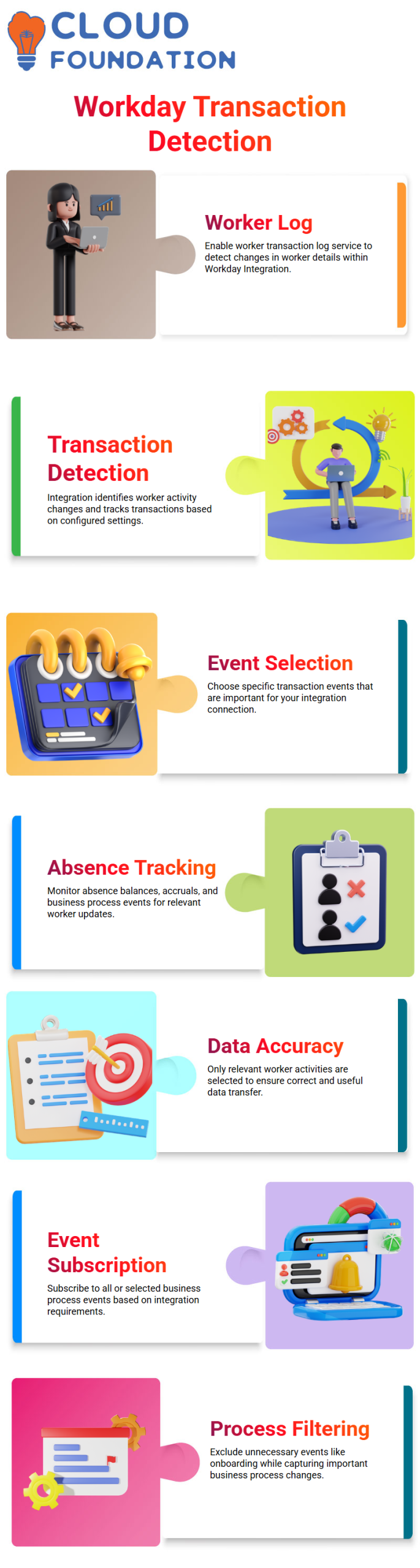
After that, Workday Integration will only choose workers whose activities match your settings. This makes sure that the data sent to later systems is still useful and correct.
Customizing Workday Integration Event Subscriptions
Workday Integration gives you options for how to subscribe to events.
You can choose to subscribe to all types of business processes or just a few, based on what you need your integration to do.
This means you can leave out onboarding events and other steps that aren’t important while still finding important updates.
It makes sure that your connection only handles the changes that matter by managing subscriptions for business processes and transactions.

Workday Integration Course Price

Vanitha
Author