Workday Integration Connectors Training Online
Workday Integration and Business Process Access
To get to each step of a business process, like starting or stopping it, you need to be a member of a security group called ISU.
You need to do this if you want to do business with ISU. If the report is simple and doesn’t use business process data, you don’t need any of these extra rights.
No need to go through ISU to get to deals if you don’t want to.
Take Workday Integration as an example. It’s possible that you’ve already used Studio or Core Connector to join.
Let’s say that this integration gets the workers’ start and end times. When did the deal start and end?
If the contractor has left and returned more than once, you need the most up-to-date times.
That information is kept because it is part of how the provider does business. To get rid of it, you need to give the right permissions through ISU, as I showed on the Workday screen.
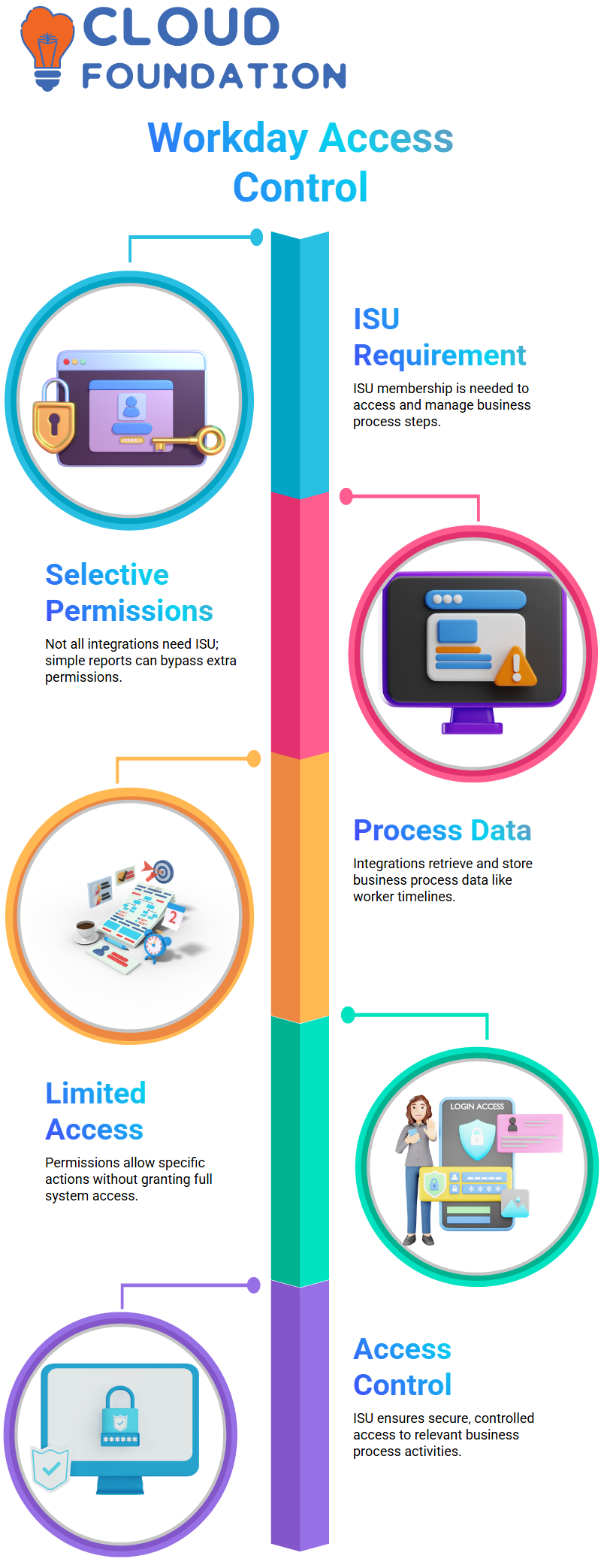
If all you need is field-level info from business items, you don’t have to go through these extra steps.
Workday Integration and it’s Practical Permissions
Imagine that you have a guest room in your house with useful things for your friends to use. They are allowed to use whatever is in the guest room since you let them in.
You wouldn’t let people into your whole house, though. In the same way, you can grant access to certain business processes in Workday Integration while limiting it to private areas.
For instance, if you want a friend who is a good cook to make food, you let them into your kitchen and let them use the tools there.
In Workday Integration, this is like a business process transaction: you’re giving the ISU rights to do certain things without giving them full access.
The ISU can carry out tasks that are part of the business process, but it can’t get to areas or objects that aren’t connected.
How to Configure Security for ISU in Workday Integration:
To set up Workday Integration security, you begin by opening the business process and choosing the steps that are connected to it.
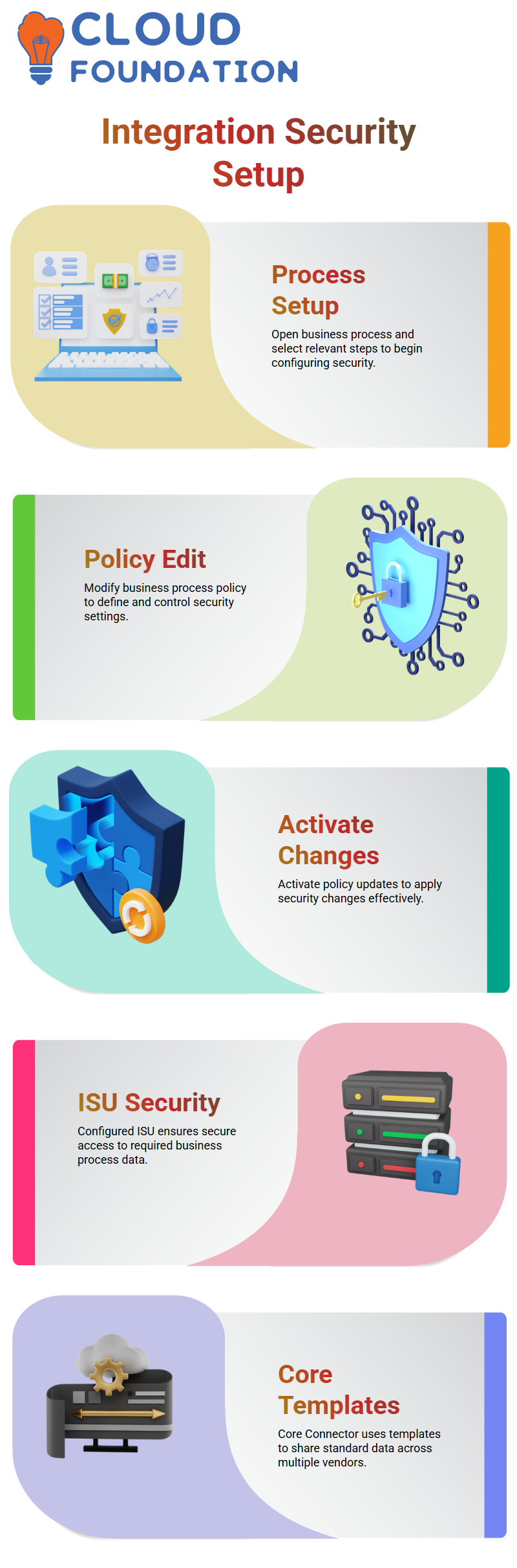
After that, pick edit from the business process policy. You can make changes to security here.
When you activate potential security policy changes, they are sure to take effect.
This step finishes setting up protection for ISU’s integration, letting them safely access the data they need from business process transactions.
Workday Integration Core Connector Integrations
These connections are based on templates. Imagine that a business has several providers who all want the same information.
Core Connector lets you set up a template for standard data, like information about workers, and use it with different vendors.
This makes Workday Integration fast and flexible, so you don’t have to make as many custom connections.

Workday Integration Training

Workday Integration for Vendor Data Management
When you work with more than one vendor, you’ll often be asked for different types of employee data, such as first and last name, employee ID, gender, job, organization, and more.
It’s possible that 12 of your vendors will ask for a different amount of fields. Some ask for 100, some for 20, and some for 45.
You make a different Workday Integration for each vendor instead of making one integration for all of them.
The material is often the same, even though the requests for it are different. I use a Workday Integration core connection template instead of starting from scratch to make each integration.
There are a lot of templates in Workday that come with most of the areas you need already filled in.
You only need to choose the fields that are needed for the connection, and the template will make the output file for you.
Workday Integration for Vendor Data Management
When you work with more than one vendor, you’ll often be asked for different types of employee data, such as first and last name, employee ID, gender, job, organization, and more.
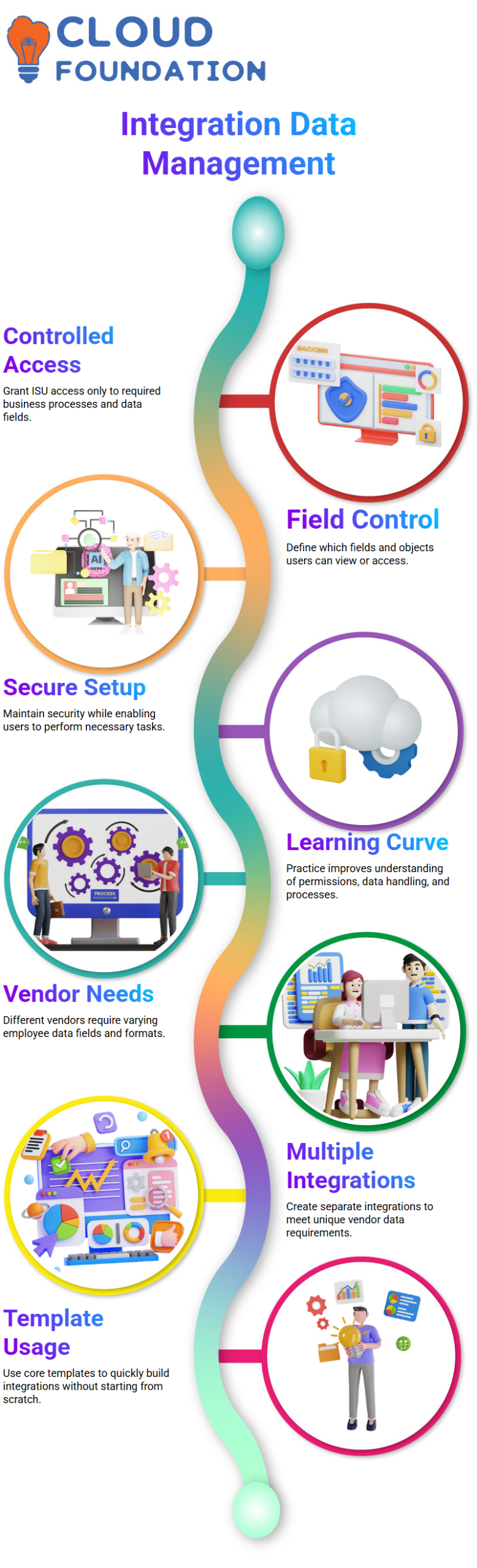
It’s possible that 12 of your vendors will ask for a different amount of fields. Some ask for 100, some for 20, and some for 45.
You make a different Workday Integration for each vendor instead of making one integration for all of them.
The material is often the same, even though the requests for it are different. I use a Workday Integration core connection template instead of starting from scratch to make each integration.
There are a lot of templates in Workday that come with most of the areas you need already filled in. You only need to choose the fields that are needed for the connection, and the template will make the output file for you.
Configuring Workday Integration Core Connector Templates
To use a core connector to make a Workday interface, you must first make an integration system. Choose the style you want to use and give it a name.
Workday has many templates, such as core connector worker templates for HR and finance templates for accounts. Each template has services and data parts that are already set up.
You can add parts for personal data, status data, position data, and contract data to a core connector worker template, for instance.
Once turned on, the relevant fields are shown in each data section. Check the boxes next to the fields you want, and Workday Integration will add them immediately to your integration output.
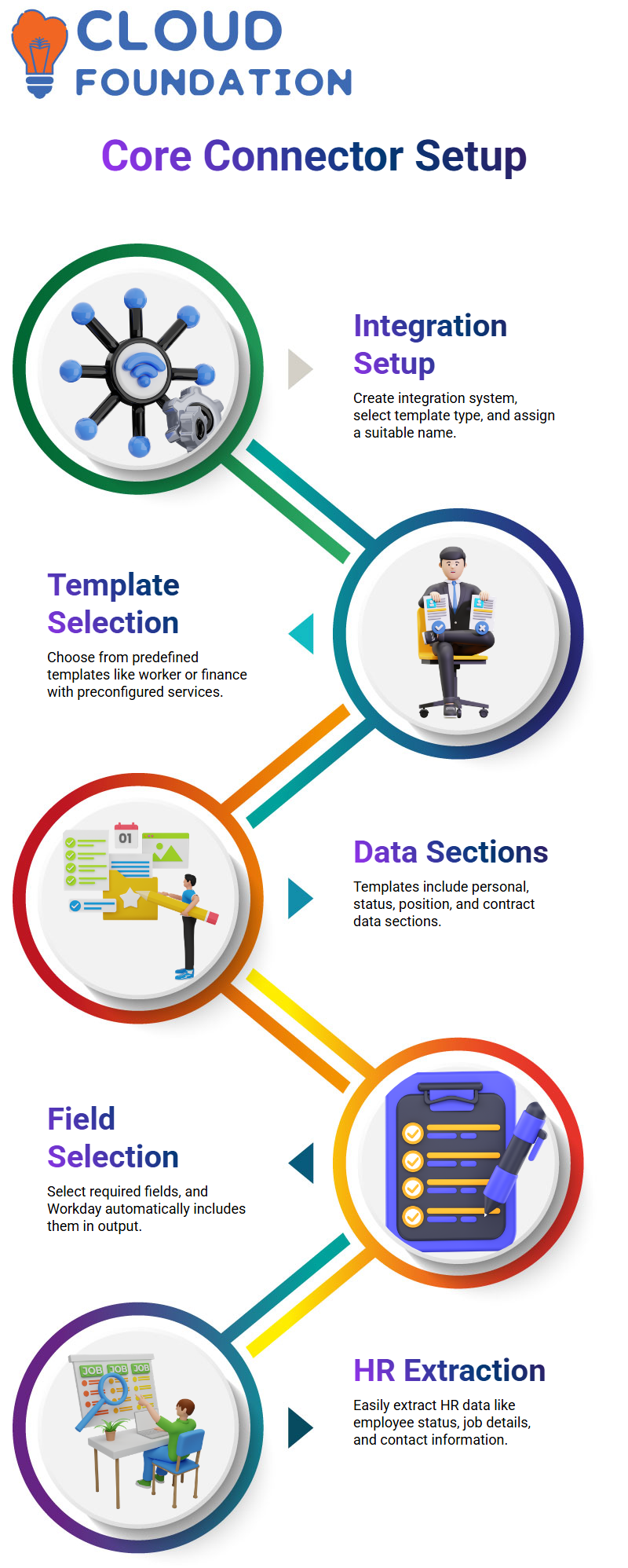
This lets you work with different sellers without having to set up each field by hand.
Types of Workday Integration Connectors
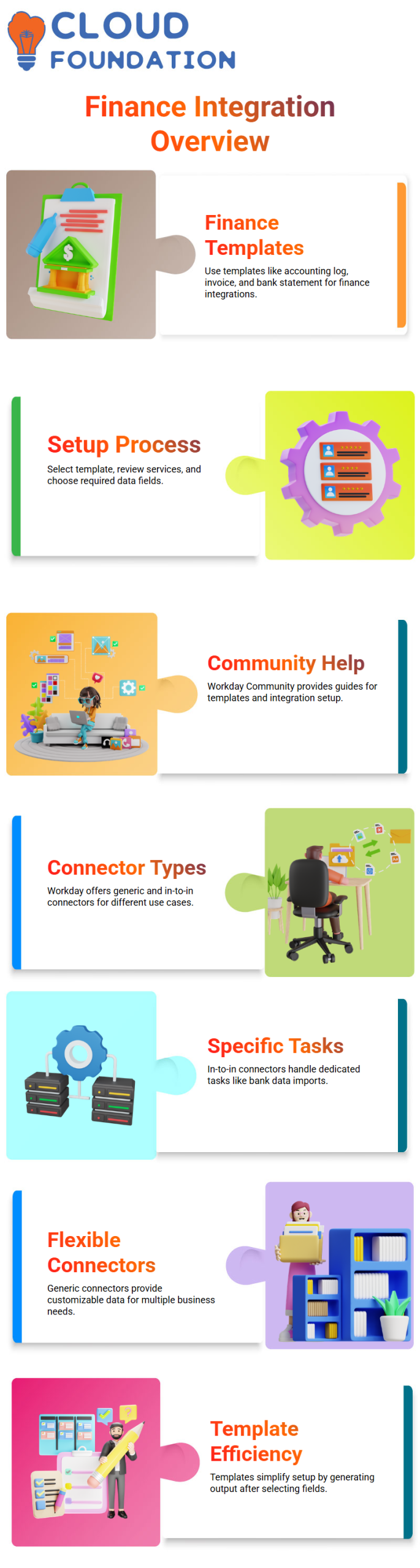
There are two kinds of connections that Workday offers: generic connectors and in-to-in connectors. In-to-in connectors are used for specific tasks, like importing bank records.
Generic connections, like the core connector worker, give you basic information that you can change to fit your needs.
You can make Workday Integration solutions for HR, finance, and other business areas with core connections because they are flexible.
You don’t have to start from scratch when you use template-based Workday Integration to set up integrations for different vendors, teams, and data sets.
The system makes the output for you; all you have to do is pick the design and fields you need.

Workday Integration Online Training
Workday Integration for Finance Data
In Workday Integration, finance models work in the same way. As an example, there are templates for accounting log inbound, customer invoice inbound, and bank statement inbound.
Even though each design is a little different, the process of setting it up is always the same. You pick the template, look at the services, and pick the areas that your integration output needs.
It’s important that you join the Workday Community if you haven’t already. All templates and services have documents made by the community.
Before setting up a banking integration, I always look in the community. It tells me what areas I need to choose and how to set up each Workday Integration template.
Workday Integration: Using Bank Statement Connectors
When you open the connector for importing bank accounts, you’ll see that it’s made to make the process easier.
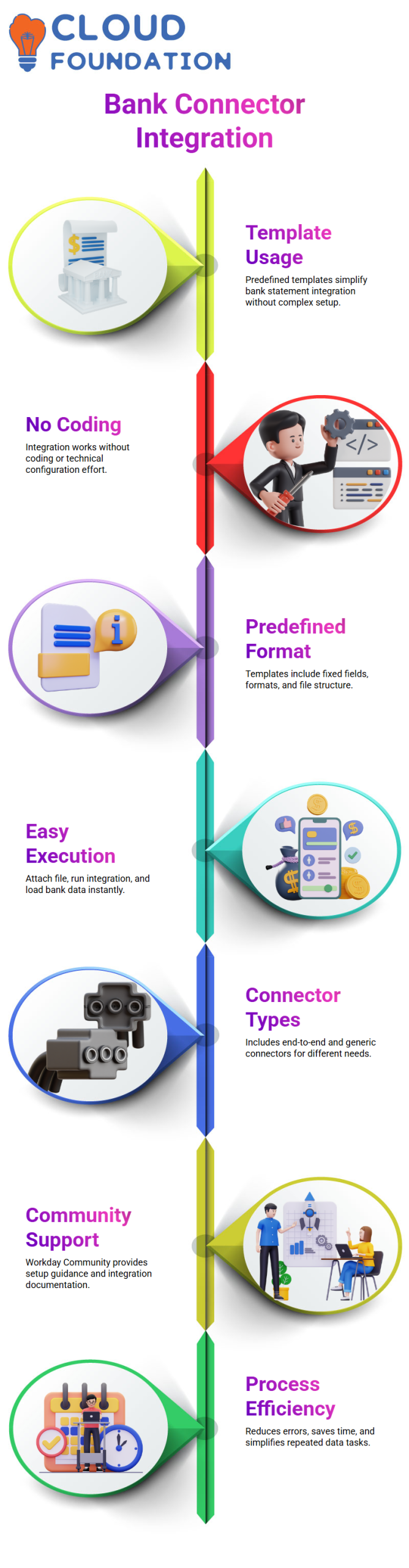
You don’t need to worry about code or setting up complicated things. With this template, you can add your bank statements right to your Workday profile.
The Workday Integration template gives you a set layout. To load your bank records, all you have to do is follow the template.
The required fields, data format, and file layout are all set ahead of time. This information can be found on the Workday group if you want to know more about it.
There are choices and extra features that come with every Workday Integration connector, such as the ability to call a service.
Tomorrow we’ll get into more details, but for now, it’s pretty clear what these templates are for. You don’t have to write a lot of code or make a lot of tools.
Your bank statements are easy to send because everything is ready to go.
When you use a template-based Workday Integration connector, you just need to attach your file, run the integration, and the statements will be added immediately to the worker profile.
It’s a simple method that gets rid of the need for complicated code.
You can learn everything about your finance connection if you have community access.
You can find out how the integration map works, when to use each service, and how to set up the core connector in the Workday Integration instructions. These steps help you understand the whole process.
You should get used to using these template-based connections. Remember that the Workday Integration ideas work across modules, even if the business terms seem hard to understand.
For both SCM and finance, the steps to make EIBs or core connections are the same.
Workday Integration connectors that are built on templates come in two main types.
The first thing that end-to-end connectors do is specific tasks, like putting jobs on LinkedIn or managing retirement savings.

Workday Integration Course Price

Vanitha
Author