Training on Workday Integration Core Connector
Workday Integration in Core Connector Outbound
I pay close attention to the order in which the Core Connector Worker outgoing process works when I walk through Workday Integration.
This is because I know that once the flow, everything is much easier. I’ve noticed that starting the integration alone doesn’t send the file anywhere.
That’s why I always make sure that document delivery is set up clearly in the process. To do this, I add a step to the business process and choose the Document Delivery Service.
This way, I can decide where and how to send the result.
Setting the transfer type to SFTP is how I normally do things when I work with EIB, so it makes sense for me to connect the two ideas.
From my point of view, the general flow is clear and makes sense when broken down correctly.The connection starts first, and then the Core Connector Worker makes the XML data.
Then, the DT transformation changes it to the right format, and finally, document delivery makes sure the file gets to the right system.
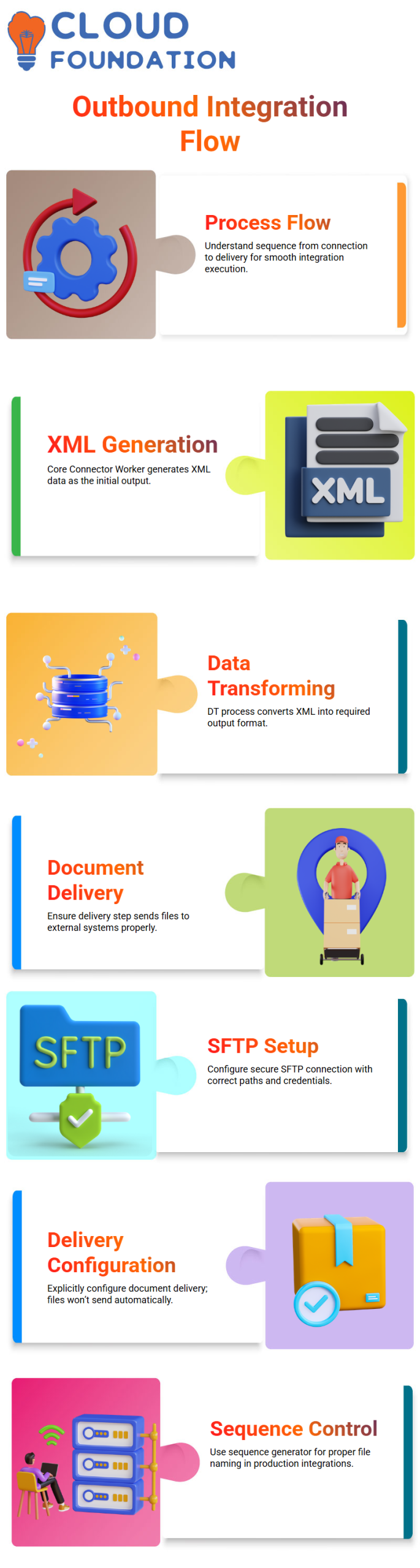
Configuring Document Delivery in Workday Integration
When I set up Workday Integration to send documents, the first thing I do is choose the transport type and make sure the secure connection is set up with SFTP paths and credentials.
I make sure that all of the parameters are set properly so that the file can get to the outside system without any problems.
Once the connection is done, I don’t think the system will automatically push data; I know that doesn’t work that way.
I make sure the file is sent by directly setting up the document delivery step in the business process framework.
I know that if this step is skipped, the interface will only make the file and not send it.
To live up to those standards, I make sure the document sequence generator is set up correctly and never use the default settings when I’m making production-level integrations.

Workday Integration Training

Workday Integration for Inbound: Document Retrieval
I make it clear that the integration can’t do anything without first getting a file, so the incoming data is what the whole flow is built on.
I always stress that retrieving the documents is a necessary first step before starting the connection.
Getting the order right is very important to me. It starts with initiating the process and ends with retrieving the file, which is usually done from an SFTP location.
After this, I run the integration, which is how the system handles the file I just got in a structured way.
As I plan, I carefully check this sequence to make sure the process doesn’t get stuck.
Lastly, I make sure that the Document Retrieval Service is part of the business process. This way, the system can automatically line up the flow, use the file that was recovered as input, and load the processed data into Workday.
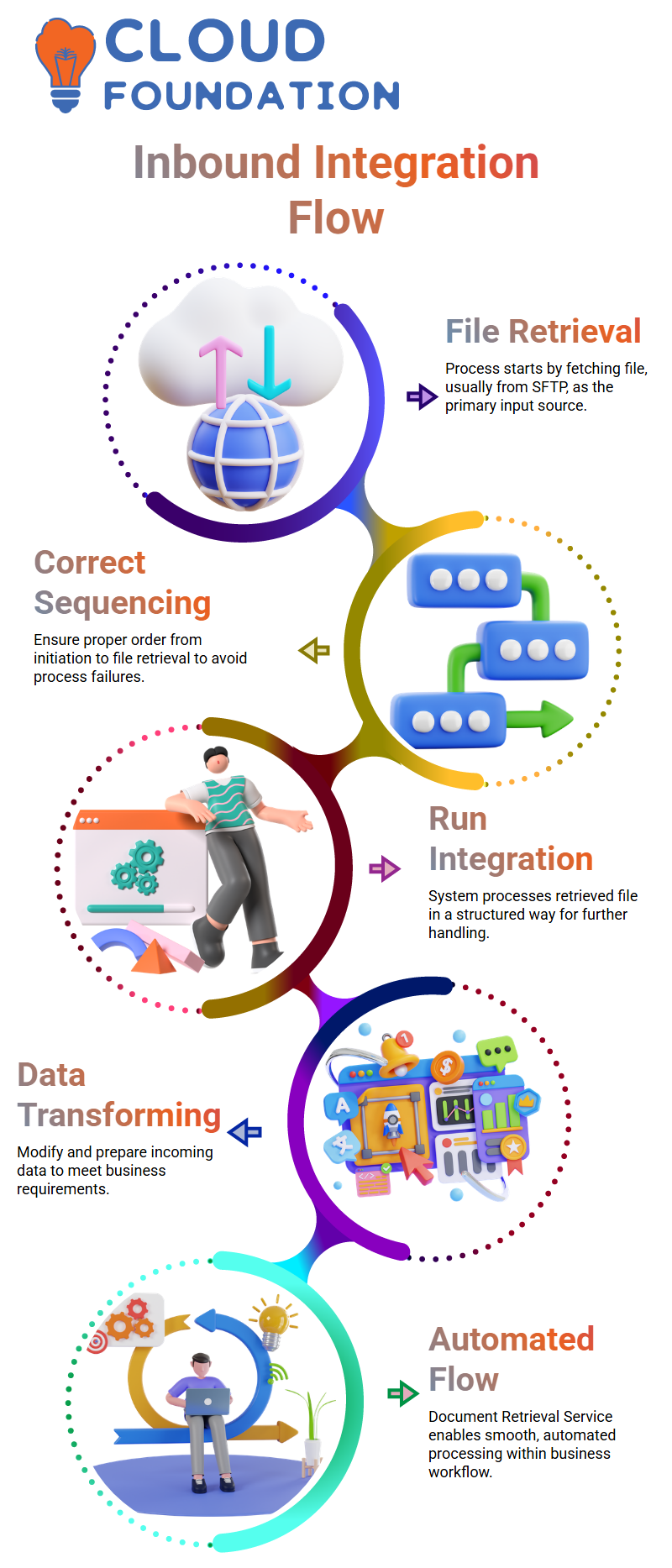
Sequencing and Automation in Workday Integration
A lot of the time, when I build advanced Workday Integration cases, one integration takes in data and sends it out in the same process.
I make sure that retrieving documents and sending documents work together so that the flow is smooth from beginning to end.
First, I make sure the system gets the file I need. Next, I handle and change the data so it fits the needs of the business.
After that, I send the product that has been changed to where it needs to go without stopping the flow.
Also, I want to make it clear that when I set up SFTP passwords, I only do it once at the integration level. After that, Workday will use them again on its own.
So, I don’t have to enter my credentials again and again every time the integration starts. This keeps things smooth and organized.
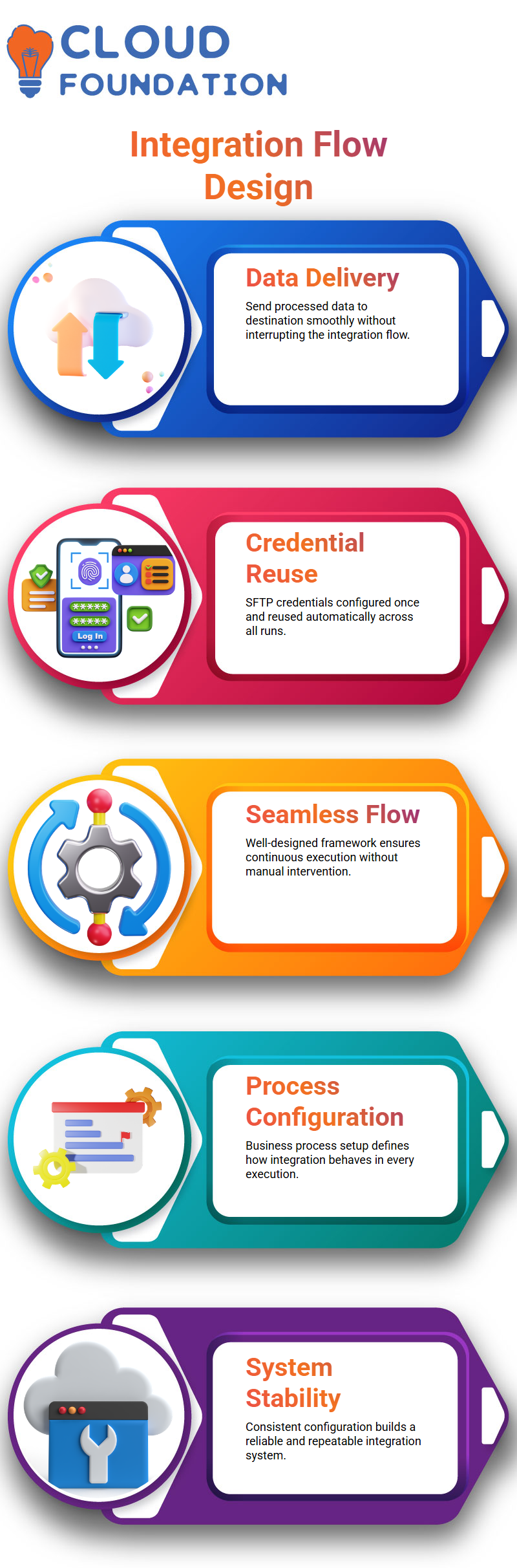
Overall, when I design the framework correctly with retrieval, transformation, and delivery, the integration works well without any help from me. I focus on the whole flow so I can design and fix any problem with confidence.
Workday Integration Configuration in Business Processes
I always start by focusing on the business process configuration when I start making a Workday Integration. That’s how the whole thing is built.
I know that whatever settings I make at the integration level will be used in every run, not just the first one.
Once I set up the connection, I know it will work the same way every time, which makes it reliable.
When I set up a business process, I know that the details I enter are saved directly in the interface and will affect how it works in the future.
Last but not least, I’m not making something temporary. I’m building a stable system that controls how the integration works every time.

Workday Integration Online Training
Configuring Transport Type in Workday Integration
By setting the transport type in Workday Integration, I control how the system talks to outside computers, making sure that the connection method is always the same every time it runs.
Most of the time, I choose choices like SFTP and give all the information that is needed to make the connection, such as credentials, server information, and folder paths.
After I finish setting up this integration, I know it will use the same configuration for each run without my having to do anything.
I also know that Workday Integration stores these credentials safely, which lets it authenticate users and send files without any problems whenever they’re required.
This is why I always stress that once the integration is set up, it will always work correctly without asking for passwords again.
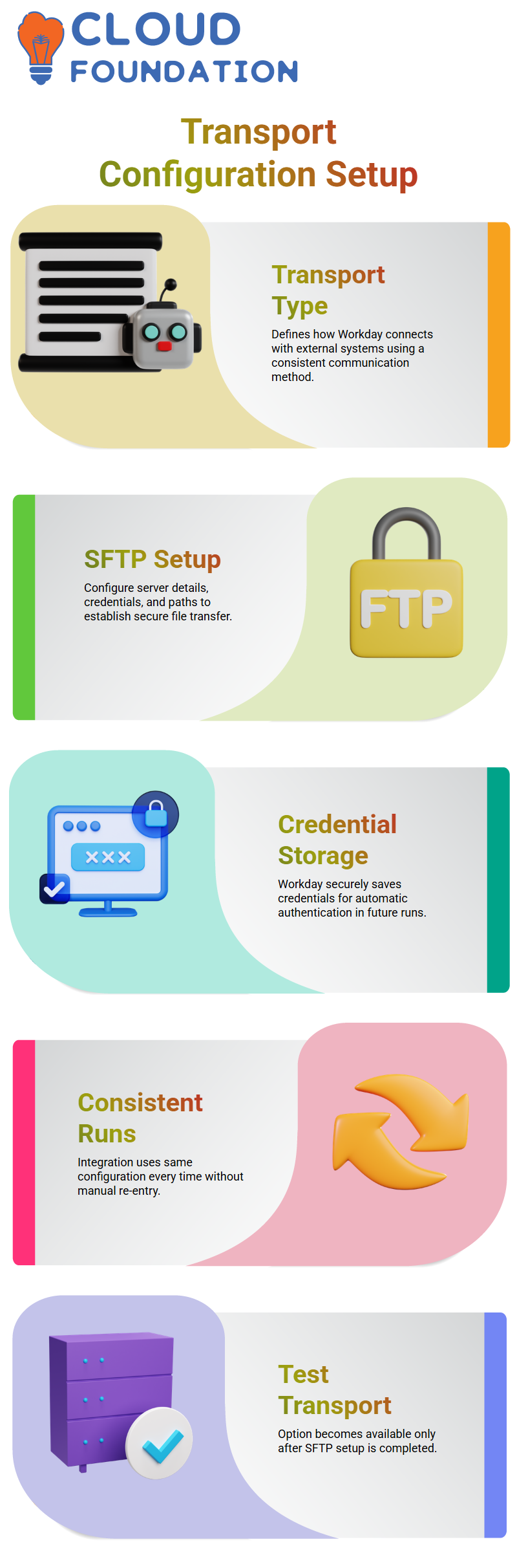
How Test Transport Works in Workday Integration
I see that I can only use basic tools like Launch and Schedule when I start working on a Workday Integration before setting up SFTP.
At this point, I see that the Test Transport choice is hidden because SFTP is still not set up.
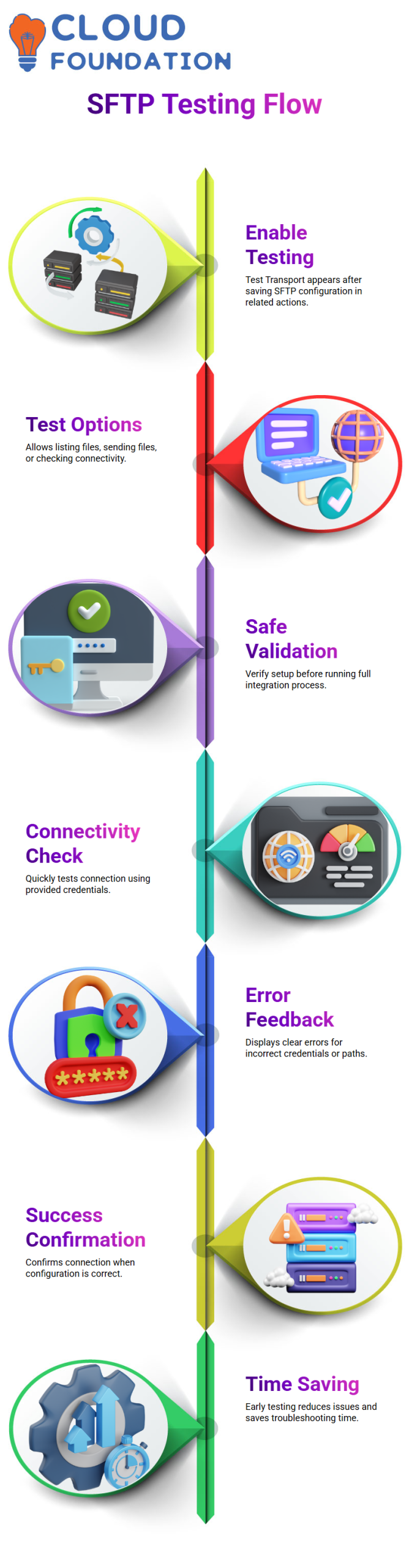
After I set up and save the SFTP information, the Test Transport choice appears right away under “Related Actions,” which changes what I do next.
I have power over what I test when I use Test Transport because I can list files, send files, or just test connectivity.
I can now safely check my setup before running the actual integration, which makes the whole process easier for me.
Testing SFTP Connectivity in Workday Integration
When I set up SFTP in Workday Integration, I use the Test Transport option right away to make sure the link works.
This feature is important to me because it quickly tries to join with the credentials I gave it.
If something is wrong, I see clear problem messages right away that help me figure out what’s wrong, like using the wrong credentials or folder paths.
The system confirms successful connectivity when everything is right, which makes me feel good about my setting.
I always put learning transport testing in Workday Integration at the top of my list because it saves me time and helps me check configurations early on.

Workday Integration Course Price

Vanitha
Author