Workday Integration Salary Lookup Training
Lookup Related Value in Workday Integration
In Workday Integration, I use a calculated field called Lookup Related Value a lot. At first, it was hard to understand how to use it.
When I first started teaching it, I saw that other people were having trouble too, until I figured out how to link the data.
I work with things that are linked to each other, like Worker and Company. Each object holds different information.
It’s easy to get data from a Worker, but it can be hard to get data from a linked object.
That’s where this field helps me get info from objects that are linked. I have a lot more freedom when I’m making reports.
How I Use Workday Integration to Fetch Company Currency
This is something I often need for each worker when I work in Workday Integration. The thing is that cash is not directly attached to the Worker object.
The Company owns it, which is connected to the Worker. I could just use linked business objects in a report to get it.
It’s easy for me to get to a lower level in Workday, but I don’t like having to rely on that all the time. To make a calculated value instead, I use Lookup Related Value.
In this way, I can bring the money right onto the Worker object. Everything is just cleaner and easy to use afterward.
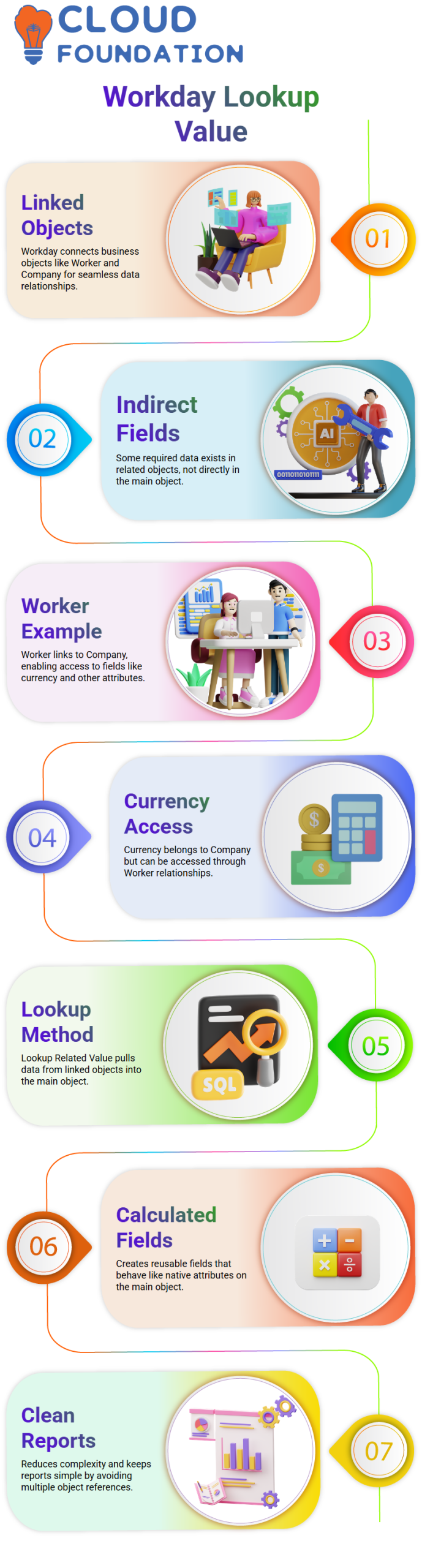
Creating Lookup Related Value Calculated Fields in Workday Integration
In Workday Integration, I start with the Worker object and use Lookup Related Value to make a calculated field. Then I pick what I want to return, like money, and where I want to get it, like a business.
After I set it up, the value in my report is the same as the value on the Company object. The best part is that it now acts like it’s right on the Worker.
That’s exactly what this method does; it adds data that is linked to the main object. This helps me write clean reports, so I use it a lot. Plus, it keeps me from having to deal with too many object references in reports.
Handling Multi-Level Relationships in Workday Integration
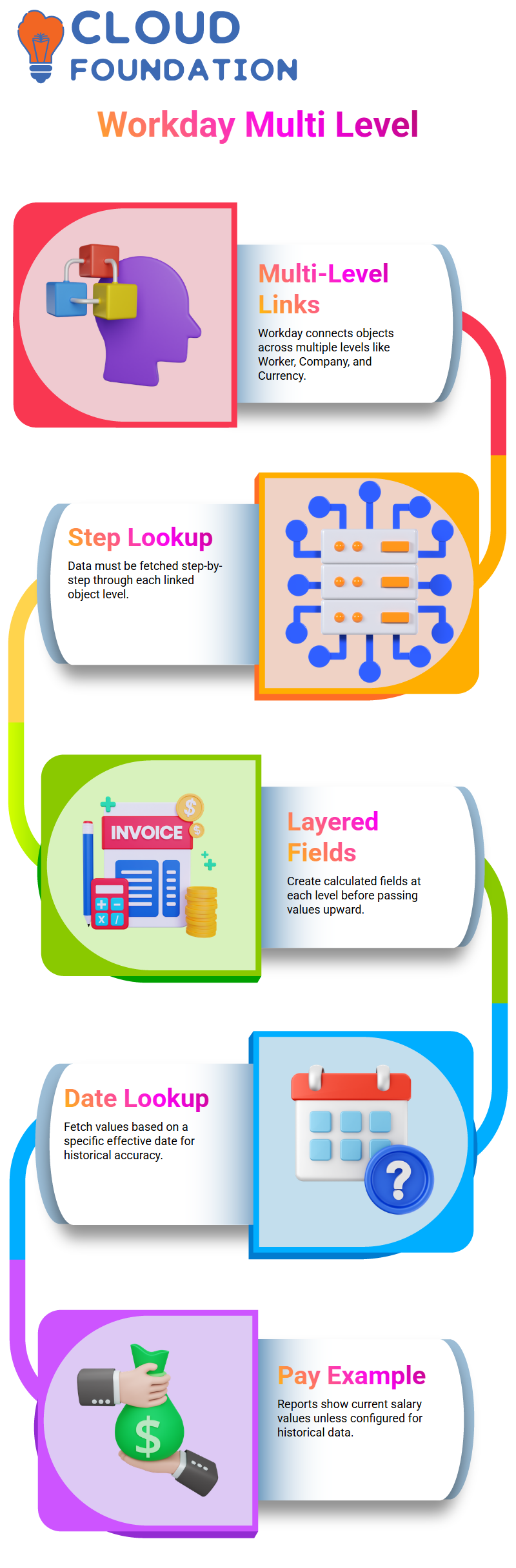
More deeply into Workday Integration, I begin to see how things are connected across several levels. Like, Worker is linked to Company, and Company is linked to Currency, which has the Symbol for Currency.
I have to set up Currency Symbol one step at a time before I can pull it into Worker. In order to get the Currency Symbol from Currency, I first make a Lookup Related Value on Company.
Then I add another Lookup field to the Worker to get that number from the Company. Moving info from C to B and then from B to A is pretty much what it is. When I deal with relationships on more than one level, I always use this organized method.
Using Lookup Value as of Date in Workday Integration
I always pay attention to the Lookup Value as of Date in Workday Integration, even though a lot of people don’t.
I don’t always need the present value; sometimes I need what it was on a certain date, like when my job or pay changed in the past.
I chose the correct date and time for Workday by setting the start date. This helps me a lot to get correct past data for both reports and integrations.
Total Base Pay
Let’s look at a real-life example of how to add up base pay in Workday Integration. Suppose we have a field for the total base pay of a worker.
When you add this field to a custom report in Workday Integration, it will show the highest number, which is the employee’s current salary in the system.
Workday Integration will show $120,000 if Jacqueline’s salary is that much today in this case.

Workday Integration Training

Getting Salary as of a Specific Date
Let’s say you don’t want the pay for today, but for January 1, 2023.
No changes were made to the current salary when the total base pay field was added directly in Workday Integration.
We set up a “lookup value as of date” calculated field in Workday Integration to get the value as of a certain date.
You can use this to see what your total base pay was on any date you choose.
Setting Up the Calculated Field
It is the source field, like “total base pay amount,” that you choose when you set up the generated field in Workday Integration.
Then, add the date it starts to work. You can use any date, even one that is further away, like January 1, 2023.
This makes sure that the report shows the salary as of that date instead of the number at the top of the stack.
 Effective Date vs Entry Date
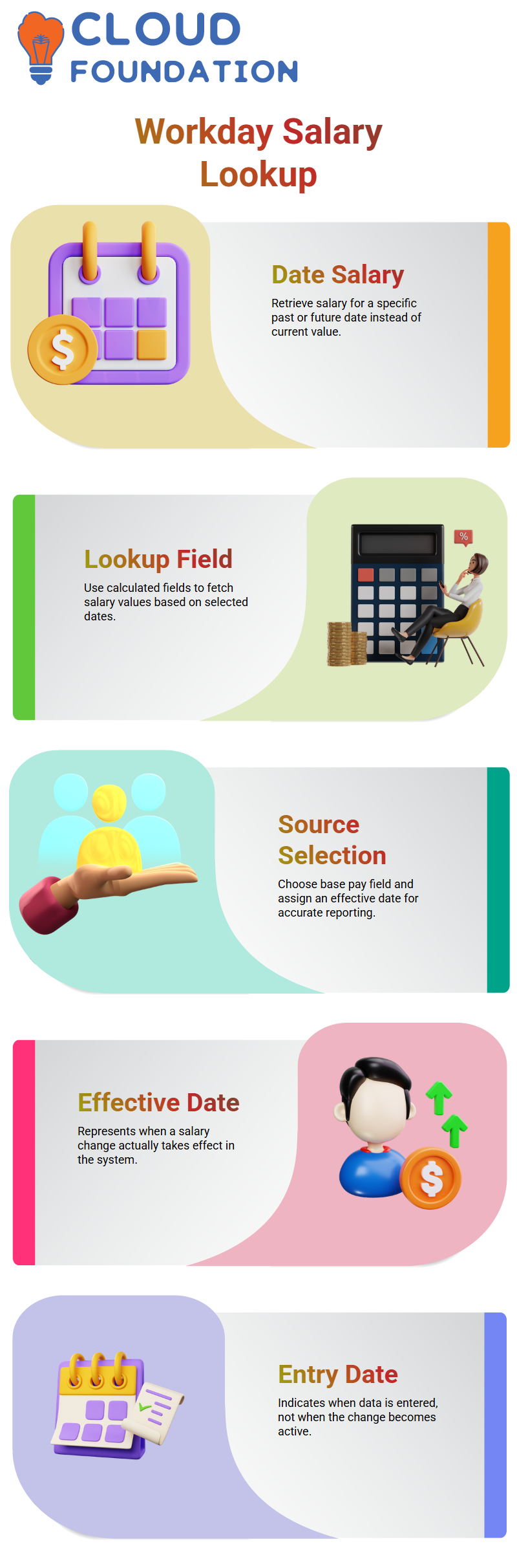 Effective Date vs Entry Date
In Workday Integration, the effective date and entry date are very important. Say Sweta is going to get a raise on March 1, 2025.
On February 17, 2025, the information about the raise could be put into Workday Integration.
In this case, the entry date is February 17 and the effective date is March 1.
When figuring out salaries or raises, Workday Integration always puts the effective date first because it shows when changes actually happen.
Exploring Worker History
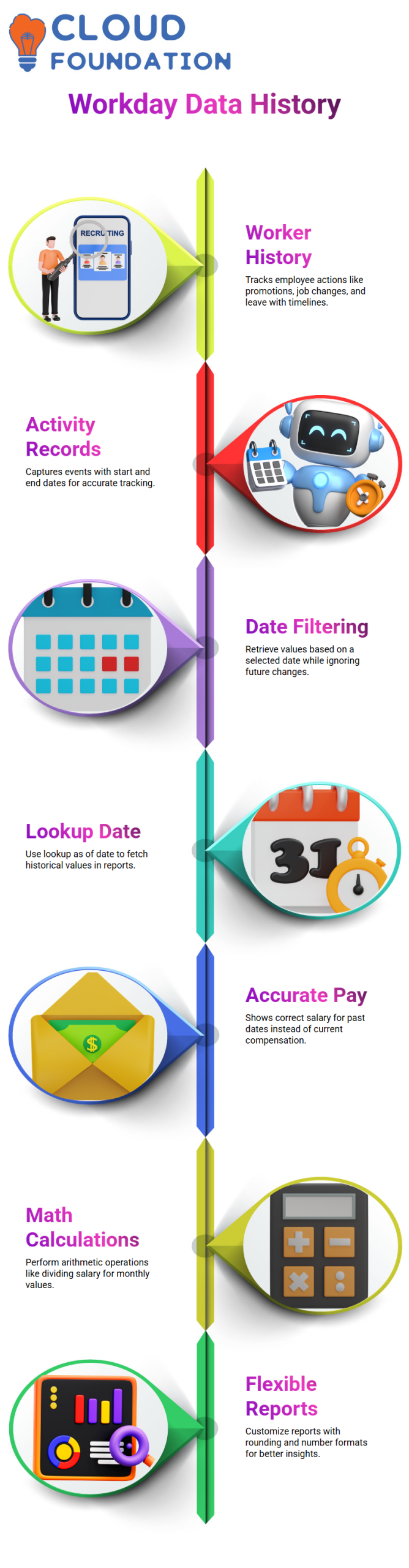
Once you go to the profile of a worker in Workday Integration, you can see all of their activities in their worker history.
For instance, requests for time off, promotions, and job changes within the same company are all kept track of with dates for when they start and end.
With Workday Integration’s calculated fields, you can get the right values as of any date and ignore data entered after that date.
Using Lookup Value As Of Date in Workday Integration:
In Workday Integration, you can make a “lookup value as of date” calculated field to get the value of a field on a certain date.
If you add this calculated field to your custom report, it will show you the correct total base pay for the date you choose.
For example, Jacqueline’s total base pay from a previous date will now show $132,000 instead of the $150,000 she makes now.
Arithmetic Calculations Reports in Workday Integration:
It is also possible to do math with Workday Integration.
For instance, to change a yearly salary to a monthly salary, use a calculated field to divide the total base pay by 12.
In Workday Integration, you can pick the type of numbers and how they are rounded.
This helps when making reports that show monthly or hourly rates that are based on total base pay.

Workday Integration Online Training
Workday Integration Best Practices
Check your field types and operator settings every time you work with Workday Integration calculated fields.
To keep speed from going down, keep XML alias names short (16 characters or less).
You’ll feel more comfortable using Workday Integration reports to get accurate salary and employee data if you practice making total base pay fields, effective date lookups, and math calculations.
Workday Integration Salary Calculations
Not long ago, I used Workday Integration to make a pay report. Someone changed a number to 8143, and I needed to split it by 12.
Workday Integration gave me 12562.16 right away, which shows how accurate the numbers can be.
When you use Workday Integration for HR or payroll records, this type of calculation is common.
You don’t have to worry about doing math by hand; the system does it correctly for you.
Using Arithmetic Calculated Fields in Workday Integration
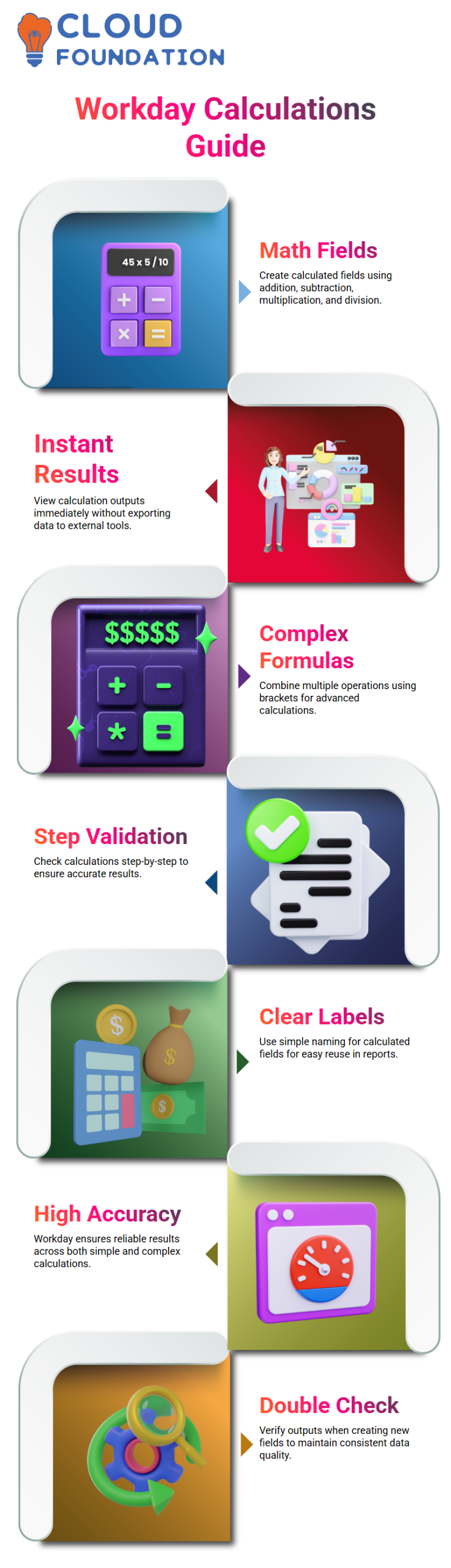
I can make math-based fields in Workday Integration that do addition, subtraction, multiplication, and division.
I can even use brackets to combine more than one action.
I can see the results right away when I build these calculated fields in Workday Integration.
This lets me check the data without having to export it to Excel. It saves a lot of time.
Practical Tips for Workday Integration Calculated Fields
Working with Workday Integration lets you make complicated formulas if you need to do more than simple math.
I think you should check your numbers one step at a time to make sure they give you correct answers.
Clear labels for your generated fields in Workday Integration are something I always tell people.
This makes it simple to use them in apps and reports later on.
Workday Integration Calculation Accuracy
I trust Workday Integration to do all of my HR and pay calculations because it is very good at getting things right.
The answers are correct for everything from simple math to complicated formulas.
I check the results twice every time I add a new calculated field to Workday Integration, but I rarely find mistakes. The system makes sure that all reports have the same figures.

Workday Integration Course Price

Vanitha
Author