Workday Integration XSLT Training
Workday Integration: Configuring Custom Report Transformation
You have two options when customising a report transformation: Configure Transformation or Edit Transformation.
You can set headers and footers, add default headers, and adjust the layout to suit your needs by selecting Configure Transformation.
Workday Integration creates the file when you execute it. Fixed-width and delimited formats are available.
Even if some values are shorter than anticipated, the fixed-width format guarantees consistent output by reserving a fixed number of characters for each field.
Workday Integration: Fixed Width and Padding
Fixed-width files in Workday Integration allocate a fixed number of characters to each field.
For instance, the system inserts five blank spaces if an employee ID is set to ten characters but only has five. This guarantees that all entries have the same data.
Depending on your settings, you may add padding characters—usually spaces—to the left or right.
This is true for birth dates, last names, first names, and other fields. Workday Integration truncates values longer than the allotted length to preserve file consistency.
Workday Integration: XSLT Transformation Basics
XSLT is an additional way to transform data in Workday Integration.
XSLT allows for more sophisticated customisation than conventional settings, serving as a programming language for your data.
In these sessions, we will examine two XSLTs to demonstrate how data can be effectively modified.
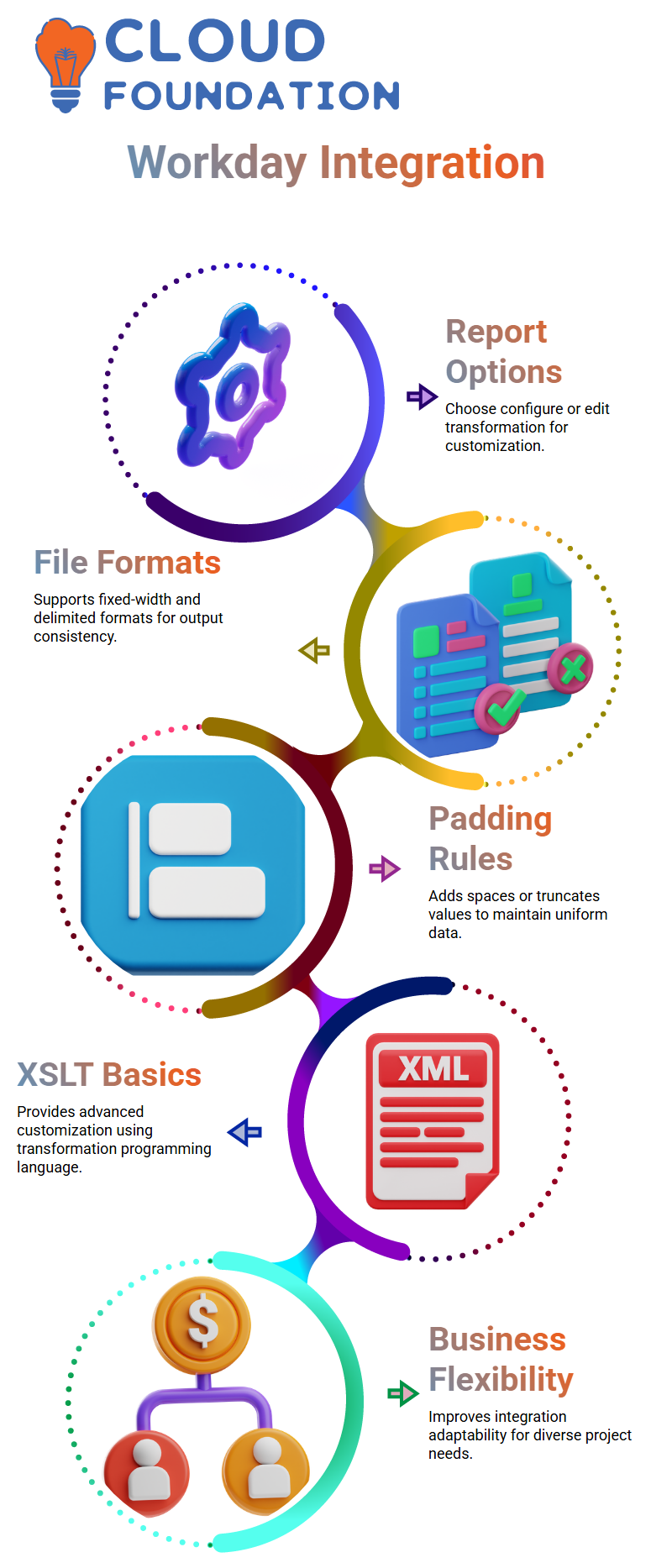
You may improve the flexibility of your Workday Integration output files to meet different business needs by performing XSLT transforms.
Complex integrations and the success of real-time projects depend on this stage.
Workday Integration: Setting Up Custom Transformations
Setting up a custom transformation is one of the first things I do when working with Workday Integration.
For this, a conventional report transformation is not necessary. You have complete control over the flow and modification of your data Workday Integration’s custom transformations.
I begin by choosing ‘Custom Transformation’ in the transform section of an EIB outbound.
Workday Integration gives me a fresh slate to develop a new XSLT transformation because it immediately detects that one isn’t yet available.
I like to go step-by-step. I start by choosing “Custom Transformation” in the transform section of Workday Integration.
Next, I look for “Create XSLT Attachment Transformation.” This enables me to use Workday Integration to produce a new XSLT file immediately.
Workday Integration: Creating and Attaching XSLT
I name the XSLT attachment, select version 2.0, and then attach the created XSLT file.
Linking the freshly constructed XSLT to the transform tab is made simple by Workday Integration. It’s ready to go; all I have to do is choose the change I made.
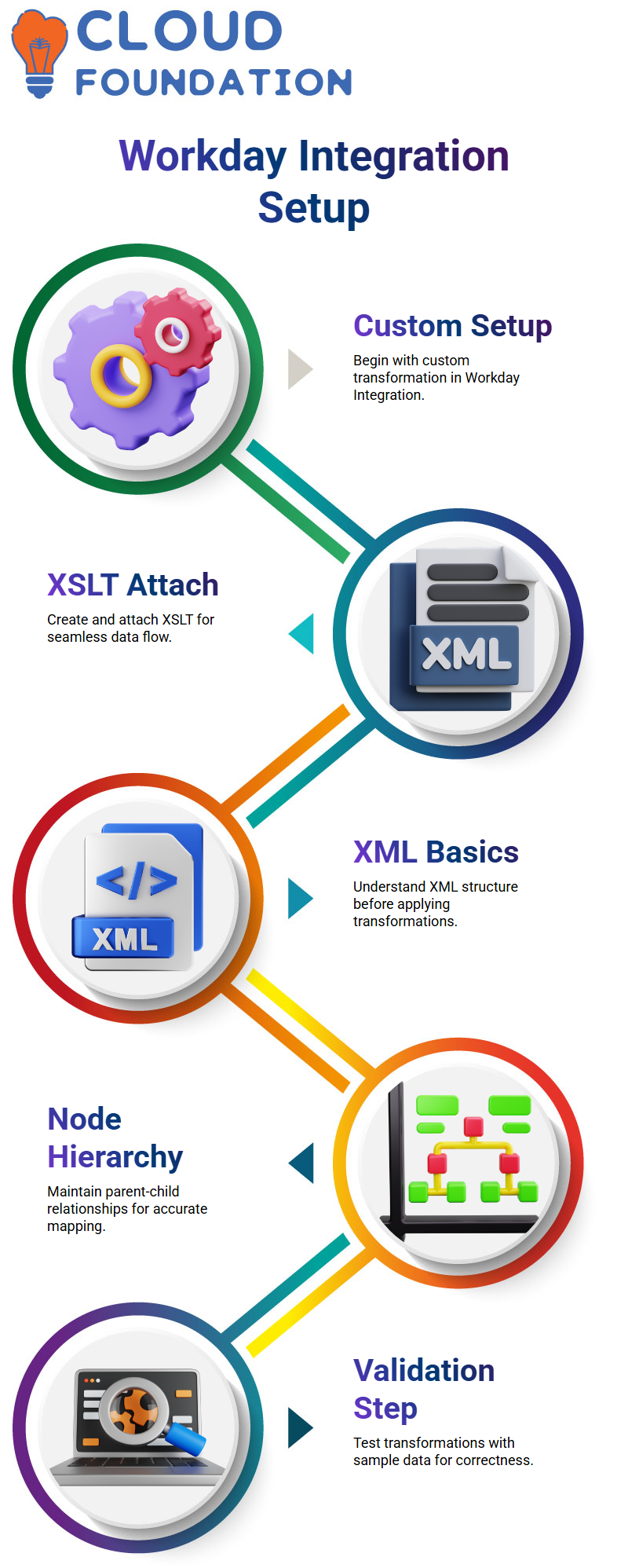
Workday Integration allows me to change the attachment if I need to update the XSLT.
I may upload a fresh version and remove the old one. This adaptability ensures that my data processing remains seamless and that my Workday Integration transforms current.
I verify how the data will be transformed after connecting the XSLT.
I can easily validate my reasoning since Workday Integration displays to me how each record will appear following the transformation.

Workday Integration Training

Workday Integration: XSLT Basics
I make sure I grasp XML before delving further into XSLT. XML is the input format used in Workday Integration transformations.
Extensible Stylesheet Language Transformation, or XSLT, transforms raw XML into the desired output structure.
Every XML file in Workday Integration has to have a single root node. I may have many child nodes and even nested grandchildren nodes within that root node.
Because Workday Integration employs the hierarchy to map data accurately, it is important.
Every time I open a node, I have to remind myself to shut it.
All child nodes in Workday Integration are included in the correct block when a parent node is opened and closed correctly. Clean transformations need this.
Workday Integration: Parent-Child Relationships in XML
Parent-child connections in XML is essential for Workday Integration. Every other node is descended from the root node.
Workday Integration can properly convert data by reading the structure created by each child node, which has its own children.
I often describe it as follows: each child node is a parent, the grandkids are the real data points, and the root node is the grandpa.
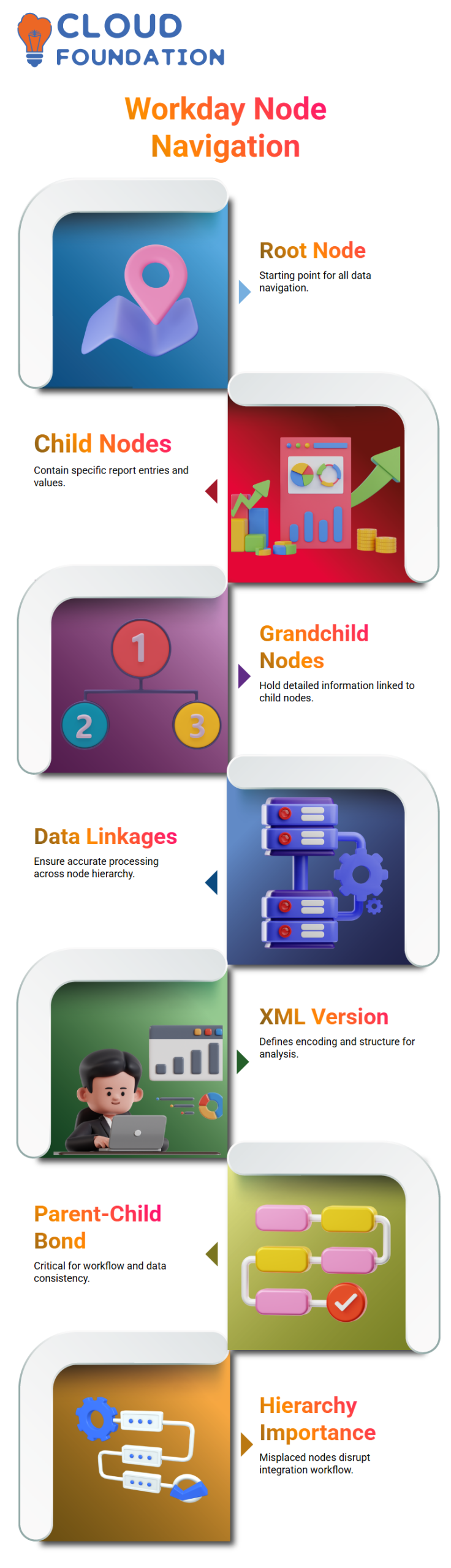
Maintaining the structure is essential because Workday Integration processes this hierarchy precisely as it appears.
I make sure my nodes start and finish correctly each time I work in Workday Integration.
The transformation may fail if nodes are opened or closed incorrectly. Here, attention to detail guarantees seamless EIB outbound procedures.
Workday Integration: Tips for Effective Transformations
Verifying the hierarchy is one of my main recommendations for Workday Integration. Every root, parent, and child node must follow the XML rules.
To prevent mistakes, I additionally ensure that every XSLT is correctly affixed to the transform section.
Managing multiple XSLT attachment versions is simplified by Workday Integration.
I always link to the most recent version in the transformation tab, but I save earlier versions for reference.
Lastly, I always use sample data to test transformations in Workday Integration.
This ensures that all parent-child relationships are handled appropriately and that my XSLT logic works as expected.
Workday Integration: Nodes and Relationships
Allow me to demonstrate how I handle XML structures in Workday Integration. Consider it akin to a family tree.
You have kid nodes that are similar to sons and daughters, and a root node that serves as the grandpa.
Because each child node in Workday Integration relies on its parent node, it is essential to comprehend this structure.
For instance, you may have Child One and Child Two in a root node.
Child One can produce a child of its own, which then becomes the root node’s grandchild.
This helps accurately map data links in practical Workday Integration scenarios. The foundation of data organisation consists of the root node, offspring, and grandchildren.
Workday Integration: Navigating Child and Grandchild Nodes
Finding the root is the first thing I usually do when I open a node in Workday Integration.
I then find any grandchild nodes and child nodes. Specific values are stored in each node.
For example, there may be one report entry in Child One and another in Child Two.
Accurate data processing in Workday Integration is ensured by acknowledging these linkages.
I prefer to think of this as a journey. Let’s say you made a hotel reservation in Goa.
The root node resembles your nation, India. The city of Goa is the child node. Your hotel reservation is the grandchild node.
This kind of navigation is necessary for Workday Integration to ensure proper data flow between nodes.

Workday Integration Online Training
Workday Integration: Exploring XML Versions and Node Structure
In Workday Integration, each XML file begins with a version declaration, typically version 1.0 with UTF-8 encoding.
This instructs the machine on how to analyse the information. I stress that the root node opens first, followed by many child nodes.
For structured data processing, each child node is crucial since it contains particular data, such as report entries.
In reality, a single root node may contain several report items.
Every value in a report entry, which is a child node, is essential to Workday Integration.
Workflow may be disrupted if a node is misplaced or a hierarchy is misunderstood.
I thus always emphasise the importance of the parent-child bond.
Workday Integration: Real-Time Data Mapping
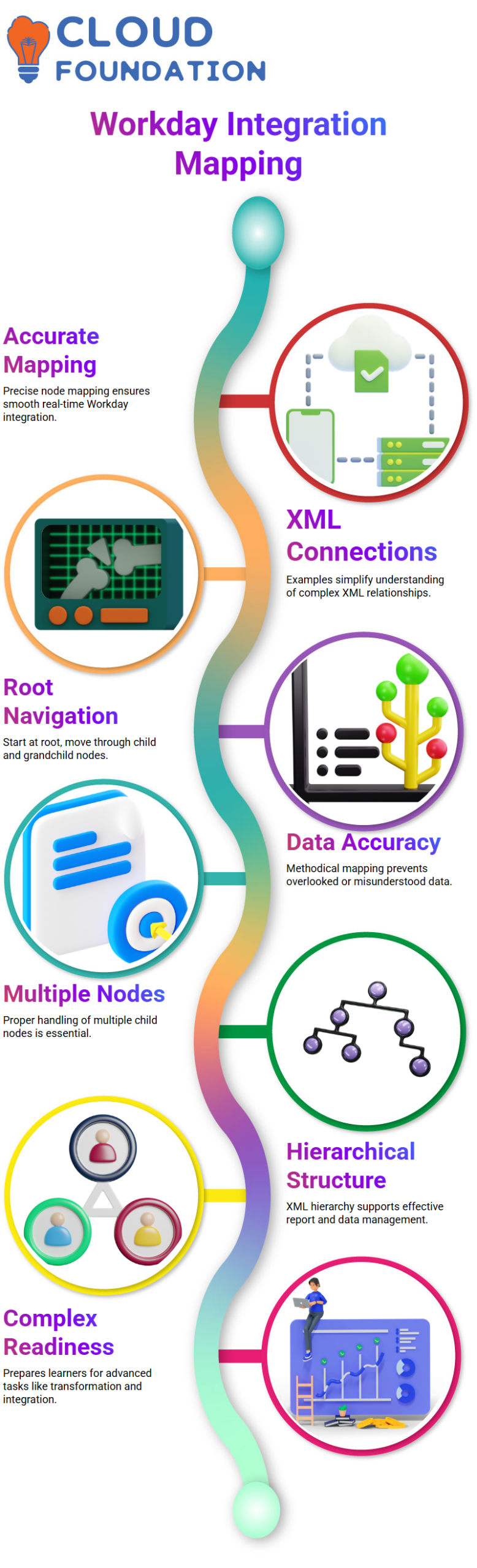
Accurate node mapping is essential in real-time Workday Integration situations.
Consider yourself as the kid, Kid One as your father, and the root node as your grandpa.
I can more successfully explain complicated XML connections to pupils thanks to this example.
When exploring huge XML files in Workday Integration, it helps to understand this mapping.
When navigating through nodes, begin at the root, go to child nodes, then, if needed, proceed to grandchildren.
Workday Integration runs more smoothly because of this methodical approach, which also guarantees that no data is overlooked or misunderstood.
Workday Integration: Handling Multiple Child Nodes
In Workday Integration, I usually stress the need to manage many child nodes properly.
A root node can have several offspring, and each offspring may have its own set of grandchildren.
This structure is evident in XML tutorials, and it immediately translates into effective management of reports, entries, and hierarchical data in Workday Integration.
The Workday Integration procedure ensures that all required data points are captured by accounting for each report input.
Additionally, this approach gets Learners ready for more complex tasks, including data processing, transformation, and seamless integration.
Workday Integration: Practical Navigation Tips
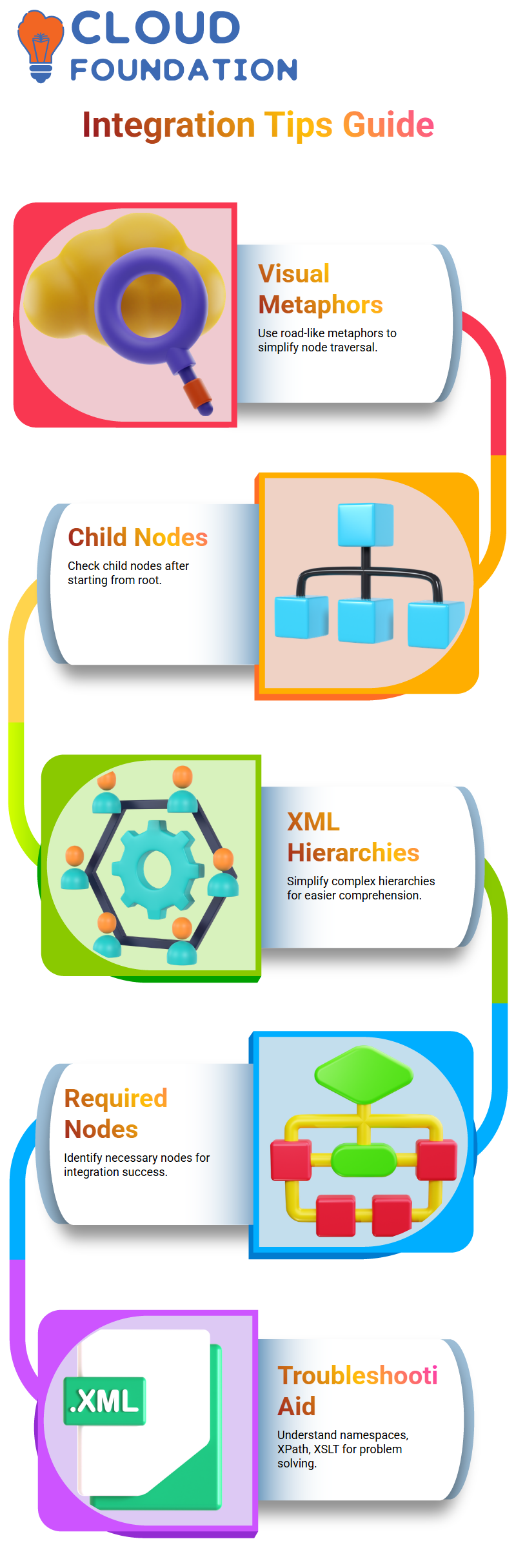
I often use visual metaphors to illustrate Workday Integration. Consider traversing nodes, for instance, as akin to travelling along a road.
Check the child nodes after starting from the home (root) and moving to the necessary data point.
This comparison simplifies complex hierarchies and facilitates comprehension of XML interactions.
Additionally, you must understand which Workday Integration nodes are required and which are not.
Depending on your needs, certain sections—such as namespaces, XPath, or XSLT—may be unnecessary, but knowing where they fit in the hierarchy can help with troubleshooting.

Workday Integration Course Price

Vanitha
Author