Workday Integration Classes Online
Prompts in Workday Integration Reports
The Workday Integration system may prompt you to provide specific values before producing the output each time you run a report. We refer to these input areas as prompts.
The system promptly requests that I provide certain information, such as Worker Type, Employee Type, or Contingent Type, when I build a custom report and click Run. In many circumstances, these reminders come directly from the data source filter. The data source in Workday Integration frequently has built-in prompts that show up on their own without the need for extra settings.
The integrated prompts are readily visible when I navigate to the data source filter’s relevant activities. This indicates that some default behavior is already provided by Workday Integration. I am not constrained by those defaults, though. The Workday Integration report can be made more dynamic and user-friendly by creating and configuring my own questions.
Displaying Prompt Values in Workday Integration Output
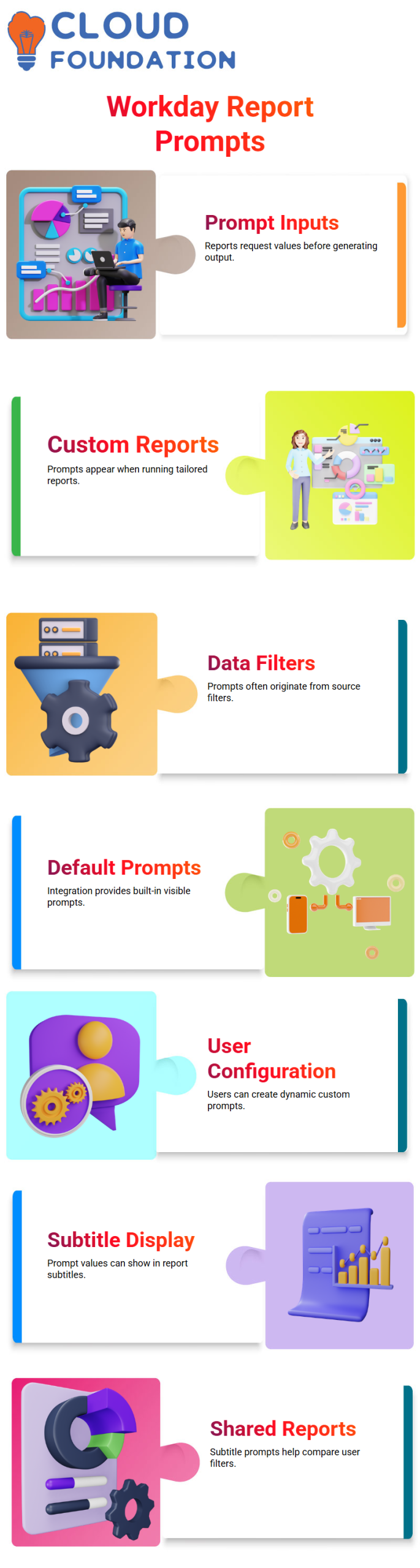
Let me describe how Workday Integration’s “Display Prompt Value in Subtitle” option operates. Any value I input in the prompt appears above the report output as part of the subtitle when I enable this checkbox and then run the report.
For instance, Workday Integration shows “Worker Type = Employee” in the subtitle section if I type “Employee” in the Worker Type query and click OK. When evaluating the result, this makes it easier for users to quickly grasp which filters they used.
Other questions won’t show up in the subtitle if I don’t submit their values. Only the prompts where I enter data are shown by Workday Integration. When many people run the same report with various settings in Workday Integration environments, this capability becomes quite helpful.
Managing Default Prompts in Workday Integration
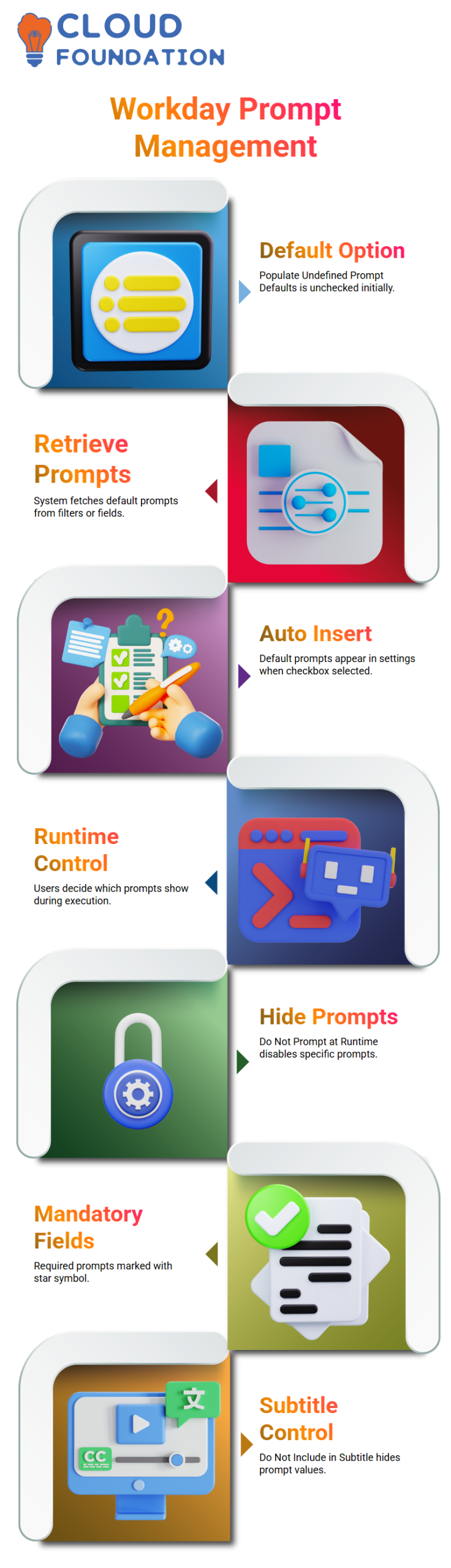
This checkbox is left unchecked by default. Workday Integration automatically retrieves and presents all default prompts for editing from the data source filter, business object, or field configuration when I select it.
Workday Integration initiates the activity and inserts the default questions into the settings section as soon as I tick this checkbox. The checkbox then unchecks on its own. Workday Integration always acts in this manner. Every time I wish to examine or change the default prompts in my Workday Integration report, I utilize this option.
I still have control over whether Workday Integration’s default prompts show up at runtime. I have the option to make certain prompts necessary, hide them, or stop their values from showing up in the subtitle.
Controlling Runtime Behavior in Workday Integration Prompts
If I want a specific prompt not to show up when users run the report, I can choose “Do Not Prompt at Runtime” in Workday Integration. For instance, Workday Integration won’t display the Contingent Worker Type pop-up during execution if I disable it.
I can also mandate a prompt. Workday Integration requires the user to specify a value before executing the report when I designate Worker Type as needed. The system makes it obvious that the field is required by placing a star sign next to it.
Another crucial Workday Integration parameter is “Do Not Include in Subtitle.” If I activate this option, Workday Integration won’t show the user’s input in the subtitle. This allows me to precisely control the amount of information that appears in the final output of the Workday Integration report.

Workday Integration Training

Setting Static and Dynamic Defaults in Workday Integration
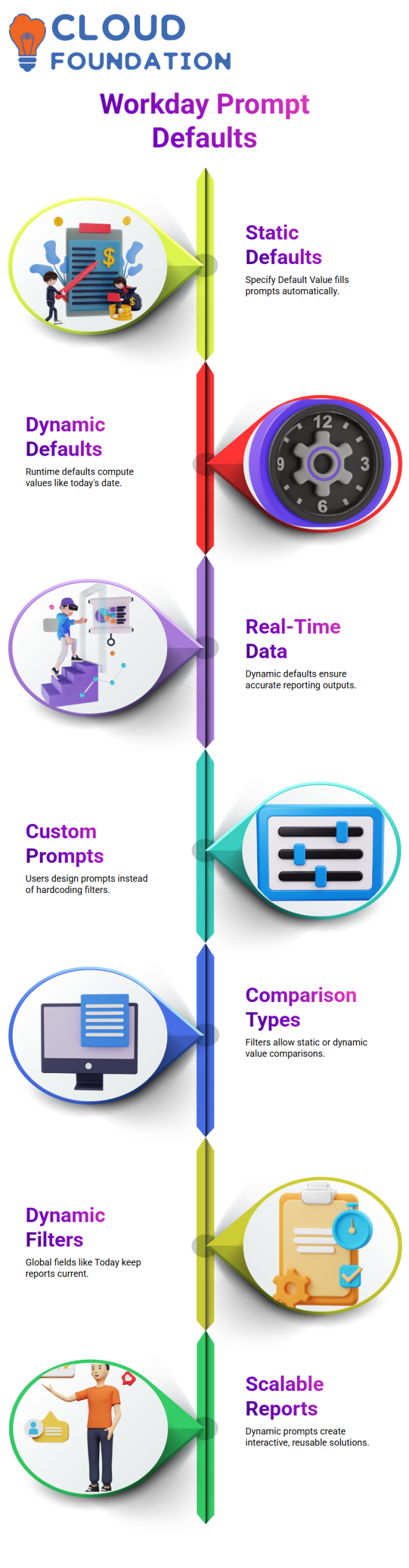
I occasionally want users to run Workday Integration reports without having to manually enter values each time. If so, I set default values. I may give the Worker Type question a preset value, like “Employee,” by “Specify Default Value.” That value is automatically filled in by the system when the user runs the Workday Integration report.
In Workday Integration, “Default Value at Runtime” is what I utilize when I need something more dynamic. I can now dynamically derive values, such as utilizing today’s date every time. Rather than depending on a static input, the system computes the value at runtime each time someone runs the Workday Integration report.
In complex Workday Integration scenarios where reports rely on real-time data, dynamic defaults are crucial. When creating scalable and reusable Workday Integration solutions, I regularly employ this strategy.
Creating Custom Prompts for Flexible Workday Integration Filtering
Now, let me show you how I design my own prompts in Workday Integration instead of hardcoding information in filters. The Workday Integration report’s versatility is restricted if I enter a value directly in the filter condition. Rather, I set up the comparison type to enable runtime user input.
I notice several kinds of comparisons in Workday Integration’s filter configuration. “Specified in This Filter” enables me to hardcode values. During runtime, “Value from Another Field” enables me to dynamically extract values from another field. I convert a static filter into a prompt-driven Workday Integration report by selecting the proper comparison type.
For instance, I set up a condition where Hire Date is greater than today’s date in Workday Integration to identify future hire personnel. I utilize a dynamic runtime value instead of manually changing the date every day. This guarantees that the Workday Integration report automatically assesses potential hiring based on the current date each time I run it.
I make every Workday Integration report more interactive, scalable, and user-friendly by carefully crafting prompts. I allow users control while preserving structure within the Workday Integration framework, as opposed to locking the functionality inside the filter.
How I Configure Dynamic Filters in Workday Integration
I always try to avoid hard-coding variables when working on Workday Integration reports. I use values from another field instead of entering worker names or setting dates. For instance, I use the global field named Today while setting up a date filter. The report is dynamic and accurate without the need for manual updates because Workday Integration automatically selects the current date during runtime.
I use comparison operators such as larger than or equal to, or less than or equal to, in Workday Integration, and then I use the Today field. When I run the report, the system immediately assesses Today because it is a global field in Workday Integration. My filters remain adaptable and in line with current data thanks to this method.
Because they require less maintenance, I rely a lot on these dynamic fields in Workday Integration. Whenever I discuss calculated fields and global fields in Workday Integration sessions, I highlight how effective this feature can be for real-time reporting.
Prompts Effectively in Workday Integration Reports
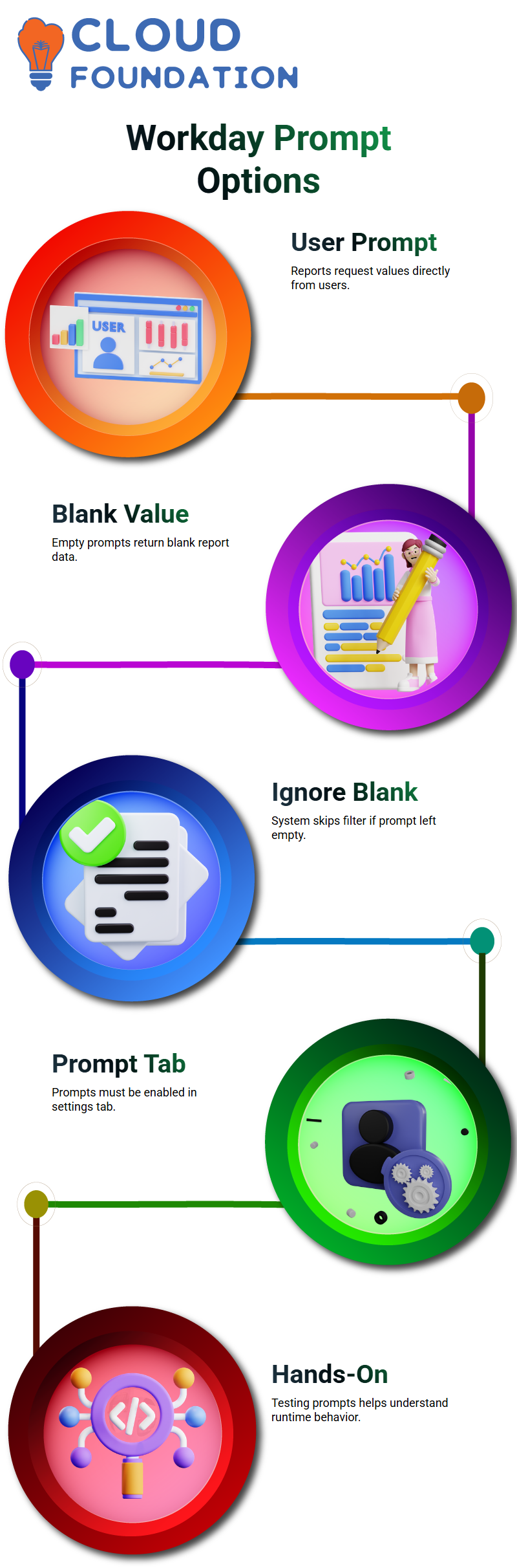
Instead of hard-coding worker values in my Workday Integration reports, I prefer to prompt the user. I have two primary prompt options with Workday Integration. I can ask the user for a value first. Second, if the user enters a blank value, I can ask for it and disregard the filter.
The report shows blank data if I select only “prompt the user for the value” in Workday Integration and the user does not enter anything at runtime. This occurs as a result of Workday Integration’s attempt to compare the field with an empty value, which naturally fails to discover comparable data.
But the behavior shifts when I choose to “prompt the user for the value and ignore if blank” in Workday Integration. Workday Integration just ignores the filter condition if the user leaves the prompt blank. My Workday Integration reports are now more adaptable and easier to utilize thanks to this capability.
I always go to the Prompt tab in Workday Integration after creating a custom prompt and make sure it is correctly enabled. Unless I set it up in the prompt area, Workday Integration does not initiate the prompt automatically. I can also specify default settings or let the user enter values at runtime after I add it.

Workday Integration Online Training
Testing Prompt Behavior in Workday Integration Advanced Reports
Whenever I teach advanced reporting in Workday Integration, I insist on hands-on practice. I ask learners to use Workday Integration to produce an advanced report precisely as I do. Initially, they run the Workday Integration report without supplying any value and choose “prompt user for the value.” They see that the output is blank.
I then request that they run the Workday Integration report once more after passing a value. They notice the differences in the production right away. The same test is then repeated Workday Integration’s “prompt user for the value and ignore if blank” option. They gain a good of how Workday Integration manages various prompt setups with this easy practice.
Additionally, I urge everyone to use prompts in Workday Integration’s sub filter as well as the main filter. You can handle runtime parameters with complete confidence after practicing this several times in Workday Integration.
Exploring the Prompt Tab in Workday Integration
Don’t merely follow my instructions when working on reports in Workday Integration. Launch the prompt tab, examine all of the options, and experiment with various setups. I often tell my learners that the best way to make Workday Integration simple is to try it out within your tenant.
To verify what I create, I provide images or extract configurations when I create test cases for Workday Integration. I advise you to exercise all of the prompt options in Workday Integration, as you have tenant access as well. In Workday Integration, it’s part of the learning process if something breaks or acts strangely. Give it a try and let me know if you run into any problems.
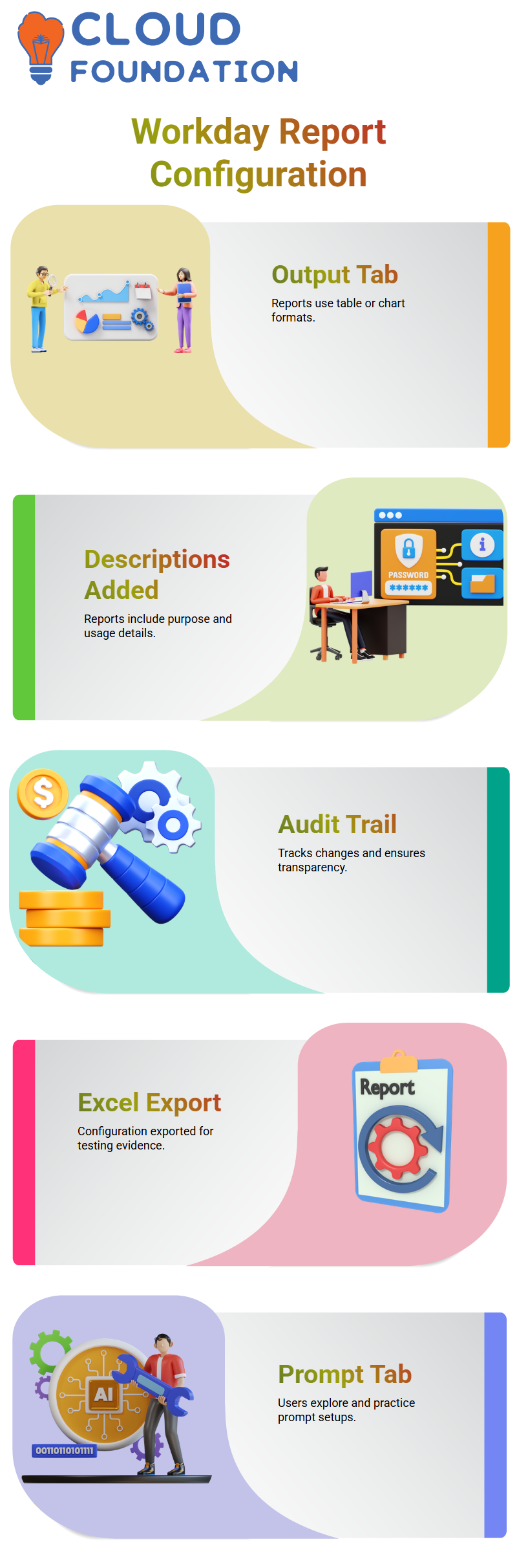
The Output and Share Tab in Workday Integration
The output tab in Workday Integration is straightforward. During basic report configuration, we don’t carry out many complicated operations. But Workday Integration’s share tab is crucial, and I always take the time to explain it.
Suppose you use Workday Integration to build a report. You automatically take ownership of that report. No one else can view or run the report if it is not shared in Workday Integration. We typically overlook the exception when learning because only the report administrators in Workday Integration have access to all reports.
I go straight to the share tab in Workday Integration when I produce a report and want my teammates to see it. I have several sharing possibilities with Workday Integration. I have three options: share with all authorized users, share with particular approved groups or users, or maintain the default setting.
Sharing Reports with Users and Groups in Workday Integration
I primarily use the option to share with particular permitted groups or individuals when working on real-time Workday Integration projects. For instance, I can add Logan McNeil’s name to the sharing area of a report I create in Workday Integration if I want him to have access to it. Workday Integration permits him to run the report as soon as I save.
I include each user’s name if I require more than one person to view the same Workday Integration report. Workday Integration’s versatility facilitates collaboration. I occasionally share the report with a security group rather than individual users.
Access in Workday Integration is managed by security groups such as Integration Administrator, Payroll Administrator, HR Administrator, and Compensation Administrator. Every member of a security group in Workday Integration automatically gets access when I share a report with them. Workday Integration handles scalable and safe report distribution in this way.

Workday Integration Course Price

Nishitha
Author