Workday Integration Training on Calculated Fields
Workday Integration Calculated Fields Overview
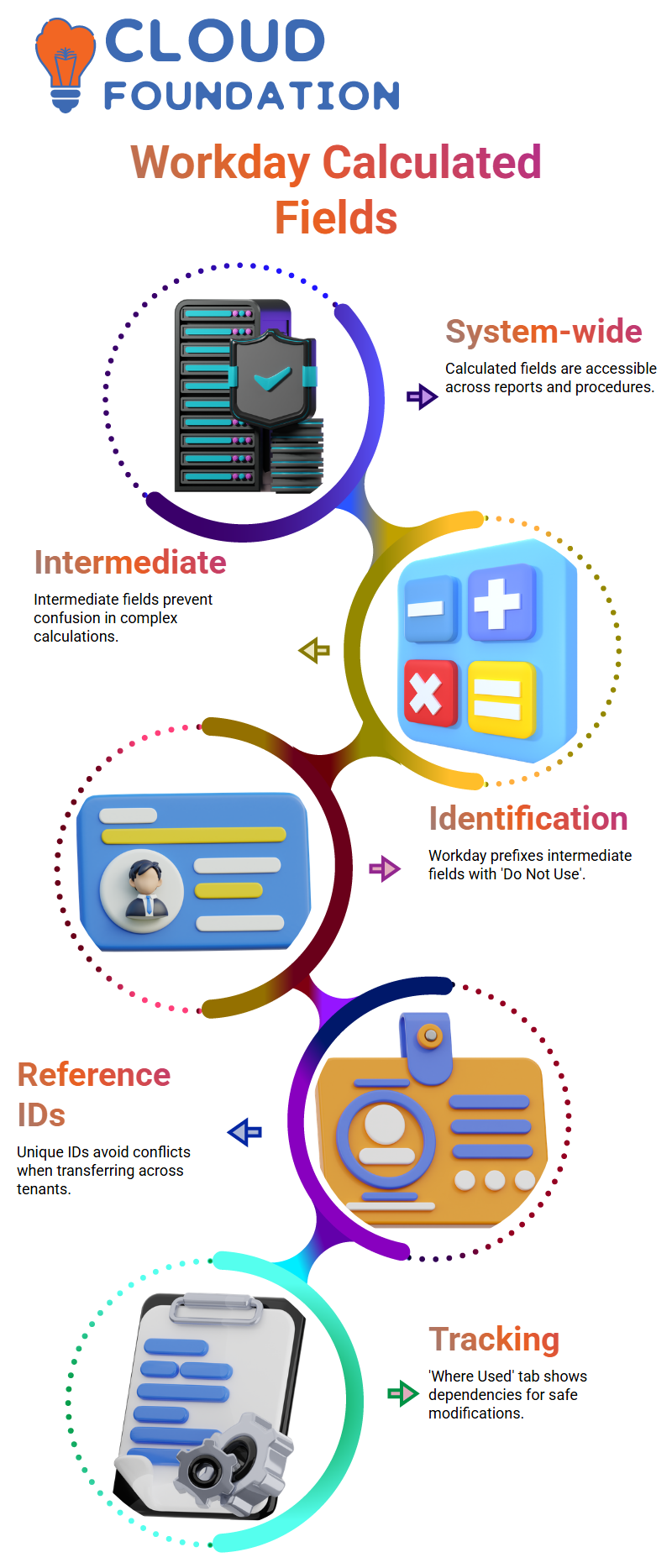
In this article, I will show you how to create calculated fields in Workday Integration. Because calculated fields allow you to construct data logic that can be used anywhere in the system, they are very powerful. Any calculated field is accessible system-wide by default, allowing you to use it in many reports and procedures without producing duplicates.
The intermediate calculation checkbox will appear when you add a calculated field. When a computed field is part of a larger computation, such as calculating the hours in a weekly schedule, I use it.
For instance, you may designate certain computed fields as intermediate if you want to add up the hours in a weekly plan. Clarity is guaranteed, and unintentional abuse is avoided.
Intermediate Calculations in Workday Integration
Workday Integration enables you to build complex calculations gradually. For a report, let’s say you establish 10 calculated fields, but only one is the final measure. The remaining nine may be classified as intermediate computations.
This keeps them from inadvertently appearing in other reports. Such fields are also automatically prefixed with ‘Do Not Use’ by Workday Integration, making it easy to identify which fields are intended only for intermediate computations.
Reference IDs and Workday Integration
Each object in Workday Integration, including computed fields, has its own reference ID. Because they avoid conflicts with existing items, reference IDs are essential for transferring things across tenants.
I ensure the reference ID is unique and distinct each time I create a computed field. Workday Integration will prevent you from reusing a reference ID if it already exists. This maintains order and avoids conflicts in your reports and fields.
Tracking Where Calculated Fields Are Used in Workday Integration
The ‘Where Used’ tab is useful in Workday Integration. This allows me to see exactly which objects or reports reference a computed field. Because you can immediately discover dependencies, this helps change or troubleshoot fields.
You can ensure your modifications don’t affect other reports by checking this tab.
Creating Numeric Constant Calculated Fields in Workday Integration
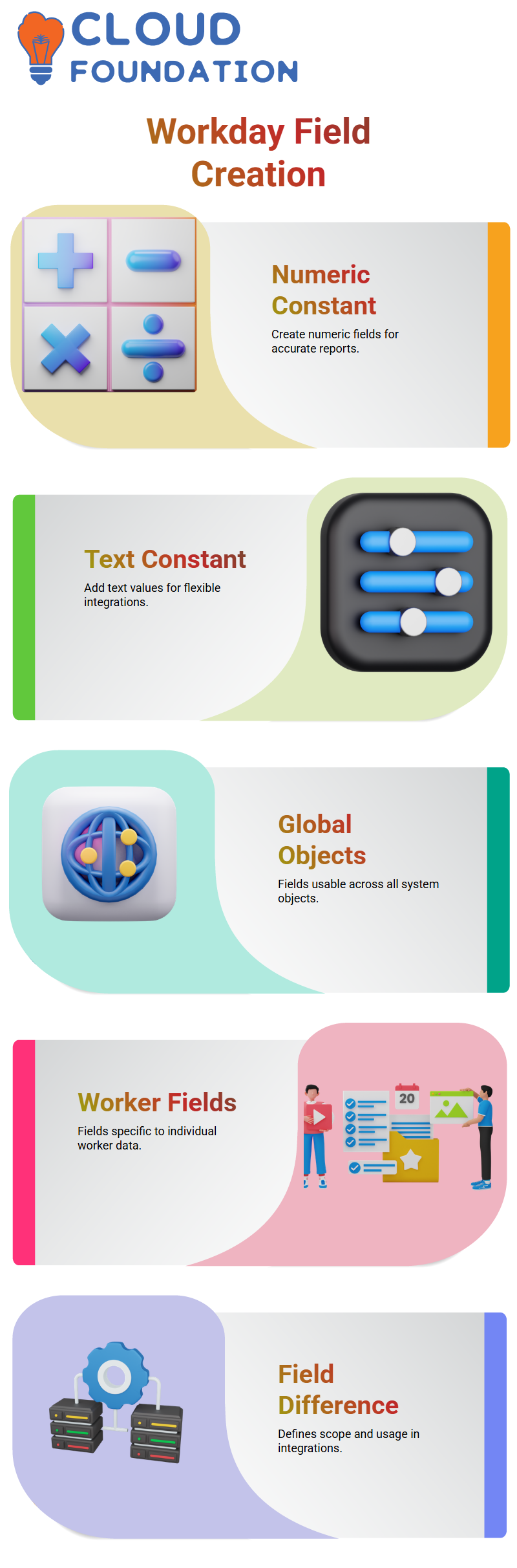
First, let’s examine the numerical constants of the computed fields. I make one by going to Workday Integration and selecting ‘Create Calculated Field’.
I chose the ‘Numeric Constant’ function after clearly naming it. The field is prepared for use in reports or other computations as soon as I enter the numerical value. Although this procedure is simple, it is necessary to create accurate Workday Integration reports.
Creating Text Constant Calculated Fields in Workday Integration
I’ll now demonstrate how to create a constant calculated field. The procedures are similar to those for numeric fields. Go to ‘Create Calculated Field,’ give it a name, choose ‘Text Constant’ as the function, and then type the text value.
For example, I may create a text constant called “Batch 4.”This field can now be used in Workday Integration whenever reports or integrations require text constants.
Global Business Objects in Workday Integration
Calculated fields can be built on many business objects through Workday Integration. The worldwide commercial aim is very potent. Fields produced on a global business object can be used anywhere in the system, unlike fields on worker or job profile objects.
Once you construct a field here, it may interact with any other object in Workday Integration without any limitations, which is why I consider it to be a very versatile entity.
Worker-Specific vs Global Calculated Fields in Workday Integration
Worker data objects have computed fields that are unique to that object when I create them. Global business items, however, provide me with the most options. Fields apply to a variety of reports, procedures, and objects.
Because it determines when and how a calculated field can be used, this difference is crucial for organising Workday Integration reports or integrations.

Workday Integration Training

Visualizing Calculated Fields in Workday Integration
I often see calculated fields in Workday Integration after creating them to make sure they are accurate. To examine values and confirm that fields function as intended, you can use dashboards or reporting tools.
Your Workday Integration calculations become more dependable and error-free with visual proof.
Best Practices for Workday Integration Calculated Fields
Based on my experience, I always use relevant reference IDs, give computed fields obvious names, and describe their use.
This avoids mistakes and maintains Workday Integration’s organisation. These guidelines make it simpler to create reports in the future and maintain the system, whether you’re establishing text or numeric constants.
Calculated Fields in Workday Integration
Calculated fields function just like business objects; I constantly remind my Learners during my Workday Integration presentations.
Navigating Workday Integration is somewhat simpler if you understand the basics. We previously looked at Workday Integration’s text and numeric constants, and I demonstrated how to include them in reports to see the data they retrieve.
Working inside Workday Integration involves more than merely creating theoretically computed fields. To see the real results, I include them straight into reports. You can better understand how Workday Integration manages data in the background with this practical method.
Substring in Workday Integration to Extract Characters
During Workday Integration training, I often hear the following question: How can we extract a worker’s first name’s initial or the first two characters? I use Workday Integration’s substring method to illustrate this.
I construct a calculated field on the Worker business object in Workday Integration to do this. I use Workday Integration’s substring method to extract characters from the First Name. I may extract text after a delimiter, before a delimiter, between two delimiters, or at a specified location, by Workday Integration’s substring function.
In Workday Integration, I use the fixed-position option when I only want the first two characters. Next, I set the fixed length to 2 and the starting position to 1. I am unable to enter the number 1 freely in Workday Integration. Rather, I have to use a numeric constant field with the value 1. For this reason, I utilise Workday Integration to establish global numeric constants that I can use anywhere.
I add the calculated substring field to a report after setting it up in Workday Integration. I get answers like “LO” from Logan or “JA” from Jacqueline when I compare the previous First Name with the new field. This is the real-time substring functionality in Workday Integration.
Working with Delimiters and Global Fields in Workday Integration
Delimiters such as commas, pipes, semicolons, and special characters must be stored correctly in Workday Integration. Delimiters are treated as text constants in Workday Integration. Therefore, I create a text constant calculated field on the Global business object whenever I need to use a special character, such as # or @, in a substring method.
You have the freedom to create these global computed fields in Workday Integration. You won’t be able to utilise them elsewhere if you just build them for the Worker or Job Profile. To keep your reporting and integration logic clear and effective, I usually recommend from globally reusable constants in Workday Integration.
When I use delimiters to configure a substring in Workday Integration, I reference only the global text constant that contains that symbol. This maintains the structure and reusability of my Workday Integration architecture.
Concatenate Text Function in Workday Integration
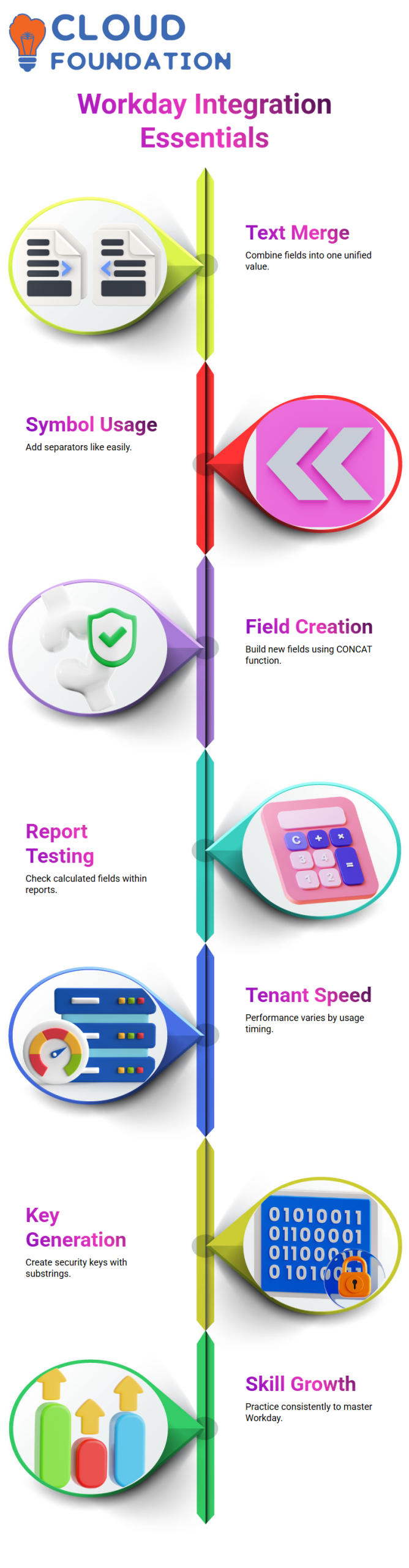
Concatenating text is another feature of Workday Integration that I often use. I may merge two or more fields into a single value this function. For instance, I may use a special character to separate my first and last names in Workday Integration.
I selected the CONCAT function and created a calculated field on the Worker business object to implement this in Workday Integration. After that, I add the First Name, Last Name, and a text constant such as @ or #. I create a new text constant calculated field directly from the same screen if the required symbol is not present in Workday Integration.
Workday Integration streamlines this procedure. I can create a text constant on the Global business object by clicking “Create Calculated Field,” saving it, and then quickly going back to my concatenate settings. I can move more swiftly without losing context thanks to this Workday Integration process.

Workday Integration Online Training
I never assume that a calculated field I generate in Workday Integration would function properly. Every time, I include it in a report and check the results. Testing is crucial in Workday Integration, as even minor setup errors can have unintended consequences.
Adding fields to reports takes time, and the tenant in Workday Integration might sometimes operate slowly. I explain to my pupils that this difficulty is a necessary component of mastering Workday Integration. You become more comfortable with calculated fields in Workday Integration the more you test.
You begin to see the true potential of calculated fields as you work with substrings, delimiters, text constants, numeric constants, and concatenate functions in Workday Integration. Your overall proficiency in Workday Integration increases with each minor setting.
Why Workday Integration Is Creating Real Opportunities
I want to be honest with you. Workday integration is now quite popular. I keep urging you not to give up because I see more and more opportunities in Workday Integration. You must maintain your ongoing Workday Integration practice, even if you are annoyed by the tenant’s slowness.
I get a lot of questions about why the Workday Integration tenant seems sluggish during training.
It primarily relies on time, based on my experience. Our nightly sessions sometimes coincide with peak usage because we are in India, and the servers are often utilised in the morning hours in the US.
The performance of Workday Integration is impacted. Find the optimal time window for your Workday Integration tenant to operate efficiently by experimenting with different time periods.
Creating a Security Key Workday Integration Calculated Fields
Let’s now discuss how to configure the Workday Integration in practice. In Workday Integration, I merged my last name, first name, and a special character to create a concatenated calculated field. The value, for instance, appeared as Logan MacNeil. This is the capability of Workday Integration’s computed fields.
You have a Workday Integration task from me. Utilising Workday Integration logic, create a security key. For now, the rule is straightforward. Combine the first two letters of the last name with the first two letters of the first name. To do this, use the concatenate and substring methods in Workday Integration. I’m keeping it basic today, but we’ll use date manipulation to make it more sophisticated later in the Workday Integration.
You begin to think rationally when you complete these Workday Integration challenges. You can enable trust in Workday Integration settings this way.
Text Functions in Workday Integration
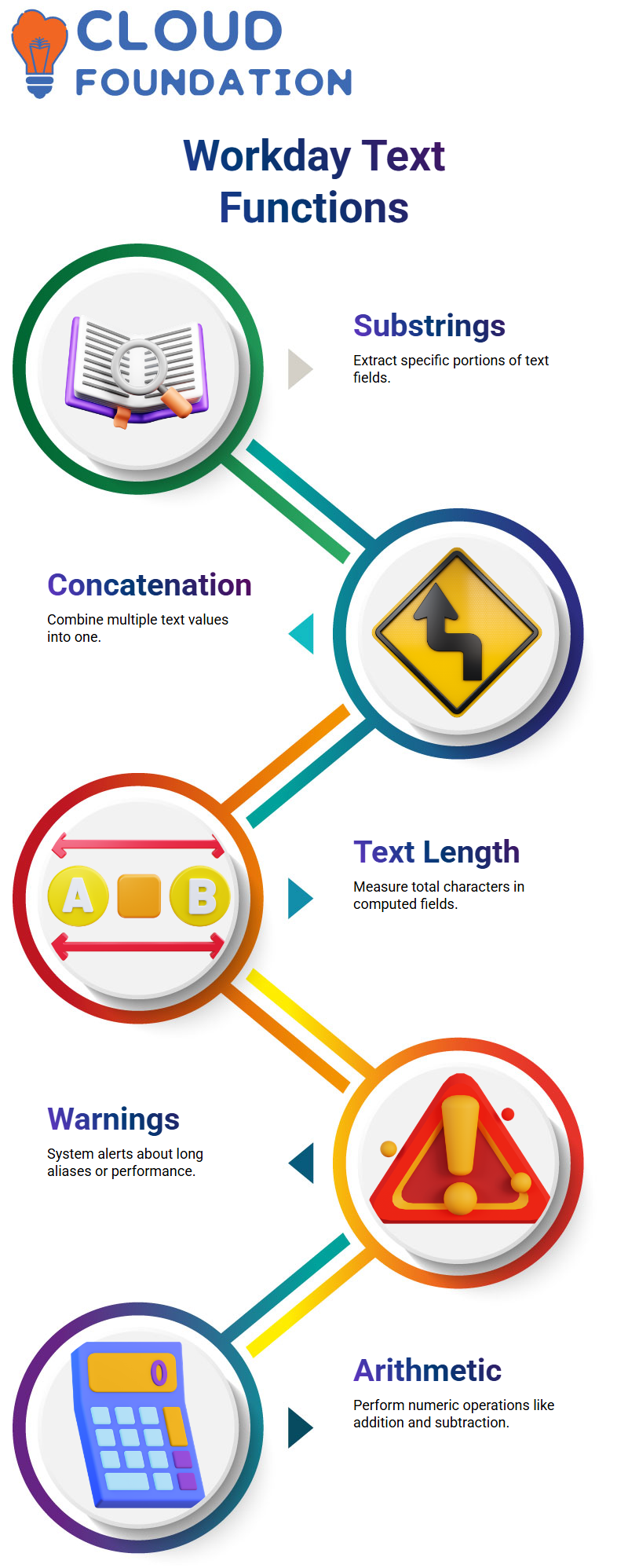
We have covered substrings, concatenation, text constants, and numeric constants so far in Workday Integration. These are all Workday Integration text-based computed field functions. Text Length is another crucial feature of Workday Integration.
You may determine how many characters are in a text field by Workday Integration’s Text Length feature. I determined the length of the concatenated value produced by Workday Integration, rather than just the first name. This indicates that I measured the entire string produced by the Workday Integration computed field.
I used the previously created concatenated calculated field as a reference when generating a new calculated field of type Text Length in Workday Integration to do this. The system recognises and handles both computed fields with ease since they are part of the Worker business object in Workday Integration.
Warnings and Performance in Workday Integration
A yellow caution indicator may appear when you configure computed fields in Workday Integration. In my case, Workday Integration alerted me that the alias exceeded 60 characters. Workday Integration warns that performance may deteriorate, yet still allows you to proceed.
Warnings and errors are not the same in Workday Integration. You must correct any errors shown by Workday Integration before continuing. You may proceed if a warning appears, but be aware of the reason behind Workday Integration’s flag.
You develop in Workday Integration by attentively reading such signals, which is why I always advise you to do so.
Calculating String Length and Numeric Totals in Workday Integration
Logan MacNeil gave 13 when I tried the Text Length computed field in Workday Integration. MacNeil has seven characters, Logan has five, and the special character adds another. Workday Integration precisely determines the overall length of the resulting string. Workday Integration manages string evaluation in this manner.
Some of you have inquired whether Workday Integration can include columns for credit and debit. Absolutely, in Workday Integration, that is feasible. But in Workday Integration, we don’t utilise concatenation for numbers. Rather, arithmetic-computed field functions, specifically designed for numeric operations, are provided by Workday Integration.
You may add fields with debit and credit balances to Workday Integration by creating an arithmetic computed field. Workday Integration uses appropriate numerical calculation types to provide addition, subtraction, multiplication, and division. As we continue to examine more complex Workday Integration topics, we will go into greater depth on that function.

Workday Integration Course Price

Nishitha
Author