Online Training Course on Workday Reporting
Why Workday Reporting Requires External Data Integration
I always provide comprehensive explanations of inbound and outbound integrations when I instruct Learners on Workday Reporting.
We refer to data that enters Workday from an external system, such as PeopleSoft, as inbound data.
We refer to the transfer of data from Workday to another system as outbound.
Let’s say a different system only takes M and F rather than M and F. The target system requires a different format, even if Workday Reporting may record the entire information as Male or Female.
In these situations, I use EIB to create an outbound integration and modify the data appropriately.
When you comprehend how reporting integration functions, Workday Reporting gains strength.
Ensuring that the appropriate data flows between systems in the appropriate format is more important than simply creating reports.
Workday Reporting in Real Client Environments
Allow me to share a story from my experience working with clients. I was employed by a logistics firm that has been in business for over 125 years.
Numerous staff members have been there for 20 to 25 years. We discovered how much knowledge long-term employees held in their brains when we introduced Workday Reporting.
At the very moment we intended to launch Workday Reporting, one payroll specialist was set to retire at age 60.
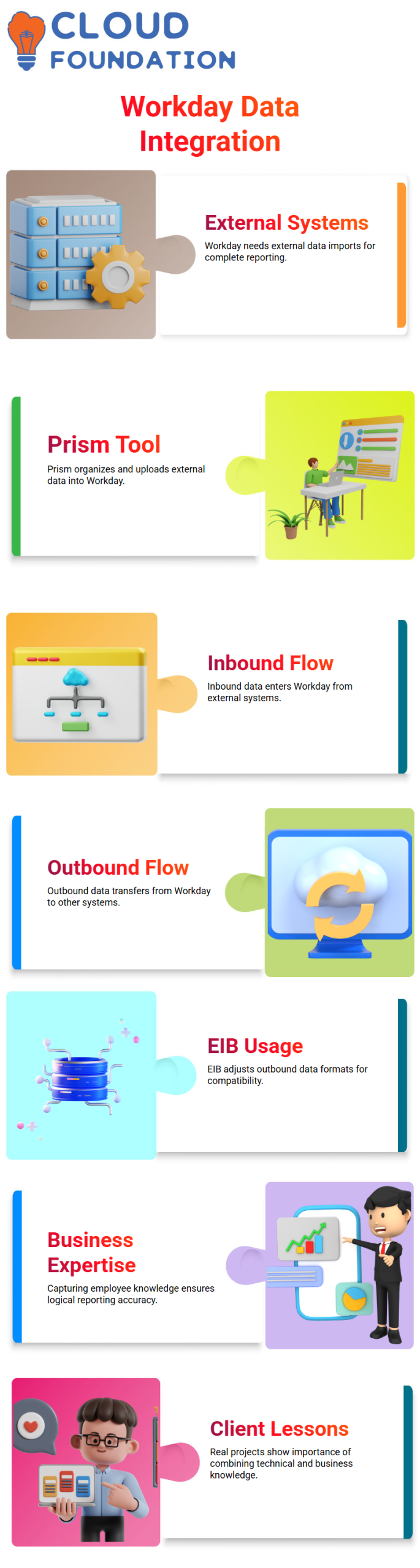
She has worked with PeopleSoft payroll for decades. Her skills had to be captured before we could completely implement Workday Reporting.
I always stress this: Workday Reporting is more than simply technical. Business acumen is necessary.
Critical logic will be missed in your reports if you fail to record the expertise of seasoned users.
Building Advanced Reports in Workday Reporting
I start by concentrating on the main business item when I’m creating an advanced report in Workday Reporting. All of the calculated fields I make have to match Worker if I decide to make Worker the main business object.
Workday Reporting won’t display the calculated field inside the report if the business objects don’t match.
I set up data sources, filters, and output formats like tables and charts in Workday Reporting. Many Learners simply concentrate on output, but I often remind them that choosing the right business object is the cornerstone of Workday Reporting.
Your Workday Reporting setup will not work if your business objects are not in alignment. It’s like trying to find Maharashtra in Africa, I say. It just won’t work.
Calculated Fields in Workday Reporting for Real Business Needs
One important component of Workday Reporting is calculated fields. I make a calculated field whenever Workday doesn’t provide me the precise format I require.
For instance, I utilize a calculated variable to change the data if the system records gender as Male or Female, but I need M, F, or Other.
I absolutely adhere to naming guidelines in Workday Reporting. Every calculated field begins with CF.
I give it a name like CF_EE_Gender if I use Evaluate Expression. By sticking to this framework, Workday Reporting remains tidy and manageable.
Whenever conditional logic is required, I typically use Evaluate Expression.
I return M if Gender is equal to Male and F if Gender is equal to Female. If not, I give back. Workday Reporting is compatible with downstream systems because of its straightforward logic.
In Workday Reporting, choosing the right field type is equally crucial.
Since I return character values, I choose text as the field type for gender transformation. Because each employee has a single gender value, I likewise go with a single instance.
Gaining proficiency with calculated fields will enable you to fully utilize Workday Reporting. Only a few types of calculated fields are used in most projects, but you need to know when and when to use them.
How I Practice and Improve Workday Reporting Skills
Calculated fields are a crucial part of Workday Reporting. When Workday doesn’t give me the exact format I need, I create a calculated field.
For example, if the system stores gender as Male or Female but I need M, F, or Other, I use a calculated variable to update the data.
I strictly follow the Workday Reporting naming requirements. The first character in every calculated field is CF.
If I use Evaluate Expression, I name it something like CF_EE_Gender. Following this structure keeps Workday Reporting organized and controllable.
The Evaluate Expression is what I usually use if conditional logic is needed. If gender equals male, I return M; if gender equals female, I return F.
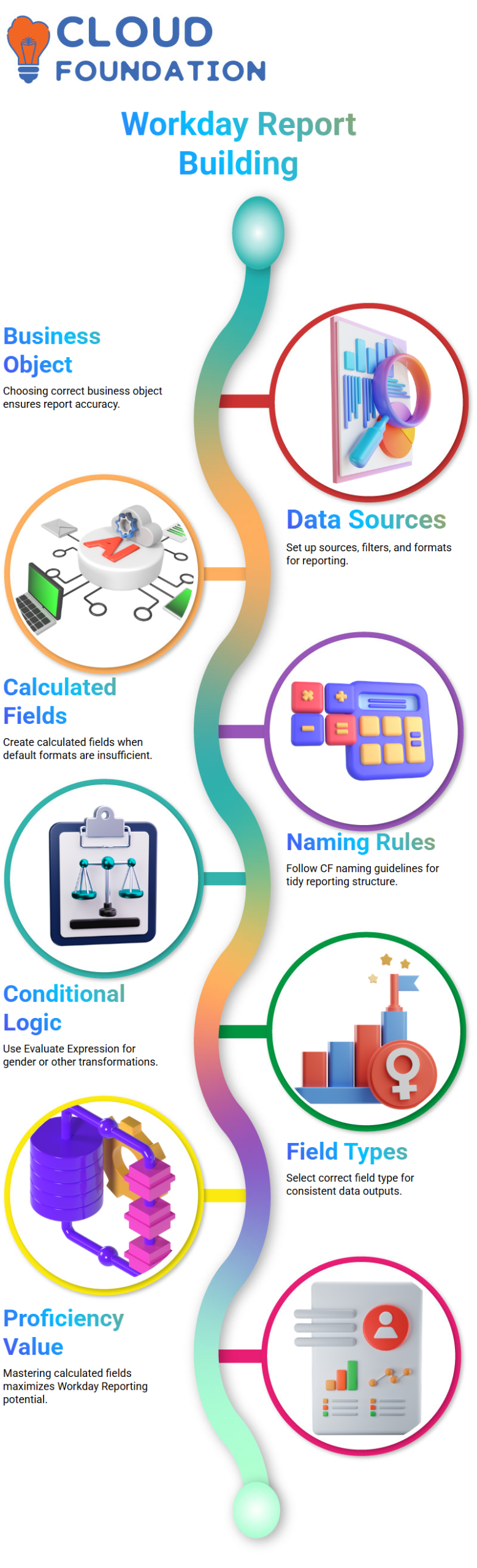
Otherwise, I return Other. Workday Reporting’s simple logic makes it interoperable with downstream systems.
Selecting the appropriate field type is equally important in Workday Reporting.
I select text as the gender transition field type since I return character values. I also chose a single instance since every employee has a single gender value.
You will be able to make the most of Workday Reporting after you become proficient with calculated fields.
Most projects only require a few types of calculated fields, but you must know when and how to use them.
How I Handle Default Logic in Workday Reporting
I frequently begin my work on Workday Reporting with basic logic, such as if, otherwise if, and else.
My default condition is the else part. I had to print the default answer “O” in one of my recent sessions when none of my conditions were met.
I therefore made a calculated field and hardcoded the value “O” as a text constant function. This method gives me precise control over what the report shows in Workday Reporting.
Where the computed field should reside is something I consider constantly.
To make the field available inside the report, I usually carefully select the business object.
Because my reasoning involved employee data, I had previously used Worker.
However, I chose Global in this instance. Because I intended to use the field everywhere, I took that action.
By selecting Global in Workday Reporting, I can utilize the same calculated field inside other calculated fields or across several reports.

Workday Reporting Training

True False Conditions in Workday Reporting
I always remind myself that every if condition in Workday Reporting returns a Boolean value while I’m designing conditional logic. Either true or false is the result.
Therefore, I have to utilize a true false condition function when I check to see whether gender equals male.
This is how Workday Reporting conditions should be evaluated.
My objective was straightforward. Should the employee be male, I would like the report to return “M.”
I chose the operator “in the selection list,” set the comparison value, and chose Gender as the field in Workday Reporting to do this.
When I want to verify structured values like Male or Female, this approach works great.
Single Instance vs One to Many in Workday Reporting
As I was developing this logic in Workday Reporting, I became aware of the Gender field’s single instance indicator.
One instance indicates one-to-one. Only one gender value may be held by an employee at a time.
Workday Reporting displays that particular indicator for that reason.
I handle historical or numerous records for a field as one-to-many whenever I come across them.
This distinction is important in Workday Reporting because it alters the behavior of filters and conditions.
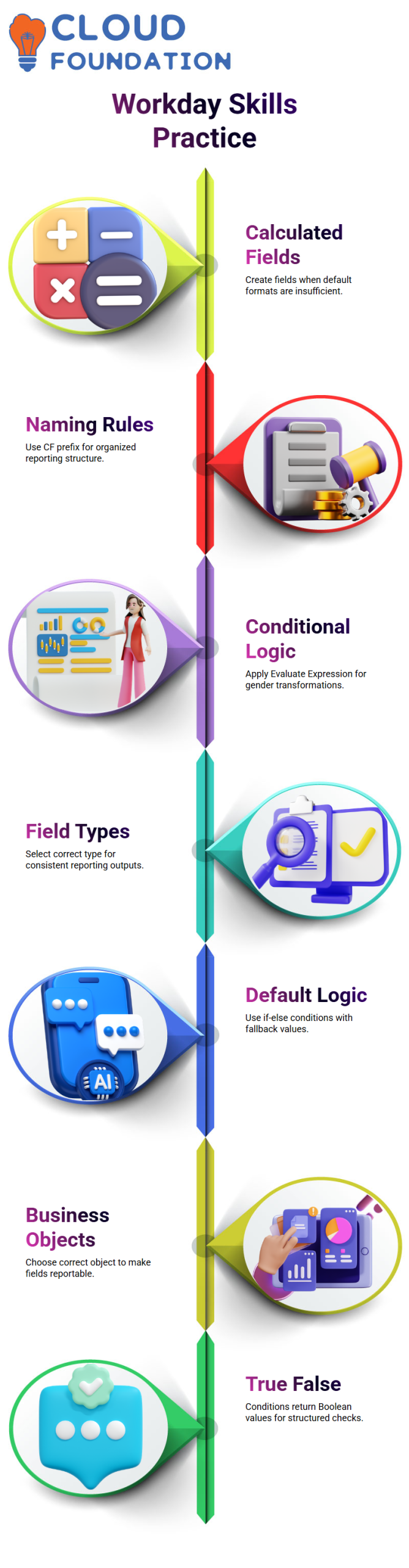
Comprehending one-to-one and one-to-many relationships improves the accuracy and predictability of my Workday Reporting logic.
Working with Text Fields and Filters in Workday Reporting
I also take note of the distinction between structured and text fields in Workday Reporting.
With structured fields, I may use “in the selection list.” However, text fields provide me with choices such as contains, equal to, and not equal to.
When I utilize IN or LIKE criteria in SQL queries, this function works similarly.
I selected Male under “in the selection list” for this Workday Reporting requirement.
There were two versions: I saw one with a little m and one with a capital M. Custom value can occasionally be found in the system.
To ensure that my condition validates the correct data in Workday Reporting, I make sure I understand whether those numbers are standard or custom.
Returning Output Values in Workday Reporting
I concentrated on the return value after defining the condition in Workday Reporting. I want the output to display “M” if the condition evaluates to true.
I used a text constant function to construct another calculated field in order to accomplish that.
In order for anyone looking over my Workday Reporting configuration to understand its purpose, I gave it an appropriate name and a clear naming convention.
Additionally, I made sure that the business object was set to Global.
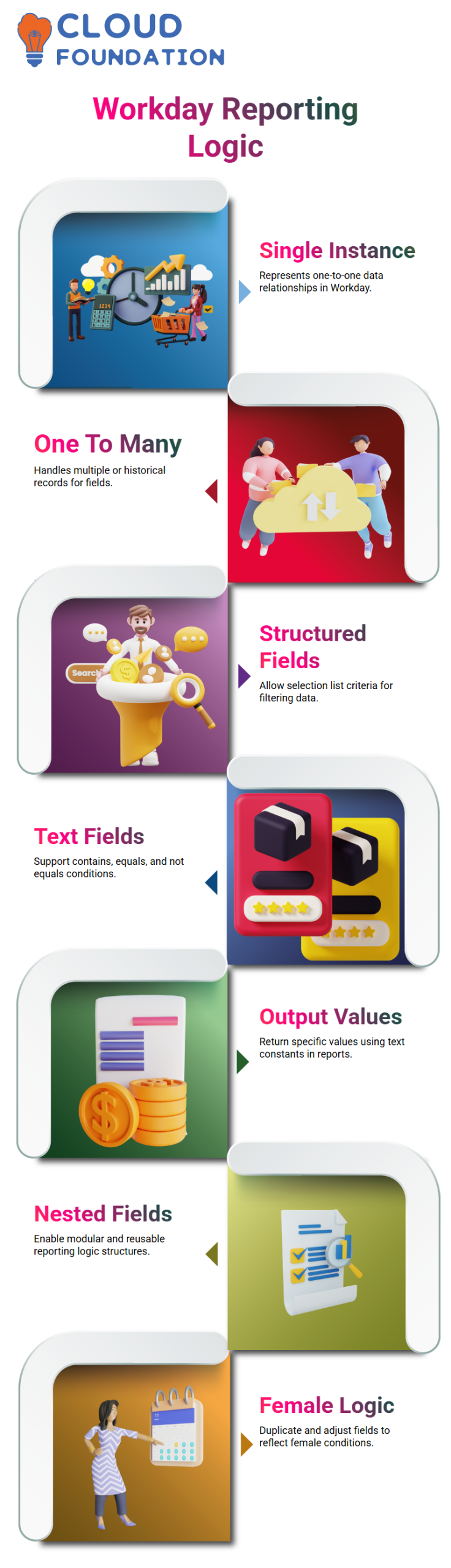
This enables me to utilize the calculated field in Workday Reporting, either within another calculated field or in other reports.
I construct what are known as nested calculated fields when I use one calculated field inside another.
Workday Reporting benefits greatly from nested logic since it maintains the modularity and reusability of my report architecture.
Creating Male and Female Logic in Workday Reporting
I made a similar rationale for women in Workday Reporting after finishing the logic for men. I had two choices.
I could either duplicate the current computed field and make changes, or I could start from scratch and create the entire field from scratch.
I frequently utilize the copy option in Workday Reporting to save time and keep things consistent.
In order to make the field clearly reflect Female, I altered the naming convention, updated the condition to check for Female, and changed the output value to “F.”
In Workday Reporting, naming is important since mislabeled computed fields lead to mistakes as reports get more complicated.

Workday Reporting Online Training
Analytical Indicators in Workday Reporting
I saw M for Male and F for Female when I ran the report in Workday Reporting. Additionally, I saw that the gender field had an analytical indicator linked.
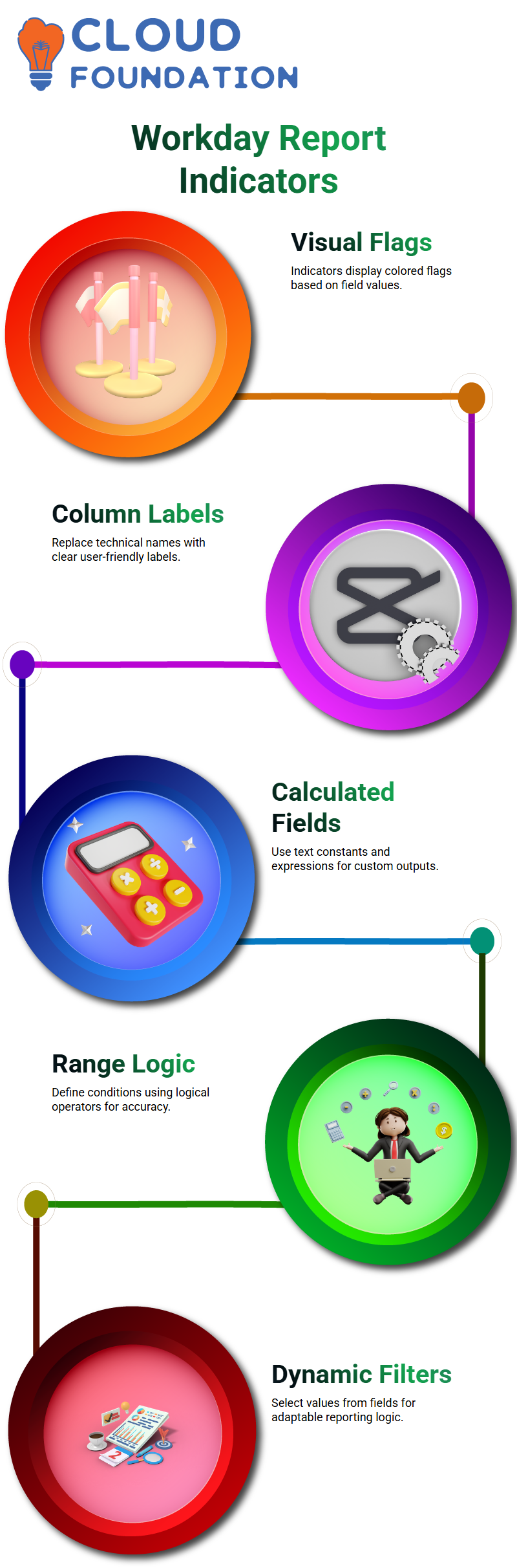
Analytical indicators in Workday Reporting let me show visual indications based on field values, like colored flags or icons.
I can set up Workday Reporting, for instance, so that Male shows a blue flag, Female shows a purple flag, and Not Declared shows a red flag. For business users, this display option enhances readability. It improves the visual appeal and usability of Workday Reporting.
Controlling Column Headings and Display in Workday Reporting
The technical field name is occasionally displayed by the system in Workday Reporting rather than a label that is easy to understand.
I then replace the header of the column. I handle it similarly to how I would assign an alias in SQL. In this manner, end users see a clear label rather than a field name that has been calculated technically.
I just go to Advanced settings, modify the column, and delete the analytical indicator option if I don’t want Workday Reporting to display the analytical indicator.
I have complete control over logic and display Workday Reporting, which I utilize to create reports that are understandable, practical, and straightforward for users.
How Workday Reporting Tools Differ from Other Reporting Options
A lot of Learners mistake internal reporting tools for extended or external tools. Standard and advanced reports in Workday Reporting can be downloaded and used again for business purposes. They run directly on business objects.
Business intelligence-style reporting within the tenancy has its own limitations, as I make explicit in my Workday Reporting course.
When the data structure already aligns with the business object design, Workday Reporting performs at its best.
Workday Reporting by itself might not be sufficient when the structure is inconsistent; in this case, extra data tools are useful.
Workday Reporting Limits When Combining Multiple Subjects
Subject area limitation is one of the key topics I discuss in Workday Reporting. Business objects and their connections are essential to Workday Reporting.
I can only retrieve relevant fields that the object connection enables if I create a Workday Reporting solution with Worker as the subject.
I run into a limitation in Workday Reporting when I attempt to incorporate unrelated topics, such as worker education and certificates, into a single flattened structure.
I can make distinct Workday Reporting outputs for every subject, but just the normal Workday Reporting tools make it hard or impossible to combine them into a single report with a single custom structure.
Advanced Workday Reporting and Composite Report Constraints
The question of whether a composite report can resolve every layout issue is frequently raised during advanced Workday Reporting seminars. I make it clear that while composite Workday Reporting is useful in many situations, object relationship rules are still followed.
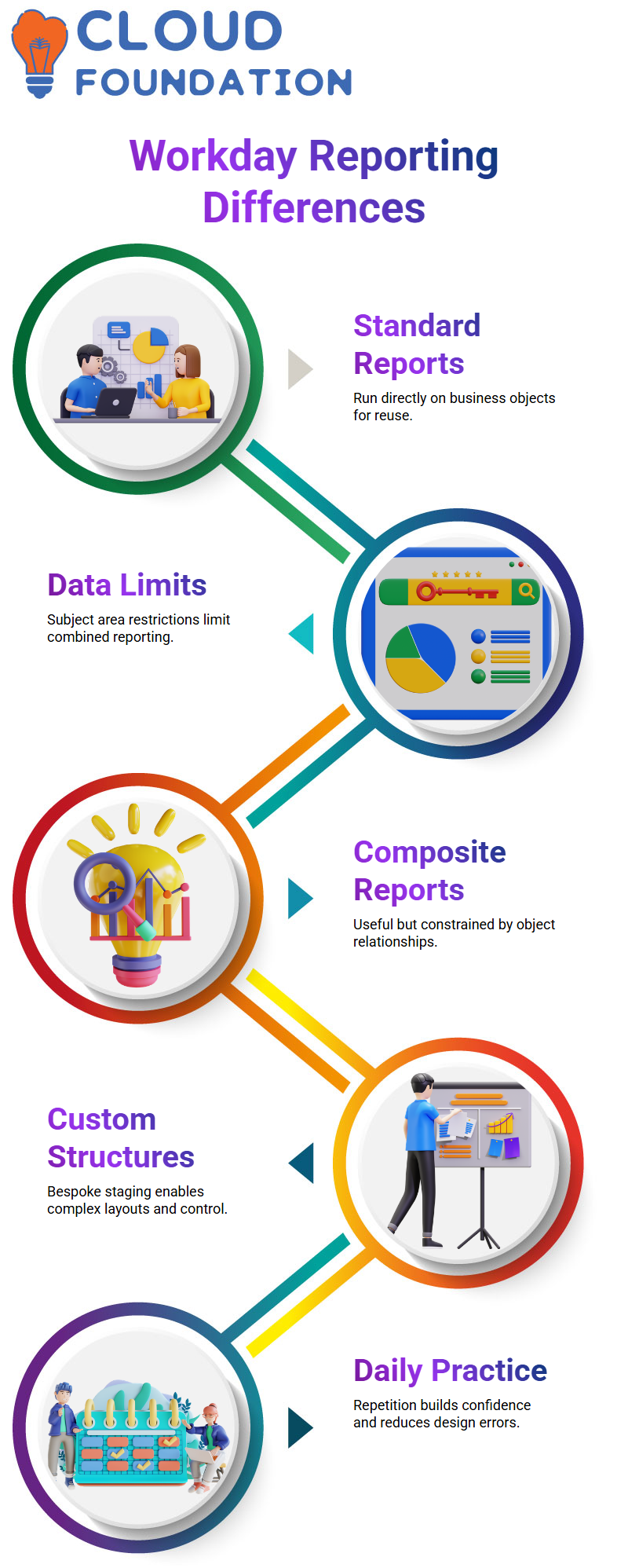
With solely composite Workday Reporting, I am unable to force disparate repeating data sets into a single continuous row-style output.
I start by going over the desired output format while creating Workday Reporting layouts. I am aware that standard and composite Workday Reporting won’t completely meet the format’s requirements if it calls for a unique table-style structure that transcends object bounds.

Workday Reporting Course Price

Nishitha
Author