Workday Reporting Training Classes Online
Why I Always Choose Indexed Data Sources First
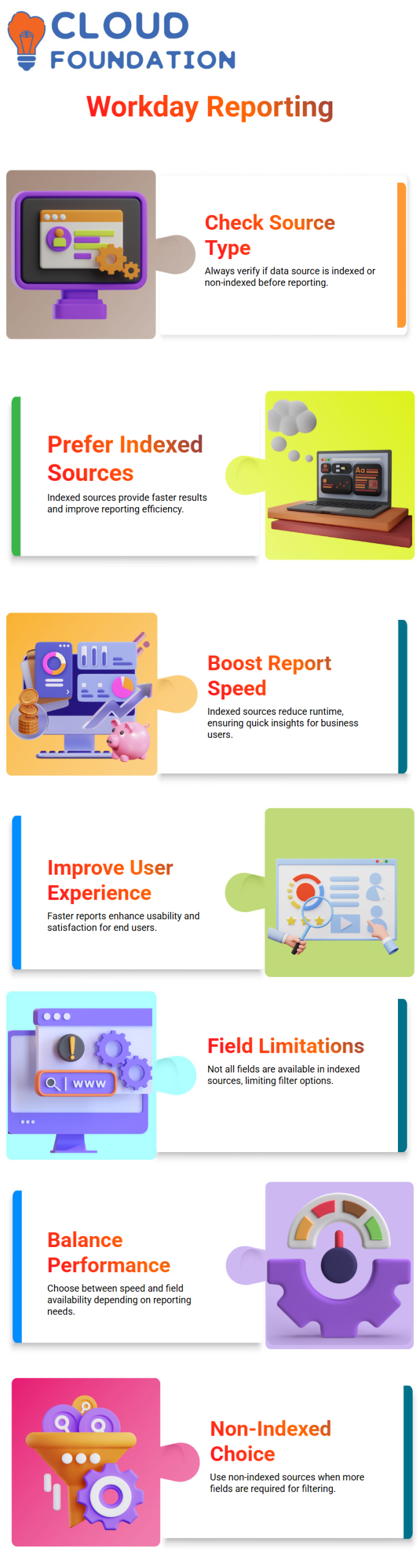
I always check the data source type before I start working on Workday Reporting. There are two types of data sources in Workday Reporting: indexed and non-indexed.
Every time I make a custom report in Workday Reporting, I always put indexed data sources first.
I use indexed data sources in Workday Reporting because they give me results much faster.
When business users want real-time insights, speed is very important in Workday Reporting. The report takes longer to run if I use a data source that isn’t indexed.
For instance, the Workday Reporting data source “All Active and Terminated Workers” is not indexed, and I can tell right away that the report takes longer to build.
When I work with Workday Reporting, I always choose indexed data sources over non-indexed ones. That choice makes Workday Reporting run better and makes the user experience better.
The Limits of Indexed Data Sources
I like indexed data sources in Workday Reporting, but I also know that they have some problems. Not all fields are included in indexed data sources in Workday Reporting. I can’t use a field when I build a report with an indexed data source if it isn’t indexed.
When I use an indexed data source in Workday Reporting, I won’t see the Country field in the filter options if it isn’t indexed. That means that the filters for indexed data sources don’t show non-indexed fields.
So, in Workday Reporting, I always make sure that performance and field availability are in balance. If I need more fields to filter, 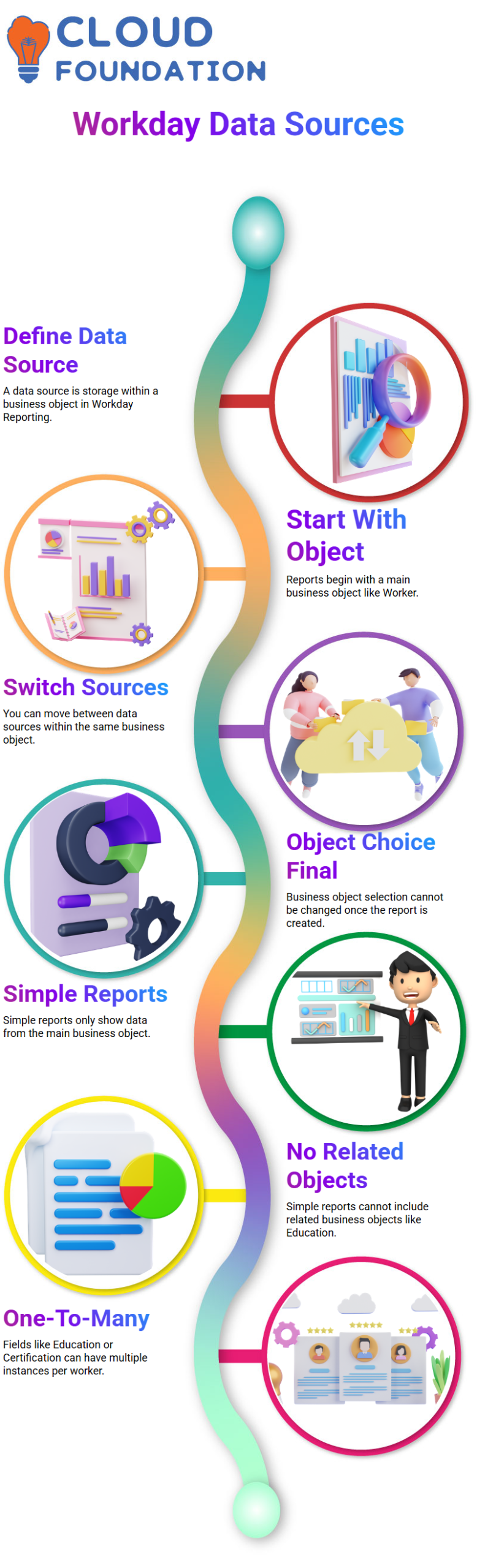 I might pick a source that isn’t indexed. But when Workday Reporting needs to be fast, I stick with indexed data sources.
Data Sources and Business Objects Explained
In Workday Reporting, a data source is just a layer of storage inside a business object. I always start with a main business object, like Worker, when I make a report in Workday Reporting.
For instance, if I make a report from the Worker business object in Workday Reporting, I can later switch the data source to a different one that is also part of the Worker business object. With Workday Reporting, I can move between different data sources in that business object.
But I can’t change the business object in Workday Reporting after I’ve made the report. That choice is final.
So, when I make Workday Reporting solutions, I carefully choose the business object at the start.

Workday Reporting Training

Simple Reports and Their Practical Use
I usually start with simple reports when I show someone Workday Reporting for the first time. With a simple report in Workday Reporting, I can only show data from the main business object.
I can’t use related business objects in a simple report in Workday Reporting. For instance, if I make a report from the Worker business object and want to include information about Education, I can’t do that in a simple report because Education is a related business object.
In Workday Reporting, fields like Education and Certification can have more than one instance. That means that one worker can have more than one education record or certification.
This is what we call a one-to-many relationship in Workday Reporting. A simple report can’t do that with related business objects or multi-instance data.
Advanced Reports and Subfilters in Action
I use an advanced report in Workday Reporting when I need more freedom. Advanced reports in Workday Reporting let me add related business objects, which gives me more power and context.
If I add Education as a related business object to Worker in Workday Reporting, I can filter education records. If I want to show only people who have a Master’s degree. I can use a subfilter in Workday Reporting on the business object that is related.
In Workday Reporting, subfilters only work with business objects that are related to each other. That’s why I can’t use subfilters in a basic report.
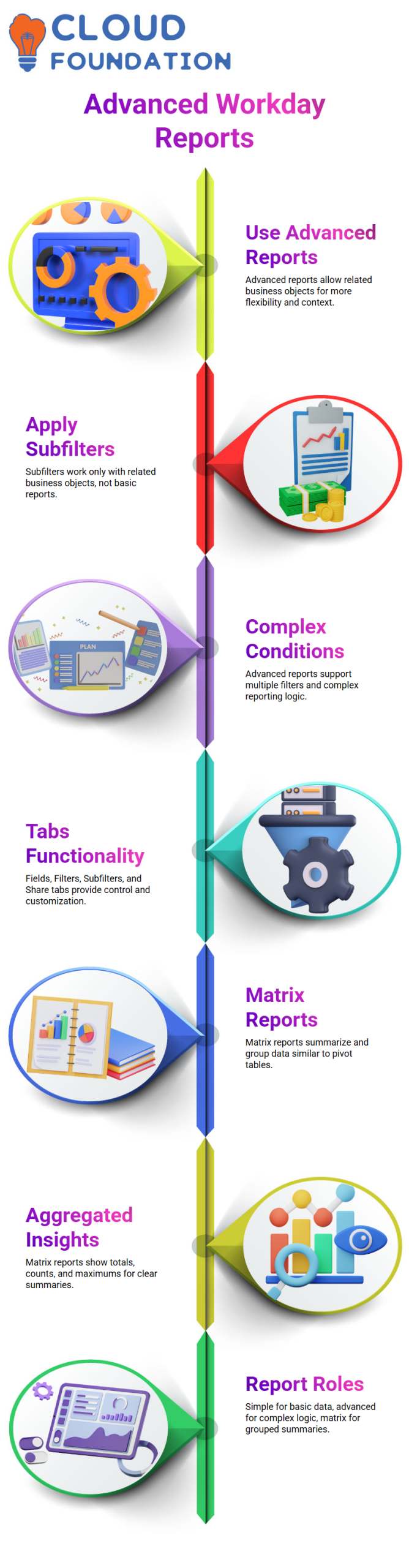
When I do my daily Workday Reporting tasks, I use advanced reports when I need to use complex filters, more than one condition, or data from related business objects. I also use more than one tab in Advanced Workday Reporting.
The Fields tab lets me add columns, the Filter tab lets me set primary filters, the Subfilter tab lets me set conditions on related business objects, and the Share tab lets me control who can see them. These features make advanced Workday Reporting very useful.
Matrix Reports for Grouped and Summary Data
Whenever I need grouped or summarized insights in Workday Reporting, I create a matrix report. A matrix report in Workday Reporting works like a pivot table.
In Workday Reporting, I use matrix reports to show country-wise worker counts, country-wise salary totals, or maximum salary by compensation grade. Matrix reports help me present aggregated insights clearly in Workday Reporting.
However, in Workday Reporting, matrix reports do not support related business objects. I must build them only the primary business object.
Just like simple reports, matrix reports in Workday Reporting restrict me from related business objects and subfilters.
So, in my Workday Reporting journey, I use simple reports for straightforward data, advanced reports for complex logic and related data, and matrix reports for grouped summaries. Each type plays a specific role in effective Workday Reporting.
Advanced Tab in Workday Reporting
I always tell my Learners to look closely at all of the tabs when I teach Workday Reporting in my technology classes.
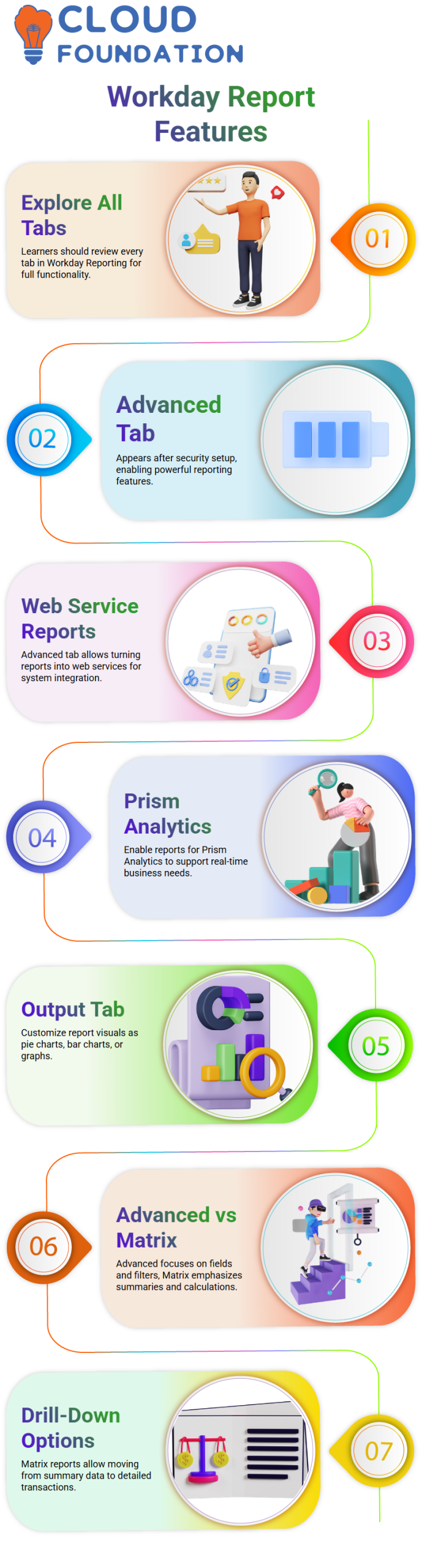
After you finish the security and sharing settings in Workday Reporting, the Advanced tab will appear. You can’t get to these powerful features in other parts of Workday Reporting.
I use the Advanced tab in Workday Reporting to turn a report into a web service. When we want other systems to use report data, this feature in Workday Reporting is helpful.
From this tab in Workday Reporting, I can also turn on the report for Prism Analytics. These settings make Workday Reporting more useful and adaptable for business needs that come up in real time.
The Output tab is another important part of Workday Reporting. I choose how the report will look in the Output tab of Workday Reporting.
I can set up the report as a pie chart, bar chart, or graph. Workday Reporting lets me present the same data in different ways, helping stakeholders understand insights more quickly.

Workday Reporting Online Training
Key Differences Between Advanced and Matrix Workday Reporting
I clearly explain the structural differences between Advanced and Matrix reports in Workday Reporting in my Workday Reporting classes.
In Advanced Workday Reporting, I work with fields and columns directly. In Workday Reporting, I also use filters to change the dataset. These tools help me make reports that are both detailed and adaptable.
When I switch to Matrix Workday Reporting, I pay more attention to summarizing and doing math. Matrix Workday Reporting lets me use group by conditions, which is great for data that has been combined.
I also set up drill-down and detailed data options in Matrix Workday Reporting so that users can go from summary data to details about individual transactions.
I still use filters in Matrix Workday Reporting, but I don’t use subfilters the same way I do in Advanced Workday Reporting.
I also set up the Output tab in Matrix Workday Reporting to show charts like pie charts and bar charts. Matrix Workday Reporting has an Advanced tab for more settings, just like Advanced Workday Reporting.
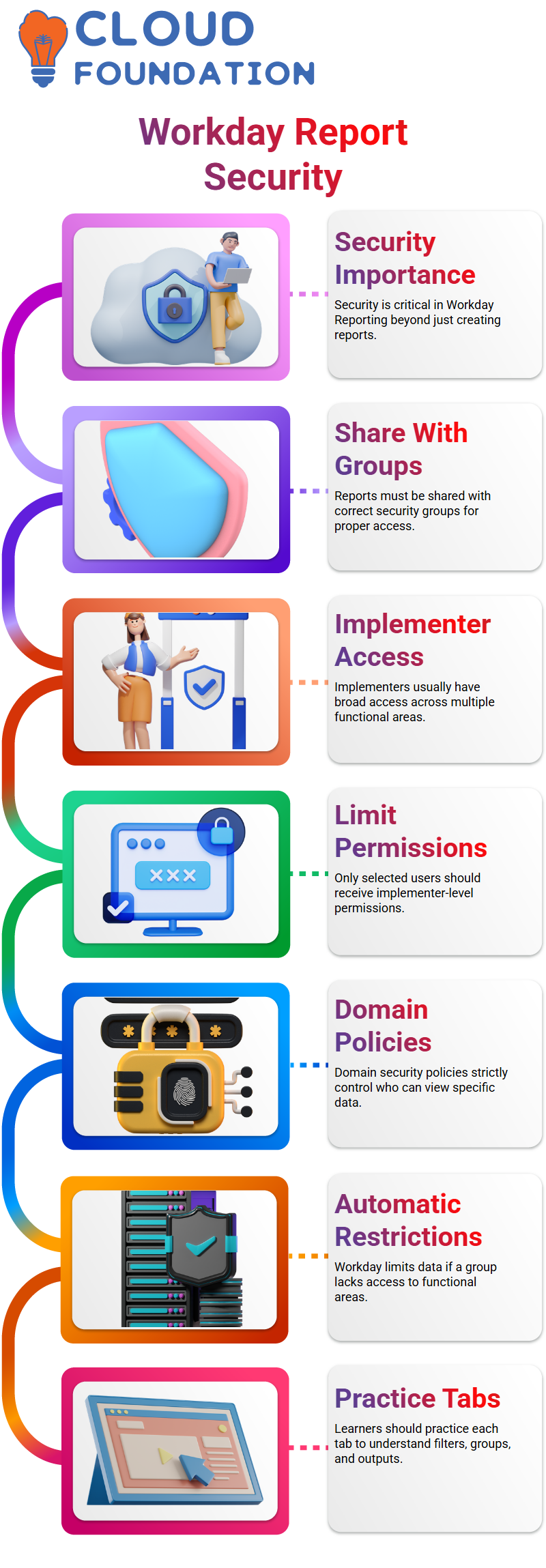
Security and Access Control in Workday Reporting
I always remember that making a report in Workday Reporting is just the first step. Security is very important in Workday Reporting.
As report writers or implementers, we make reports, but we need to make sure they are shared with the right security groups in Workday Reporting.
Based on my experience with Workday Reporting, an implementer usually has a lot of access. This job in Workday Reporting can look at many different areas, including compensation, recruiting, and other functional areas.
But I don’t give everyone this level of access. I carefully choose who gets implementer-level permissions in Workday Reporting.
In Workday Reporting, I go to the Share tab and give a report to a certain security group when I want to share it. For instance, I might need to share a Time Off report I made in Workday Reporting with the Absence Specialist group.
The Absence Specialist needs to be able to see all the functional areas that are used in the report in Workday Reporting. If I don’t share the report, they won’t be able to see the data.
In all of my Workday Reporting sessions, I always stress that domain security policies control who can see data. These rules are strictly followed by Workday Reporting.
Workday Reporting will automatically limit the data if a security group does not have access to a functional area.

Workday Reporting Course Price

Nishitha
Author