Workday Reporting Certification Training
Setting Up Security Groups for Workday Reporting
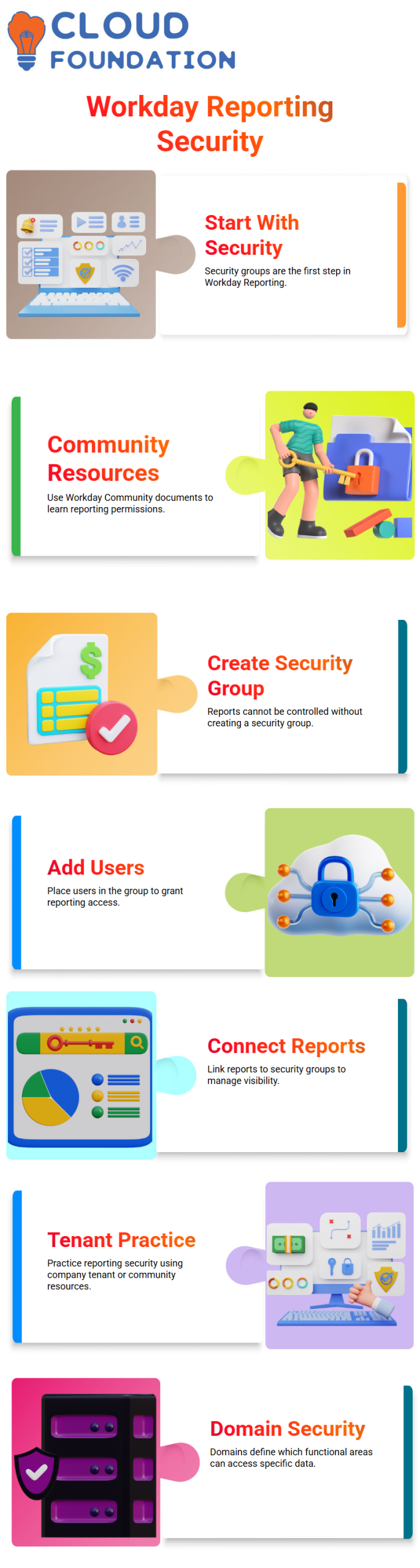
Everyone wants to start making reports right away, but Workday Reporting doesn’t work the way you think it should without security access.
So, I always start with one clear message: The right security group is the first step in Workday Reporting.
I usually tell learners to log into the Workday Community and look for security group documents. This step helps them learn how to manage Workday Reporting permissions.
Reading about it in the community will help you get ready for real projects in Workday Reporting, even if your tenant doesn’t let you access it directly.
Creating a Security Group in Workday Reporting
The first step to keeping Workday Reporting safe is easy. You need to make a group for security. You can’t control who can see or run reports in Workday Reporting without this group.
I always move on to the next step in Workday Reporting after making the security group: adding users. You put users in that security group so they can get to Workday Reporting reports.
Assigning Users and Sharing Reports
I connect the report to the security group after users have joined the group. This is how I manage who can see what in Workday Reporting. The right security group should protect every report in Workday Reporting.
Don’t worry if your tenant blocks security access. I tell my learners to use the Workday Community and company tenant practice to learn about Workday Reporting security.
Domain Security
Every data source in Workday Reporting is linked to domain security policies. These domains tell you which functional areas can access which data.
When I look at View Security in a real tenant, I can see how Workday Reporting domains link to objects for workers, pay, and education.
Working with Calculated Fields in Workday Reporting:
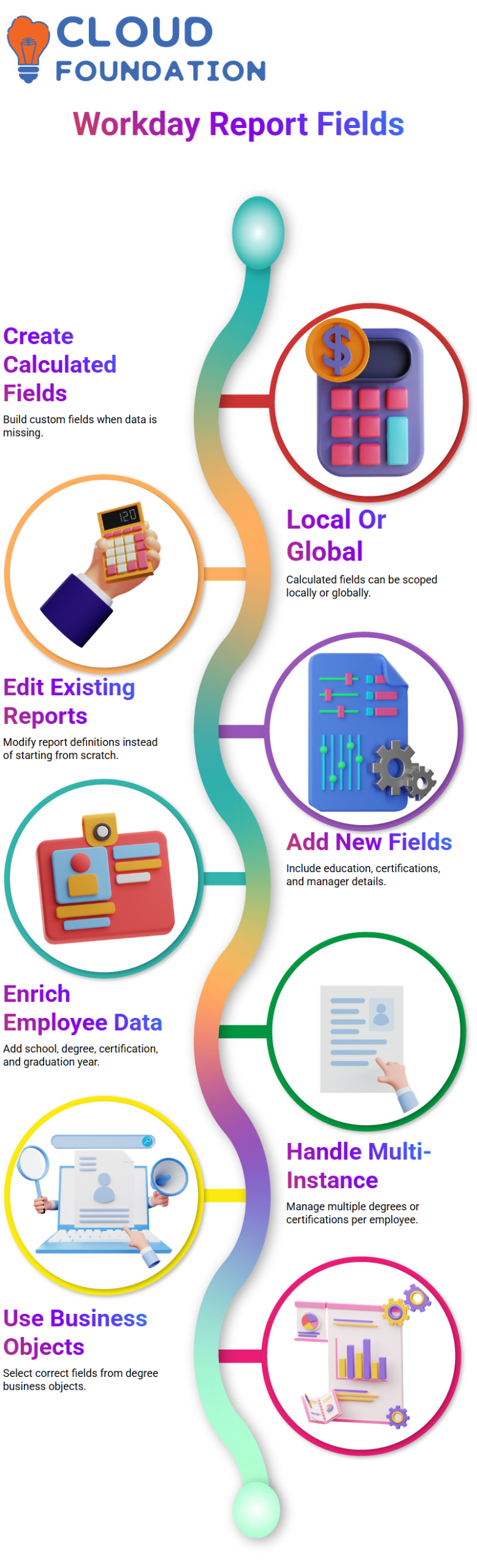
When Workday Reporting doesn’t have a field, I make one up. This lets me make better Workday Reporting solutions because I can be more flexible.
I often use calculated fields when Workday Reporting doesn’t give me the exact data I need. They can be local or global.

Workday Reporting Training

Editing an Existing Report in Workday Reporting:
I don’t start from scratch; I open the report definition and change it. This makes my Workday Reporting workflow faster and better.
I scroll to the bottom of Workday Reporting and start adding new fields like education, certifications, and information about my manager.
Adding Education and Certification Data in Workday Reporting:
To get a full employee report in Workday Reporting, I add the name of the school, the degree title, the year I graduated, the name of the certification, and the year I got it.
These fields enrich Workday Reporting and help organizations analyze employee profiles more effectively.
How to Deal with Multi-Instance Fields in Workday Reporting:
Workday Reporting can show more than one degree or certification for the same employee at times. This happens because the data comes from business objects that can have more than one instance.
To fix this in Workday Reporting, I add the degree business object and then choose the right fields for it.
How to Use Business Objects Correctly for Workday Reporting
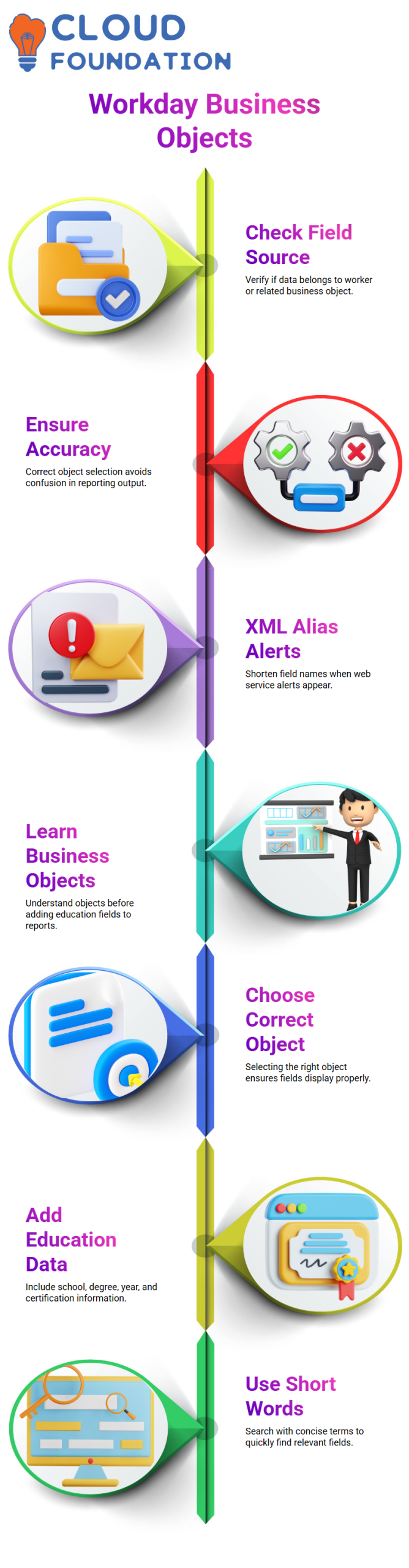
When I use Workday Reporting, I always check to see if a field belongs to the worker or to a related business object like a degree or certification.
This small habit makes Workday Reporting more accurate and keeps the output from being confusing.
XML Aliases and Web Service Alerts
XML alias alerts may show up when a report is set up as a web service in Workday Reporting. These alerts tell me to make field names shorter. This knowledge helps me keep the Workday Reporting integrations clean and working well.
How I Set Up Education Fields in Workday Reporting
I always tell my learners to slow down and learn about the business object they are working with when I teach Workday Reporting. I showed you how to get education information into a custom report in one of our last sessions.
I didn’t just look for fields at random; I first made sure I chose the right business object. This step is very important in Workday Reporting.
I started with the Education business object because I wanted to include information about schools, degrees, and years. If I choose the wrong object in Workday Reporting, the fields will never show up correctly.
I replaced “degree” with “education” where it was needed and searched again. The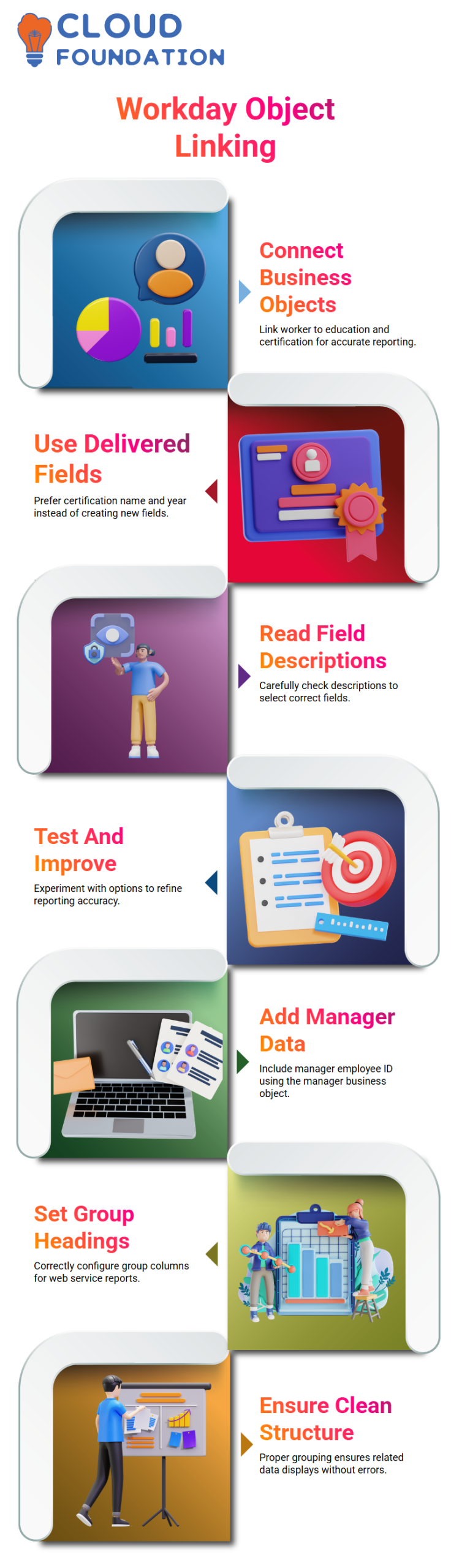 School and University fields showed up as expected as soon as I mentioned the right business object.
I then added fields for things like the name of the school where the person got their degree, the year they got it, and the name of the certification.
When I use Workday Reporting, I always search with short words like “year” instead of long phrases. This method helps me quickly sort through the delivered fields and stay away from unnecessary calculated fields.

Workday Reporting Online Training
Building the Bridge Between Education and Certification in Workday Reporting
I learned while working in Workday Reporting that Certification doesn’t always go under Education. That was when I told them how we connect business objects. In Workday Reporting, I went from Worker to Education and then linked Certification as another business object that was related.
I looked directly at the Certification business object when the Certification fields didn’t show up right away. In Workday Reporting, I use delivered fields like Certification Name and Certification Year a lot instead of making new ones unless I really need to.
When I search with a keyword, I sometimes get a lot of unrelated fields. In Workday Reporting, I do this by carefully reading the field description and picking the right one, like “Academic Year” or “Current Academic Year.”
I try out different options because Workday Reporting often needs to be tested and improved before the right field is chosen.
Adding Manager Details in Workday Reporting
Next, I showed how to add an Employee ID for a Manager. In Workday Reporting, I have to look at the Manager business object first if I need manager data. I chose Manager Level 1 and then searched only with “Employee ID.”
This method makes sure that Workday Reporting is always clean and correct.
I also said that when I add related business objects to Workday Reporting, especially for reports that can be accessed through a web service, I need to set up the group column headings correctly.
I fixed the error about subgroup column headings by setting the Manager Level 1 grouping correctly when the system showed it. Grouping in Workday Reporting makes sure that related data shows up without any problems with its structure.
Field Categories and Saving Reports in Workday Reporting
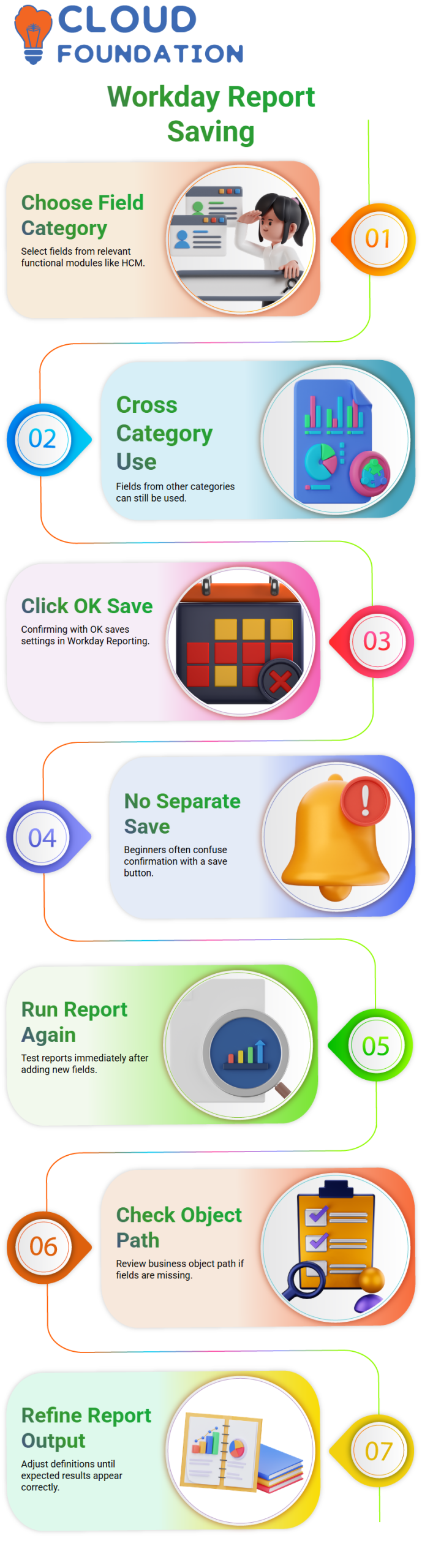
I got a question about field categories like Benefits, Payroll, or HCM during the session. In Workday Reporting, I always choose fields that are part of my functional module, like HCM in this case.
But if the field I need is in a different category, I can still use it in Workday Reporting.
I also made an important point about saving clearly. When I click OK in Workday Reporting, the system saves the settings.
The fields won’t show up when I run the report if I forget to click OK. A lot of beginners think there is a separate save button, but in Workday Reporting, confirmation actions often do the same thing as the save button.
Finally, I told my learners to run the report again after they added fields. Testing right away in Workday Reporting helps me make sure that Education Year, Certification Year, and Manager Employee ID are all showing up correctly.
If something is missing, I go back to the report definition, check the business object path, and change it until Workday Reporting gives me the output I expect.

Workday Reporting Course Price

Nishitha
Author