Workday Reporting Course Online
Filters, Prompts, and Sub-filters in Workday Reporting
These components influence how users interact with data in Workday Reporting and how a report functions.
Because this distinction leads to correct business outcomes, I make sure my Learners grasp the difference between a filter and a sub-filter.
I clarify in my Workday Reporting sessions that a sub filter targets a secondary business item, but a filter acts directly on the main business object.
For instance, I use a sub filter in Workday Reporting to get the relevant information when worker data does not explicitly include a particular educational institution.
Learners may create reports that are clearer and more insightful by this simple difference.
At runtime, I ask users to input criteria rather than hard-coding values. Workday Reporting is adaptable and reusable in a variety of situations thanks to this method.
Date Prompts and Runtime Behaviour in Workday Reporting
When I disable subtitle inclusion, the selected parameter is removed from the report output and the exported Excel file.
This feature in Workday Reporting is quite useful when companies want to share report results while safeguarding sensitive parameter settings.
Errors often arise while creating reports in Workday Reporting, and I see them as teaching moments.
I guide Learners through aggregation rules, necessary column groups, and outline limitations.
For instance, whether subtotals or grand totals are present, Workday Reporting requires the usage of an aggregate function in at least one numeric or currency column.
I show how validation issues may be rapidly fixed by choosing a sum or a maximum.
Another important aspect of Workday Reporting design is sorting and grouping.
I advise them to consider not just how the data is kept but also how the final product will be seen by the end consumers.
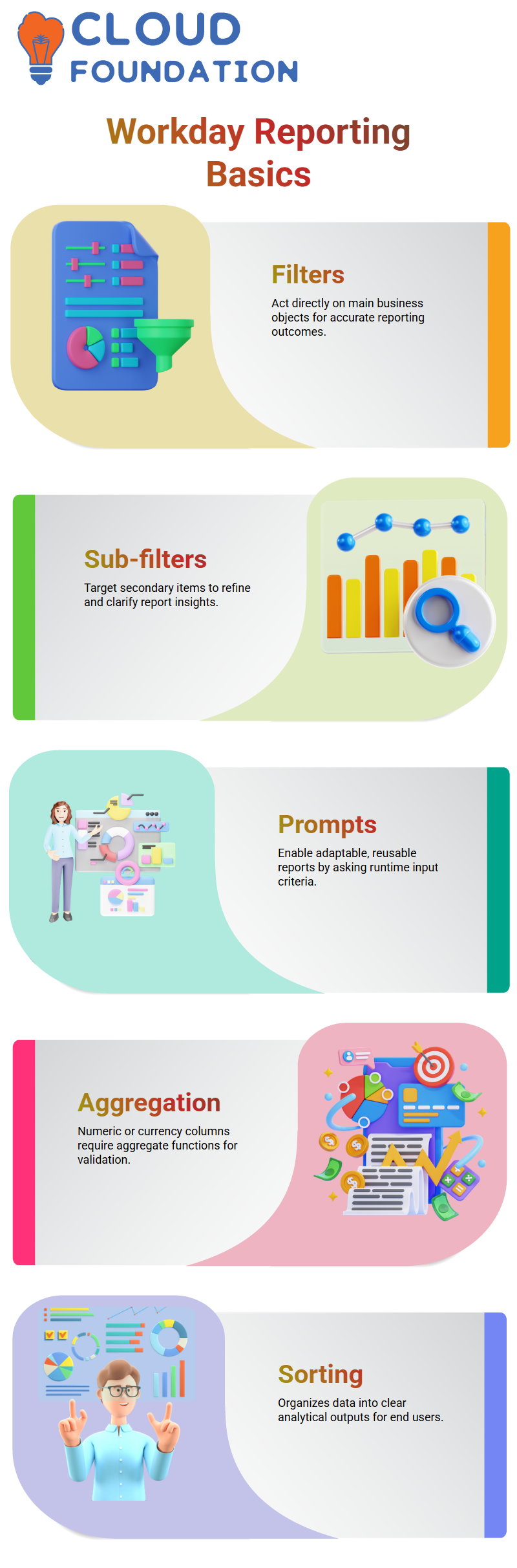
The final report starts to seem more like organised analytical output than raw data when they use Workday Reporting’s careful sorting and aggregation.
These troubleshooting activities boost learners’ confidence in Workday Reporting and get them ready for actual implementation situations where precision and lucidity are crucial.
Security, Sharing, and Access Control in Workday Reporting
Sharing with roles like reporting leaders, HR partners, or implementers is possible with Workday Reporting, but only if those organisations also have access to the underlying data source.
I direct Learners to investigate domain security rules inside Workday Reporting if a necessary group is not visible when sharing.
By modifying data source permissions, governance regulations are not broken, and the right audience may see the report.
Real-world Workday Reporting administrative duties are reflected in this stage.
While report writers may produce private reports until shared, implementers often have the greatest level of tenant access.
Learners may better manage visibility, responsibility, and compliance across Workday Reporting settings by being aware of these boundaries.
Domains and Functional Areas in Workday Reporting
A domain is where certain business object data is stored in Workday Reporting. For instance, personal information like name details remains inside a certain domain.
I regulate access at the domain level if I wish to restrict who may see or change name information.
This is when things start to get interesting. Within functional regions are domains.
Related domains are grouped in a functional area. For example, contact information is a functional area that contains many domains, such as work contact details and personal data.
All of the domains in a functional area are automatically granted access when I provide access at the functional area level in Workday Reporting.
I always advise my Learners to consider their options thoroughly before granting access. All child domains inherit the ability to edit if you provide it in a higher functional area.
The security of your Workday Reporting environment is directly affected by that choice.
Managing Domain Security Policies in Workday Reporting
Domain security rules are the centre of security in Workday Reporting. I can see precisely which security groups have view or modify access when I open domain security policies.
Suppose I want to provide access just for the integration of private work emails. I assign the necessary security group and make changes to that particular domain security policy.
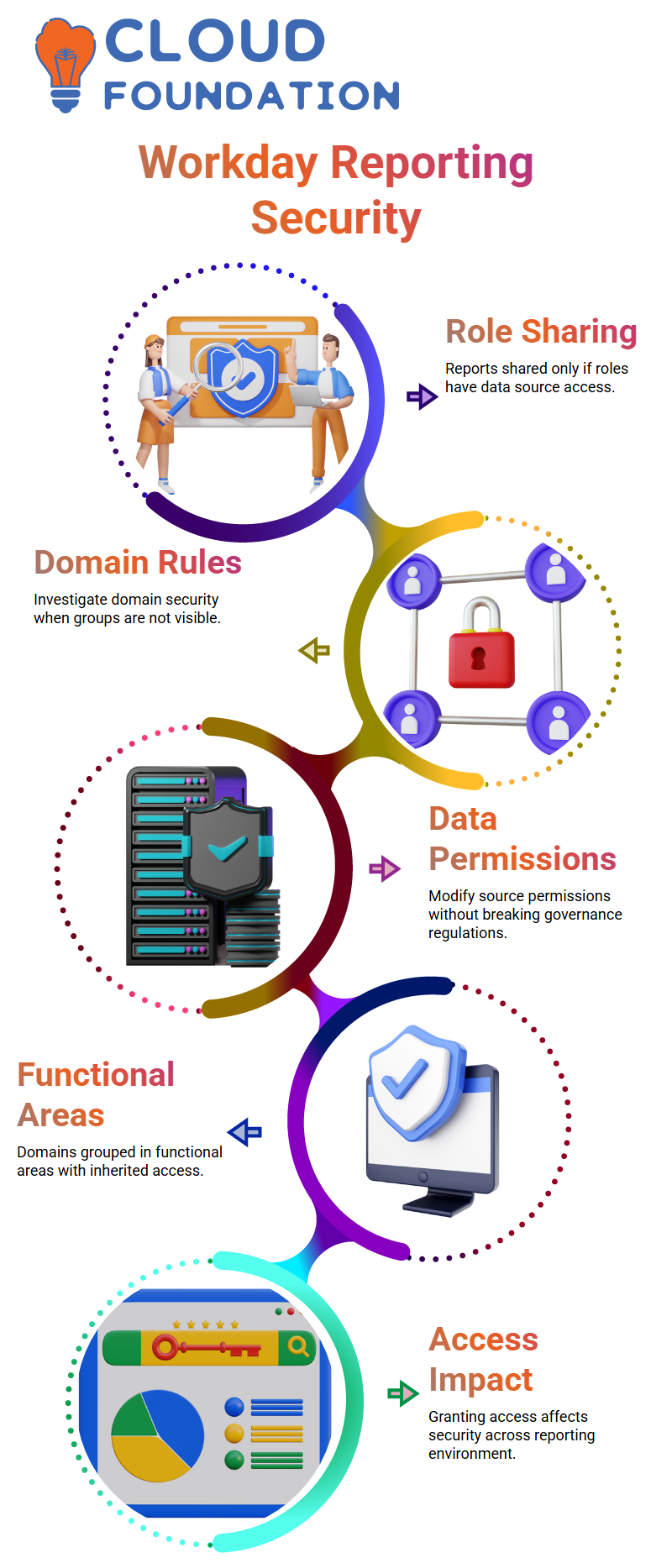
However, all linked child policies get the same access if I instead allow access to the whole contact information domain.
That is Workday Reporting’s domain-level security’s strength and danger.
I always tell my Learners that Workday Reporting does not immediately implement the adjustments I make.
Changes to the pending security policy must be activated. Your modifications won’t take effect if you skip this step, and you’ll lose time trying to figure out why access isn’t functioning.
When implementing changes, I also insist on creating concise, self-explanatory notes.
You can better understand why someone changed access in Workday Reporting months ago by looking at those remarks during audits.
My own procedure is to provide my initials and then a concise summary.

Workday Reporting Training

Report Writers, Implementers, and Access Control in Workday Reporting
According to my experience with Workday Reporting, your job has a significant impact on your ability to view reports.
Unless I choose a security group, I am the only person who can view a report that I produce.
Access must be requested by anybody else who requires it and is not a report writer or implementer.
But with Workday Reporting, report authors and implementers often have more expansive rights. They don’t need assistance from others to view and handle reports.
For this reason, the report writer security group is added to reports in the majority of projects.
Anyone with report writer access may work on report modification and maintenance in Workday Reporting thanks to this configuration.
A super user who has access to everything is also present in certain contexts.
This individual is in charge of security and ensures that Workday Reporting is unhindered by needless limitations.
Creating and Assigning Security Groups in Workday Reporting
Delivered security groups are not the only options available to you. Depending on the needs of the project, you may make your own.
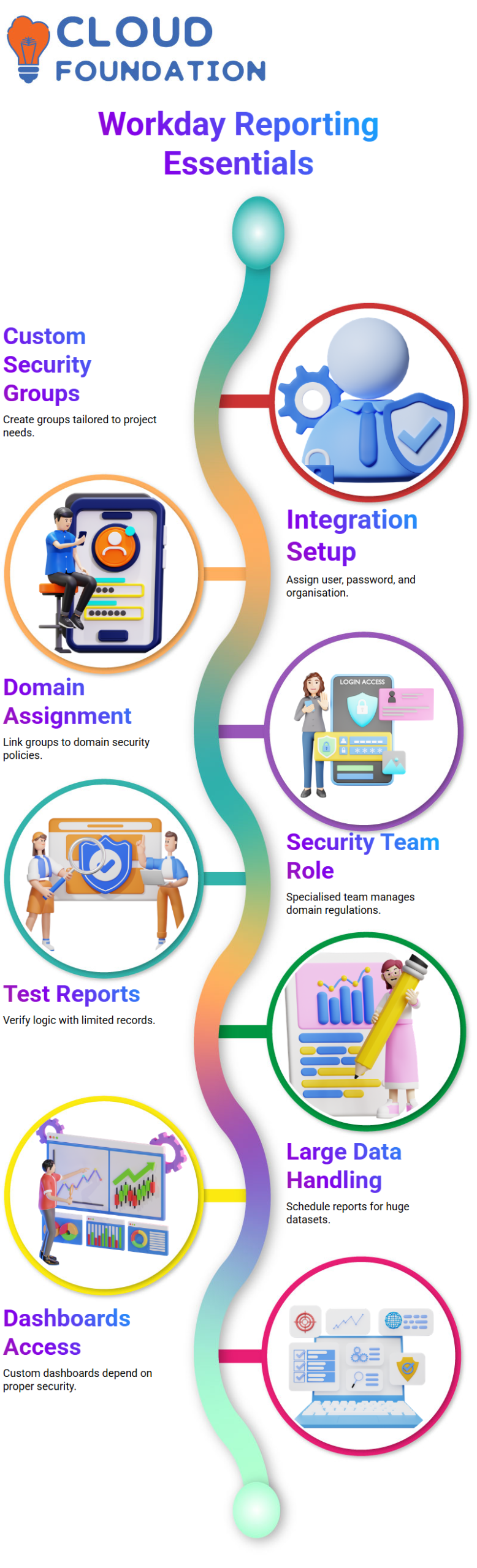
I provide the integration system user, set a password, and associate the group with a particular organisation when I establish a security group.
In order to ensure that access flows downward, I often apply it to the present organisation and all subordinates.
However, a security group is not immediately accessible in Workday Reporting when it is created.
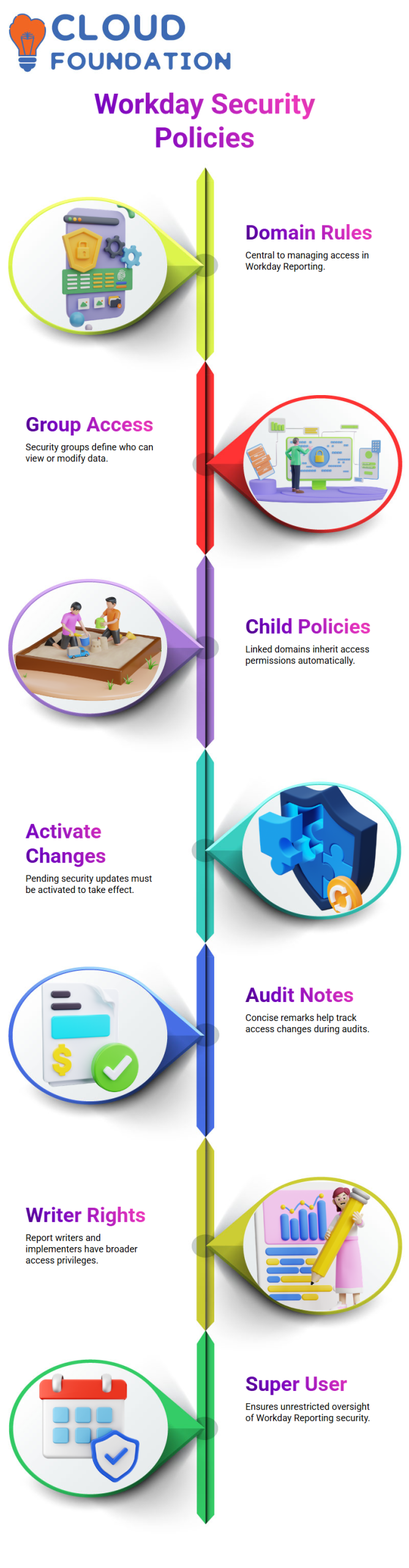
That group has to be assigned to the relevant domain security policies.
It typically indicates that you have not properly provided domain access if the group is not shown in the security list of the report.
These responsibilities are managed by a specialised security team in many real-world projects.
As a report developer, I submit a request, provide a detailed explanation of the need, and the security team adjusts Workday Reporting’s domain regulations.
Running and Testing Reports Efficiently in Workday Reporting
The test option, which restricts output to a limited number of records, is the first thing I use when testing reports in Workday Reporting.
I can verify logic without loading too much data thanks to this step.
I utilise the run option if I need to run the whole report. However, I always provide this crucial information: More than 50,000 records cannot be processed directly on the tenant screen Workday Reporting.
Standard run choices are insufficient for large enterprises with millions of workers.
In these situations, I use integration custom report scheduling to schedule the report.
I choose “run now,” wait for the integration to finish, and then download the Excel result file.
I can effectively manage huge datasets in Workday Reporting this technique.
You can create more intelligent solutions if you are aware of these constraints.
You take advantage of Workday Reporting’s scheduling capabilities rather than battling with performance problems.
Charts, Tables, and Dashboards in Workday Reporting
Raw data is just one aspect of Workday Reporting. I am able to set up output to show both tables and charts.
The system displays extensive data underneath and a visual representation at the top when I choose chart and table output.
This combination increases the impact and ease of analysis.
A dashboard gives customers the ability to gather pertinent reports in one location.
A benefits user, for instance, may maintain all reports pertaining to benefits on a single dashboard.
In Workday Reporting, senior executives may also manage their own dashboards.
Without constantly searching, a manager or CEO may examine high-level reports customised to their requirements.
To make sure people can access my custom dashboards, I carefully choose the domain before creating them.
Similar to reports, Workday Reporting dashboards are fully dependent on proper security setup.
Workday Reporting Dashboard Setup
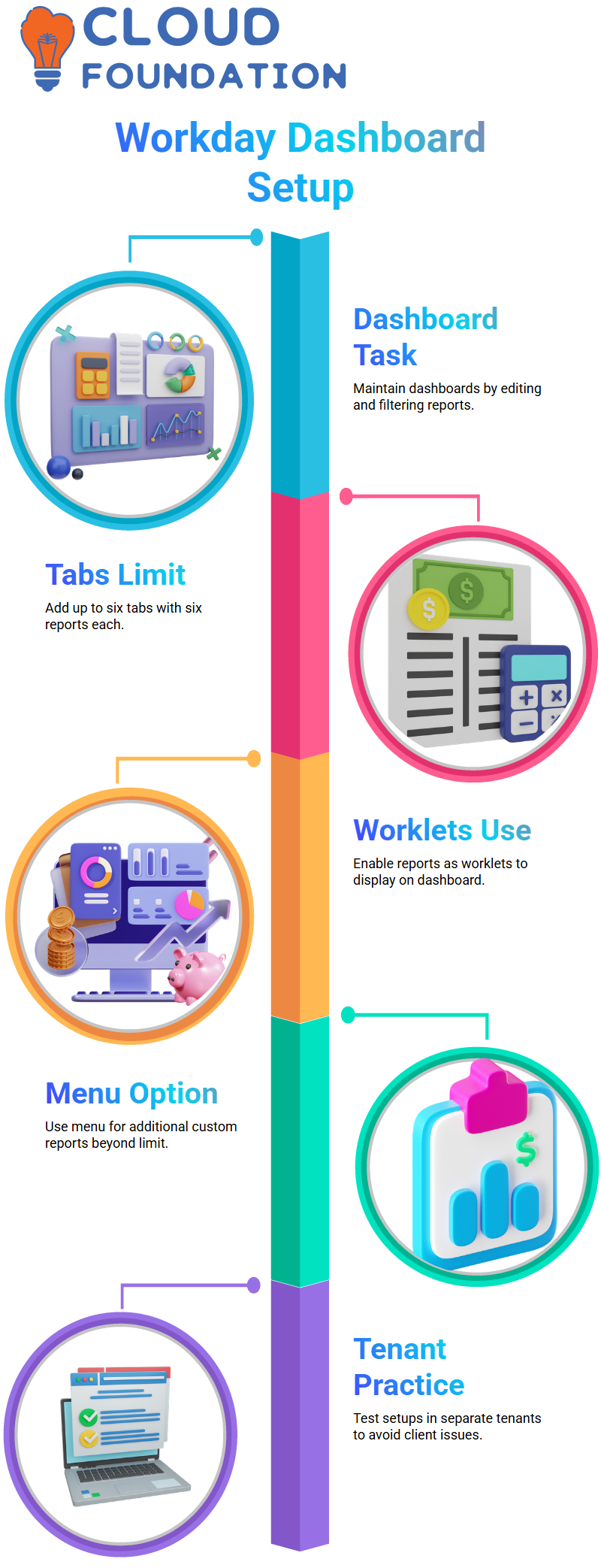
The Maintain Dashboards task is the first thing I see when I access the dashboard. I then click Edit, filter the dashboard I made, and begin adding the reports I need.
We spoke about how many tabs and reports we could add on the first day of our Workday Reporting session.
Let me say it again. I can add up to six tabs to a dashboard in Workday Reporting. I may add up to six reports on each tab.
This implies that I can show 36 reports in total on a single dashboard. When creating an organised Workday Reporting dashboard, this limit is crucial.
Tabs, Worklets, and Layout in Workday Reporting
I consider layout while configuring Workday Reporting dashboards. I make meticulous plans since I can only add 36 reports.
I don’t freak out if I have more than thirty-six reports. I utilise the Menu section instead.
Even if they don’t fit immediately on the dashboard tabs, I can create as many custom reports as I need in the Workday Reporting menu.
I add worklets to each tab in Workday Reporting, and each tab may have a unique name.
Simply said, a worklet is where I add a report to have it show up on the dashboard as a thumbnail.
I quickly realised I missed a crucial Workday Reporting setup step if my reports are not appearing.

Workday Reporting Online Training
How I Enable Reports as Worklets in Workday Reporting
To enable a report for a dashboard, I always follow these three crucial steps in Workday Reporting.
I start by opening the report and selecting Edit. I then go to the Output section.
Third, the report is enabled as a Worklet. Workday Reporting won’t show the report on the dashboard if this step is skipped.
I enter the unique dashboard name that I made after turning on the Workday Reporting worklet option.
The report appears on the dashboard once I save the setup. I must keep in mind, however, that Workday Reporting does not allow the addition of temporary reports like worklets.
Workday Reporting prevents me from adding temporary reports.
Handling Errors and Tenant Differences in Workday Reporting
I sometimes find issues when I run a report in Workday Reporting straight from the dashboard. Most of the time, the normal setup has nothing to do with these issues.
Workday Reporting functions flawlessly in original or correctly configured tenants as the fundamental configuration is left unchanged.
Configuration gaps, however, often lead to problems in practice or tenant training.
A different tenant is what I advise when I practice Workday Reporting. In a live customer setting, I never do experiments.
There are major issues if anything goes wrong with Workday Reporting for a client tenant.
For this reason, I usually advise asking for a different tenant for practice, proof of concept, and testing.

Workday Reporting Course Price

Vanitha
Author
The capacity to learn is a gift; the ability to learn is a skill; the willingness to learn is a choice