Workday Reporting Online Training
Workday Reporting Through Hands-On Practice
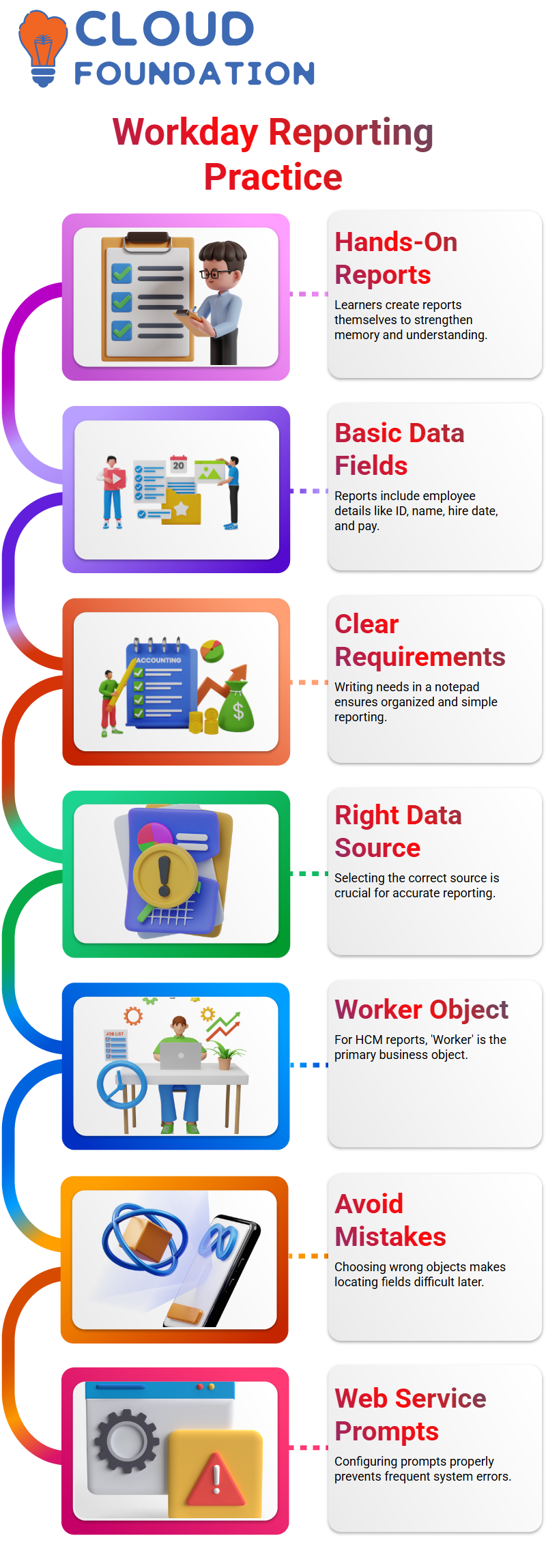
I always ask my learners to create their own unique reports. Making a report by hand helps you recall the steps much better.
Employee ID, Employee Name, Hire Date, Manager Name, Country, Compensation Grade, and Annual Base Pay were the only requirements.
This exercise provides a solid foundation because these are fields that we commonly use in Workday Reporting.
I always instruct you to start by writing the requirement in a notepad. Clearly defining your needs makes Workday Reporting organized and simple to use.
Choosing the Right Data Source in Workday Reporting
I choose the appropriate data source before I begin creating a report. Selecting the appropriate key business item is essential for Workday Reporting.
We have to choose Worker for HCM Reporting since we are creating an employee details report.
A lot of novices mistake an employee for a worker.
For the majority of HCM reports in Workday Reporting, the worker is the appropriate primary business object.
Later on, it will be difficult to locate the necessary fields if you select the incorrect business item.
When enabling a report as a web service in Workday Reporting, you need to properly configure the prompts.
If not, an error stating that one or more prompts are missing is thrown by the system. Since this is a frequent error, I make sure my pupils fully get it.
Selecting the Correct Fields in Workday Reporting
Before I start writing a report, I select the relevant data source. For Workday Reporting, choosing the right important business item is crucial. Since we are building a report on employee details, we must select Worker for HCM Reporting.
Many inexperienced people confuse an employee for worker. The worker is the proper primary business object for most HCM reports in Workday Reporting.
If you choose the wrong business item, it will be hard to find the required fields later.
Additionally, I outline the repercussions of activating the report as a web service.
In Workday Reporting, you must correctly configure the prompts before you can enable a report as a web service.
Otherwise, the system throws an error saying that one or more prompts are missing. This is a common mistake; I make sure my learners understand it completely.
Field Types in Workday Reporting
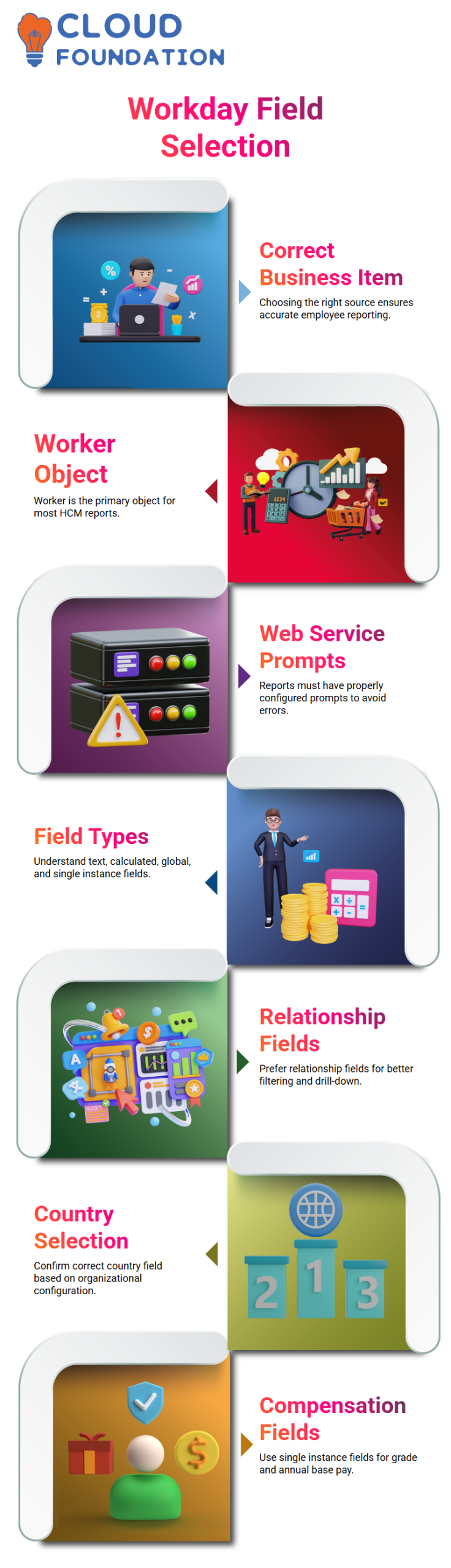
Many learners choose fields based just on symbols, but I suggest that they confirm by performing relevant behaviors.
While text fields only show text values in Workday Reporting, single instance fields frequently depict one-to-one relationships.
For the same data, if I see both a text field and a relationship field, I like the relationship field more because it gives me more options for filtering and drilling down.
I do a thorough search for the Manager Name. I look for a single instance field, such as Manager Level 01, if I encounter a text field like Manager Preferred Name for Reporting.
I select the best-suited relationship field in Workday Reporting rather than text by default.

Workday Reporting Training

Handling Country and Compensation Data in Workday Reporting
In Workday Reporting, choosing a country frequently leads to mistakes. A worker may have a nation of residence, a country of employment, or even a country of assignment.
For this reason, before choosing the Location Address nation or any other nation field, I carefully read the field description.
I remind my learners in Workday Reporting that reporting is impacted by implementation design.
The organization’s Workday configuration determines what “country” means. Therefore, before completing the report, I always confirm which nation the company wants.
I chose the Workday-supplied single instance field once more for Compensation Grade. After that, I switch to Annual Base Pay. Instead of clicking pointless icons when searching in Workday Reporting, I type the entire field name and hit Enter. This guarantees accurate search results and prevents confusion.
Occasionally, prefixes like CF cause several custom fields to appear. I check Workday Reporting to see if I require the standard supplied Annual Base Pay field or a custom field. I always make thoughtful decisions depending on the specifications.
Why Practice Makes You Confident in Workday Reporting
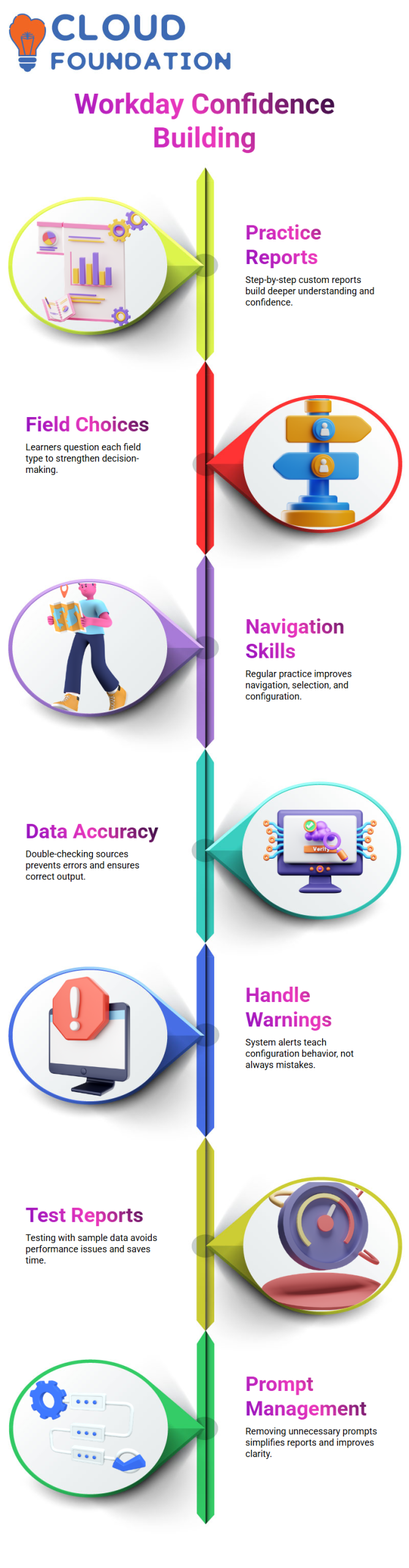
I utilize this practical approach because confidence is increased by repetition. Rather than simply remembering instructions, my learners gain a thorough understanding of Workday Reporting when they develop a custom report step-by-step.
I urge them to challenge each field choice whenever we practice Workday Reporting. What made me pick this field? Is it computed or delivered? Is it a text field or a relationship? This way of thinking turns novices into self-assured experts in workday reporting.
You will readily grasp navigation, field selection, and configuration if you create employee detail reports on a regular basis.
How I Started Building My First Workday Reporting Custom Report
I wanted to comprehend each click when I first started working on Workday Reporting, rather than only learning the processes by heart. I focused on the Total Base Pay field after opening my custom report.
I constantly double-check that I have chosen the correct data source and field because even a little field decision in Workday Reporting might alter the overall output. I saw a caution alert show up as I advanced in Workday Reporting.
I carefully examined the tabs and scrolled up instead of freaking out. Missed configuration settings cause a lot of problems with Workday Reporting. I choose to populate undefined variables from defaults after navigating to the Tabs section.
The system reloaded and resolved the problem after I checked that box and hit OK.
I soon discovered that warnings in Workday Reporting are not necessarily mistakes.
Occasionally, the system merely notifies you of configuration behavior. I view every alert as a teaching moment since knowing how prompts and defaults operate makes Workday Reporting simpler.

Workday Reporting Online Training
Prompts and Testing in Workday Reporting
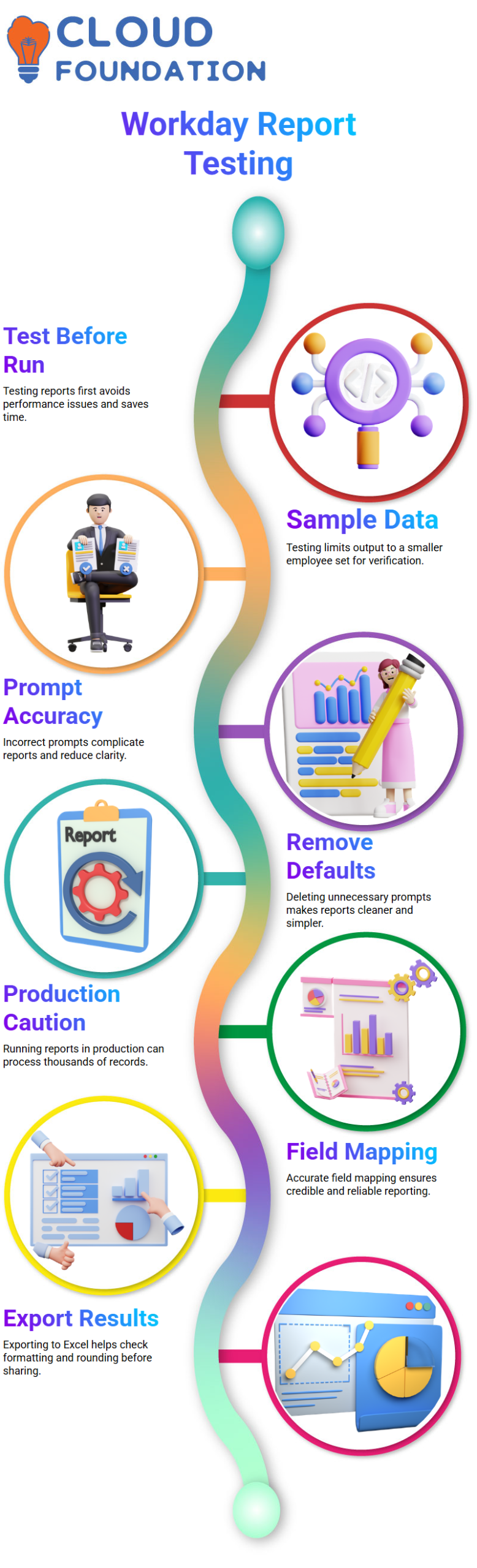
I emphasize the need for testing before running when it comes to workday reporting. In Workday Reporting, the system ran the report for a select few employees when I selected Test rather than run. This avoids performance problems and saves time.
I eventually discovered that the Employee ID prompt was inaccurate. Prompts govern user input in Workday Reporting, and superfluous prompts make the report more difficult to read.
After making changes to the custom report, I went to the Prompts area and clicked the minus symbol to delete the default Employee ID. Workday Reporting was instantly made simpler and cleaner.
I always clarify that in Workday Reporting, testing limits the report to a sample set, whereas running the report runs it for every employee. You have to use caution if you work in a production tenant.
Thousands of records can be processed via Workday Reporting, and testing allows you to verify logic before it is fully implemented.
Editing Fields and Data Sources in Workday Reporting
I carefully went over the headings of each column as I was setting up the report in Workday Reporting. I made sure that the reporting requirement was met by fields such as Employee, Worker Type, Hire Date, Manager Level, Location, and Compensation Grade. Accurate field mapping in Workday Reporting determines how credible your report is.
The data source symbol in Workday Reporting caught my attention as well. I constantly clarify that the symbol stands for the underlying data source, even if many newcomers overlook it.
In Workday Reporting, your computed fields and filters won’t function properly if you select the incorrect data source.
I verified my fields and then used Workday Reporting to evaluate the report once more. I exported the results to Excel after reviewing the yearly Total Base Pay amount.
I can check formatting and rounding behavior before sharing data with stakeholders by exporting from Workday Reporting.
Managing Security in Workday Reporting
One of the most important aspects of Workday Reporting is security. I went to the Share button after creating the report.
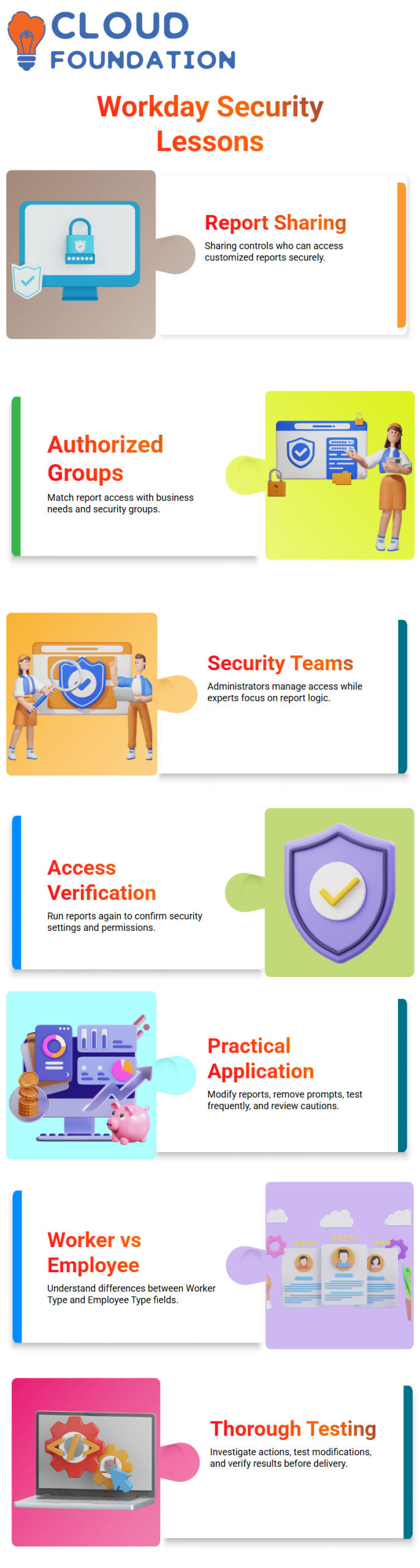
Sharing in Workday Reporting controls who has access to the customized report. Share with Specific Authorized Groups, and Users is what I chose.
You have to match report access in Workday Reporting with business needs. For instance, I designate the proper security group if the report is only required by the Management Team.
Workday Reporting guarantees that the report can only be viewed or performed by specific groups.
A lot of learners ask me if they can use Workday Reporting to form their own security group. You can make one, of course, but usually a security administrator does it.
Security teams oversee access configuration in the majority of enterprises, while Workday Reporting experts concentrate on report logic.
I ran the report once again to confirm access behavior after applying security settings in Workday Reporting and saving the configuration. Based on the granted permissions, Workday Reporting accurately displayed the worker details.

Workday Reporting Course Price

Nishitha
Author