NetSuite Course on Suitelet and Client Script Integration
NetSuite Linking Between Suitelet and Client Script
When I use a Suitelet to construct a custom screen or page in NetSuite Development, I often include action buttons, fields, and filters.
In NetSuite solutions, where business users anticipate interactive UI activity, this method is often used.
From a NetSuite perspective, Suitelets do a great job handling server-side functionality, but I mostly depend on client scripts anytime a user interface interaction, like clicking a button, is involved.
Early knowledge of this distinct division is essential for all NetSuite learners.
Why Client Scripts Are Essential in NetSuite UI Events
A button click is always a user interface event in NetSuite Development.
I am unable to deal with it directly inside a Suitelet as a result. Client scripts become crucial in NetSuite design at this point.
For instance, the expectation is clear when I include a Clear button on a custom Suitelet form.
All filter fields need to be reset as soon as the user presses the button. According to NetSuite terminology, a client script is required to manage this behaviour.
In NetSuite projects, I often use the Suitelet button to invoke a client script function.
This maintains the NetSuite solution tidy and effective while enabling the user interface to react immediately, improving the user experience overall.
How NetSuite Uses client Script Module Path in Suitelets
Let me now go over the real NetSuite mechanism that connects the client script and Suitelet.
Form is the main API that I utilise. ScriptModulePath client. The client script file that the form should utilise is specified to NetSuite for this API.
I just uploaded the client script file into the Suite Scripts folder in the File Cabinet as part of my NetSuite settings.
I then use a form to provide the file’s whole path. ScriptModulePath client. This method simplifies the NetSuite setup.
One crucial NetSuite element is that the module route eliminates the requirement to establish a script record or deployment.
In order to save time during NetSuite development, I just upload the file and refer to it immediately.
Adding Buttons and Functions in NetSuite Suitelets
I add buttons to the form after setting the client script location. I utilise form in NetSuite words. add Button.
I may provide the button ID, label, and function name in this approach.
I make a Clear button with a straightforward ID like clear and a label like Clear in the majority of the NetSuite examples I instruct.
The function name of the client script, which links the logic and user interface, is the third argument.
This is a fundamental technical idea of NetSuite. NetSuite initiates the client script function automatically when the user presses the button. Any logic I put into that function runs right away.
Clearing Field Values NetSuite Client Scripts
I deal with the current record within the client script. The form that the user is engaging with is represented by the current record in NetSuite client scripting.
I use currentRecord.setValue to clear data in a NetSuite manner. I set the value to blank and pass the field ID. I do this again for each field that requires a reset.
Because this method remains fully on the client side, it works well in NetSuite projects.
The fields quickly reset when the user presses the button, and the form stays responsive without requiring further server calls.

NetSuite Training

The Task Module for Automation in NetSuite
The task module is one of my favourite subjects in the NetSuite training. This module is what I use every time I need to invoke a scheduled script from a user event.
Technically speaking, the task module in NetSuite enables me to generate backend jobs and pass them to the SuiteCloud execution engine.
I often describe it this way: I start by creating a task the task in NetSuite Development. Make something.
I specify that the job is a scheduled script, provide the deployment ID and script ID, and optionally supply parameters.
I then use the task to turn in the assignment. Give in. NetSuite now takes control and begins running the script in the background.
The distinct step-by-step breakdown is one of my favourite features of NetSuite.
I make the assignment, then I turn it in. When I create intricate NetSuite automations that ought to function dependably in production, this makes the procedure quite predictable.
Monitoring Execution with Task Status in NetSuite
Task status monitoring is another useful feature that I typically emphasise in NetSuite sessions. After submitting a task, I can use the task.
To find out whether the scheduled script is finished, running, or pending, use check Status. This insight is very helpful in technical NetSuite issues.
In some uncommon NetSuite situations, I may want a user event to halt its logic until a scheduled script completes running.
When that occurs, I keep an eye on the task’s progress and only go on after it reports as completed. Despite being rare, knowing this pattern strengthens your skills as a NetSuite developer.
Although NetSuite processes often don’t wait for scheduled scripts, having the option allows me more freedom when creating unique solutions.
Search, CSV, and Advanced Tasks in NetSuite
In addition to scheduled scripts, I demonstrate to Learners how the task module in NetSuite supports a variety of backend operations.
I am able to conduct workflows, record actions, run Map/Reduce scripts, and even run saved searches as tasks. Because of this, NetSuite is quite flexible.
Exporting extensive search results is one useful NetSuite use case.
I create a search task, enter the stored search ID and file location, and let NetSuite construct a CSV file in the background rather than downloading a comprehensive search by hand.
I just downloaded the file from the cabinet later.
Additionally, I describe how NetSuite permits CSV import tasks. By generating or re-creating a file, I may submit it for import and leave the processing to the backend.
These capabilities demonstrate how NetSuite excels at handling activities involving large amounts of data.
Calling Client Scripts from Portlets in NetSuite
I link the dots back to NetSuite client scripts when I transition into portlets.
Instead of utilising a form, use a portlet script. client Script Module Path, I refer to the same client script as the portlet API. This maintains the consistency of my NetSuite design across dashboards and forms.
I use portlet. add Button to add buttons to NetSuite portlets and connect them straight to client-side operations.
Dashboards become interactive and useful for users through this method.
Every kind of script has a specific function, and when combined, they provide strong, expandable solutions.
How I Linked a Clear Button to NetSuite Client Scripts
I updated the Suitelet form with a Clear button in this NetSuite walkthrough.
In the client script file, I then wrote a function. This function becomes the action handler on the button click in NetSuite terminology.
I made it extremely evident to my audience that NetSuite instantly invokes this client-side function without requiring a site refresh when the Clear button is selected.
I always place a strong emphasis on naming standards and clarity when I teach NetSuite.
To make it easier for Learners to understand how NetSuite links the UI button to the client script logic, I purposefully gave the function a relevant name.

NetSuite Online Training
Clearing Field Values Step by Step in NetSuite
I gave an example of my use of the Current Record module within the client script. One of the fundamental ideas of NetSuite client programming is this.
After retrieving the most recent form record, I specifically changed the field values to blank.
I cleared the topic, recipient, and message boxes in this NetSuite sample.
I clarified that the script would quietly fail if the field IDs are not accurate, as required by NetSuite.
Since novices often have trouble identifying fields in NetSuite, I made care to draw attention to this.
I reminded my Learners that NetSuite client scripts operate in the browser while I was speaking to them directly.
Therefore, without submitting the form or restarting the page, the Clear button immediately resets the data.
Deploying and Testing the Script in a NetSuite Environment
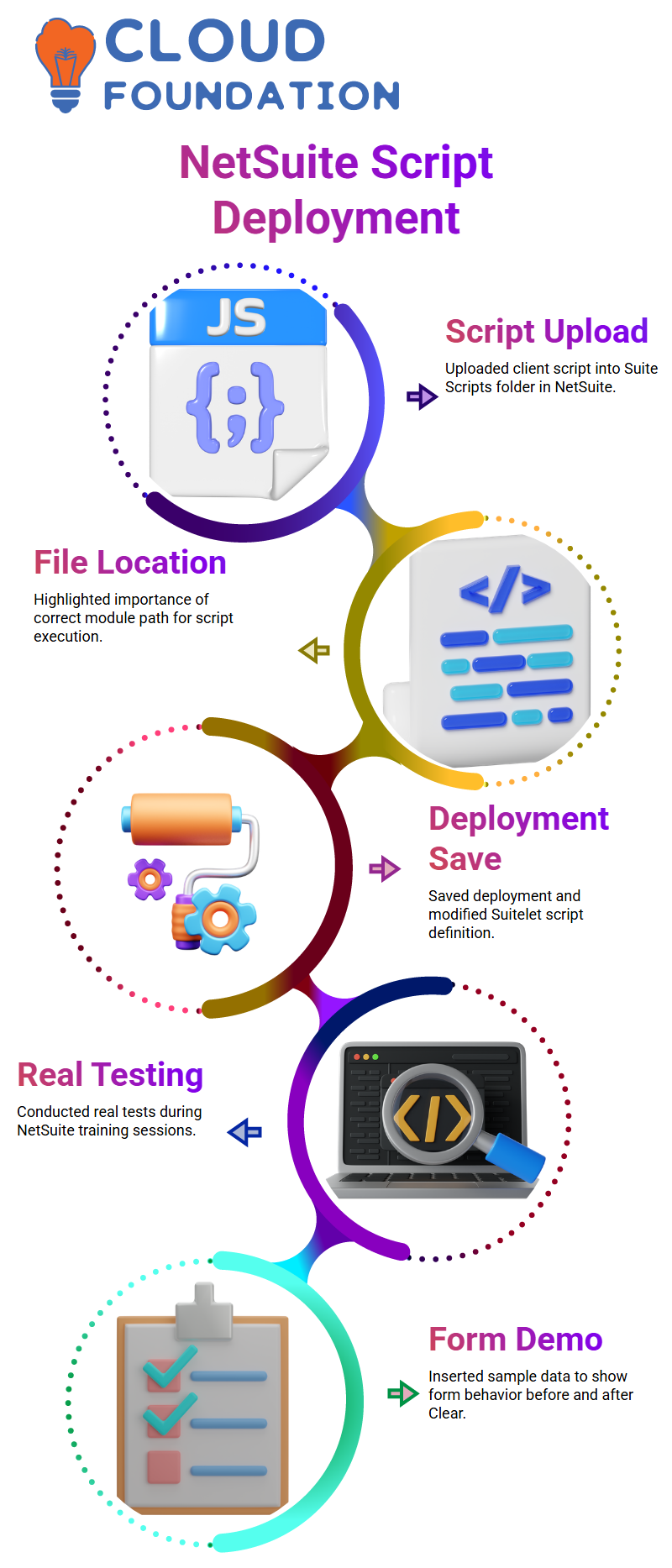
I uploaded the script file into the Suite Scripts folder after developing the client script and logging into the NetSuite instance.
I described how file location is important in NetSuite, particularly when the module path to the script.
After that, I saved the deployment and modified the Suitelet script definition.
I always run real tests during NetSuite training sessions.
To demonstrate how the form works both before and after hitting Clear, I inserted example data, such as email addresses and messages.

NetSuite Course Price

Vanitha
Author
The capacity to learn is a gift; the ability to learn is a skill; the willingness to learn is a choice