NetSuite Technical Online Course on Portlets
NetSuite Dashboard Portlets
The dashboard is the first item you see on the home screen of NetSuite after logging in.
Every block or section you see on the dashboard is referred to as a portlet in NetSuite language.
NetSuite portlets, as I often describe them, are personalized views that assist users in concentrating on the things that are most important to them.
From a NetSuite standpoint, a portlet can be shared throughout the organization or customized for each user.
I frequently use NetSuite portlets as quick-access tools, notifications, and reminders. To ensure that nothing is overlooked, they bring crucial information straight to the site.
How Daily Approvals Are Assisted by NetSuite Portlets
Approvals are a typical NetSuite use case that I demonstrate during training.
I would rather use a NetSuite portlet that displays pending approvals directly on the dashboard rather than depending solely on email notifications.
For instance, I make a saved search that retrieves every transaction pending a particular user’s approval.
I then show that search on the homepage by customizing the NetSuite portlet. Every transaction that requires action is listed by NetSuite Logic as soon as the approver logs in.
Using NetSuite Portlets to Personalize the Dashboard
You may customize your dashboard in several ways with NetSuite customization.
I can use NetSuite portlets to add navigational links, stored searches, or basic reminder text. I utilize NetSuite portlet scripts when I want additional control.
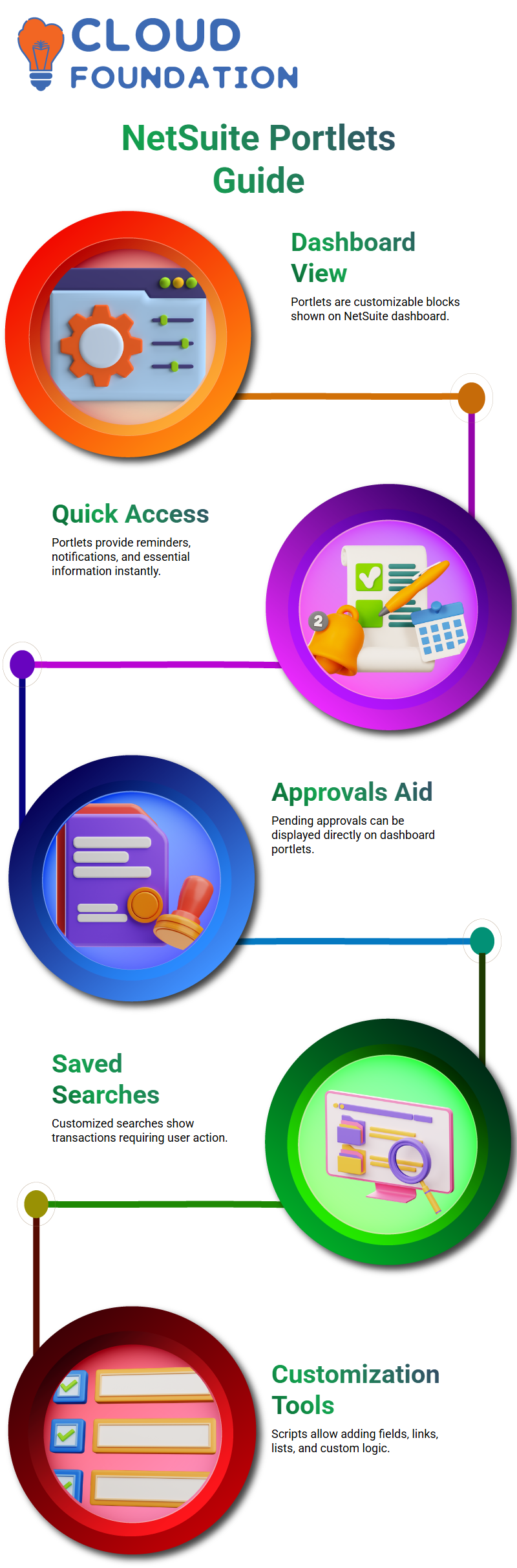
I can add fields, columns, external website links, hierarchical lists, and custom logic with these scripts. This is when the technical skills of NetSuite truly come into their own.
NetSuite Difference Between Portlets and Regular Forms
The difference between a portlet and a regular form.
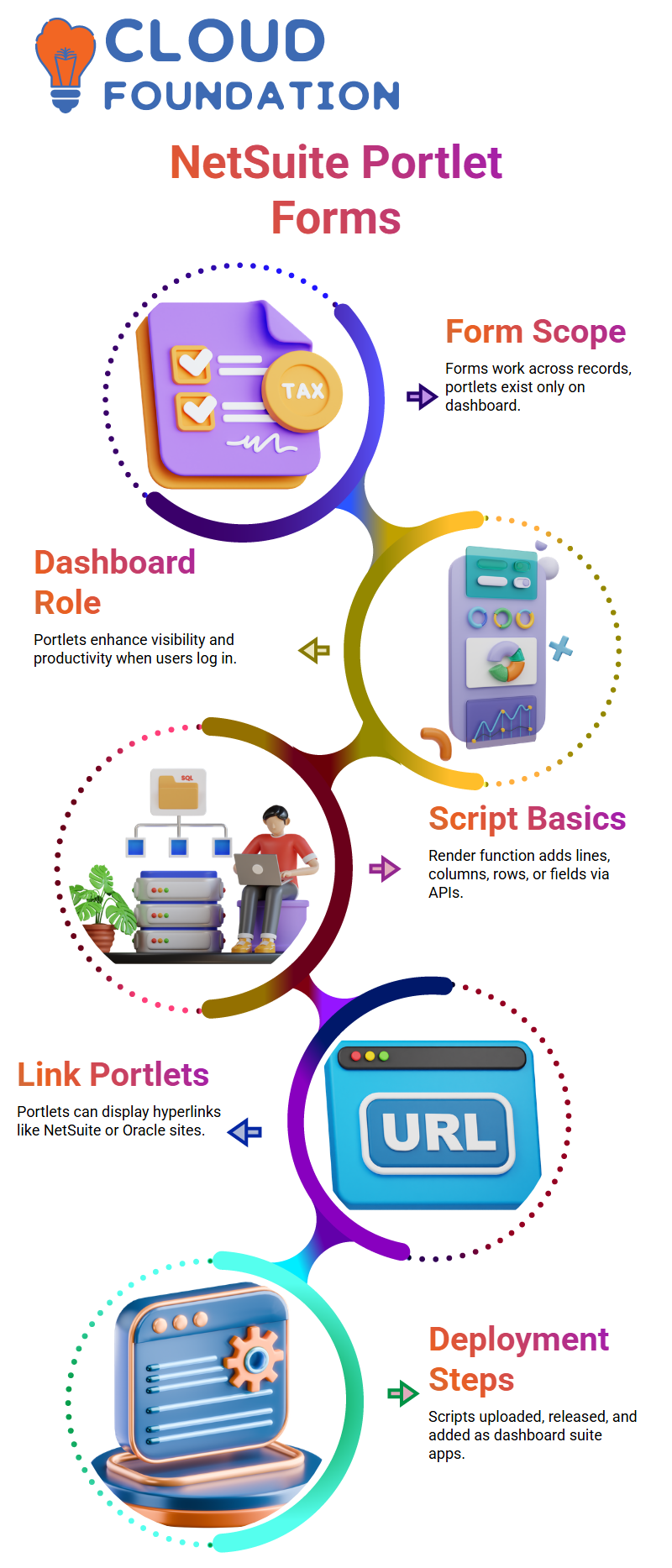
The answer is simple. A regular form works across records, while a NetSuite portlet exists only on the home screen.
Think of the NetSuite portlet as a dashboard-only component. It does not replace forms or transactions.
Instead, it enhances visibility and productivity right when the user logs in.
NetSuite Portlets: Advanced Options
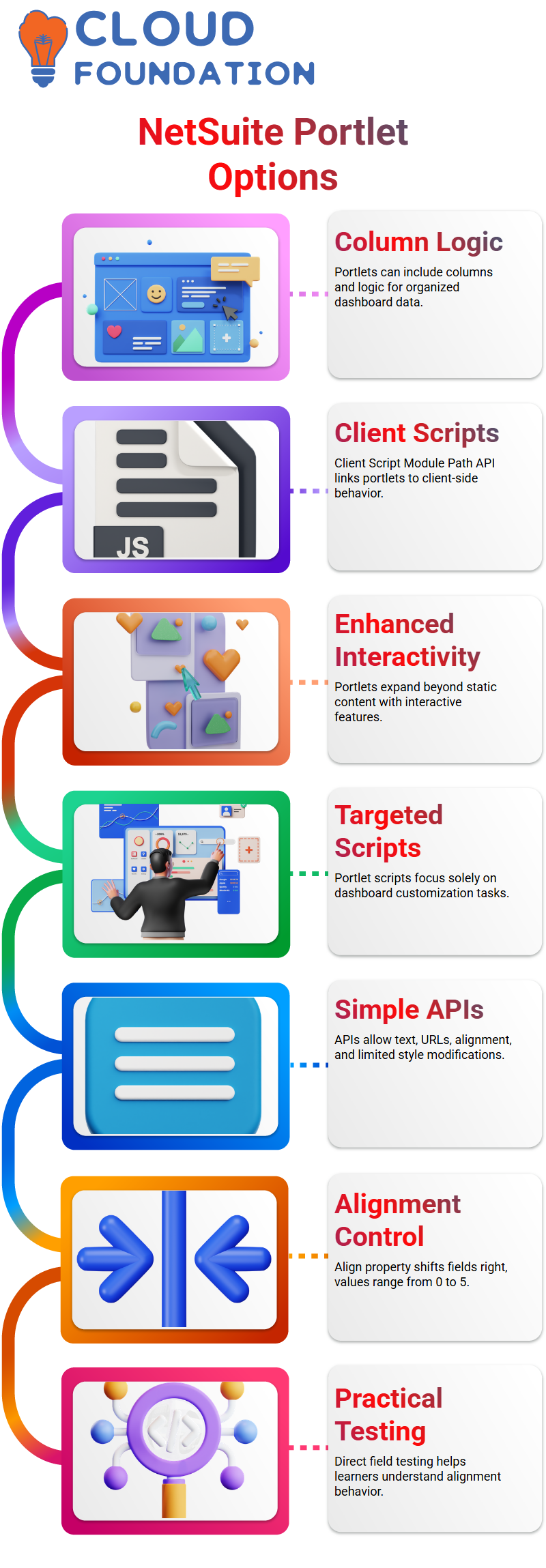
Links are not the only thing supported by NetSuite portlets. I am able to include columns and use logic according to certain columns.
This enables the dashboard to display data in a more orderly manner.
Using the client Script Module Path API to connect a client script to a portlet is another potent NetSuite capability.
By this method, I can link the portlet to client-side behavior and expand NetSuite interactivity beyond static content.
Limitations and Real-World Applications of NetSuite Portals
I’ve found that NetSuite portlet scripts are highly targeted. Their sole purpose is dashboard customization.
You may hardly ever interact with NetSuite portlet scripts if you don’t want complex dashboard logic.
The NetSuite APIs that are provided are simple. There are a few options for font and style, but you may modify text, URLs, and alignment.
Despite these restrictions, NetSuite portlets are still very helpful for visibility, fast access, and customized dashboards.

NetSuite Training

NetSuite Alignment and Portlets
I always try to keep my explanations of alignment in NetSuite straightforward. All alignment is in spacing.
The align value in NetSuite determines how many spaces a field moves to the right.
I typically do direct field testing so that Learners may observe NetSuite’s behavior in real time rather than relying solely on conjecture.
The align property in NetSuite only accepts values between 0 and 5. I can plainly see one extra space added each time I raise the value.
Instead of merely learning definitions, this practical method helps Learners comprehend how NetSuite portlets and layouts truly function.
NetSuite Fundamentals on Mass Updates
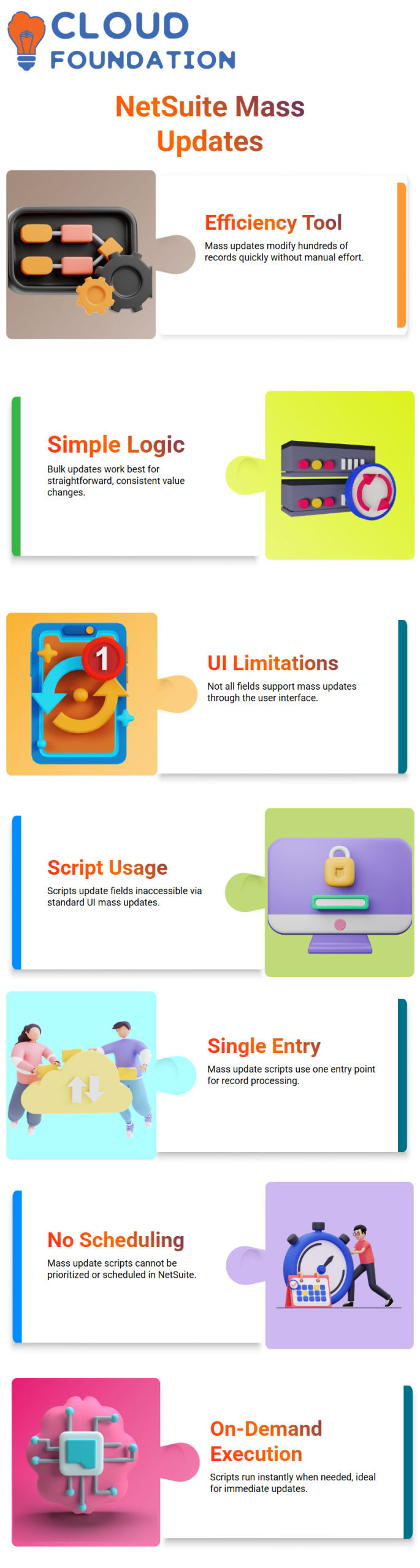
I frequently see circumstances in NetSuite projects where hundreds of records need to have the same value modified.
I use mass updates, a fundamental NetSuite efficiency tool, rather than going through each record one by one.
When the identical value is applied to every record, mass updates in the NetSuite function are optimized.
I always remind Learners that complicated conditional reasoning is not supported by NetSuite bulk upgrades.
The clearest NetSuite option is a mass update if the demand is straightforward and consistent.
Limitations of NetSuite Mass Updates
Not all of the fields in NetSuite are set up for mass modifications based on user interfaces.
I make careful to provide clarification early on because this is where Learners typically become confused.
I introduce mass update scripts when a field cannot be updated through the UI mass update in NetSuite.
Using the same mass update framework, I can programmatically update fields that the regular mass update cannot access, thanks to NetSuite scripting.
NetSuite Mass Update Script Entry Point
Mass update scripts are fairly simple from a NetSuite scripting standpoint. Each function is the single-entry point offered by NetSuite.
After receiving the record type and ID, I load the record, use my reasoning, and save it.
I usually stress that mass update scripts cannot be prioritized or planned in NetSuite.
NetSuite scheduled scripts are the best option if scheduling or priority are important considerations.
Mass update scripts, however, are ideally suited to the NetSuite ecosystem for on-demand execution.
Saved Searches and NetSuite Execution Flow
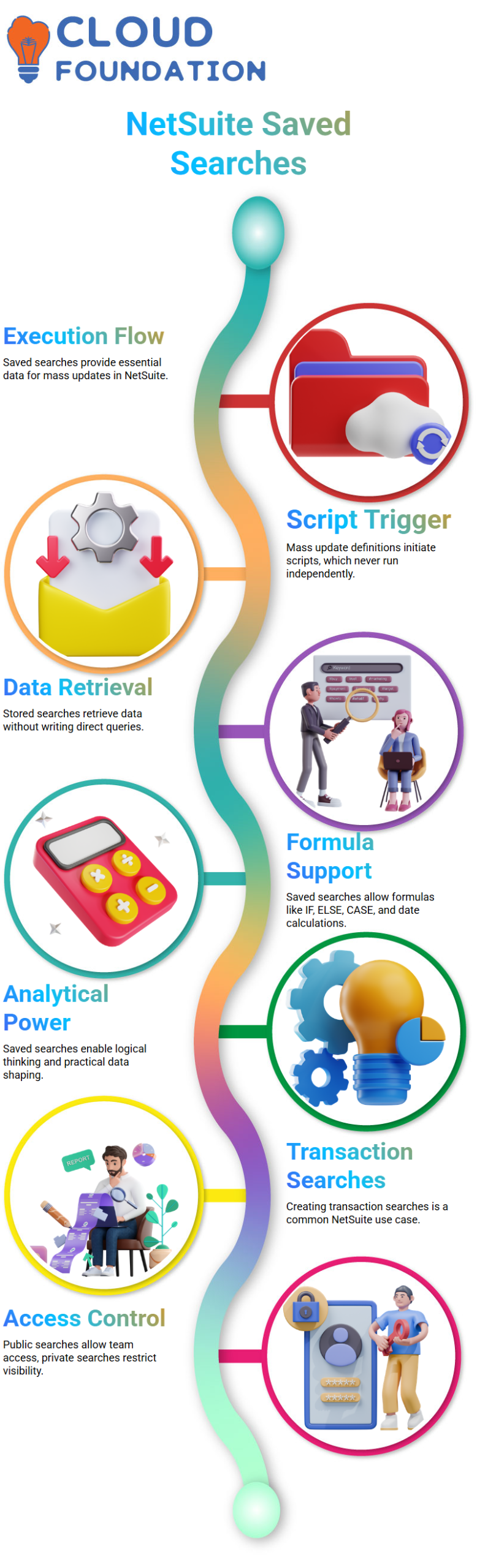
I begin each NetSuite execution flow demonstration with saved searches. A saved search is always required to provide the data for a mass update in NetSuite.
The mass update definition is how NetSuite initiates the script, which never runs on its own.
In NetSuite, I describe stored searches as a means of retrieving data without composing direct queries.
This paradigm is a key component of NetSuite, and once learners grasp it, they can see how searches, scripts, and mass updates all flow together organically on the NetSuite platform.
Getting Started with NetSuite Saved Searches
In NetSuite work, saved searches are mostly a UI-driven feature, but they still allow you to think logically and analytically.
I show my Learners that even though there is no scripting involved, NetSuite saved searches support formulas that feel very close to SQL.
I like to experiment with NetSuite formulas to calculate date differences, apply conditions, and extract meaningful information from raw transactions.
This is where NetSuite starts feeling practical instead of theoretical.
I always tell learners that NetSuite saved searches are about asking the right questions from data.
Once you understand that mindset, NetSuite becomes much easier to work with.

NetSuite Online Training
Creating Transaction Searches in NetSuite
I usually create a new transaction search because it is one of the most common NetSuite use cases.
In NetSuite, you go to Lists, then Search, and then Saved Searches. From there, you can see all the objects available, and I normally select Transactions to keep things simple.
In NetSuite environments, making a search public allows anyone with access to NetSuite to use it, while keeping it private limits visibility to you and admins.
This small detail matters a lot in NetSuite projects because access control and visibility can affect how teams consume data.
Using Criteria Effectively in NetSuite Searches
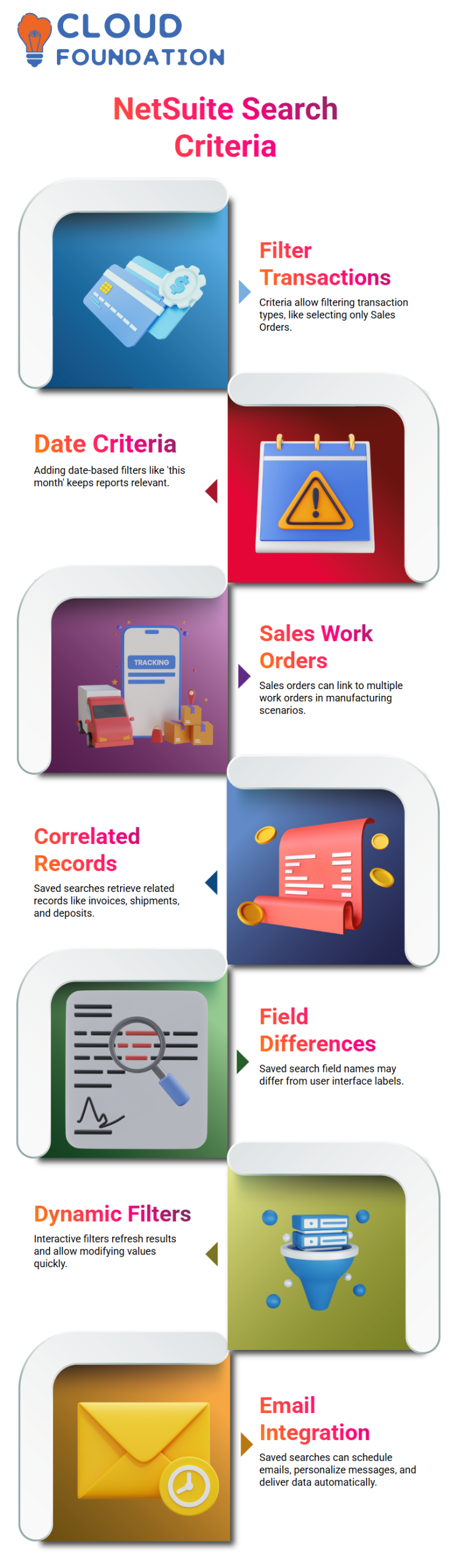
Criteria is where NetSuite’s technical logic really begins. I usually demonstrate this by filtering transaction types, such as selecting only Sales Orders.
In NetSuite, adding date-based criteria like “this month” helps narrow down results quickly and keeps reports relevant.
During NetSuite discussions, Learners often ask me about linking sales orders with work orders.
This happens when customers place bulk or blanket orders that are fulfilled over time. I like to explain NetSuite concepts, examples like quarterly shipments.
One sales order might cover a thousand items, but multiple work orders handle production in smaller batches. This is how NetSuite mirrors real business operations.
Correlated Records in Technical Saved Searches in NetSuite
Related records are a potent feature that I emphasize in NetSuite training.
As long as those relationships are present in the record, NetSuite enables you to retrieve invoice information, item shipments, revenue agreements, and even customer deposits from a sales order search.
I want to clarify that you cannot use the NetSuite user interface to directly link two stored searches.
The majority of relevant information is still accessible inside a single saved search, though.
NetSuite provides greater flexibility in scripting, yet you can accomplish a lot even at the user interface level.
I always remind Learners that the names of NetSuite fields in saved searches could not match those they see on the user interface.
This is typical, and part of getting used to NetSuite is realizing this distinction.
NetSuite: How I Motivate Action with Saved Searches
As part of my daily NetSuite job, I build a saved search based on open invoices and due dates.
To ensure that I only view invoices that require attention, I carefully filter the data. I utilize the saved search as a communication tool once it’s ready.
I email the search results straight to the AR team in NetSuite projects. In this manner, the team can access the entire set of data without having to log in and conduct manual searches.
From a NetSuite standpoint, this guarantees that no invoice is overlooked and saves time.
NetSuite automation is more than simply code, I tell my Learners. Sometimes, follow-ups, customer reminders, and quicker collections can be triggered by a well-designed stored search along with email alerts.
NetSuite: Differentiating between General and Custom Mass Updates
I thoroughly describe the distinction between bespoke mass updates and general mass updates in my NetSuite lectures.
In NetSuite, I see options for customer, contact, activity, and other standard data when I select a general bulk update.
I choose a field to update with a static value after choosing the record type, applying filters similar to a saved search, and selecting result columns in a generic NetSuite mass update.
For instance, if I change the company name in a NetSuite scenario to a fixed value, all of the records in the result set receive the same value.
But this is where NetSuite’s technical limitations become evident. I am unable to apply dynamic logic, and only specific fields are available.
For this reason, in my NetSuite classes, I introduce bespoke mass updates.
NetSuite: Executing and Tracking Real-Time Mass Updates
Before saving, I choose it, specify the criteria, and go over the result columns. Learners may better grasp what’s actually going on behind the scenes with this interactive NetSuite tutorial.
I preview the data after saving to make sure everything seems as it should. Because it indicates precisely which records will be modified, previewing is essential to NetSuite practice.
NetSuite takes over and begins processing the records as soon as I hit Perform Update.
To let Learners know how many records are changed and how long it can take, I continuously refresh the status.
From a NetSuite standpoint, this transparency fosters trust. Additionally, I highlight a crucial NetSuite rule: mass updates are always available when needed.
One important NetSuite difference to keep in mind is that, unlike scheduled scripts, I am unable to schedule a large update.

NetSuite Course Price

Vanitha
Author