Workday Finance Training Classes
Accounting Journals in Workday Finance
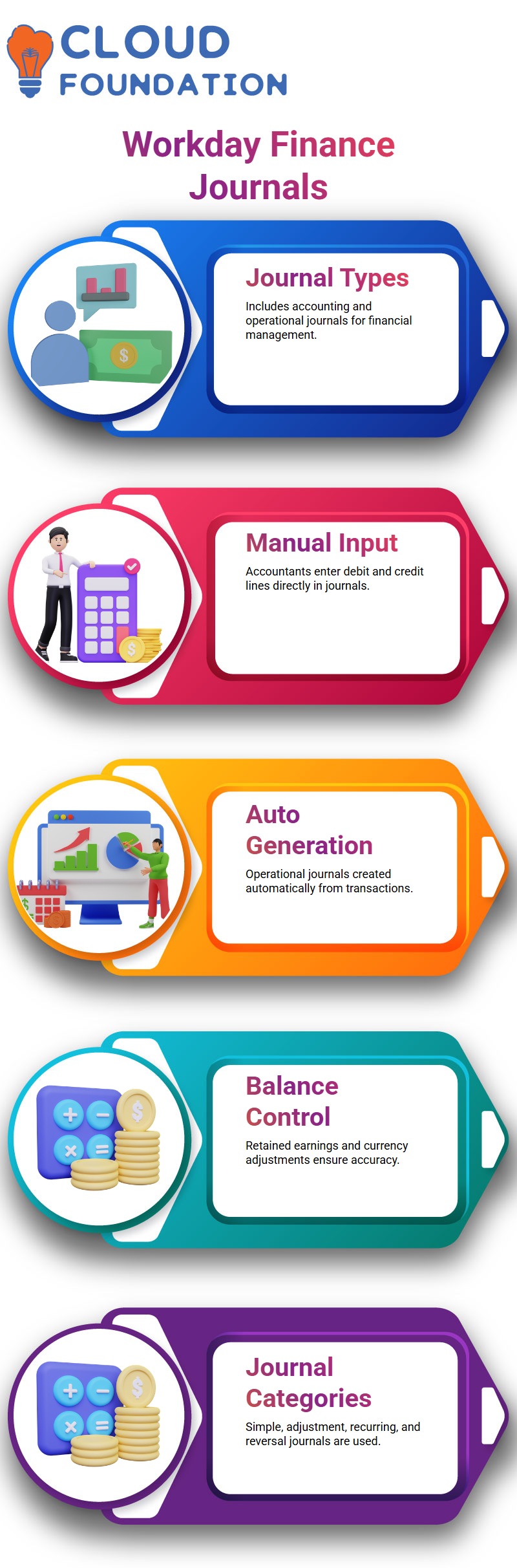
Accounting journals and operational journals are the two primary categories of journals that we discuss in Workday Finance. This distinction is very important if you want to work confidently in Workday Finance.
As an accountant, I manually input accounting journals in Workday Finance. I utilise debit and credit lines directly, and I control the full input. Workday Finance’s operational journals are distinct.
The account posting rules that we set up in Workday Finance, they are automatically generated from transactions such as supplier or customer invoices and flow into the ledger.
Why Configuration Matters in Workday Finance Journals
Managing balances, retaining earnings, and currency gain or loss are all part of it.
Because they maintain the balance when I post credit and debit entries, retained profits are crucial to Workday Finance.
In Workday Finance, I have to put up realised currency gains and losses if I operate with various currencies.
These settings ensure that Workday Finance maintains financial accuracy across all currencies and enterprises.
Types of Accounting Journals in Workday Finance
When I create journals in Workday Finance, I deal with four typical categories. The first is a simple accounting journal in Workday Finance, where I manually input debit and credit values. This is the most prevalent case for accountants studying Workday Finance.
The second kind in Workday Finance is the adjustment journal. When I need to edit or change an existing journal, I utilise this. For instance, I use an adjustment journal in Workday Finance to modify the initial entry if a supplier delivers faulty products and a reimbursement is required.
Recurring journals in Workday Finance make up the third category. These save time.
I make a recurring journal template in Workday Finance and let the system build the journal on its own if I pay office rent each month.
The reversal journal is the fourth kind in Workday Finance. Workday Finance gives me the option to fully reverse an entry by switching ledger accounts or displaying negative numbers if I need to do so because of a mistake or business choice.
Journal Status Lifecycle in Workday Finance
Since many Learners are puzzled about journal statuses in Workday Finance, allow me to clarify. When I create a journal in Workday Finance, it begins in a created state. I have complete control over editing, deleting, and cancelling the diary at this point.
The business process begins as soon as I submit the diary in Workday Finance. The status switches to “in progress,” indicating that validations and approvals are in progress. One of Workday Finance’s best features is its workflow-driven methodology.
Another useful feature in Workday Finance is that I can replicate a journal at practically any state. Workday Finance enables me to replicate the journal and save time regardless of whether it is generated, in process, or uploaded.
Roles and Responsibilities in Workday Finance Accounting
I have to properly assign the accountant job in Workday Finance before I can really upload journals. Role assignment is the first step in Workday Finance’s stringent control over who may produce and submit accounting journals.
I give the accountant function to individual workers like Logan McNeil or Andrew Walton. I constantly advise Learners not to give one individual all the responsibilities.
Which function performs which task in Workday Finance is crucial for confidence and job readiness.
These ideas begin to make sense as we proceed with practical Workday Finance exercises. Once you add transactions yourself, Workday Finance seems less theoretical and much more realistic.
Roles and Setup in Workday Finance
I rapidly came to the realisation that you can never work blindly when I initially began working with Workday Finance. Every task in Workday Finance needs a defined role, and if you miss that, the system will stop you instantly.
In Workday Finance, I realised early on that accounting setup is not random. For example, before handling ledgers in Workday Finance, I made sure the correct accounting manager role was already in place.
Even earlier than that, when I wanted to design fiscal quarters or an accounting calendar, I knew a Finance Administrator job in Workday Finance was required. Writing all this down helped me grow confidence and prevent frequent blunders.
I usually remind my pupils that Workday Finance rewards preparedness. When you know which job conducts which task in Workday Finance, everything gets smoother. That clarity is what I want you to establish from day one.

Workday Finance Training

Creating Accounting Journals in Workday Finance
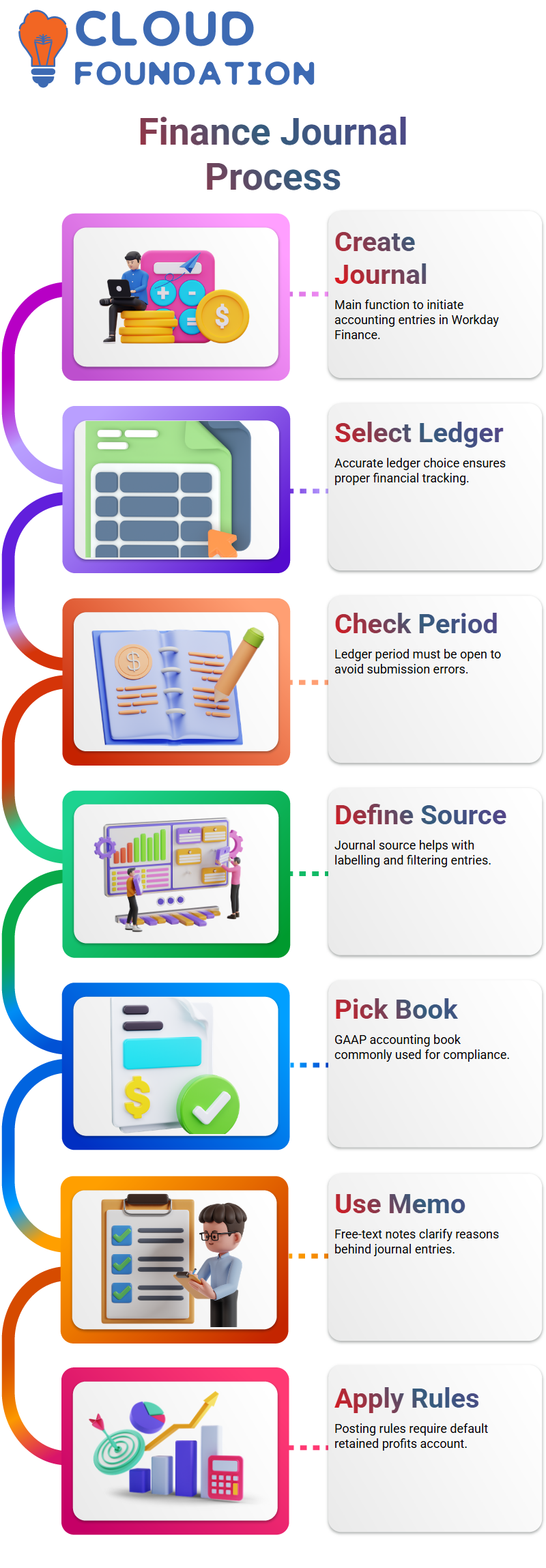
The ledger is the first item the system requests, and I already know which ledger I want to use in Workday Finance at this point. In Workday Finance, choosing the appropriate ledger is crucial, and I often deal with a real ledger.
Accounting date plays a vital role in Workday Finance. Before uploading anything, I always verify the ledger period status. If the period in Workday Finance is not open, the system will indiscriminately issue an error.
Another thing I explained properly is the journal source. Although journal sources in Workday Finance may be customised, their primary functions are labelling and filtering. They don’t power Workday Finance’s intricate logic.
To show how it works, I urge everyone to investigate Maintain Journal Sources in Workday Finance and even add their own data.
Accounting Books and References in Workday Finance
Workday Finance invites you to choose your preferred accounting book after the journal source. In my situation, I often follow Workday Finance’s main GAAP accounting book. You may learn more about these accounting books by experimenting with projects like Maintain Accounting Books in Workday Finance.
I also make use of the memorandum field in Workday Finance. I handle it as if it were a private message. This free-text section in Workday Finance helps me recall why I made a certain diary. Later on, when I search or filter journals in Workday Finance, it also comes in handy.
Another useful tool in Workday Finance is the External Reference ID.
I always save that external ID in Workday Finance if journals originate from a third-party source. In this manner, I can simply match records across Workday Finance and other platforms without misunderstanding.
Journal Posting in Workday Finance
When I work with Workday Finance, the first thing I usually check is if the process exhibits a green signal.
That green sign in Workday Finance indicates that the journal has been successfully finished. I personally prefer to examine the process details in Workday Finance and evaluate which stages were triggered, since it offers complete insight into what really transpired behind the scenes.
In Workday Finance, I walk through the accounting journal process and look at the business process description.
For journal events in Workday Finance, I depend on the default business process since we did not construct a new one for the firm. This lets me rapidly check that just two processes exist: initiation and approval.
These procedures in Workday Finance make journal keeping considerably simpler.
I constantly explain to trainees that with Workday Finance, approvals might be conditional. For example, if a ledger account has cash and the amount reaches a specified threshold, the approval process activates.
If the requirement is not satisfied, Workday Finance automatically classifies the approval as not necessary.
This is why many journals progress right to completion in Workday Finance without pausing for permission.
Finding and Reviewing Posted Journals in Workday Finance
I go straight to Find Journals in Workday Finance after finishing my journal. In Workday Finance, this is my preferred job to verify the status.
I can be certain that the entries have successfully reached the ledger accounts when I see the status as posted.
I open the uploaded journal in Workday Finance and go over the journal lines. I examine the affected ledger accounts and the effect on retained profits.
Because underused or inaccurate accounts are sometimes the source of previous mistakes, this Workday Finance step is crucial.
I usually remind them that posted is the ultimate state in Workday Finance. Posting indicates that the item has been successfully entered into the general ledger by Workday Finance. At this point, I am certain that the transaction is complete and correct in Workday Finance.
Creating and Modifying Journals in Workday Finance
I normally create another journal in Workday Finance to illustrate several situations after going over the previous one. Sometimes I remove a business process constraint to highlight how approvals operate differently in Workday Finance.
Since Maintain Step Conditions is the proper location to handle logic in Workday Finance, I utilise it to make these adjustments.
I constantly mention that navigation works across tasks while generating journals in Workday Finance.
You navigate Workday Finance by typing Create Journal or Find Journals. Workday Finance becomes really straightforward once you get acclimated to its task-based navigation.
I also offer my own experience and warn trainees that knowing where to navigate in Workday Finance is crucial. Unlike other systems, you don’t click through menus.
Rather, Workday Finance mostly relies on remembering the appropriate activities at the appropriate moment.
Approvals, Roles, and Adjustments in Workday Finance
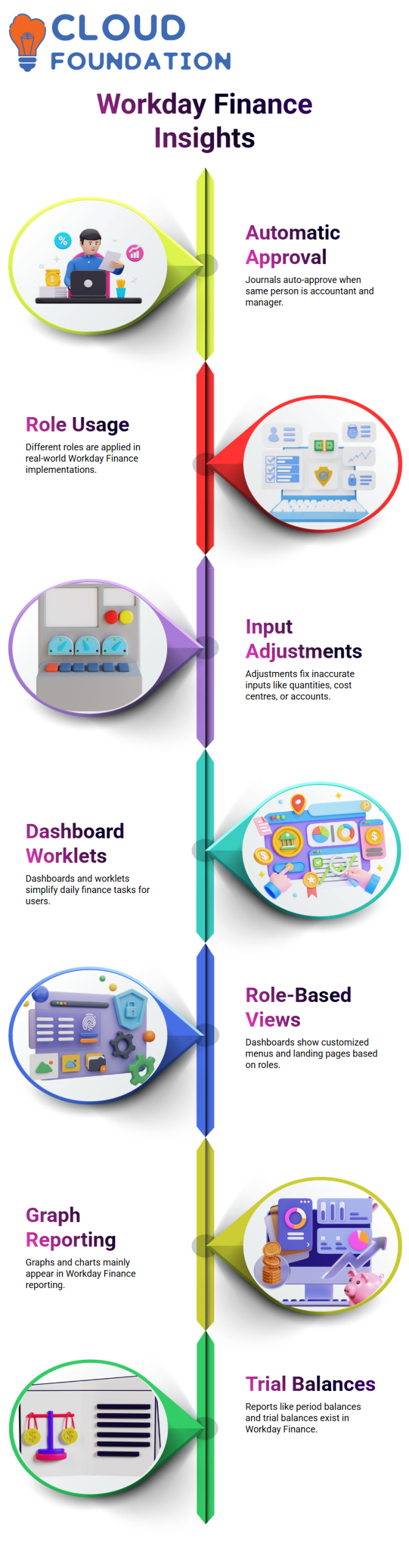
Automatic approval is one intriguing feature I often show in Workday Finance. Workday Finance automatically accepts the journal if the same individual serves as both the accountant and the accounting manager.
This is helpful for training, but I always make it clear that other roles are used in real-world Workday Finance implementations.
Workday Finance permits corrections or reversals from the journal generation process if quantities, cost centres, or accounts are incorrect.
Finally, I describe how dashboards operate in Workday Finance. Finance users in real-world settings depend on worklets and dashboards for everyday tasks.
This is supported by Workday Finance, which makes routine accounting operations quicker and more effective by allowing frequently performed tasks to display directly on the home page.

Workday Finance Online Training
Workday Finance Dashboards in Daily Work
The dashboard is usually where my day really begins when I first launch Workday Finance. I like that I can set up short menus and landing pages according to roles.
This has a significant impact on Workday Finance because an accountant and the procurement team shouldn’t see the same things.
I generally remind my Learners that Workday Finance is not just a system; it is a workspace that you design according to your job.
All of the procurement connections, accounting linkages, and role-based choices may be added to the dashboard in Workday Finance.
Once the security is configured, the proper persons automatically see the right options. One of the first useful things I demonstrate in class is how it humanises Workday Finance rather than treating it as a stiff instrument.
I also receive a lot of queries regarding graphs in Workday Finance. People seek pivot grids or charts and assume they are missing. I clarify that graphs are mostly used in reporting in Workday Finance.
Bar graphs and visual summaries appear when you generate or execute a report in Workday Finance.
Exploring Reports and Trial Balances in Workday Finance
Whenever someone comes from another system like PeopleSoft, I ask them to seek the same reports in Workday Finance. For instance, period balances, event balances, or trial balances. In Workday Finance, these reports already exist; you simply need to know how to locate and execute them.
I always urge everyone to spend some time in Workday Finance’s reporting section. You can comprehend half of the system if you grasp reporting. Workday Finance becomes considerably more powerful when you stop thinking simply in terms of transactions and start thinking in terms of reports and insights.
When we run these reports in Workday Finance in our training environment, it might sometimes seem sluggish. This is mostly due to the tenant’s extensive training data and the fact that we are on a VDI.
Things often go considerably more quickly in a real-world production Workday Finance setting.
Creating Adjustment Journals Step by Step in Workday Finance
One of the most useful things I explain is how to build an adjustment diary in Workday Finance. Allow me to explain it like I often do in class.
Let’s say that after posting a diary entry with $1,000 in cash, I discover that I overlooked an additional $100. In Workday Finance, I do not replace the old diary. I make an adjustment journal instead.
I just have to enter the adjusted amount when I create an adjustment journal in Workday Finance. If I need to add a hundred more, I just input that. If I need to minimise anything, I may either input a negative sum or utilise the opposite account. That is how Workday Finance handles changes.
The inability to immediately choose and modify my previous journal is, to be honest, one of the things I dislike most about Workday Finance.
I have to input stuff manually. You may choose the prior journal and create an adjustment on top of it in some other systems. You do it yourself, step-by-step, with Workday Finance.
Posting and Journal Behaviour in Workday Finance
Once the adjustment journal is produced and submitted in Workday Finance, I always go and check the journal’s list.
Because with Workday Finance, the system automatically picks up the business and fiscal year depending on the accounting configuration. You usually don’t even need to write such information.
In our training tenancy, there is a lot of data, and Workday Finance might seem sluggish. That is only the surroundings; it is not the actual behaviour of the product.
Nevertheless, when we check, we often find three journals, one adjustment and a few regular ones.
This demonstrates that Workday Finance is carrying out our instructions precisely.
Since these are manual inputs in Workday Finance, you do not see a lot of fancy information.
Because we manually input everything, you can only see which accounts are credited and which are debited. In Workday Finance, such is typical practice.
Why Recurring and Reversing Journals Matter in Workday Finance
I usually discuss recurring and reversing journals in Workday Finance after displaying manual journals. In practical applications, these functionalities are much more helpful than simple manual inputs.
Workday Finance provides you with these alternatives so you do not have to redo the same job over and again.
In Workday Finance, recurring journals save a lot of time for monthly chores, while reverse journals assist in maintaining the books clean without additional work.
This is where I normally explain to everyone that Workday Finance is about creating more intelligent processes rather than simply inputting data.
Workday Finance becomes less like a hassle and more like a solution that really assists your everyday accounting tasks once you start using these capabilities correctly. That is the mentality I usually attempt to establish when I teach Workday Finance.

Workday Finance Course Price

Nishitha
Author