Workday Finance Online Course
Security Basics with Workday Finance
Workday Finance security determines what you can view, configure, and do when you work directly with the system.
Practice is always advised, particularly while studying Workday Finance. For this reason, I made sure you finished the call center and business setup tasks.
Actively practicing Workday Finance settings improves idea retention and gives you the confidence to navigate the tenancy without fear.
Security Roles in Workday Finance
While working in Workday Finance, we sometimes swap users.
It is deliberate that not all users have the same degree of access.
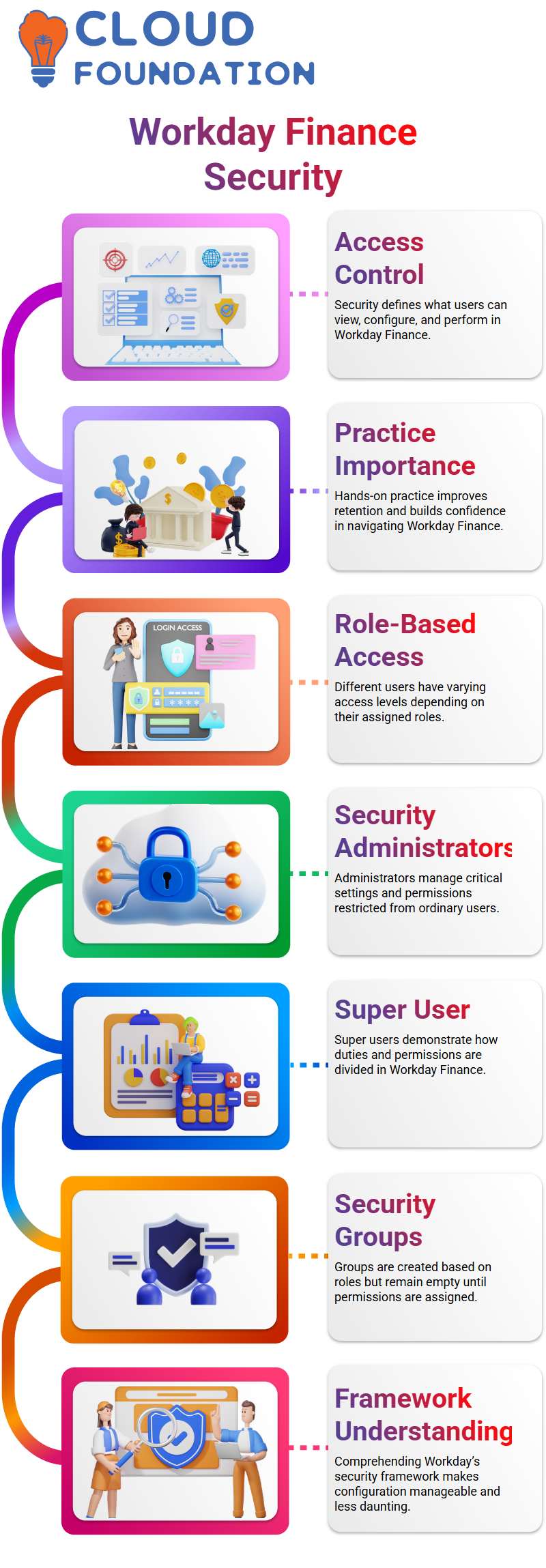
Security administrators like Logan are in place at Workday Finance to manage critical settings that are off-limits to ordinary users.
I wanted you to see how Workday Finance divides up duties when I showed you how to get in as a super user.
Only dependable IT or security administrators set up security groups and permissions in actual Workday Finance firms.
Creating and Assigning Security Groups in Workday Finance
Next, we created security groups in Workday Finance based on roles. I clarified that access is not always granted by just establishing a job or security group in Workday Finance.
These security groups remain empty containers until permissions are assigned.
Configuring security in Workday Finance becomes reasonable rather than daunting once you comprehend its framework.
Functional Areas in Workday Finance
A functional area in Workday Finance serves as a container for many domains. Tasks, reports, and report fields are examples of securable elements that are represented by each domain.
Suppliers are categorized under a certain functional area in Workday Finance. All of the associated domains appear on the left side as soon as I choose the supplier’s functional area.
Creating suppliers, handling supplier requests, maintaining supplier connections, and examining supplier accounts are all included in this.
I can better grasp where permissions are located and how they relate to actual business operations thanks to Workday Finance’s layout.
I always remind Learners that in Workday Finance, rights that are indicated as accessible to all users merely indicate that they are open to all tenants.
It does not imply that there are no limitations. Workday Finance makes a clear distinction between what is visible to all users and what is only modifiable by certain security groups.
Managing Supplier Domains in Workday Finance
After entering Workday Finance’s suppliers’ functional area, I investigate the many areas related to supplier administration.
I can establish up suppliers, manage supplier connections, keep supplier data, and even examine supplier history logs in Workday Finance.
Each domain in Workday Finance may have many sublevels. I can let someone access supplier text information, for instance, but not update supplier data.
Additionally, I may limit access so that users can only see suppliers. Workday Finance’s domain security rules provide this level of fine-grained management.
Workday Finance employs the same security framework for both supplier management tasks and supplier invoice reports.
Workday Finance security begins to appear reasonable rather than daunting once Learners understand this.

Workday Finance Training

View vs Modify Access in Workday Finance Security
The distinction between view and change access is among the most crucial things I teach in Workday Finance.
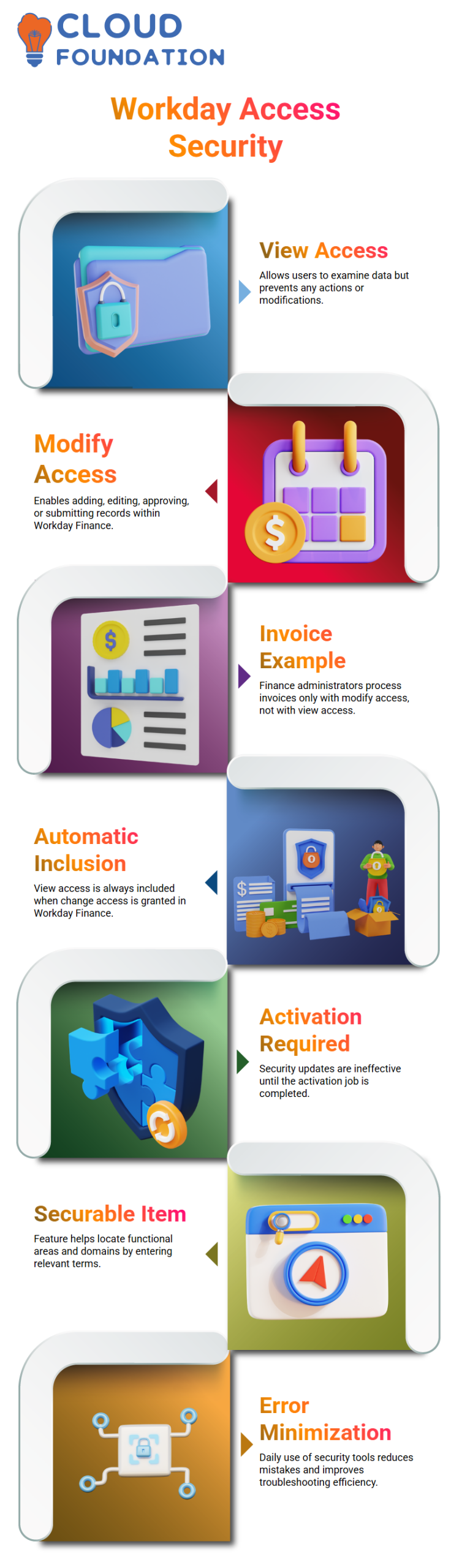
Examine access in Workday Finance refers to a user’s ability to examine data on a screen or report, but not take any action.
Conversely, modify access enables the user to add, edit, approve, or submit records.
Because it is so applicable, I use Workday Finance’s example of a supplier invoice work queue.
Invoices may be processed, approved, or moved through the queue by a finance administrator with edit access.
They are unable to touch the invoices if they simply have view access. This regulation is aggressively enforced by Workday Finance.
I always make note of the fact that view access is automatically included in Workday Finance when I provide change access.
Since no one can alter data they cannot see, this makes sense. However, Workday Finance does not provide change access until I specifically include it when I provide merely view access.
It’s important to keep this habit in mind while creating secure jobs.
Activating and Verifying Security in Workday Finance
I constantly get an orange alert reminding me to activate security policy changes in Workday Finance after updating permissions.
Many novices overlook this step. Security updates in Workday Finance are not effective until I complete the activation job. During training, I always stress this.
One of my favorite Workday Finance features is View Security for Securable Item, which I use when I’m not sure which functional area or domain a job belongs to.
To access all relevant activities, reports, report fields, and business processes, I only need to input a term, such as “create supplier,” into Workday Finance.
Because I don’t have to recall the functional area up front, this method saves me time. After I choose the secure item, Workday Finance shows me the functional area.
I can then go straight to domain security permissions and make accurate changes.
At Workday Finance, I myself use this technique almost daily. It minimizes mistakes and maintains the effectiveness of security troubleshooting.
When Learners develop this practice, they become more comfortable managing Workday Finance security.
Domain Security in Workday Finance
Since domain security governs the majority of what users can see or do in the tenancy, I usually start my lessons on Workday Finance with this idea.
Domain security permissions account for about 80% of security in Workday Finance; once you fully grasp this, everything else becomes a lot simpler.
Domain security permissions in Workday Finance are not assigned at random. View, Modify, Get, and Put are the four distinct categories into which they fall.
I help Learners understand this by relating it to actual Workday Finance actions they do on a daily basis, such as executing tasks, running reports, or interacting with connectors.

Workday Finance Online Training
The Four Security Permission Types in Workday Finance
Reports, tasks, and report fields are the primary uses for View and Modify permissions, as I usually stress in my Workday Finance seminars.
You provide View access if you want someone to just view data in Workday Finance. You grant Modify access if you want them to keep or alter data.
Integrations are the main emphasis of Workday Finance’s Get and Put permissions.
I grant access when an integration retrieves data from the tenant. I provide Put access whenever an integration changes or pushes data into Workday Finance.
This difference is crucial, particularly in Workday Finance during interviews and actual project work.
How Integration Security Works in Workday Finance
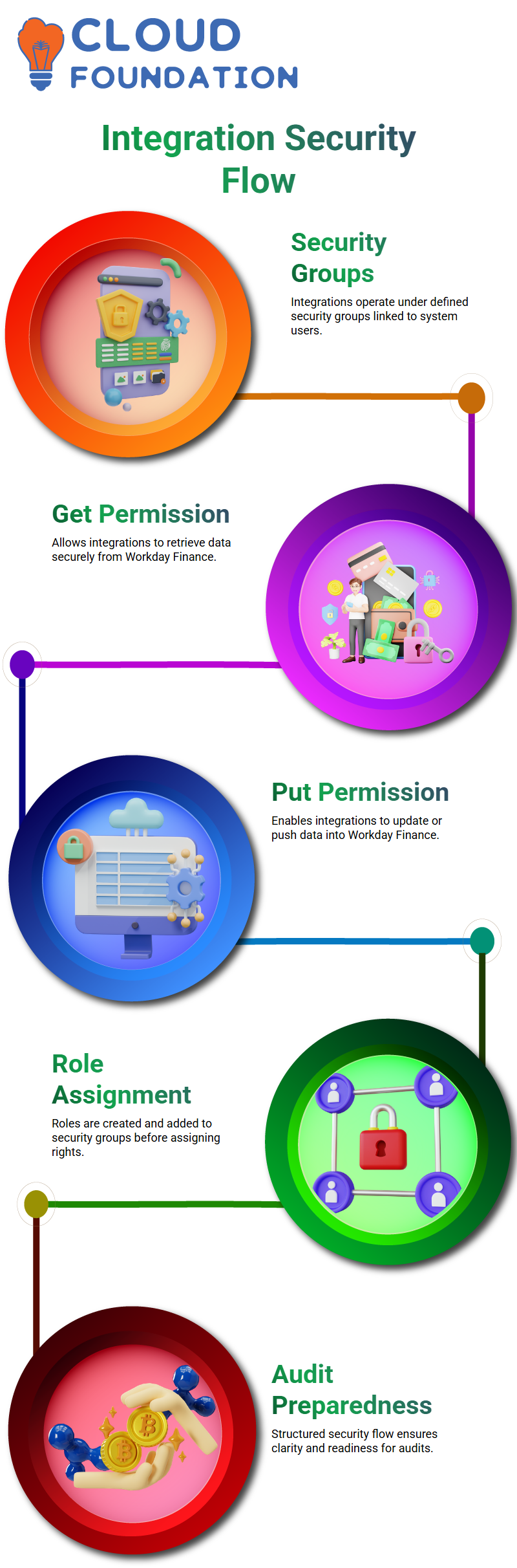
Integrations in Workday Finance always operate under a user and a security group; they don’t just happen.
I set up an Integration Security Group in Workday Finance and linked it to an Integration System User.
Then, depending on what the integration must do, I provide Get or Put permissions.
This guarantees that Workday Finance data may only be accessed or updated by the specified integration.
Additionally, I want to be clear that security is never provided directly to an individual in Workday Finance.
A user is first allocated to a security group, which in turn is assigned to security. Both Workday Finance connectors and functional users are subject to this regulation.
The Correct Security Assignment Flow in Workday Finance
I usually provide a step-by-step explanation of the Workday Finance security hierarchy since many Learners question me about it.
I start by utilizing Workday Finance’s Maintain Assignable Roles feature to establish an assignable position. I then create a security group of type Role and add the role to it.
I then go to the domain in Workday Finance and provide the security group with the necessary security rights.
This is a crucial order. I am unable to assign domain security in Workday Finance unless the security group is already in place.
Workday Finance’s clarity and audit preparedness are guaranteed by this methodical approach, particularly in big enterprises with several security teams.
Activating Security Changes in Workday Finance
Forgetting to activate security modifications is a frequent error I see with Workday Finance.
Domain permissions may be assigned, but they won’t take effect until I execute the Activate Pending Security Policy Changes task.
This activation step is required in Workday Finance. I always remind Learners that security never activates on its own.
It has to be activated and taken over by someone. I have to repeat the Workday Finance activation job if I enable five security updates today and forget to activate the other five.
One of the most common mistakes I encounter with Workday Finance is forgetting to enable security adjustments.
Although I may give domain rights, they won’t become active until I complete the Activate Pending Security Policy Changes task.
In Workday Finance, this activation step is necessary. Learners are often reminded by me that security never turns on by itself.
Someone needs to turn it on and take control. If I activate five security updates today and neglect to activate the other five, I will have to redo the Workday Finance activation task.
Audit, Proxy, and Accountability in Workday Finance Security
Behind the scenes, Workday Finance keeps an extensive audit trail. The system logs who did the activity, and if a proxy user was engaged when I turn on security.
One of Workday Finance’s best qualities is its degree of openness. I always remind Learners that security updates in Workday Finance are serious business.
Controlled activation, clear comments, and appropriate documentation guarantee that the system is safe, compliant, and simple to defend during audits.

Workday Finance Course Price

Nishitha
Author