SAP LMS Course for Beginners
Understanding SAP LMS and Virtual Learning Sessions
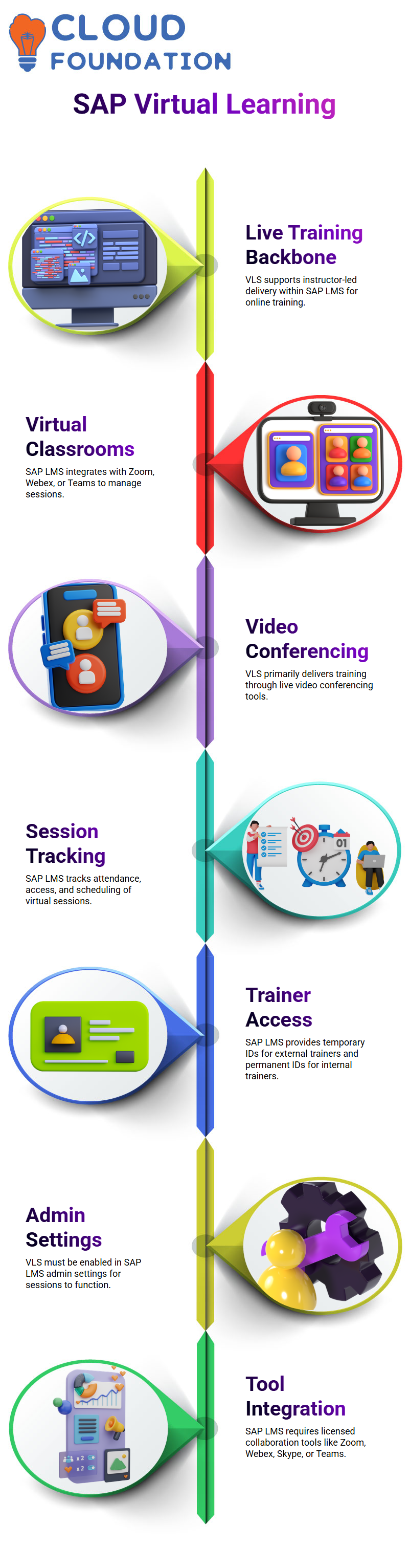
VLS is the backbone of live, instructor-led delivery, particularly when it comes to SAP LMS and online training.
VLS lets me run virtual classrooms in SAP LMS with tools like Zoom, Webex, or Teams while still managing everything from one place.
Based on my work with SAP LMS, VLS is mostly used when training is done through live video conferencing.
I use SAP LMS to keep track of these sessions because it makes it easy to keep track of who is there, who can access them, and when they are scheduled.
The need for SAP LMS in VLS has increased significantly over the last few years, particularly since the COVID-19 pandemic.
How SAP LMS Handles Trainer Access for Virtual Learning Sessions
There are two easy ways for me to start a Virtual Learning Session in SAP LMS. The first choice is to hire an outside trainer.
If that’s the case, I make a temporary trainer ID in SAP LMS. This lets the outside trainer use SAP LMS only to deliver the VLS.
The second choice is for trainers who work for the company. In SAP LMS, I make a permanent trainer ID here.
This trainer uses SAP LMS a lot to plan and run several VLS sessions.
Even though the process of making things is the same in SAP LMS, the way I handle access and permissions changes depending on whether the trainer is internal or external.
SAP LMS Requirements
I always make sure that the basic requirements are met before I run a Virtual Learning Session in SAP LMS. VLS must be turned on in the LMS admin settings for SAP LMS to work.
If you don’t have this, no virtual session will work, no matter how good it looks on paper.
Making sure that the collaboration tool is installed and licensed is another important step in SAP LMS.
SAP LMS works with all of them, whether I use Zoom, Cisco Webex, Skype, or Teams.
I’ve also seen SAP LMS work with tools from other companies, but that always means doing more integration work.
Online Collaboration Tools in SAP LMS
When I set up VLS in SAP LMS, I go to system configuration and LMS admin settings. This is a very basic area for setting things up, and to be honest, if you know the basics of SAP LMS, this isn’t hard at all.
I changed the settings for the Virtual Learning Element in SAP LMS based on the tool I want to use.
For instance, if I choose Zoom, I set the number of people who can attend meetings, the number of people who can attend webinars, and the details of the organisation.
For proper integration, SAP LMS depends on the vendor API, which the Zoom technical team usually gives us.
Managing Multiple Zoom Accounts Through SAP LMS
People often ask me if they can use more than one Zoom account in SAP LMS. In real training settings, I often have more than one facilitator, and each one has their own Zoom account.
Because SAP LMS connects directly with Zoom at the vendor level, this works perfectly.
When SAP LMS connects to Zoom through the API, I can use more than one Zoom ID.
Any Zoom account made anywhere can automatically connect to SAP LMS.
One reason I like SAP LMS for big businesses is that it is flexible.
Global Application Settings for SAP LMS
Global application settings are very important for SAP LMS. I always make sure that VLS synchronisations are turned on and that the VLA property is set to true.
SAP LMS won’t let sessions run properly without this. I also set global options in SAP LMS, such as when students can see the join button.
For instance, I usually let students join 10 minutes before the session starts.
Once you know how SAP LMS works, these settings are easy to understand, simple, and easy to manage

SAP Training

Learner Experience in SAP LMS Virtual Sessions
From the point of view of a learner, SAP LMS keeps everything the same.
When students sign up for a course, they get a training link like they would for any other SAP LMS item.
This link has the VLS information, which is the only difference.
On the day of training, students click the link that SAP LMS sends them and join the live session.
SAP LMS controls the whole access flow, making sure that only registered users can take part in the Virtual Learning Session.
Trainer Identification and Time Zone Management in SAP LMS
I always make sure to clearly list the instructor’s information when I make a VLS in SAP LMS. I can give an instructor an ID, name, email, role, and domain with SAP LMS.
Some fields are optional, but I always fill out the time zone in SAP LMS.
SAP LMS schedules sessions correctly by using the trainer’s time zone.
When I run training programs around the world in different regions, this becomes very important.
Using Existing Accounts and Validation Rules in SAP LMS
With SAP LMS, I can either use an existing collaboration account or make a new one.
Most of the time, I use my current Zoom or Teams account because it’s already set up. SAP LMS just connects to it and runs the session.
Email uniqueness is one of the most important rules I always tell students and teachers.
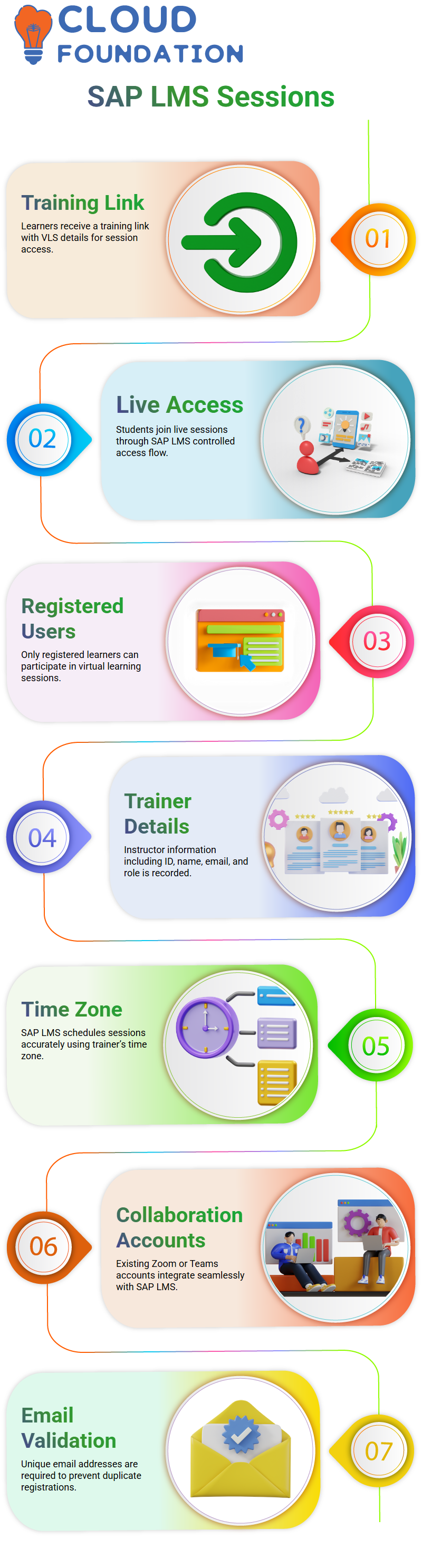
Every person who takes part in SAP LMS must have their own email address.
If someone tries to sign up with an email that is already in use, SAP LMS will show a validation error right away. This keeps records neat and correct.
How SAP LMS Handles Instructor IDs and Virtual URLs
I often tell trainers about how SAP LMS makes virtual URLs. The URL in SAP LMS is based on the instructor ID.
SAP LMS makes a new virtual URL for that session if I set your ID as the main instructor.
When I teach more than one class in a day, SAP LMS makes sure that each one has its own URL.
I don’t want five groups to turn into one meeting, and SAP LMS stops that from happening. SAP LMS makes a new link every time I click and make a class session.
SAP LMS gives me options when it comes to external users. I can make permanent IDs or use a temporary ID that is not specific to me.
I can even safely share my login information with SAP LMS, which automatically sets up access based on the resources.
Tracking Attendance and Learning History in SAP LMS
One of my favourite things about SAP LMS is that it lets you keep track of attendance. SAP LMS keeps track of page views for self-paced content.
SAP LMS uses attendance data sent from the virtual learning server for virtual training.
When I turn on attendance processing in SAP LMS, the system automatically adds the session to the learner’s history.
SAP LMS starts keeping track of who is in the class as soon as it starts, and the student joins.
I can also set a minimum attendance percentage in SAP LMS.
For instance, if I set it to 75%, SAP LMS figures out attendance based on how long the whole session lasts.
If the training lasts eight hours and the learner only goes to six, SAP LMS keeps track of that.
Getting Started with SAP LMS Session Management
One of the first things I always tell people when I show them how to use SAP LMS is how easy it is to set up and run training sessions once you know how they work.
With SAP LMS, I can keep track of attendance, run sessions, and make sure that students get the right credit without having to do any work.
The moment I select the completion status, SAP LMS sends attendance data back to the system on its own. This makes things much easier.
I can see how SAP LMS connects everything behind the scenes in my daily work.
The system updates the learning history right away after attendance is taken.
One of the best things about SAP LMS is that it can automate a lot of tasks, which is especially helpful when you have to train a lot of people at once.

SAP Online Training
Launching Training Sessions in SAP LMS as an Admin
As an admin, all I have to do to start a session in SAP LMS is go to the agenda tab and look for the class.
I change the time slot from there and then click on the start session link in the virtual column.
SAP LMS gets the session ready right away and shows a confirmation pop-up to make sure it started.
One thing I like about SAP LMS is that the process is always the same.
When I click launch, everything opens up without a hitch, and the virtual session starts.
As an admin, I don’t need any extra tools because SAP LMS already lets me control sessions from one place.
How Instructors Use SAP LMS to Start Training
From the point of view of a teacher, SAP LMS makes things very easy.
When I log in as a teacher, I just go to my classes and look at the sessions that have been assigned to me.
SAP LMS clearly shows all of the scheduled classes, which makes it easy to start a session on time.
SAP LMS lets teachers start a session right away by clicking on it, just like other popular meeting tools.
This is very helpful to me because teachers don’t need admin-level access to start teaching. SAP LMS makes sure that everything is secure and based on roles.
Joining a Session as a Learner in SAP LMS
From the point of view of a learner, SAP LMS makes it easy to join a session.
If I have to take a class, I just hover over the course title in my learning plan, and the option to join shows up right away.
This small design choice in SAP LMS saves time and keeps things clear.
SAP LMS also sends out registration emails, but unlike some other platforms, these emails don’t always have the direct link to join.
Instead, SAP LMS keeps everything in one place in the learning portal, which makes it easier to keep track of and more consistent.
Tracking Attendance and Learning History in SAP LMS
After the training is over, SAP LMS takes care of attendance data on its own. I really like how the system checks how long people were there against the required percentage.
SAP LMS keeps track of who came, how long they stayed, and whether they finished.
SAP LMS lets administrators set the process to run automatically every day, week, or any other time they want.
This flexibility makes sure that learning history is always correct and up to date without any work on your part.
Configuring VLS and Backend Settings in SAP LMS
After the training is over, SAP LMS takes care of attendance data on its own.
I really like how the system checks how long people were there against the required percentage.
SAP LMS keeps track of who came, how long they stayed, and whether they finished.
SAP LMS lets administrators set the process to run automatically every day, week, or any other time they want.
This flexibility makes sure that learning history is always correct and up to date without any work on your part.

SAP Course Price

Vanitha
Author