Veeam Online Training on Backup
Understanding Backup Job Modes in Veeam
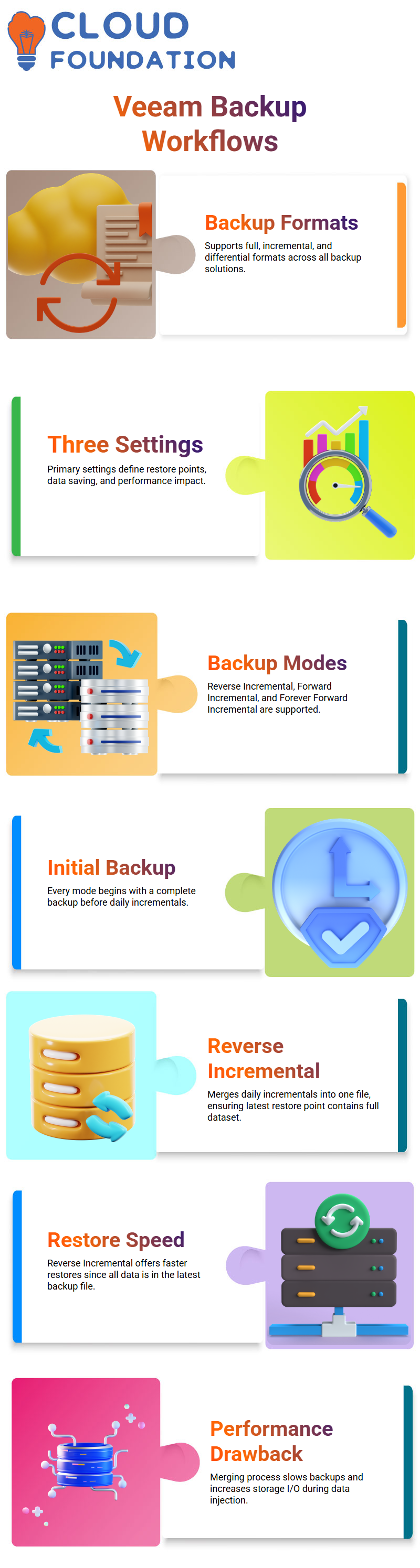
Veeam supports the full, incremental, and differential backup formats that are available in all backup solutions.
In order to provide administrators a clear understanding of what is going on behind the scenes, I always begin my work with Veeam in real-world settings by outlining how Veeam organises its backup logic.
I often work with three primary backup settings in Veeam.
These options specify how Veeam creates restore points, saves data, and affects performance.
You can confidently advise clients and companies on the appropriate Veeam setup after you have a thorough understanding of how Veeam manages various modes.
Reverse Incremental, Forward Incremental, and Forever Forward Incremental are the three backup modes that I describe in Veeam.
New backup administrators are often confused by the Veeam console’s limited exposure of choices, despite Veeam’s internal support for all three.
Reverse Incremental Backup Mode in Veeam
I’ll start with Reverse Incremental, which is one of Veeam’s most talked-about backup options.
The initial backup is always a complete backup when I set up Reverse Incremental in Veeam.
This occurs in every Veeam backup mode. Veeam does incremental backups daily after the first complete backup.
The merging procedure is what distinguishes Veeam’s Reverse Incremental.
Every time Veeam does a backup, the incremental data from the day before is combined into the whole backup file.
As a result, the whole data set is always present in Veeam’s most recent restoration point.
To put it simply, Veeam Reverse Incremental merges Incrementals into a single file rather than distributing them over many files.
Veeam Reverse Incremental works quite well from a restoration standpoint.
Restores are simple and quick since everything is already in the most recent Veeam backup file.
When I recover data via Veeam, I don’t have to rely on previous restore points.
But I also provide an honest explanation of the drawbacks.
Veeam Reverse Incremental has a slower backup procedure.
The injection operation, which combines backup data, takes more time for Veeam.
The injection procedure could take longer, which affects the backup window as a whole, even if Veeam finishes the backup operation in an hour.
Another crucial factor I emphasise is storage utilisation.
Veeam increases storage I/O during the merge process by momentarily maintaining multiple data states.
I usually cite the injection and merging procedure when someone asks why Veeam Reverse Incremental is slower.
Retention and Restore Points Behaviour in Veeam
Veeam automatically removes the oldest restoration points when a backup operation exceeds the specified retention time.
For instance, Veeam would constantly delete the older backups as new ones are made if I set up retention for 30 days.
This cleansing procedure is seamless with Veeam Reverse Incremental, as the most recent restoration point is always a complete backup.
Because of this behaviour, Veeam is very dependable in settings where quick recovery is essential.
When recovery time is more crucial than backup performance, I often suggest Reverse Incremental as a Veeam backup administrator.
Veeam allows us to make that decision according to our requirements as a company.
Forever Forward and Forward Incremental Options in Veeam
In fact, Veeam’s default backup option is Forever Forward Incremental.
Veeam automatically employs Forever Forward Incremental when I begin a new backup job and leave the parameters unaltered.
The first backup in Veeam Forever Forward Incremental is full, while subsequent backups are incremental.
Veeam does not combine data into the whole backup, in contrast to Reverse Incremental. Veeam maintains Incrementals as distinct restore points instead.
This method lowers the injection overhead seen in Reverse Incremental and cuts down on backup time.
The backup mode changes to Forward Incremental with synthetic fulls when I activate Veeam’s option to produce periodic synthetic full backups.
Instead of extracting data from production systems, Veeam synthesizes data from existing backup files to make a fresh, complete backup regularly under this setup.
Veeam only displays two visible choices in the console, but those options correspond to three logical backup modes inside, as I often explain to students.
The complexity vanishes, and choosing the appropriate Veeam backup option becomes a lot simpler once you understand how Veeam interprets these parameters.
Incremental Backups in Veeam
Since incremental behaviour is where most uncertainty starts, I usually start my explanations of backups using Veeam with this.
Every day, a standard incremental backup in Veeam operates.
Monday makes its own backup, Tuesday only records the modifications, Wednesday just records the fresh modifications, and so on.
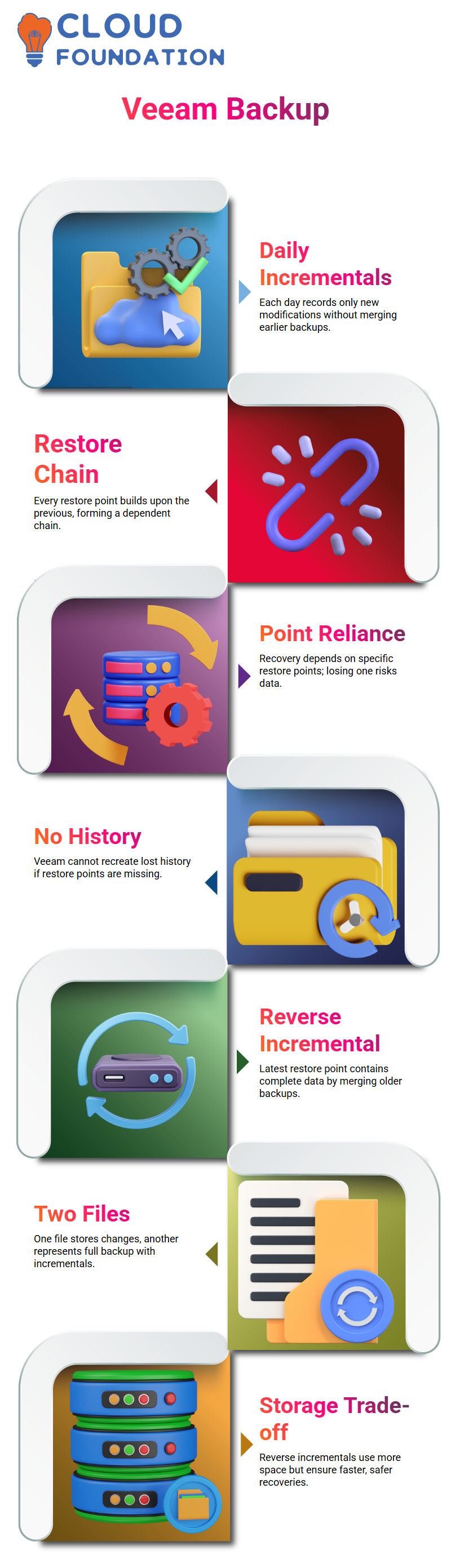
In this mode, Veeam doesn’t go back and combine earlier days.
A chain is created by each restoration point, building upon the one before it.
This implies that with Veeam, I have to depend on the Monday restore point itself if it is Wednesday, and I need to recover the data from Monday.
Monday’s data is not carried on Tuesday or Wednesday. Veeam forces me to rely on that particular restore point’s availability.
I am unable to retrieve the data if the Monday restore point is erased or altered.
If I want data from the previous month in Veeam, the same reasoning applies.
I have to start again from that precise restore point. Veeam doesn’t miraculously restore lost history.
Since many people believe backups automatically secure everything forever, which is not how Veeam works, I constantly draw attention to this reliance on restoration points.

Veeam Training

Reverse Incremental Backup Explained with Veeam
The most recent restoration point in reverse incremental mode always has all of the data.
Veeam does this by combining older data with the most recent backup.
I can restore the most recent state immediately without having to go through the full chain, which is very helpful.
In the process, Veeam generates two files. The incremental changes are stored in one file, while the entire backup with Incrementals is represented in another.
Veeam’s structure enables me to swiftly restore from the most recent point. I don’t have to rely on many restore points in quick succession.
Storage usage is the Veeam trade-off. Although reverse incremental backups take up more space, they provide me with safer and quicker recoveries.
I usually stress to students that Veeam places a higher priority on recoverability than backup performance when I discuss this.
Forever Forward Incremental Strategy in Veeam
The most popular and default configuration in Veeam is Forever Forward Incremental. In this setting, Veeam does incremental backups indefinitely after taking one complete backup.
Veeam simply records the changes and adds them to the chain each day.
When I use Veeam Forever Forward Incremental to restore data, the system looks through the restoration points, finds the necessary session, and then restores the data.
As long as the backup chain is in place, this functions effectively.
Veeam, however, is unable to recover data beyond a single damaged or missing restore point.
For this reason, I often emphasise how important chain integrity is in an eternally forward mode for Veeam backups.
The whole backup becomes unreliable if the chain fails.
Veeam is unable to bypass the missing connection, even if there are more recent backups.
Why Backup Checks Matter in Veeam
I usually say, “Restores are priceless, backups are worthless.”
I have personally seen clients use Veeam backups with green status for years before discovering corruption during restoration.
Backup inspections are offered by Veeam to identify these problems early.
Verification checks should be performed at least once a week or after each backup, in my opinion.
If there is corruption in the backup chain or if an operation fails, Veeam may notify me.
Organisations believe they are protected when they are not in Veeam because of these tests.
All those years of backups are worthless the instant a restoration fails.
For this reason, I consider verification to be an essential component of any Veeam backup plan.
Choosing the Right Backup Mode in Veeam
Veeam is the program that I often see using forever-forward incremental in real-world settings.
Reverse incremental is uncommon; it usually occurs when recovery speed or storage architecture necessitates it.
In Veeam, forward incremental with periodic synthetic full backups is usually saved for essential systems.
I have a straightforward rule of thumb for Veeam. For essential systems where weekly full backups make sense, I utilise forward incremental backups.
For non-essential systems where storage economy is more important, I use eternally forward incremental backups.
Reverse incremental is totally dependent on the needs of the company.
I can now understand anything when I access the Veeam console.
I used to flick through jobs without knowing what was going on behind the scenes.
These days, I can tell right away whether a Veeam backup operation is forward, eternally forward, or reverse incremental, and I am well aware of how restoration behaviour will operate.
Using Active Full Backups in Veeam
Veeam typically only performs incremental backups in an incremental forever configuration. Veeam, however, gives the administrator complete control.
I just right-click the task and choose Active Full in Veeam if I want a complete backup on a certain day.
One of the reasons I trust Veeam is its adaptability.
Veeam enables me to force a complete backup whenever necessary, even if the task is intended to remain incremental indefinitely.
I often tell students that Veeam keeps at least one complete backup file.
Veeam’s Active Full feature updates that complete backup without disrupting the current backup sequence.

Veeam Online Training
Taking One-Off Backups with Veeam
A single Veeam operation may include hundreds or even thousands of virtual machines in many real-world settings.
I don’t always want to support everything. I simply want to use Veeam for a one-time backup of a single server.
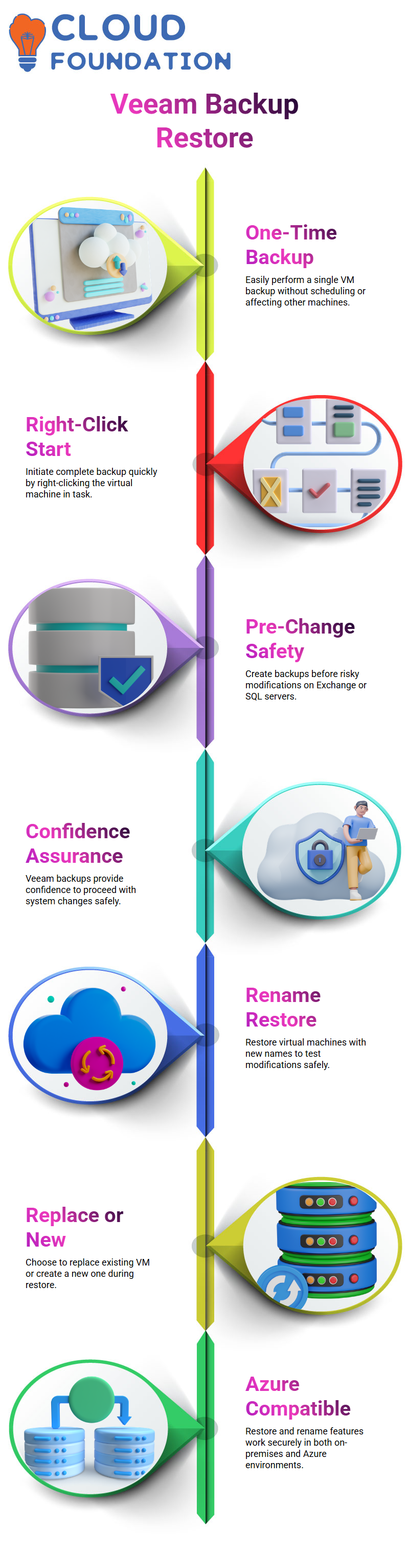
This is very simple using Veeam. I may initiate a complete backup for a single virtual machine (VM) by right-clicking on it inside the task.
I don’t have to wait for the task to be scheduled or affect other Veeam machines.
Before making dangerous modifications, this functionality becomes quite helpful.
For instance, I usually use Veeam to do a one-time complete backup before making any changes to an Exchange server or SQL server.
Veeam provides me with the confidence to go on in this manner.
Restoring and Renaming Virtual Machines with Veeam
I don’t always want to replace the actual computer when I use Veeam to restore a virtual system.
The option to restore the virtual machine with a new name is offered by Veeam.
This enables me to test modifications without impacting output.
For instance, I often restore the server as RESTORE_LIVE in Veeam if the original server name was LIVE.
Veeam explicitly asks whether I want to establish a new virtual machine or replace the current one.
This feature is quite useful in both on-premises and Azure systems. I can securely restore using Veeam without affecting the initial workload.
Networking Considerations During Veeam Restores
I usually consider IP addresses and hostnames while using Veeam to restore a live server. Due to network rejection, Veeam does not permit multiple IP addresses or hostnames on the same network.
Veeam mandates me to use an alternative IP address and hostname during the restoration if the old server is still operational.
I have two options: I can set this up manually or let the network assign a new IP on its own.
The scenario is different if the original server is turned off.
In such a scenario, the network no longer recognises the original computer; therefore, Veeam may restore the virtual machine with the same IP and hostname.
It is essential to comprehend this distinction while using Veeam in practical settings.
How I Use Veeam Repositories and Backup Jobs
I open the Veeam console and take my time learning about what’s happening behind the scenes. Each of Veeam’s options, backup, backup copy, and disk copy, has a distinct purpose.
I often go through each of these options one at a time since Veeam becomes much easier if you can see where the data is really stored.
In Veeam, every backup job connects to a repository. Personally, I like to right-click on a backup, choose Properties, and check the exact path.
Veeam usually maintains backups on the VBR server under the default backup repository unless I specify differently.
Why Backup Modes in Veeam Matter Every Day
I always make sure to extensively practice Veeam’s backup modes. I can’t afford to be confused when someone asks me to set a certain mode in real tickets and real work.
Veeam anticipates that you will have a thorough understanding of complete backups, incremental backups, and their behaviour.
A complete backup in Veeam generates a VBK file. VIB files are produced by incremental backups.
Because Veeam makes it simple to determine the backup type simply by looking at file extensions, I personally check them frequently.
When I address storage or retention difficulties, this practice helps me save time.
In Veeam, I also discuss Forever Forward Incremental a lot. This option sometimes creates fake full backups while continually using incremental backups.
Because reverse incremental backups are slower and seldom utilised, Veeam manages this well, and in most circumstances, I only see VIB files.

Veeam Course Price

Vanitha
Author