Veeam Enterprise Manager Training Online
Veeam Enterprise Manager Installation
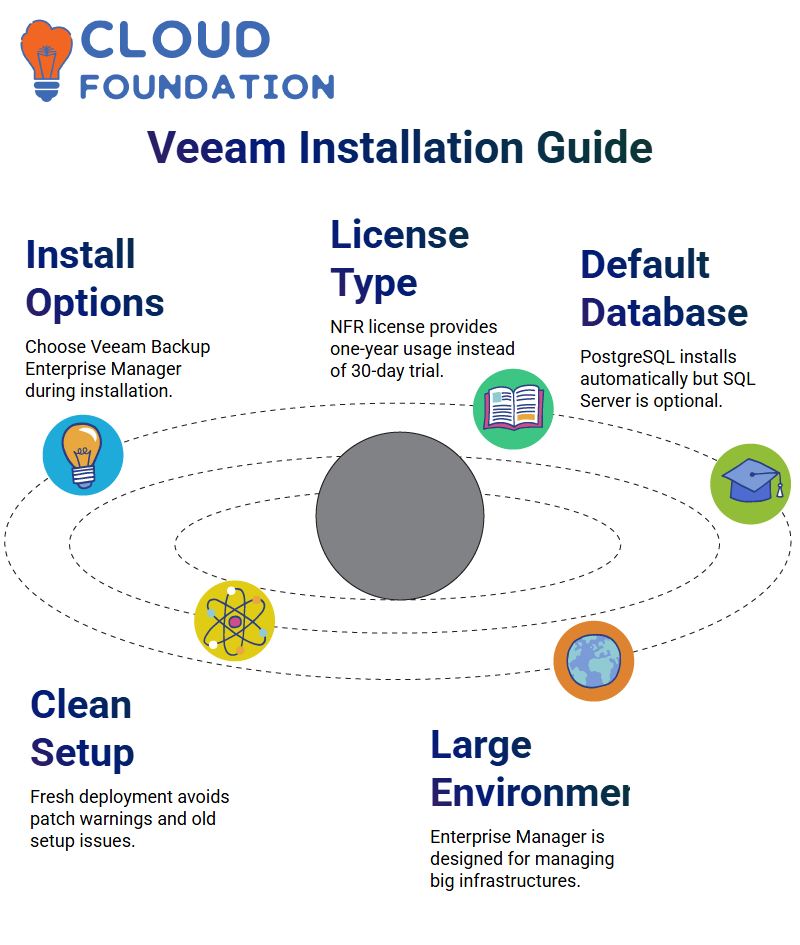
When the installer starts, I click Install and then choose Veeam Backup Enterprise Manager from the list of options.
I am using Veeam version 12, and the ISO still gives me the same installation options even if I don’t install any updates.
There is only one licensing option for this setup file because it is an NFR version of Veeam.
Veeam usually gives you a 30-day trial, but in this case, the NFR license lets me use it for a full year.
I select the license, proceed to the next step, and let Veeam install the software with the default settings.
Veeam Database and Installation Options
When I set up Veeam Enterprise Manager, I pay a lot of attention to how the database is set up.
Veeam needs a database, and it automatically installs PostgreSQL by default.
I stick with PostgreSQL here because it’s easy to set up and works well in most situations.
Veeam lets me change the settings if I want to use Microsoft SQL Server instead.
Fresh Deployment Approach Using Veeam
This time, I do a clean install of Veeam Enterprise Manager.
Earlier attempts were made on an existing setup, which caused patch warnings and problems.
I don’t have to deal with those problems at all because I got rid of all the old Veeam parts and started over.
Veeam makes it clear during the setup that Enterprise Manager is meant for big environments.
Veeam Enterprise Manager Interface
I open Veeam Enterprise Manager and go to the dashboard after the installation is done.
This dashboard shows you quickly how your backups are doing, how healthy your infrastructure is, and provides reports.
The dashboard is empty right now because no Veeam backup servers have been added yet.
I go through reports, jobs, policies, file shares, and machine views to show how Veeam makes everything in the environment easier to see.
When backup servers are connected, everything makes sense.
Adding Backup Servers to Veeam Enterprise Manager
I added a Veeam backup server from the configuration section to make Veeam Enterprise Manager work.
I type in the server’s IP address, give it administrator credentials, and then register the backup server with Enterprise Manager.
When Veeam finds a version mismatch, it asks for an update. If the backup server is running an older version than Enterprise Manager, this will happen.
I always say to keep all of your Veeam parts in sync to avoid problems with compatibility.

Veeam Training

Managing Infrastructure with Multiple Veeam Servers
One of the best things about Veeam Enterprise Manager is that it can handle more than one Veeam backup server.
I already have a number of Veeam backup services running in this lab, and I can add them all to one console.
I show how to use IP addresses and VM details to find servers, which makes it easier to manage wider environments.
Veeam makes it easy and well-organized to scale up backup infrastructure.
Using Veeam ISO and Version Strategy in Labs
I recommend always using the same version of Veeam ISO in lab settings.
Minor updates don’t change the core functionality much, whether it’s Veeam 12 or Veeam 12.2.
What matters is not mixing versions that don’t need to be.
I show you how to use network paths and administrative shares to copy the Veeam setup files to other servers.
This makes it simple to add more Veeam backup servers or make new virtual machines for practice.
Learning Veeam Through Hands-On Practice
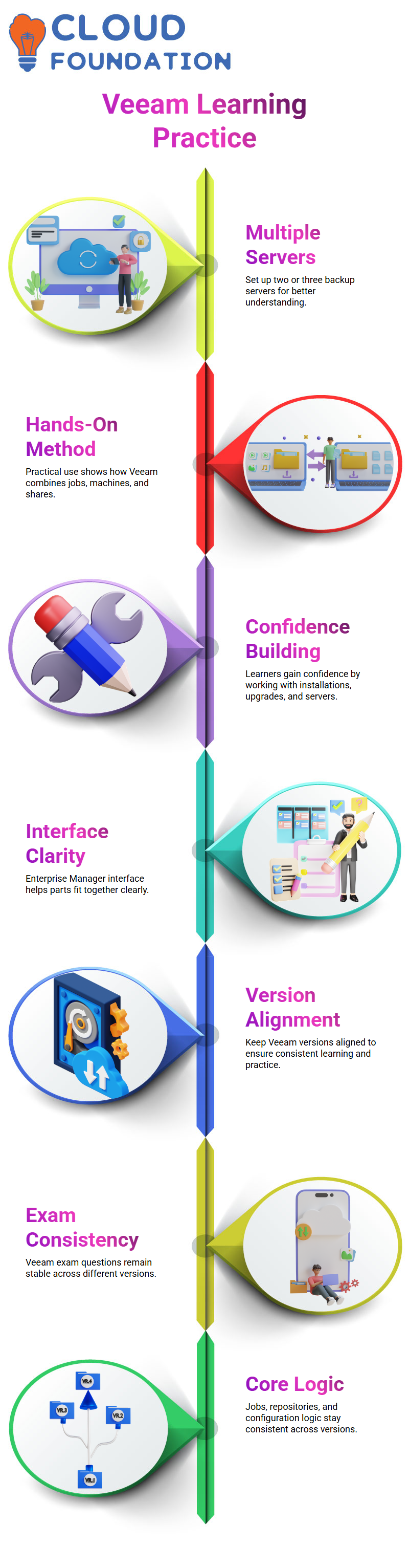
I suggest setting up at least two or three Veeam backup servers and adding them to the console to get a better understanding of Veeam Enterprise Manager.
This hands-on method helps you see how Veeam combines jobs, machines, and file shares.
Learners gain real confidence by working directly with Veeam installations, upgrades, and adding servers.
When you see how all the parts fit together in the Enterprise Manager interface, Veeam makes a lot more sense.
Working with Veeam Versions and Exam Alignment
The first thing I talk about in every Veeam lab session is version alignment.
Veeam is already set up in our environment, and in some systems, it is Veeam 12.2.
I usually tell learners that they can uninstall the current setup and install Veeam 12.0 if they need to, but it really doesn’t make much of a difference.
In my experience, Veeam works the same way in all of these versions, and the Veeam exam process is also the same.
I always tell learners that the Veeam questions stay mostly the same because the main ideas behind Veeam don’t change overnight.
The logic behind Veeam jobs, Veeam repositories, and Veeam configuration stays the same whether you use Veeam 12.0 or Veeam 12.2.
That confidence is very helpful when getting ready for the Veeam certification tests.

Veeam Online Training
Practicing with Veeam Labs and Study Resources
It’s not realistic to look for the newest Veeam dumps, but older Veeam question sets can still help you figure out what kinds of Veeam questions you might get.
I have seen these Veeam resources before. Even though they look old, they still help you understand how Veeam sets up its scenarios.
I always stress hands-on Veeam practice during training.
It’s helpful to read about Veeam, but working with Veeam labs gives you real confidence.
I often use Veeam’s Enterprise Manager to help students see how the different parts of Veeam work together.
You can install Veeam on other servers and try out different Veeam features on your own after you copy the setup.
Veeam Configuration Backup in Real Scenarios
Veeam configuration backup is one of the most important modules I teach.
I make it easy to understand: A Veeam configuration backup is a copy of your Veeam backup jobs and the Veeam database itself.
I usually show this right in the Veeam console so that everyone can see where the configuration backup is in Veeam.
I choose the default backup repository in Veeam, set the number of restore points that Veeam should keep, and set the Veeam configuration backup to run every day.
I also turn on encryption because security is very important in Veeam.
I explain why we do this in Veeam: this backup is your safety net in case the Veeam backup server crashes, the Veeam database gets corrupted, or all of your Veeam jobs are lost.
Restoring Deleted Jobs Using Veeam Configuration Backup
To make the idea clear, I often delete a Veeam agent backup job on purpose.
When students see the Veeam job go away, it makes them think of something that could happen in real life.
Then I restore the Veeam configuration backup, and the same thing always happens: all the Veeam jobs come back on their own.
I want to make it clear that after a Veeam restore, the jobs come back disabled.
During the restore process, Veeam makes this very clear.
I tell them that Veeam needs time to sync and that they don’t need to fix anything by hand.
After Veeam finishes syncing, the jobs start to work again one by one. This is exactly how Veeam works in real life.
Troubleshooting Access and Connectivity in Veeam Labs
When Veeam servers have trouble connecting during labs, I see it as a chance to learn.
I tell people to check their VPN access first if they can’t RDP into Veeam1.
I also talk about how Veeam servers and ESXi hosts are different. You can’t RDP into an ESXi host like you can into a Veeam Windows server.
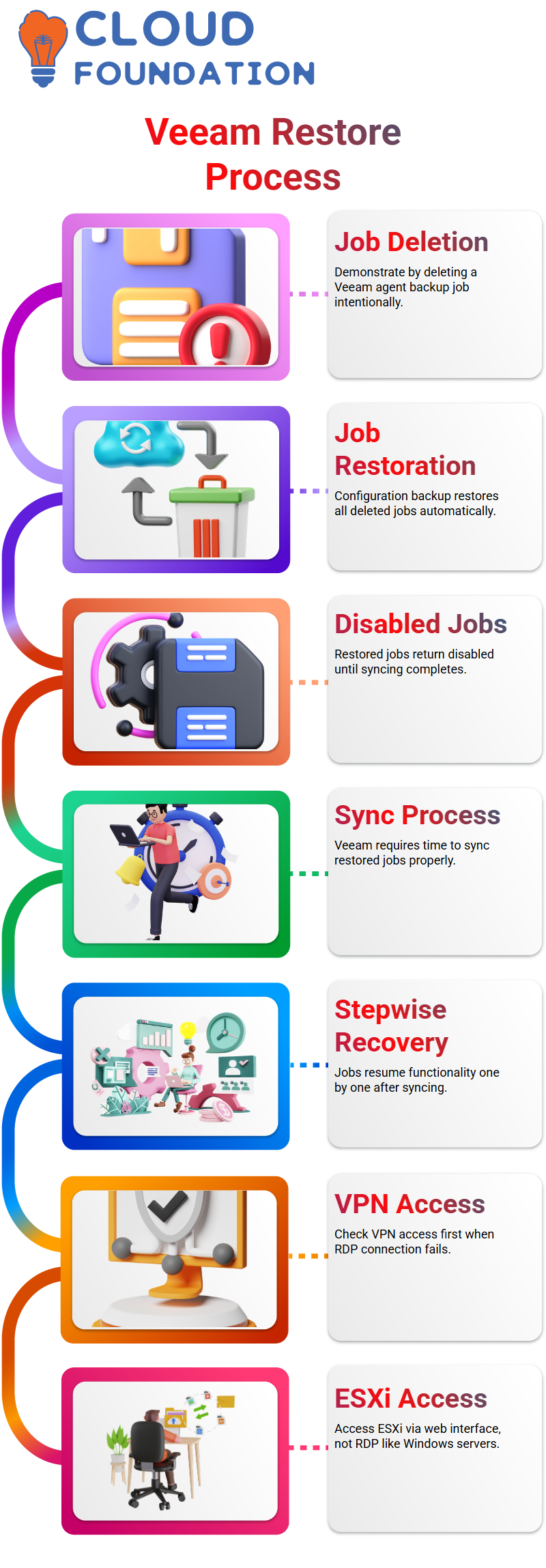
Before blaming Veeam, you shold know how to access ESXi through the web interface and check the status of the network.
These small steps to fix problems are part of running Veeam every day.

Veeam Course Price

Nishitha
Author