Veeam Training Classes Online
Understanding Veeam Restore Concepts in Module 8
This module is all about using Veeam to restore files. I won’t be talking about backups or replication at all.
At this point, I always remind my students that backups are only useful if you know how to use Veeam to restore them correctly.
Restore scenarios are more important than backup schedules in real life.
I can restore data from Veeam Agent backups, NAS backups, and staged restores with Veeam.
I am only going to talk about restoring from Veeam Agent and virtual machine backups in this session because that is what most people use every day in their work and learning environments.
Everyone can better understand how Veeam restore options work in real life when the scope is kept narrow.
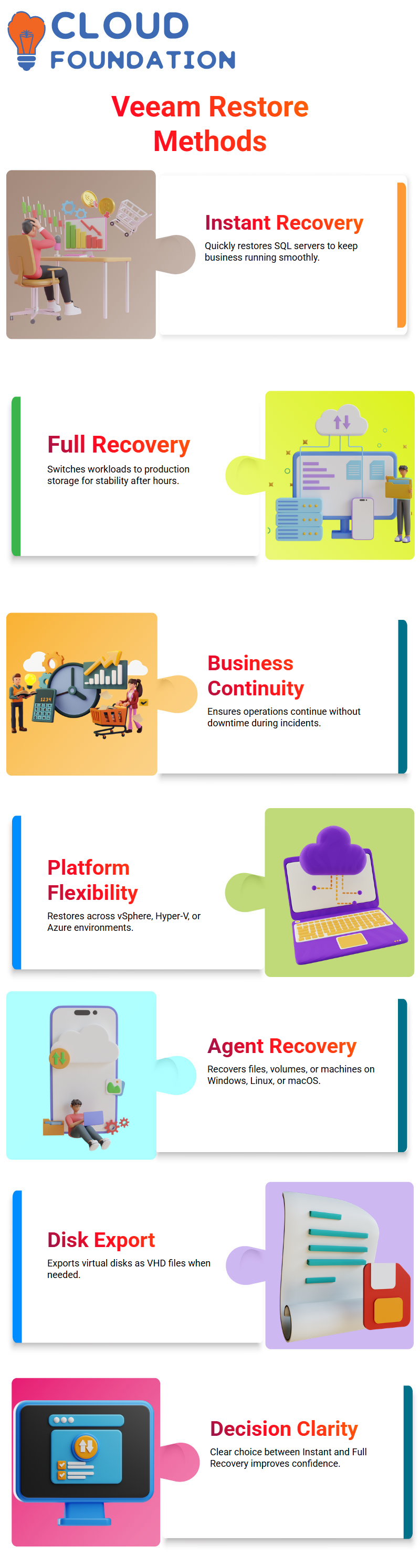
When I teach people about Veeam restore, I always say that there are many ways to restore, but two of them come up in almost every recovery discussion: Instant VM Recovery and Full VM Recovery.
Both Veeam options have very different uses, and picking the wrong one can affect uptime, performance, and the ability to keep doing business.
How Veeam Instant VM Recovery Keeps Users Working
Veeam’s Instant VM Recovery is made for times when downtime isn’t an option. I always use the example of a production server going down to explain this.
If a critical server goes down and the business can’t wait for hours, Veeam Instant VM Recovery lets me turn on the virtual machine right away from the backup file.
What Veeam does behind the scenes is simple but very effective.
It uses the most recent VBK file in the Veeam backup repository to start the virtual machine on a production hypervisor like VMware ESXi or Hyper-V.
The VM has the same hostname and IP address, which keeps users and apps connected without any problems.
But I make it clear to my students that this is only a temporary fix.
The real data is still on the Veeam backup repository during Veeam Instant VM Recovery.
If the Veeam backup server goes down, the running VM will also crash because it needs that backup storage to work.
A lot of new users make the mistake of running production workloads on an Instant VM Recovery VM.
I really don’t think you should do this. Veeam Instant VM Recovery is only there to give you more time.
After users finish their important work, they must always move from the Veeam repository back to production storage.
Full VM Restore in Veeam for Permanent Recovery
I switch to Full VM Recovery in Veeam when performance and long-term stability are more important than speed.
This choice brings the whole virtual machine back into the production environment.
Veeam Full VM Restore copies all data back to production storage, which is different from Instant VM Recovery.
I can choose the exact restore point I want with Veeam Full VM Restore.
Veeam lets me choose a backup date from August or September and restore the VM completely.
This kind of flexibility is very helpful when you have configuration errors, failed updates, or systems that are broken.
Time is the only downside of Veeam Full VM Restore.
It can take several hours to restore a virtual machine that is one or two terabytes in size.
The time it takes Veeam to finish the restore depends on the speed of the network, the performance of the storage, and the performance of the backup repository.
Veeam’s Full VM Recovery is a permanent solution, albeit a time-consuming one.
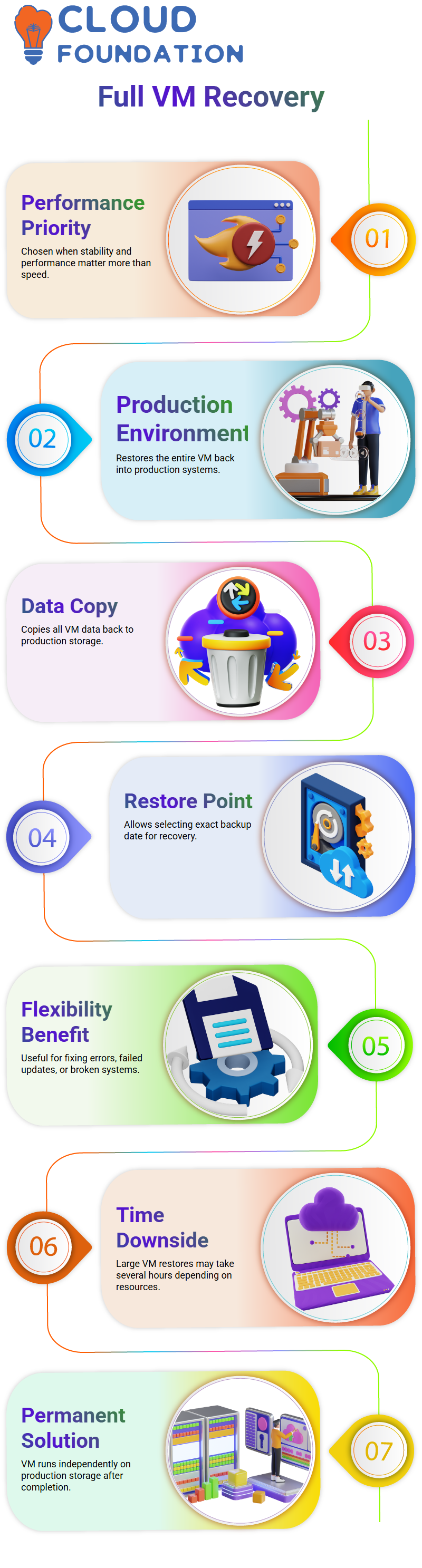
When the restore is done, the VM runs on production storage by itself and doesn’t need the Veeam backup repository.
Choosing the Right Veeam Restore Method in Real Scenarios
I often use an example of a banking app to explain Veeam restore options.
If a production SQL server that handles live transactions goes down, I use Veeam Instant VM Recovery right away to get things back up and running.
The most important thing is to keep the business going without any problems.
After work hours are over and the stress is gone, I switch to a Veeam Full VM Restore or move the Instant VM Recovery workload back to production storage.
This method uses Veeam Instant VM Recovery’s speed and Veeam Full VM Restore’s stability.
Veeam also lets you restore data on different platforms.
I can restore from vSphere to vSphere, vSphere to Hyper-V, or even to Azure.
Veeam is very useful in hybrid and modern IT environments because it can restore data on different platforms.
Veeam also gives you a lot of freedom when it comes to agent-based recovery.
Veeam lets me recover files, volumes, or whole machines on Windows, Linux, or macOS systems.
Veeam can even export virtual disks as VHD files if you need to.
My goal for this module is simple: to help learners know when to use Veeam’s Instant VM Recovery and when to use Veeam’s Full VM Recovery.
When this decision-making process is clear, using Veeam to handle real-world recovery incidents becomes much more confident and effective.

Veeam Training

Veeam Instant VM Recovery in a Real Production Scenario
I often use an example of a banking app to explain Veeam restore options.
If a production SQL server that handles live transactions goes down, I use Veeam Instant VM Recovery right away to get things back up and running.
The most important thing is to keep the business going without any problems.
After work hours are over and the stress is gone, I switch to a Veeam Full VM Restore or move the Instant VM Recovery workload back to production storage.
This method uses Veeam Instant VM Recovery’s speed and Veeam Full VM restore’s stability.
Veeam also lets you restore data on different platforms.
I can restore from vSphere to vSphere, vSphere to Hyper-V, or even to Azure.
Veeam is very useful in hybrid and modern IT environments because it can restore data on different platforms.
Veeam also gives you a lot of freedom when it comes to agent-based recovery.
Veeam lets me recover files, volumes, or whole machines on Windows, Linux, or macOS systems.
Veeam can even export virtual disks as VHD files if you need to.
My goal for this module is simple: to help learners know when to use Veeam’s Instant VM Recovery and when to use Veeam’s Full VM Recovery.
When this decision-making process is clear, using Veeam to handle real-world recovery incidents becomes much more confident and effective.
Veeam Performance and Speed During Instant Recovery
I kept a close eye on the process when Veeam turned on the VM. It took less than a minute for the VM to come online.
People are always surprised by how fast Veeam Instant VM Recovery works the first time they see it in action.
From the users’ point of view, the server was back up and running right away, and they could connect and start working.
A lot of people think that the size of the VM affects how fast it can be restored, but that’s not how Veeam Instant Recovery works.
Veeam mounts the VM right from the backup repository.
There isn’t a lot of data moving around right now because everything stays on the Veeam backup server.
That’s why Veeam works so quickly.
The VM was running, and users were using it at this point.
Veeam clearly showed that the VM was mounted, which made me remember that this was still running from the backup infrastructure.
Veeam lets backup administrators see every step, which is very important.
Veeam Migration to Production After Instant Recovery
My job wasn’t done when business hours were over.
Instant Recovery is just the first step with Veeam.
I had to move the VM back to the production storage.
I clicked on the mounted VM in Veeam and chose Migrate to Production.
A lot of teams mess up at this point because they forget to finish the process.
Veeam told me not to delete source VM files after migration, and I turned that option on.
This made sure that the VM was completely disconnected from the Veeam backup server.
If I didn’t do this step and the Veeam server went down, the VM would go down again.
Veeam keeps me safe, but only if I follow the whole process.
The first time I tried to migrate, it didn’t work because I chose the wrong datastore.
Veeam clearly said there was a problem with the storage space.
I fixed the datastore, republished the VM, and started the migration again.
Veeam was able to move the data this time, but it took a few minutes.
That delay is normal because Veeam handles migration and full restores in the same way.
Veeam Instant VM Recovery in a Real Production Scenario
I often use an example of a banking app to explain Veeam restore options.
If a production SQL server that handles live transactions goes down, I use Veeam Instant VM Recovery right away to get things back up and running.
The most important thing is to keep the business going without any problems.
After work hours are over and the stress is gone, I switch to a Veeam Full VM Restore or move the Instant VM Recovery workload back to production storage.
This method uses Veeam Instant VM Recovery’s speed and Veeam Full VM restore’s stability.
Veeam also lets you restore data on different platforms.
I can restore from vSphere to vSphere, vSphere to Hyper-V, or even to Azure.
Veeam is very useful in hybrid and modern IT environments because it can restore data on different platforms.
Veeam also gives you a lot of freedom when it comes to agent-based recovery.
Veeam lets me recover files, volumes, or whole machines on Windows, Linux, or macOS systems.
Veeam can even export virtual disks as VHD files if you need to.
My goal for this module is simple: to help learners know when to use Veeam’s Instant VM Recovery and when to use Veeam’s Full VM Recovery.
When this decision-making process is clear, using Veeam to handle real-world recovery incidents becomes much more confident and effective.
Veeam Performance and Speed During Instant Recovery
I kept a close eye on the process when Veeam turned on the VM. It took less than a minute for the VM to come online.
People are always surprised by how fast Veeam Instant VM Recovery works the first time they see it in action.
From the users’ point of view, the server was back up and running right away, and they could connect and start working.
A lot of people think that the size of the VM affects how fast it can be restored, but that’s not how Veeam Instant Recovery works.
Veeam mounts the VM right from the backup repository.
There isn’t a lot of data moving around right now because everything stays on the Veeam backup server.
That’s why Veeam works so quickly.
The VM was running, and users were using it at this point.
Veeam clearly showed that the VM was mounted, which made me remember that this was still running from the backup infrastructure.
Veeam lets backup administrators see every step, which is very important.
Veeam Migration to Production After Instant Recovery
My job wasn’t done when business hours were over.
Instant Recovery is just the first step with Veeam.
I had to move the VM back to the production storage.
I clicked on the mounted VM in Veeam and chose Migrate to Production.
A lot of teams mess up at this point because they forget to finish the process.
Veeam told me not to delete source VM files after migration, and I turned that option on.
This made sure that the VM was completely disconnected from the Veeam backup server.
If I didn’t do this step and the Veeam server went down, the VM would go down again.
Veeam keeps me safe, but only if I follow the whole process.
The first time I tried to migrate, it didn’t work because I chose the wrong datastore.
Veeam clearly said there was a problem with the storage space.
I fixed the datastore, republished the VM, and started the migration again.
Veeam was able to move the data this time, but it took a few minutes.
That delay is normal because Veeam handles migration and full restores in the same way.
Veeam, RTO, RPO, and Always-On Systems
I always start with RTO and RPO in places that are open all the time.
Veeam gives me a lot of ways to recover, but the needs of the business decide which one I use.
If you can’t afford any downtime, Veeam’s Instant Recovery is the best option.
I never act like Veeam is the only tool in the ecosystem.
Customers can also use secondary sites, failover software, or tools for replication.
Veeam is still a big part of the picture.
With Veeam Replication, live changes can be sent to a second VM in seconds.
The replica can take over with little trouble if the primary VM goes down.
I’ve seen how Veeam replication keeps the secondary system up to date by capturing even small file changes.
This method, along with Instant Recovery, gives businesses many levels of protection.
That’s why I keep going back to Veeam.
It fits in with real-world designs, helps businesses reach their goals, and gives backup administrators the power they need.
I always start with RTO and RPO in places that are open all the time.
Veeam gives me a lot of ways to recover, but the needs of the business decide which one I use.
If you can’t afford any downtime, Veeam’s Instant Recovery is the best option.
I never act like Veeam is the only tool in the ecosystem.
Customers can also use secondary sites, failover software, or tools for replication.
Veeam is still a big part of the picture.
With Veeam Replication, live changes can be sent to a second VM in seconds.
The replica can take over with little trouble if the primary VM goes down.
I’ve seen how Veeam replication keeps the secondary system up to date by capturing even small file changes.
This method, along with Instant Recovery, gives businesses many levels of protection.
That’s why I keep going back to Veeam.
It fits in with real-world designs, helps businesses reach their goals, and gives backup administrators the power they need.

Veeam Online Training
Veeam in Real Enterprise Environments
I work a lot with enterprise environments, and one thing I always tell my students is how Veeam works in the real world.
Most businesses don’t just use Veeam software.
Companies usually sign a lot of contracts with different vendors, and each tool has a specific job to do.
Veeam’s main focus is on backup, retention, and recovery, not on keeping servers running all the time.
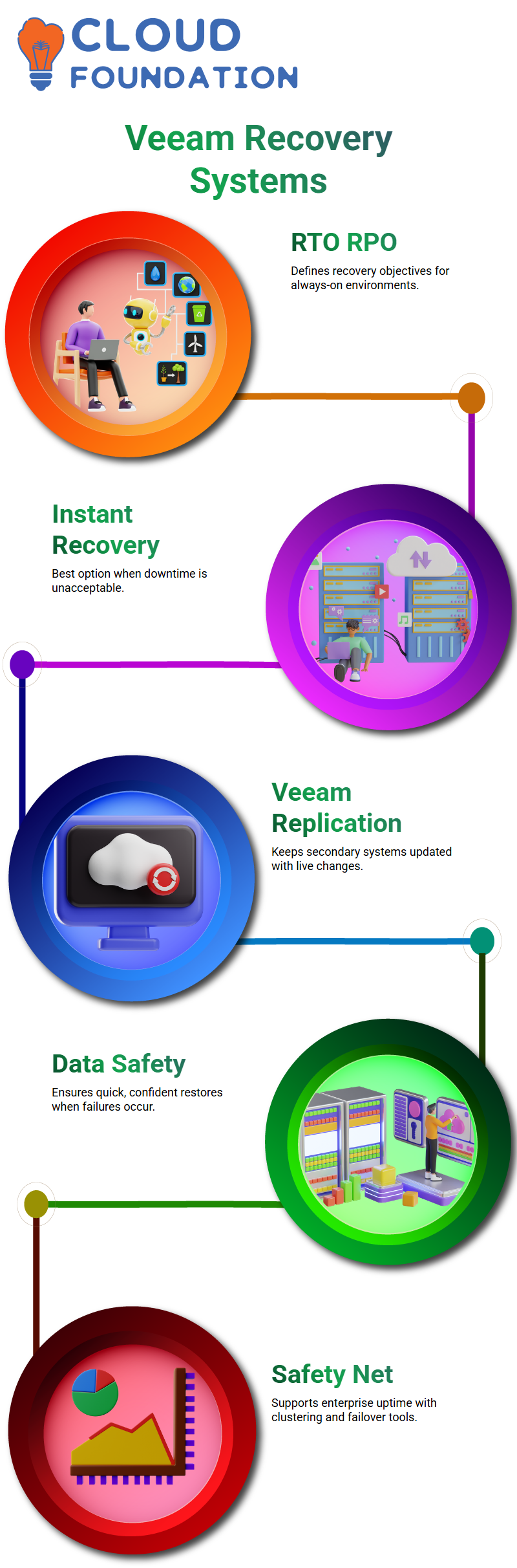
When people ask me if Veeam keeps servers running all the time, I tell them that this is not its main job.
Veeam keeps data safe. It makes sure that I can quickly and confidently restore systems when something goes wrong.
In big environments, uptime often depends on clustering, replication, or failover tools. Veeam is the safety net.
In my experience, Veeam is very important when things go wrong with changes.
I trust Veeam to give me a clean restore point that I can trust, especially when I need to do risky maintenance or make changes to my configuration.
Why Veeam Matters for Database Servers and Snapshots
A lot of people get confused when they learn about database servers because they work very differently from regular application servers.
People often ask me why we don’t use traditional VMware snapshots on database servers.
The answer is simple: databases are always changing, and going back to a raw snapshot can cause data to be inconsistent.
I don’t use manual snapshots when I use Veeam as a database server.
Veeam does this in a controlled way.
Veeam makes a snapshot that is aware of the application, backs up the data and metadata safely, and then automatically deletes the snapshot.
This method makes sure that the backup stays the same and doesn’t leave behind any snapshots.
A lot of people don’t know this, but Veeam does use snapshots in the background.
Veeam works with VMware or Hyper-V to make the snapshot, back it up, and then delete the snapshot.
To be sure of your enterprise backups, you need to know how Veeam handles this lifecycle.
Veeam, Application Consistency, and Real Maintenance Scenarios
I often work with SQL servers that are running in both primary and secondary sites.
I plan everything carefully when I need to change the operating system or the software that runs it.
I usually turn off services, take the necessary steps, and let Veeam handle the backup.
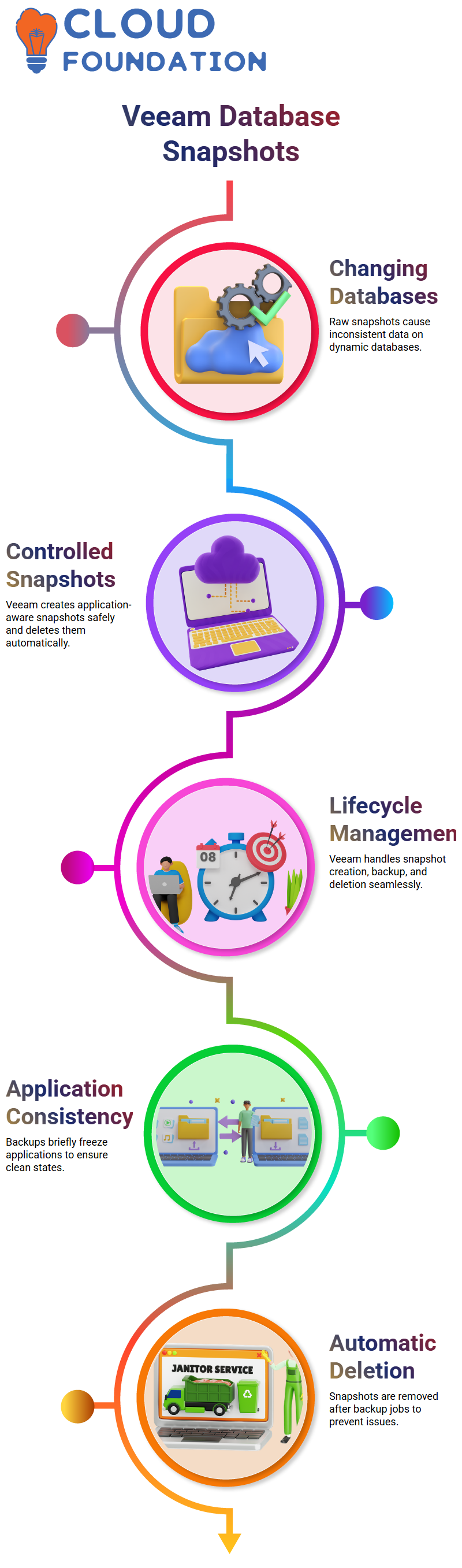
Veeam makes application-consistent backups by briefly freezing the application to get a clean state.
This freeze usually only lasts a few seconds.
Some teams choose not to use snapshots on very sensitive systems because of that short pause, even though Veeam itself works well in most situations.
I always say that snapshots aren’t bad by default.
When you don’t take care of snapshots, that’s when the problem starts.
Veeam helps avoid that problem by automatically deleting snapshots when the backup job is done.
That’s why I trust Veeam more than doing snapshots by hand.

Veeam Course Price

Nishitha
Author
A mind once stretched by a new idea never returns to its original dimensions.