Veeam online training for Beginners
Veeam Backup Web 64 Installation
The first step in configuring Veeam is to launch the Enterprise Manager. There, you’ll see the “Enterprise Manager” folder.
But here’s a crucial piece of advice: The Veeam core version is not being installed. Rather, we are concentrating on setting up Veeam Backup Web 64.
For our setup, this version is especially needed. Here’s how to get started.
We must install IIS 5.1 on your server before we can start. Click “Finish” after the Server Manager has opened. IIS 5.1 is necessary as we are using the web version.
You may check the list under “Add Roles and Features” if you’re not sure whether the IIS role has been installed. If .NET isn’t included, don’t panic; it’s not necessary in this case.
Setting up IIS and Veeam components
You must now launch ‘Add Roles and Features’ in the Server Manager to install IIS. Verify that the IIS components are chosen.
In particular, you must make sure that the ‘.NET Extensibility’ and ‘ASP.NET’ choices are selected.
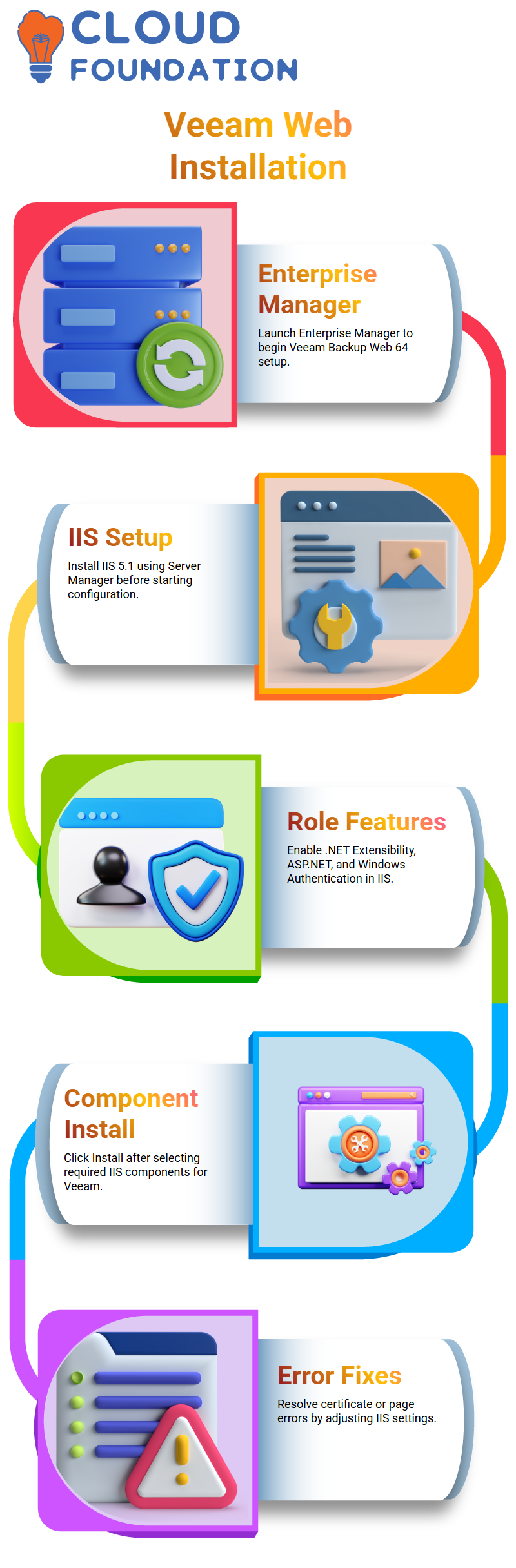
To make sure all the prerequisites for Veeam are present, such as ASP.NET and Windows Authentication, you may also expand the ‘Web Server’ area.
Click ‘Install’ after these components have been chosen. You should be able to proceed after the installation has been completed successfully.
Recall that these elements are essential to Veeam’s proper operation, particularly for web-based interactions.
Setting Up Web Access and Veeam Backup
You may begin customizing Veeam when the IIS installation is finished. You may experience certain issues, such as the previous certificate processing problem, but don’t worry, they may be fixed.
Verify the Veeam setup if you get an error message stating that the requested page cannot be displayed.
If the IIS settings aren’t perfect, this can occur.Unchecking the ‘High Security Mode’ option in the certificate settings should enable Veeam to continue if the problem continues.
Try putting “Veeam” into the search box to launch the Enterprise Manager once you’ve finished all the procedures and adjusted the settings.
Veeam will load without any problems if everything is configured properly.
Database and Veeam Enterprise Manager Problems
You may see some unexpected database issues while using Veeam. For example, you could receive a notification requesting SQL database fixes even if you’re using Postgres for Veeam’s backend.
This can indicate an attempt to utilise the incorrect database type or a setup issue.
Make sure you’re choosing the right database during setup to fix this.
Both Postgres and SQL may be used with Veeam, but you must make sure you are pointing to the right one.
Make sure you are using the ‘vimvbr’ database and choose ‘Postgres’ in the database configuration.

Veeam Training

Solving Veeam Configuration and Setup Issues
You could sometimes encounter problems with Veeam setup, such as services not loading or incorrectly applied settings.
For instance, you may discover that the infrastructure isn’t being added automatically or that Veeam Enterprise Manager isn’t correctly connecting to the database.
Return to the Veeam setup page and see whether the local VBR (Veeam Backup & Replication) server is identified in order to resolve the issue.
If not, you may manually add more VBR servers by inputting their configuration information. Verify that all components are connected correctly and that the Veeam1 Client is installed appropriately.
Veeam Enterprise Manager Installation Final Steps
Veeam ought to be operational when you’ve finished all the setup procedures. In the same way that you add a console in Veeam, you must add your infrastructure to the system.
Your Veeam system should now be completely functional if you have followed all of these procedures.
You can then start using the Veeam Enterprise Manager interface to manage backups and other services.
Never forget to double-check your setups. IIS and the appropriate database connections are critical components of Veeam’s infrastructure configuration and online interface.
Before proceeding to the following step, ensure your system is configured properly and keep a watch out for any problem signals.
Web Client and Veeam Client Configuration
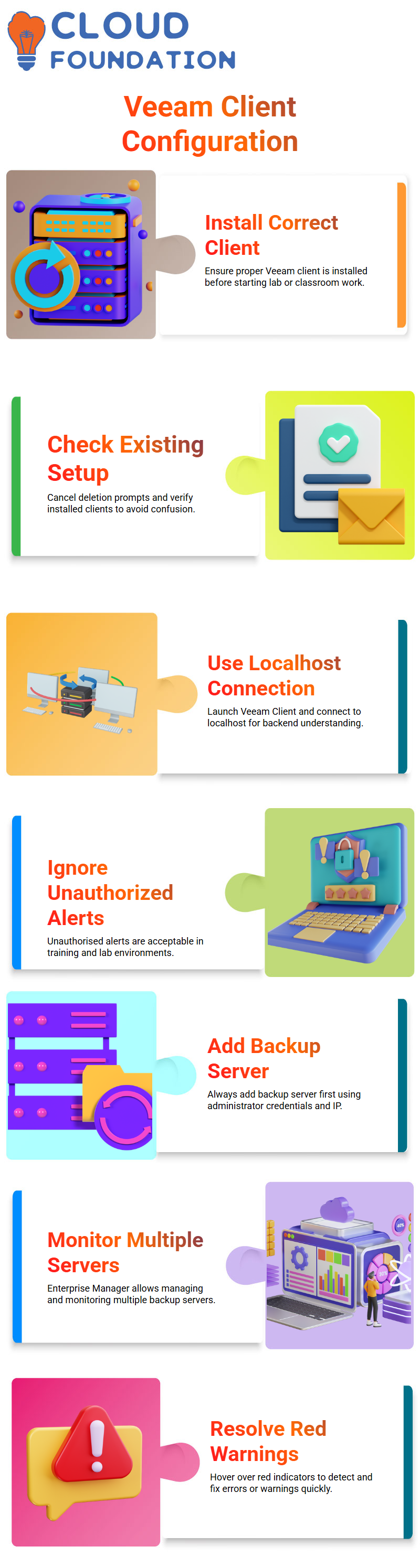
The first thing I normally do when I begin using Veeam in a lab or classroom setting is make sure the right Veeam client is installed.
I often see students become confused between the Veeam Client and the Veeam Web Client. I usually advise clicking cancel first and checking what is already installed on the computer if Veeam wants you to delete anything during startup.
One server and one client are typical in Veeam settings. Veeam Client and Veeam Web Client are among the choices you should see on the system.
For me, I launch the Veeam Client and establish a localhost connection. Occasionally, the search simply displays the web client; nevertheless, the behaviour becomes evident when you manually open it.
This stage aids students in comprehending the back-end connections between Veeam services.
I often advise students not to worry when the Veeam interface displays an unauthorised alert.
For training and labs, this is totally acceptable. Right now, I’m more interested in learning how the Veeam console works and how Veeam components communicate with one another than in licensing.
Adding Backup Servers in Veeam for Monitoring
Whenever I successfully run Veeam, I always add the backup server first. I use the administrator credentials and the backup server IP in my demonstrations.
After that, Veeam needs some time to extract all of the configuration information.
At this point, students begin to see the true potential of Veeam monitoring.
Even though small laboratories typically only have one backup server, Veeam enables me to install more.
I illustrate this with examples from actual businesses that have many Veeam Backup and Replication servers.
Veeam Enterprise Manager shines here because it lets us manage and monitor all of them from one place.
Veeam presents an extremely thorough picture when the server has been added. Customers trust Veeam precisely because of this degree of reporting, auditing, and monitoring.
I often emphasise that Veeam is about more than simply backups; it’s also about responsibility and visibility.

Veeam Online Training
Detecting Errors and Warnings with Veeam
I often stress the importance of keeping an eye on Veeam’s red and green indications.
I instantly hover over any red marks to look for faults or warnings.
In most lab contexts, these errors happen because jobs are deactivated or installs are unfinished.
Although Veeam doesn’t always go into great depth, it provides enough details for an administrator to look at it.
Customers want the Veeam dashboard to be green, I explain to my students. Even a single red warning might spark emails or support requests.
Customers seldom ever believe manual reports from backup administrators in real-world situations.
Instead, they open the Veeam client manually and monitor the environment.
For this reason, I emphasise that each backup engineer must be able to comprehend Veeam alarms and promptly resolve them.
Microsoft 365 Backup and Veeam
You are undoubtedly aware of the need for data backup if your company uses Microsoft 365.
Exchange Online, OneDrive, and Microsoft Teams are crucial tools for teamwork, but your data may be in danger if you don’t make adequate backups.
Veeam can help with it. Veeam provides a robust solution for safeguarding Microsoft 365 data, guaranteeing that your data remains secure and readily recoverable.
The significance of backing up your Microsoft 365 environment may already be clear to you. However, it goes beyond just backing up files or emails, I assure you.
Veeam offers a complete backup solution for all of Microsoft 365’s features.
Veeam has you covered, whether it’s your Exchange emails, OneDrive files, or Teams data.
You can rest easy knowing that your data is secure, even in the event of an emergency.
Veeam’s ease of setup is one of its best features. Both novices and seasoned IT experts may use it because of the intuitive UI, which walks you through each step.
Additionally, Veeam makes it very simple to recover your data when you need it, so it’s not just about backing it up.
This implies that, in addition to being safe, you may quickly retrieve your data if anything goes wrong.
When dealing with Veeam, you’ll find that the procedure is simple.
You may add servers, create backups, and restore your systems from inside the Veeam interface, regardless of whether you’re working with VMware or Hyper-V.
It’s about simplifying things so you don’t have to depend on complicated lab manuals or perplexing directions.
Let’s examine Veeam’s ability to assist you in managing backups in your environment in more detail.
For example, Veeam enables you to rapidly set up backups and add VMware servers if you’re working with VMware.
Comparably, adding Hyper-V servers and safeguarding your virtual machines is simple when working with Hyper-V.
Veeam is a great option for companies of all sizes because of its adaptability.
Veeam in Safeguarding Your Servers and Virtual Machines
Veeam offers strong security for your virtual machines, regardless of whether you’re using Hyper-V or VMware.
For companies that depend on virtualised environments, both platforms are vital, and making sure that these computers are well backed up is crucial.
Veeam makes it simple to include VMware or Hyper-V servers in your backup strategy, ensuring that your virtual machines are always safe.
Veeam’s VMware and Hyper-V backup solution is designed to be strong and adaptable.
Whole virtual computers or certain data and apps inside them may be backed up. This degree of adaptability is ideal for companies with intricate IT setups.
With a single interface to handle all of your backup tasks, it’s also quite simple to use.
For instance, you may choose the precise data you want to preserve when you include a VMware server in your backup strategy.
Configuration files, virtual machines, and other important data may fall under this category.
The same is true for Hyper-V, where you may customise your backup plan to meet your unique requirements.
Veeam’s solution guarantees that your virtual machines are safe regardless of the platform you’re using.
The Reasons Veeam Is the Best Option for Your Backup Requirements
What makes Veeam the best option, then? The answer is straightforward: Veeam provides the most complete and user-friendly backup solution for virtual environments and Microsoft 365.
Veeam is the greatest option for safeguarding your important data because of its robust features and intuitive design.
Veeam’s seamless integration with your current systems is what makes it unique.
Veeam makes it simple to add machines, set up backups, and carry out restorations, regardless of whether you’re using VMware, Hyper-V, or Microsoft 365. You don’t have to bother about intricate lab
instructions or elaborate preparations. With Veeam, you can easily take charge of your backup plan.
In the end, Veeam is all about simplifying your work. You need a reliable backup solution, whether you’re an IT specialist or a company owner.
When you need it most, Veeam provides dependable security and quick, simple recovery.

Veeam Course Price

Vanitha
Author