ForgeRock Policy and Scripting Training
ForgeRock Resource URL Setup
When I work with ForgeRock, I often start by showing learners how flexible the resource URL configuration can be.
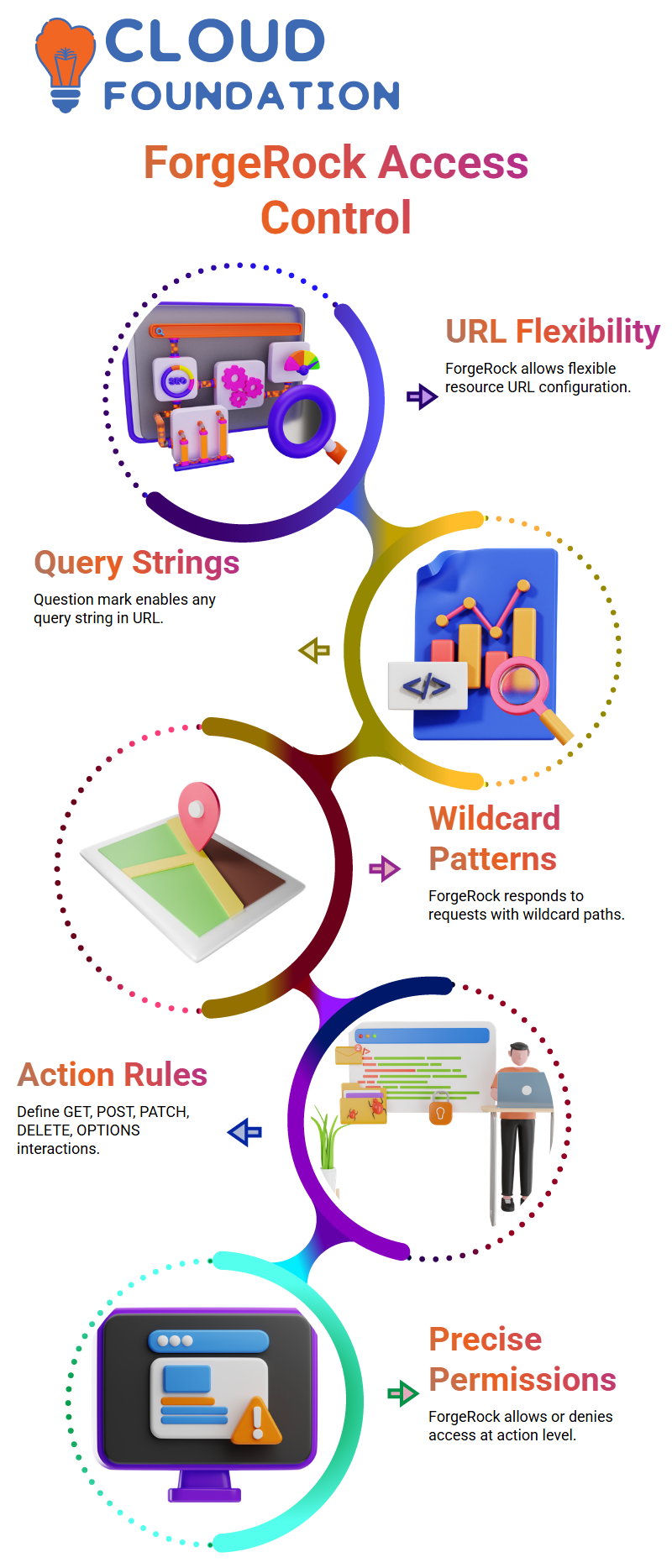
For example, when I add a question mark at the end of a URL pattern, ForgeRock treats it as a way to allow any query string.
With ForgeRock, I can quickly set wildcard patterns so the system responds to any request containing paths, parameters, or user-specific identifiers.
In real projects, different web applications rely on ForgeRock to decide who can access what.
ForgeRock Action Rules and Access Control
After defining resources, I move to actions because ForgeRock lets us specify exactly what a user can do.
I explain that actions such as GET, POST, PATCH, DELETE, and OPTIONS represent the types of interactions allowed on each URL.
In ForgeRock, when I assign only GET, I restrict the user to read-only interactions. When I allow POST or PATCH, ForgeRock recognizes that the user can update or modify data.
I also show how ForgeRock gives the option to allow or deny access at each action level.
This control helps learners understand that ForgeRock authorization isn’t just about broad permissions, it’s about precise rules.
When we add an action in ForgeRock and bind it to a policy, we teach the system how to treat every incoming request.
ForgeRock Subject Conditions and Policy Assignment
Once the actions are clear, I introduce subject conditions because this is where ForgeRock truly becomes powerful.
For example, when we configure OpenID Connect clients in ForgeRock, we can bind a policy to a specific client name.
This step helps learners see the connection between authentication and authorization inside ForgeRock.
If the subject doesn’t match, ForgeRock simply skips that rule.
This behavior helps everyone understand that ForgeRock ensures only the right identities receive access.
ForgeRock Environment and Authentication Conditions
For example, ForgeRock allows us to set rules based on session time, authentication level, IP address, time zone, or even authentication method.
When I explain authentication levels, I clarify that username-password login is level zero, and multifactor authentication becomes level one.
ForgeRock then uses these values to decide who qualifies for a policy.
If a policy needs to apply only when users log in from a certain network, ForgeRock handles it smoothly.
These environment controls help learners understand that ForgeRock isn’t only validating identity, it is evaluating the entire context of the user’s session.
ForgeRock Groups, Identities, and Policy Binding
When we create a group inside ForgeRock and assign users to it, those users automatically inherit any policy bound to that group.
This helps them understand how ForgeRock cascades permissions in real environments.
As we apply these settings inside ForgeRock, learners can see how authorization decisions flow across identities, policies, and environments.
Managing User Access in ForgeRock
When I log in with a basic test user in ForgeRock, the first thing I notice is that the user only sees the dashboard.
At this stage, the account has minimal access, and I want to show how easily we can extend or restrict permissions inside ForgeRock.
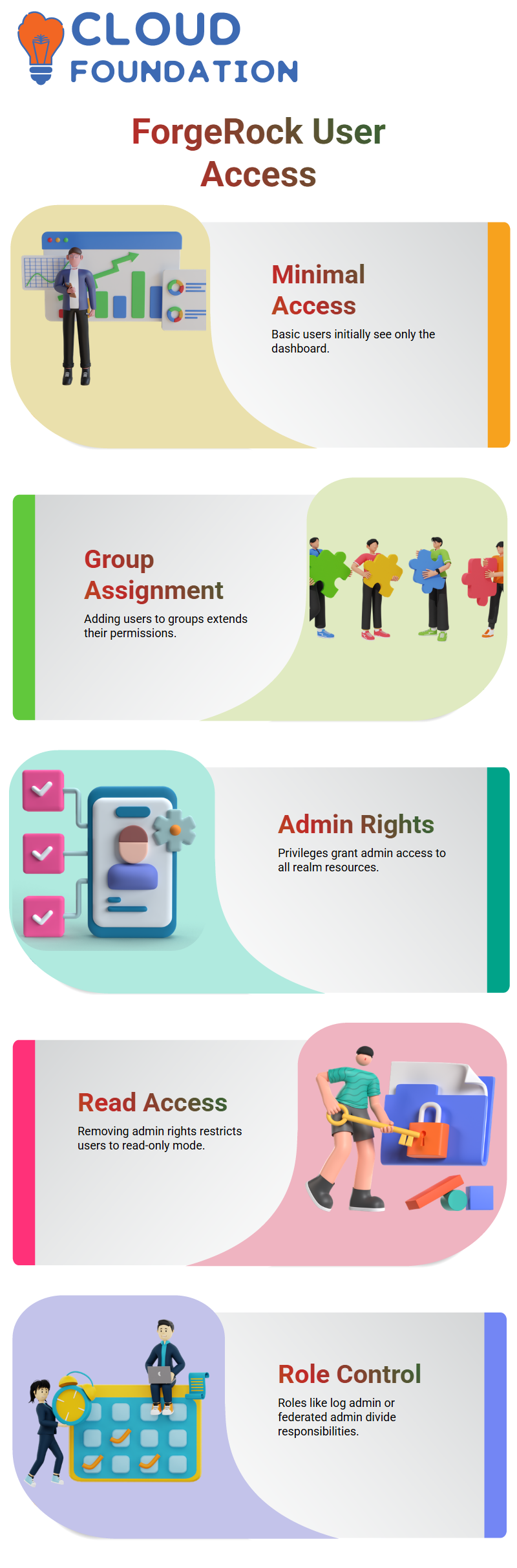
I go to the Members section, add the user to a group, and save the changes.
Right after that, I move to the Privileges section and assign additional access.
With one commit in ForgeRock, the user immediately gains more control.
When I log out and log back in, I can validate the new permissions.
The user now appears as an admin inside ForgeRock and can access everything assigned to the realm.
All the configuration trees I created in ForgeRock become visible to the user, showing how flexible the platform is when managing access.

ForgeRock Training

Configuring Role-Based Access in ForgeRock
Sometimes I need to reduce permissions instead of increasing them.
So I return to the Privileges panel in ForgeRock, remove admin rights, and assign only read-level access.
When I log in again, I see that the user can no longer modify anything.
ForgeRock restricts the view to very limited authentication details, exactly as expected.
I often assign roles such as cache admin, log admin, agent admin, and federated admin in ForgeRock depending on what the team needs.
For example, a log admin in ForgeRock can only view and access log files.
They cannot edit anything else.
A federated admin in ForgeRock can manage metadata configuration across realms.
This level of control helps me divide responsibilities within a large team, making ForgeRock extremely useful for real project scenarios.
Using Policy Controls in ForgeRock
Policies in ForgeRock play a huge role in defining what users can or cannot do.
Clients often ask for specific policy restrictions, and ForgeRock gives me the flexibility to build policies exactly the way they want.
I can configure policies based on time, authentication type, service, tree, or any requirement the client shares.
After setting a policy in ForgeRock, only the selected users will operate under those rules.
Inside ForgeRock, I also manage identities, groups, and privilege sets.
By grouping users, I ensure that only specific members receive certain access levels.
This structured permission model inside ForgeRock keeps everything organized and secure.
Understanding ForgeRock Resource Types
Resource types in ForgeRock determine how URL patterns behave.
For example, when I create a resource type in ForgeRock and apply wildcard patterns, ForgeRock interprets which URLs should be allowed or denied.
A wildcard pattern in ForgeRock means everything after the slash is considered part of the valid URL.
I can match complete URLs, query parameters, or patterns based on what the application needs.
If I decide a specific pattern should not be permitted, ForgeRock lets me deny that request entirely.
This control helps me protect endpoints and ensures that only the correct resources are accessible.
Every resource type in ForgeRock can have its own actions read, write, delete, or deny giving me complete authority over how the system responds.
Working With Scripted Policies in ForgeRock
These policies allow me to write custom logic using the built-in structure provided by ForgeRock.
By editing the script, I can decide conditions such as which server can access a resource or whether a request from a certain country should be allowed.
ForgeRock also lets me import and export policies in XML format.
When I export a policy, ForgeRock generates an XML file that I can store or modify.
If I want to import policies, I use the scripted policy decision framework.
This helps me reuse policy sets across environments or projects, making ForgeRock very practical for enterprise work.
Using ForgeRock to Customize Attributes and Authorization Messages
There are many moments when I need to customize ForgeRock’s behavior beyond default settings.
For example, when a user carries an external attribute, I want ForgeRock to respond with a specific authorization outcome.
I can script the decision and even send back customized messages like ‘External authentication passed’ or ‘External authentication not passed’.
Inside ForgeRock, I have access to multiple script types.
I can rewrite or create new scripts using JavaScript or Groovy.
Groovy works almost like Java, so if you already know Java, writing Groovy scripts inside ForgeRock feels natural.
Java APIs work the same way, which makes it easier for me to build advanced logic.

ForgeRock Online Training
Creating New Scripts in ForgeRock for Authentication Trees
In ForgeRock Access Management, I often build custom authentication behavior using trees.
While ForgeRock gives me plenty of built-in nodes, there are times when I need a node that doesn’t exist.
That’s where the scripted decision node becomes powerful.
I can create a script, assign it to the tree, and decide what the outcomes should be.
Whenever I create a script in ForgeRock, I select whether the script is for client-side authentication, server-side authentication, config providers, or OAuth access.
ForgeRock labels everything clearly, so once I pick the correct script type, I can attach it to the authentication tree and set outcomes like ‘true’ or ‘false’.
Building Customized ForgeRock Authentication Nodes
Sometimes a client uses multiple databases or older systems, and the default ForgeRock nodes don’t fully match their needs.
In those cases, I script my own logic.
For instance, I might check if a user belongs to the external group by reading an LDAP attribute. If the attribute contains ‘external’, I return a true outcome.
If not, the script returns false.
Once I save the script in ForgeRock, I attach it to the authentication tree and link the outcomes accordingly.
ForgeRock lets me stack multiple scripted nodes inside a tree, so I can design an authentication path that reacts to real-world user attributes.
The more complex the requirement, the more useful ForgeRock scripting becomes.
This flexibility is one of the reasons I enjoy working with ForgeRock.
Using ForgeRock Scripts for OAuth, Token Modification, and Claims
ForgeRock doesn’t stop at authentication trees.
I regularly write scripts for OAuth token modification, OIDC claim transformation, and access decisions.
These scripts help me adjust tokens, enrich them with attributes, or filter out information based on the project rules.
ForgeRock already includes many sample scripts, and I often use them as a reference before writing my own version.
Whether I’m modifying OAuth tokens or adding claims, ForgeRock gives me the full control I need to meet client-specific requirements.
In ForgeRock Access Management, I often build custom authentication behavior using trees.
While ForgeRock gives me plenty of built-in nodes, there are times when I need a node that doesn’t exist.
That’s where the scripted decision node becomes powerful.
I can create a script, assign it to the tree, and decide what the outcomes should be.
Whenever I create a script in ForgeRock, I select whether the script is for client-side authentication, server-side authentication, config providers, or OAuth access.
ForgeRock labels everything clearly, so once I pick the correct script type, I can attach it to the authentication tree and set outcomes like ‘true’ or ‘false’.
Building Customized ForgeRock Authentication Nodes
Sometimes a client uses multiple databases or older systems, and the default ForgeRock nodes don’t fully match their needs.
In those cases, I script my own logic.
For instance, I might check if a user belongs to the external group by reading an LDAP attribute. If the attribute contains ‘external’, I return a true outcome.
If not, the script returns false.
Once I save the script in ForgeRock, I attach it to the authentication tree and link the outcomes accordingly.
ForgeRock lets me stack multiple scripted nodes inside a tree, so I can design an authentication path that reacts to real-world user attributes.
The more complex the requirement, the more useful ForgeRock scripting becomes.
This flexibility is one of the reasons I enjoy working with ForgeRock.
Using ForgeRock Scripts for OAuth, Token Modification, and Claims
ForgeRock doesn’t stop at authentication trees.
I regularly write scripts for OAuth token modification, OIDC claim transformation, and access decisions.
These scripts help me adjust tokens, enrich them with attributes, or filter out information based on the project rules.
ForgeRock already includes many sample scripts, and I often use them as a reference before writing my own version.
Whether I’m modifying OAuth tokens or adding claims, ForgeRock gives me the full control I need to meet client-specific requirements.

ForgeRock Course Price

Saniya
Author